Thread_stuck_in_device_driver BSOD fix for Windows 11
If thread_stuck_in_device_driver BSOD on Windows 11 starts during gaming or video playback, test the current GPU driver first: if a clean rollback or DDU reinstall fixes it, the driver is at fault; if two driver changes do not, suspect hardware. Ignoring that split wastes time, invites more crashes, and can corrupt work or game installs. This guide shows how to separate GPU driver regression, OEM package conflicts, and true hardware instability on Windows 11.
This guide is part of our Windows BSOD stop codes: full list and fixes series.
What THREAD_STUCK_IN_DEVICE_DRIVER means on Windows 11
This bug check is a blue screen of death (BSOD) with stop code 0x000000EA. In plain language, a graphics-related driver thread is spinning and Windows gives up, often because the driver is waiting on the GPU or display hardware and never gets a clean response (per Microsoft support).
It usually shows up during gaming, video playback, installs, or any other high GPU load task. Before changing anything, note the stop code text, the display driver name if it appears, the time of the crash, and whether the failure repeated after the same activity.
That evidence matters because the next step changes depending on whether the crash began after a driver update, after Windows Update, or after a hardware change.
According to Fix the Thread Stuck in Device Driver error in Windows — It can happen on Windows 10 and Windows 11.
What usually causes this BSOD?
Most often, the cause is a bad or recent GPU driver regression. Next on the list is a conflicting OEM graphics package or a Windows Update driver that overwrote a better vendor package. Less commonly, the issue is hardware instability, power delivery trouble, or BIOS compatibility on an older system (per Microsoft support; reported by windowscentral.com).
Likely causes in order
| Likely cause | Typical symptom | Best first clue |
|---|---|---|
| GPU driver regression | Crash began right after a driver change | Same app or game triggers it again |
| OEM package conflict | Vendor utility keeps reinstalling a package | Event Viewer shows the same display driver |
| Windows Update reapplying driver | Rollback helps, then the crash returns after reboot | Optional updates contains a graphics driver |
| Hardware instability | Crashes persist across multiple drivers | Minidumps vary or point nowhere stable |
| BIOS compatibility issue | Older board, newer GPU, repeated display faults | OEM support site offers a newer BIOS |
Should you update or roll back the GPU driver?
Roll back first if the crash started after a driver update. Update first only when the system is on an old driver and the crashes began after a Windows update or after moving to a new GPU stack. For AMD, NVIDIA, and Intel, the safest source is the hardware vendor or the PC maker’s support page, not a random driver pack.
- Open Device Manager > Display adapters > right-click the GPU > Properties > Driver.
- If Roll Back Driver is available, use it first.
- If rollback is unavailable, choose Uninstall device; if offered, remove the driver package too.
- Check whether the crash started after an AMD, NVIDIA, or Intel driver update, then install the matching OEM package or the vendor package for that exact GPU model.
- If the PC is stable on an older AMD driver, keep that known-good version for now rather than chasing the newest build.
If the system is an OEM laptop or desktop, the manufacturer’s package can be better than the generic vendor driver because it matches the firmware, power limits, and panel wiring that ship with that machine. That matters when one package works on a retail GPU but not on a laptop board.
How do you fix it in Safe Mode?
Safe Mode loads only the basic graphic driver, so it is the cleanest place to remove a broken display driver or reverse a bad update. It is also the recovery path when the PC boot-loops before the desktop appears (per Microsoft support).
- Go to Settings > System > Recovery > Advanced startup > Restart now.
- Choose Troubleshoot > Advanced options > Startup Settings > Restart.
- Press the key for Safe Mode.
- Open Device Manager > Display adapters > right-click the GPU > Uninstall device.
- If the box appears, select the option to delete the driver package, then reboot and test.
When the system comes back up, Windows should load the basic display driver without crashing. If it still BSODs in Safe Mode, the odds move away from a plain driver bug and toward a deeper hardware or firmware problem.
How do you stop Windows from reinstalling the bad driver?
Windows Update can hide driver updates in optional updates, so a “fixed” machine can break again after the next reboot or update pass. If an OEM utility is pushing the same package back, pause or remove that updater until the system stays stable (per Microsoft support).
- Open Settings > Windows Update > Advanced options > Optional updates.
- Look for display or graphics drivers and do not install the same package that triggered the crash.
- Use Device Manager to confirm the driver version currently in use.
- If an OEM app keeps reinstalling it, remove, pause, or disable that updater until testing is complete.
- After rollback, reboot once and confirm the bad driver has not returned before resuming normal use.
Prevention: if rollback works, hide the offending driver by keeping it out of optional updates and stopping the OEM updater from reapplying it. That is the easiest way to avoid an endless crash-and-reinstall loop.
How do you check minidump files and Event Viewer?
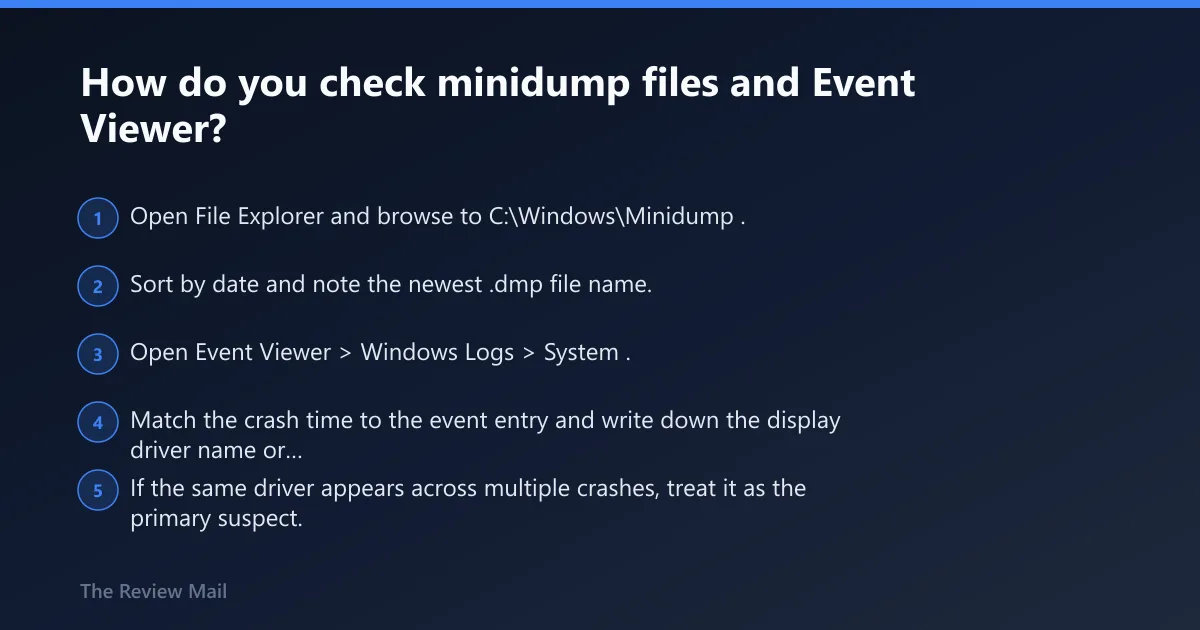
Windows creates minidump files for serious errors, and they are typically stored in C:\Windows\Minidump. The newest .dmp file usually points to the latest crash, while Event Viewer’s System log helps match the exact time and driver name with the failure (per Microsoft support).
- Open File Explorer and browse to
C:\Windows\Minidump. - Sort by date and note the newest .dmp file name.
- Open Event Viewer > Windows Logs > System.
- Match the crash time to the event entry and write down the display driver name or faulting module.
- If the same driver appears across multiple crashes, treat it as the primary suspect.
Collect:
- Stop code and any parameters from the blue screen
- Minidump path: C:\Windows\Minidump\*.dmp
- Event Viewer System log entry at the same time
- Driver name and faulting module
- Whether the same file appears in multiple crashes
For deeper analysis, a debugger can use !analyze, then .thread with Parameter 1, and kb to find where the thread is stuck. Advanced users can also inspect watchdog data with dd watchdog!g_WdBugCheckData L5 on 32-bit systems or dq watchdog!g_WdBugCheckData L5 on 64-bit systems (per Microsoft support).
How do you fix it when it keeps coming back?
If the crash returns after a driver rollback, the next move is to test GPU acceleration settings, check BIOS compatibility, and verify the hardware path. At that point, the evidence should decide whether the machine needs a firmware update, a different driver branch, or hardware testing.
If that didn’t work, try this next
- Open Settings > System > Display > Graphics > Default graphics settings and turn Hardware-accelerated GPU scheduling off.
- If the crash started after another graphics setting changed, revert that setting too.
- Check the motherboard or OEM support site for a BIOS update, especially on older systems.
- Inspect GPU seating, power connectors, and the display cable.
- Test the GPU in another system, or test another card in this system if possible.
If the problem survives driver rollback, Safe Mode removal, and an older known-good driver, hardware instability rises quickly on the list. At that point, replacement testing is faster than endless software churn.
Triage checklist: symptom, cause, first action, rollback, evidence
Use this branch table to stop guessing. It separates driver regression, OEM conflict, and hardware instability before any more changes are made.
| Symptom | Likely cause | First action | Rollback action | Evidence to collect |
|---|---|---|---|---|
| Crash starts after GPU driver update | Driver regression | Roll back in Device Manager | Uninstall device and install older vendor/OEM package | Stop code, driver name, minidump path, Event Viewer entry |
| Rollback helps, then the crash returns | Windows Update or OEM app reapplied it | Check optional updates and OEM updater | Hide the driver; pause/remove the updater | Update history, current driver version, System log |
| Crash persists across two drivers | Hardware instability or BIOS issue | Disable HAGS and test another driver branch | Check BIOS, seating, power, cable path | Repeated minidumps, same crash time, hardware notes |
| No desktop access, boot loop | Severe driver fault | Safe Mode removal | Device Manager uninstall with driver removal | Whether Safe Mode loads, exact stop code, newest .dmp |
Frequently asked questions
How do I fix THREAD_STUCK_IN_DEVICE_DRIVER on Windows 11?
Start with the display driver, not random system tweaks. Use Safe Mode, then Device Manager to roll back or uninstall the GPU driver, check C:\Windows\Minidump for the newest .dmp file, and verify the crash time in Event Viewer. If rollback works, block the same driver from returning.
What causes thread stuck in device driver BSOD?
Most often it is a graphics driver that is stuck waiting on hardware, especially during gaming or other high GPU load tasks. A bad display driver, a conflicting OEM package, Windows Update reapplying a bad driver, or less commonly hardware or BIOS compatibility can all trigger it.
Should I update or roll back my GPU driver for this BSOD?
Roll back first if the crash began right after a driver update. Update only when the current driver is clearly older and the issue started after a Windows change. Use the GPU maker’s or OEM’s exact package for the hardware, then keep the version that survives repeated stress.
Can Safe Mode help fix thread stuck in device driver?
Yes. Safe Mode loads only the basic graphic driver, which makes it the safest place to remove the broken package or perform a rollback. If the PC boot-loops, use Settings > System > Recovery > Advanced startup > Restart now > Troubleshoot > Advanced options > Startup Settings.
Do I need to update BIOS for a thread stuck in device driver error?
Only if the motherboard or OEM support site lists a newer BIOS that addresses graphics compatibility or stability, especially on older systems. Treat BIOS as a compatibility check, not a first move. If the crash survives driver rollback and Safe Mode removal, firmware becomes worth checking.
Is this BSOD usually hardware or software related?
Start with software, because a bad driver is the fastest thing to prove or eliminate. If two driver changes, Safe Mode removal, and a known-good older version do not help, the balance shifts toward hardware instability, power delivery, or board-level compatibility. That is when replacement testing saves time.