How to Fix Driver for Wi‑Fi Adapter
Fix the Wi‑Fi adapter driver by matching the symptom first: a missing adapter means check Device Manager and reinstall or enable it, a failed install means remove the older driver that could conflict and install the maker’s package, and connected-but-no-internet usually means check network settings or roll back the driver. Pick the wrong layer, and you waste time and may break a working setup. This guide gives you a Windows 10 and 11 decision tree for the three common cases.
What you’ll need
- A Windows 10 or Windows 11 PC.
- Administrator rights.
- The manufacturer’s driver download page for your exact adapter or PC model.
- A restart window, because several changes do not fully apply until Windows restarts.
- For USB adapters, another USB port to test.
- For stubborn install failures, a plan to enter Safe Mode.
Why is the adapter missing?
Start in Device Manager. If the adapter does not appear there, the problem may be a disabled device, a bad connection, a USB power issue, or hardware/BIOS/UEFI disablement rather than a driver fault. If it does appear with an error code, the driver layer is usually the right place to work first.
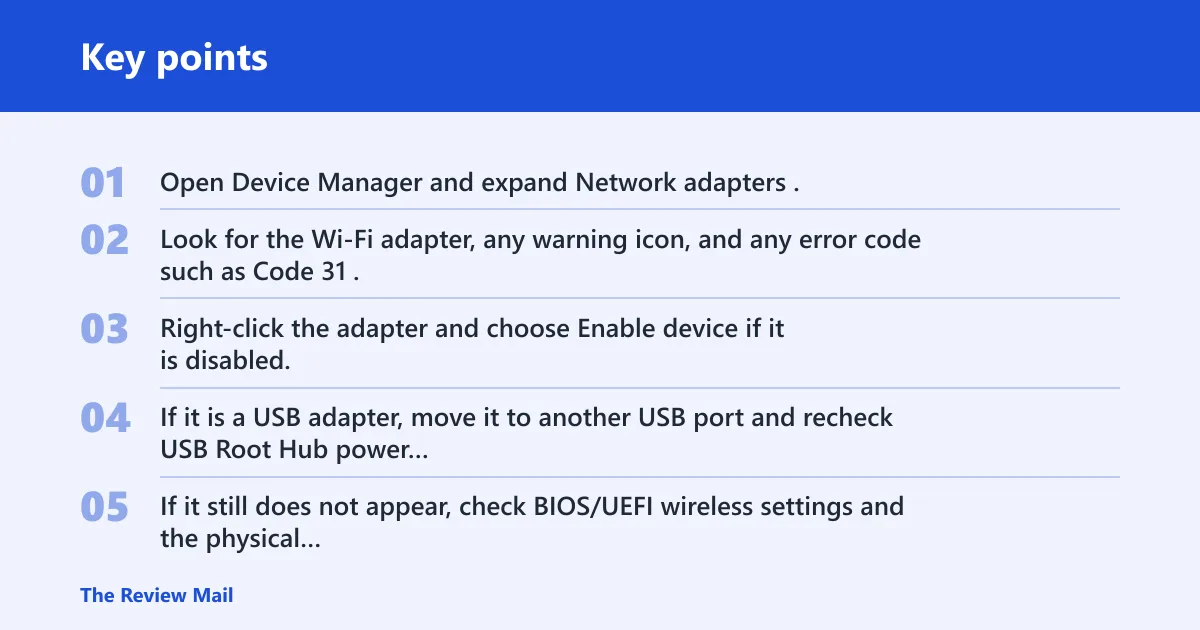
- Open Device Manager and expand Network adapters.
- Look for the Wi‑Fi adapter, any warning icon, and any error code such as Code 31.
- Right-click the adapter and choose Enable device if it is disabled, or Disable device and then enable it again.
- If it is a USB adapter, move it to another USB port and recheck USB Root Hub power settings.
- If it still does not appear, check BIOS/UEFI wireless settings and the physical connection before reinstalling anything.
Say your USB Wi‑Fi adapter shows nothing in Device Manager after a reboot, but the blue LED still lights up. Try another port first, then check the USB Root Hub power setting, because the computer may be cutting power to the device even though Windows can still see the port.
Wireless adapter troubleshooting matrix
| Symptom | Most likely cause | First 2 actions | Device Manager path | Escalation trigger |
|---|---|---|---|---|
| Adapter visible but has an error code | Driver load failure or corrupted install | Read the code, restart once, then remove and reinstall the driver package | Device Manager > Network adapters > adapter > Properties | Same code returns after reinstall |
| Adapter missing from Device Manager | USB power issue, disabled hardware, or BIOS/UEFI setting | Try another USB port; confirm the radio is enabled in firmware | Device Manager > View > Show hidden devices | No sign of the adapter on another port or PC |
| Wi‑Fi networks appear and then disappear | WLAN AutoConfig stopped, radio off, or weak router signal | Start WLAN AutoConfig; confirm Wi‑Fi and airplane mode settings | Services > WLAN AutoConfig | No networks after service restart and radio check |
| Connected to Wi‑Fi but no internet access | IP, Default Gateway, or DNS problem | Check IP assignment and run adapter reset commands | Device Manager > Network adapters > adapter > Properties | Other devices on the same network also fail |
| Install starts but never completes | Old driver conflict or security software blocking setup | Remove the older driver, then temporarily disable antivirus and firewall | Device Manager > Network adapters | Install still hangs in Safe Mode |
How do you fix installation failures?
If the installer fails, start by removing the older driver that could conflict with the new package, then download the latest driver from the adapter maker’s site. TP-Link notes that outdated drivers can interfere with installing a new adapter driver, and it also recommends temporarily disabling antivirus software and the firewall during install troubleshooting.
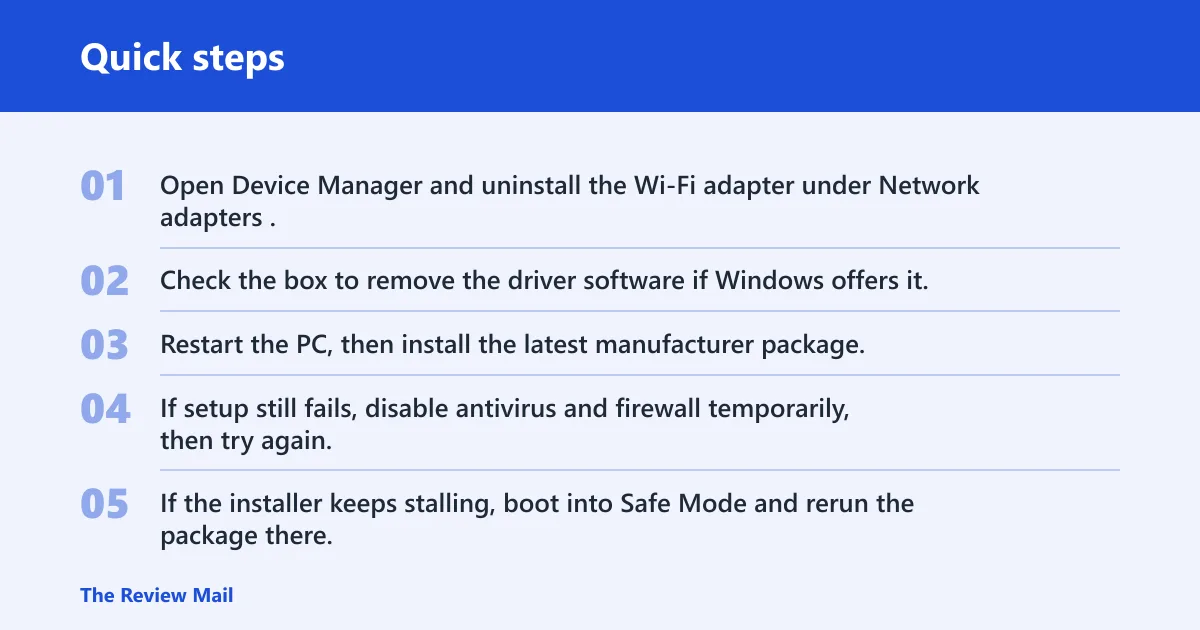
- Open Device Manager and uninstall the Wi‑Fi adapter under Network adapters.
- Check the box to remove the driver software if Windows offers it.
- Restart the PC, then install the latest manufacturer package.
- If setup still fails, disable antivirus and firewall temporarily, then try again.
- If the installer keeps stalling, boot into Safe Mode and rerun the package there.
Suppose a laptop upgrade leaves two wireless entries in Device Manager, one old and one new. Remove the older one first. That keeps Windows from loading the wrong package during the next restart.
Device Manager > Network adapters > (adapter) > Uninstall device, then scan for hardware changes

ipconfig /release
ipconfig /flushdns
ipconfig /renew
netsh winsock reset
netsh int ip reset

Settings > Network & internet > Advanced network settings > Network reset
How do you fix no internet after install?
If the adapter connects to Wi‑Fi but pages will not load, the driver may be fine and the network settings may not be. Verify that the IP address obtains automatically unless your network uses a manual address, then check Default Gateway and DNS. If Wi‑Fi visibility is broken, confirm WLAN AutoConfig is running with Startup type set to Automatic.
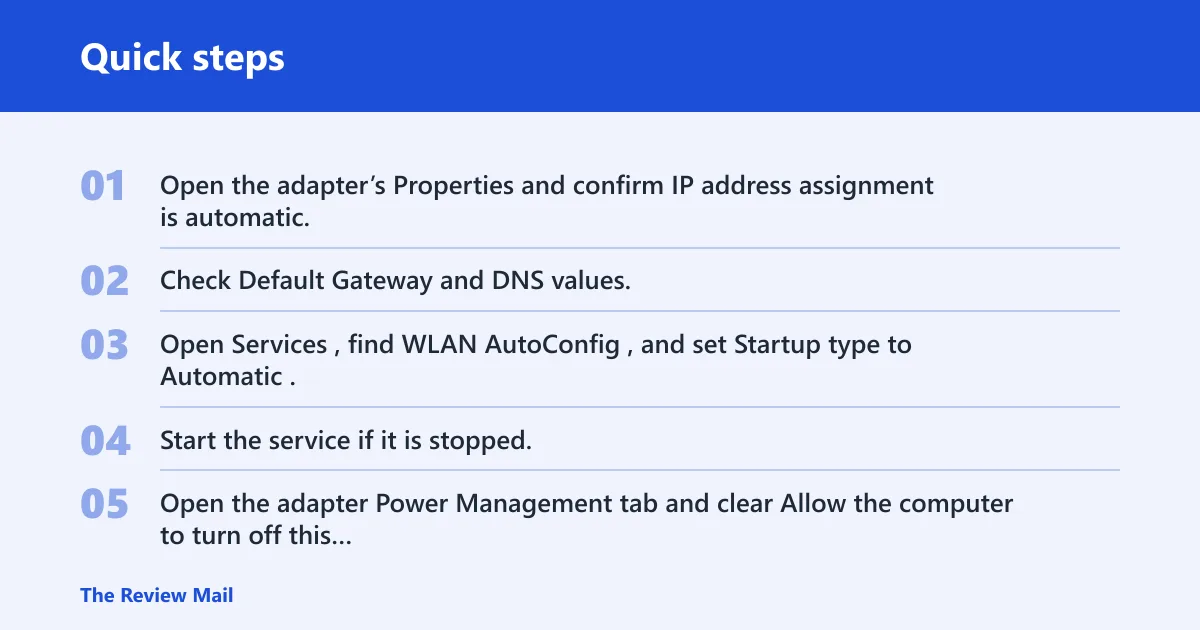
- Open the adapter’s Properties and confirm IP address assignment is automatic.
- Check Default Gateway and DNS values.
- Open Services, find WLAN AutoConfig, and set Startup type to Automatic.
- Start the service if it is stopped.
- Open the adapter Power Management tab and clear Allow the computer to turn off this device to save power if connections drop.
For a router that cannot be found at all, check router-side settings next. A common recommendation is to try a non-overlapping channel on 2.4GHz and 5GHz when a network cannot be found, and SSID broadcast should be on if the network is meant to be visible.
Common mistakes
Do not guess. Read the Device Manager error code first, because the right fix depends on whether Windows sees the adapter, blocks the driver load, or fails to reach the network after a normal connection.
- Skipping the old driver removal and installing over the top of it.
- Changing router settings before confirming the adapter is detected.
- Ignoring a disabled device in Device Manager.
- Forgetting to restart after Winsock or IP reset commands.
- Overlooking BIOS/UEFI wireless disablement or a USB power-saving setting.
A common first-timer mistake is to fix DNS first because the browser shows “no internet,” even though the adapter is not loading at all. The faster path is to check Device Manager, then move outward only if the adapter is already present.
Frequently asked questions
How to fix problem with driver for wifi adapter Windows 10
Open Device Manager > Network adapters, remove the existing Wi‑Fi adapter driver, restart, and install the latest package from the manufacturer. If the adapter connects but has no internet, run ipconfig /flushdns and netsh int ip reset, then restart again.
How to fix there might be a problem with the driver for the wifi adapter
That warning usually means Windows sees the device but cannot load its driver cleanly. Open the adapter’s Properties, note the error code, uninstall the device, restart, and install the latest compatible package from the manufacturer. If the warning returns, treat it as a driver-load failure, not a network issue.
Should I uninstall the old driver before installing a new wifi adapter driver?
Yes. Remove the old package first if you are replacing the driver, because outdated drivers can interfere with the new install. After uninstalling, restart Windows, then install the current manufacturer package. If antivirus or firewall software blocks setup, disable them temporarily only during the install attempt.
What should I check if the wifi adapter is detected but not connecting?
Check Power Management, then verify IP assignment, Default Gateway, and DNS in the adapter’s status or properties. If networks disappear, open Services and confirm WLAN AutoConfig is running with Startup type: Automatic. Then reboot the router if other devices are also affected.
How to fix wifi adapter driver Windows 11
Windows 11 uses the same basic path: Device Manager for the adapter, the manufacturer’s driver page for the package, and Settings > Network & internet > Advanced network settings > Network reset if network settings are broken. The wording changes a little, but the repair sequence stays the same.