Windows Code 101: How to Fix It
Windows code 101 usually points to a connection path failure, so first isolate whether the app, Windows networking, or the server route is at fault before changing settings. Miss that split, and you can waste time fixing the wrong layer while the app still fails to connect. This guide shows how to test each layer and narrow the cause fast.
What does code 101 mean on Windows?
Start by treating code 101 as a symptom, not a single Windows diagnosis. In practice, it shows up when a client cannot complete the path to a server, so the first question is where the failure appears: one app, one browser, or the whole device.
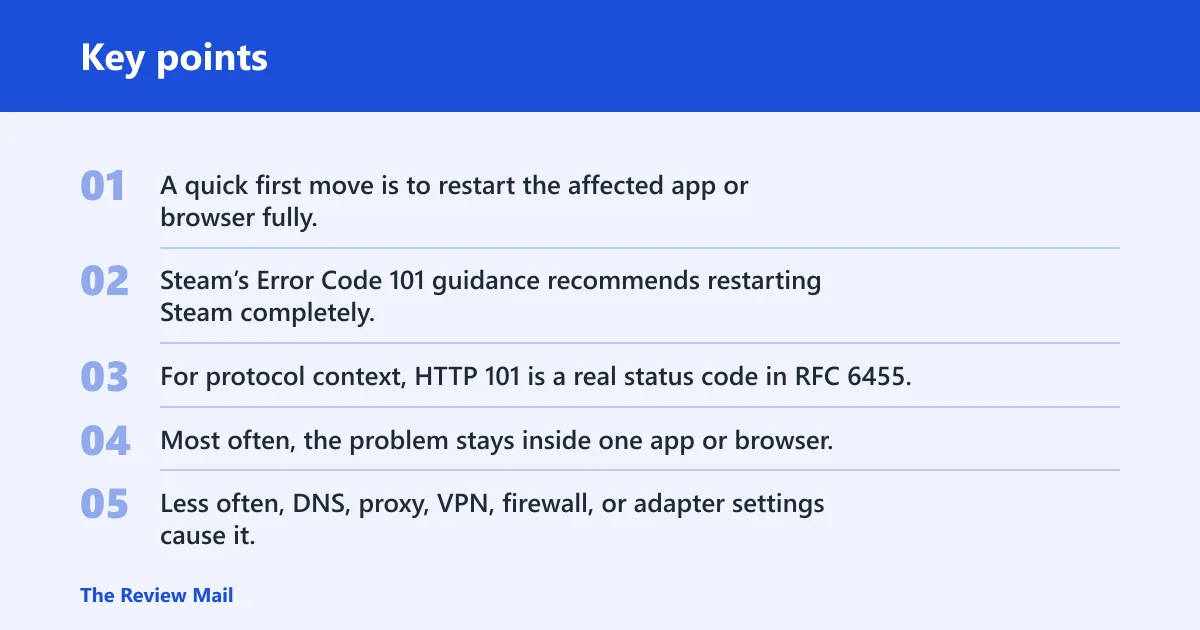
A quick first move is to restart the affected app or browser fully, then retest on another network. Steam’s Error Code 101 guidance recommends restarting Steam completely, comparing the client, browser, and another network, and then clearing the download cache if needed; it also notes Error Code: -101 can appear in Steam. For protocol context, HTTP 101 is a real status code in RFC 6455, but that switching-protocol response is not the same thing as a Windows connection error.
Likely causes, ranked
Most often, the problem stays inside one app or browser. Less often, DNS, proxy, VPN, firewall, or adapter settings cause it. If every network fails, the device is the stronger suspect than the home router alone.
Say your game client fails with code 101, but a news site loads in Edge and Chrome. That points away from a full network outage and toward the app, its cache, its session, or a blocked route inside that client.
Is the problem only in one app?
If only one app fails, the strongest clue is that the device still has general internet access. That usually points to client cache, account, session, or app routing trouble rather than a full Windows network failure. Keep the scope narrow before you change system settings.
- Open the same service in another app or browser. If the site works elsewhere, the failure is likely isolated.
- Quit the app completely, not just the window, then reopen it.
- Clear the app’s cache or temporary data if the product supports that step. For Steam, clear the download cache, following Steam Support’s error-code guidance.
- If the same app still fails after cache cleanup, repair or reinstall it. The Steam guide puts repair or reinstall after other checks fail.
Suppose a launcher opens but store pages will not load while the browser still reaches ordinary sites. That pattern fits an app-only failure better than a router fault, because the rest of the device still reaches the web.
Is the browser the only place it fails?
If the error appears only in one browser, treat it as a browser path problem first. Another browser or a private window can separate site data and extension issues from a broader network fault. That is faster than resetting Windows settings too early.
- Open the same page in a second browser.
- Open a private or InPrivate window in the original browser.
- Clear cookies, cache, and site data for the failing site.
- Check extensions, sign-in state, and site permissions for that browser.
- If it still fails, compare the browser with a phone or another PC on the same network.
The Tecnobits guidance for Error Code 101 also points to checking the internet connection first, clearing browser cookies and cache, and trying different browsers or devices. That lines up with a browser-only branch before deeper Windows repair.
Does it fail on every network?
If the same error shows up on home Wi-Fi, Ethernet, and a phone hotspot, the device is the common factor. If the hotspot works, the home network path is the likely problem. That single test is one of the cleanest ways to split device trouble from local network trouble.
- Test the same app or site on home Wi-Fi.
- Test again on Ethernet, if available.
- Turn on a mobile hotspot and test the same destination there.
- If the hotspot works, restart the router or modem after the network test. The Steam guide says to unplug the router or modem for 60 seconds.
- If every network fails, stop blaming the router and move to VPN, proxy, DNS, and adapter checks on the PC.
VPN, proxy, and firewall checks
Routing filters can break one destination while leaving ordinary browsing intact. VPNs and proxies often change the server path before the request leaves the device. Security software can do the same through filtering rules.
- Open Settings > Network & internet > VPN and disconnect any active VPN.
- Open Settings > Network & internet > Proxy and turn off manual proxy use.
- Temporarily test with Windows Defender Firewall off only if your organization allows it, then turn it back on right after the test.
- If third-party security software has web filtering, disable it briefly and retest.
The Steam guide recommends disabling VPN and proxy settings before deeper repair. That order matters because a routing filter can mimic a server-side failure.
Network adapter and DNS fixes
If the failure follows the PC across networks, the adapter, name resolution, or Windows network stack may be involved. That is the point where built-in Windows network reset tools become useful, especially if the browser or client cannot resolve the destination cleanly. Microsoft documents the core commands used here, including netsh winsock reset and netsh int ip reset (Microsoft Learn).
- Open Settings > Network & internet > Advanced network settings.
- Check whether the adapter is enabled and connected. If it is disabled, enable it.
- Open Windows Terminal as administrator and run:
netsh winsock reset
netsh int ip reset
ipconfig /release
ipconfig /renew
ipconfig /flushdns
- Restart the PC after those commands finish.
- If the adapter still looks faulty, update the driver in Device Manager > Network adapters, or uninstall and reinstall the device if the driver is corrupted.
The Steam guide includes resetting Windows network caches and specifically lists netsh winsock reset, netsh int ip reset, ipconfig /release, /renew, and /flushdns. It also suggests rebuilding the Steam HTML cache in the client when the browser path is involved.
Code 101 diagnostic matrix
This matrix separates the common branches so you can match the symptom pattern before escalating. The key evidence is where the error appears, whether another browser or app works, and whether a hotspot bypasses the problem.
| Symptom pattern | Likely cause | Exact Windows check | Next action | Evidence to collect |
|---|---|---|---|---|
| App only fails | Client cache, session, or app route issue | Open the same service in a browser and a second app | Quit the app, clear its cache, then repair or reinstall if needed | App name, exact error text, whether browser access still works |
| Browser only fails | Cookies, cache, extensions, or site permission issue | Try private mode and another browser | Clear cookies and cache, then disable extensions one by one | Browser name, URL or server name, private window result |
| All networks failing | Device-side routing or adapter issue | Test home Wi-Fi, Ethernet, and a hotspot | Run the Windows network reset commands and check the adapter | Which networks failed and whether the hotspot also failed |
| Hotspot works | Home network, router, DNS, or ISP path problem | Repeat the same app or URL on the hotspot | Restart the router or modem for 60 seconds, then retest | Hotspot name, home network name, whether Ethernet also failed |
| VPN or proxy involved | Routing filter is blocking the path | Turn off VPN and proxy in Windows settings | Retest with both disabled before changing other settings | VPN or proxy name, on/off state, result after disabling |
| DNS-only symptoms | Name resolution issue | Try a different site name and run ipconfig /flushdns | Renew the address and test the same destination again | Whether IP addresses work but names fail, plus the exact server name |
| Adapter-level symptoms | Disabled, faulty, or stale network driver | Check Device Manager > Network adapters | Enable, update, or reinstall the adapter driver | Adapter model, error symbol if present, and whether reconnecting changes anything |
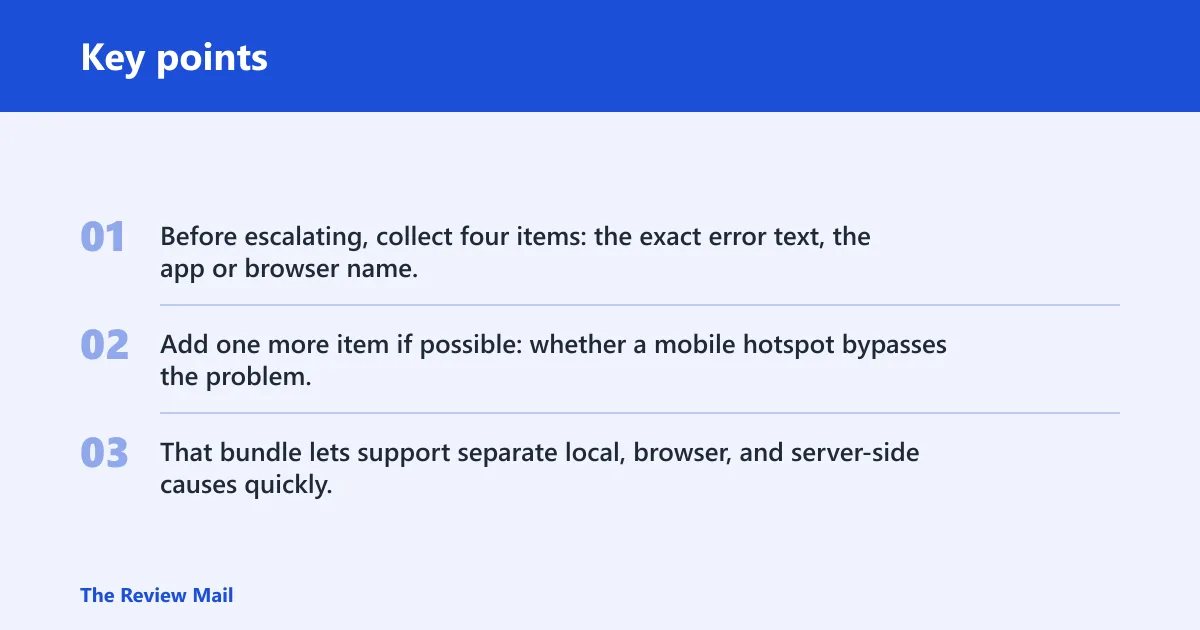
Before escalating, collect four items: the exact error text, the app or browser name, the URL or server name, and the network tested. Add one more item if possible: whether a mobile hotspot bypasses the problem. That bundle lets support separate local, browser, and server-side causes quickly.
Still not working?
If the same error survives app repair, browser cleanup, VPN and proxy removal, DNS refresh, and adapter checks, the next step is deeper escalation. That may mean reinstalling the affected client, testing on a fresh Windows profile, or contacting the app or service support team with the evidence list above.
For Steam specifically, the ladder ends with repairing or reinstalling the client only after the earlier checks fail. If the problem is tied to one website or service, send support the exact server name and whether another network or hotspot worked. That saves time.
Prevention
If the error tends to return after a VPN session or a network change, keep a short note of which settings were active when it failed. That makes the next round of troubleshooting much faster, especially when the same app behaves differently on Wi-Fi, Ethernet, and hotspot.
What is code 101?
Code 101 is not one universal Windows event. In this troubleshooting context, it is a signal that a connection path failed somewhere between the app, the browser, and the destination server. The right move is to identify the layer first, then apply the matching fix instead of treating every 101 as the same fault.
How does 101 work?
In network or web contexts, 101 appears when the client and server cannot complete the expected exchange. HTTP 101 Switching Protocols is a 1xx informational HTTP status used when the server switches protocols, with WebSocket as a common example. That protocol status is not the same thing as a Windows connection error.
Code vs no code
Some failures show an explicit code, while others just say the page or app could not connect. When there is a code, use it as a clue about the route or response stage. When there is no code, focus on the same checks anyway: app scope, browser scope, network scope, and whether another network changes the result.
For troubleshooting, “code 101” is not something you create or enter. The useful action is to record the exact message text and follow the branches in this guide. If the problem is in Claude Code 101, note that it is an AI coding agent course with about a dozen lessons, a quiz, and roughly 1.5 hours of material.
What is code 101 on driving licence?
That is a separate administrative code, not a Windows network error. If a form or licensing notice uses code 101, read the agency’s own explanation beside that code and do not mix it with browser, app, or router troubleshooting. The same caution applies to any non-technical form code.
What is code 101 when applying for ein?
An EIN application code belongs to tax or identity paperwork, not to Windows networking. If the form rejects an entry with code 101, use the agency’s instructions for that field and ignore network troubleshooting unless the website itself fails to load or submit. Different systems use the same number for unrelated reasons.
What is code 1013?
Code 1013 is another separate code family, usually outside this Windows problem space. The important move is to match the code to its source system before acting. A browser, a form, and a Windows app can all display numbered errors, but the fixes are not interchangeable.
What is code 1010?
Code 1010 is not the same as a Windows app or browser connection failure. If you see it in a site, service, or form, work from that product’s help text instead of general Windows advice. The correct fix depends on the system that issued the message.
What is code 1015?
Code 1015 is also separate from generic Windows code 101. Do not treat it as the same error family unless the product documentation says so. For networking issues, the practical question is still whether the failure is app-only, browser-only, or present on every network.
What is code 101 on bell fibe?
On Bell Fibe, code 101 can point to a service or connection issue tied to that platform. Use the provider’s own status and support steps first, then compare whether other apps and websites still work on the same connection. If only the Bell service fails, the problem is narrower than a device-wide outage.
Code 93 vs code 128
Those are different codes in different systems, so do not map them onto a Windows connection error. If a form, label, or device shows code 93 or code 128, follow that product’s instructions. For web and app failures, stick to the source that generated the message and the exact text shown.
Code 75 vs code 100
Code 75 and code 100 are also unrelated in most cases. The useful habit is to identify the issuing app, site, or service before comparing numbers. If the screen says code 101 in a Windows app, use the connection-path checks here rather than assuming a generic meaning from another product.
Frequently asked questions
Code 93 vs code 128: those are separate codes used
Those are separate codes used by different systems, so they should not be mixed into a Windows troubleshooting thread. If a scanner, form, or label uses one of them, the fix comes from that product’s rules. For a PC connection issue, stay with the exact message shown on screen.