F Drive Not Working Windows 10
If your F drive is not working in Windows 10, first confirm three things: whether Windows sees the device, whether it has a drive letter, and whether it can read the file system. That tells you if you are dealing with hardware trouble, a mount problem, or corruption. If the drive is making noise, disconnecting, or showing failure symptoms, stop before any write-repair tool and protect the data first.
Quick check and likely causes
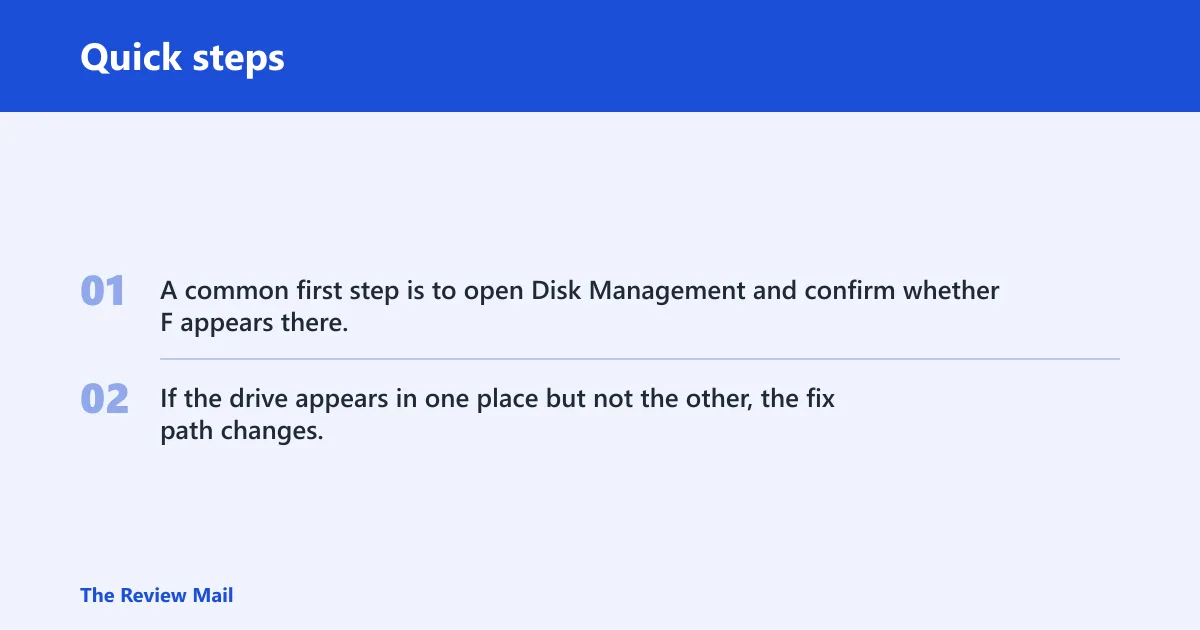
A common first step is to open Disk Management and confirm whether F appears there, then compare that with File Explorer. If the drive appears in one place but not the other, the fix path changes.
F drive failure triage for Windows 10
| Symptom | Most likely cause | Next best action |
|---|---|---|
| Drive missing from File Explorer | No drive letter, or Windows has not mounted the volume | Check Disk Management, then confirm the current owner of F with diskpart list volume or Get-Volume |
| Drive visible but “not accessible” | File system unreadable, permissions block, or access layer problem | Read the exact error, then avoid write-repair tools if the device looks unstable |
| Drive opens in one app but not Explorer | Shell extension, filter driver, or Explorer path issue | Restart Windows Explorer from Task Manager and check for third-party shell software |
| Optical drive with burn errors | Windows built-in disc recording does not recognize the drive correctly | Check CD-R, CD-RW, or DVD-ROM recognition and compare with Microsoft KB 324129, 316529, and 315350 |
| USB drive with no letter | Drive letter assignment is missing or reassigned | Find the physical device in Disk Management before changing letters |
| Drive letter conflict after an update | Another volume now owns F | Use diskpart list volume or Get-Volume to identify the current owner, then reassign only the correct volume |
Likely causes in order
The same letter can fail for different reasons. Most often, Windows has given F to the wrong device, or the device is present but unreadable. Less often, the issue is optical-drive recognition, a bad cable or port, or third-party software that changes how Explorer sees the volume.
1. Drive letter conflict or reassignment
- Open Disk Management with Win + X and select Disk Management.
- Match the size, status, and partition layout to the actual device before changing anything.
- Open Terminal or Command Prompt and run diskpart, then list volume to see which volume owns F.
- If F belongs to the wrong volume, use Change Drive Letter and Paths on the correct device only.
- After the change, open Task Manager, restart Windows Explorer, and then reopen File Explorer.
A common first-timer mistake is changing the wrong volume because two drives can look similar in File Explorer. If a folder-based path or app path already depends on a mount point, do not delete it casually; removing the wrong path can break app or folder access.
2. Windows sees the device but cannot read it
- Read the exact message. Drive not accessible means the letter exists, but Windows cannot read the volume. Incorrect function is an access error that often points to a device or file-system communication problem.
- Open Disk Management and check whether the partition shows as healthy, raw, or unallocated.
- If the device is unstable, noisy, or disconnecting, stop and copy anything still readable first.
- Only after data is safe should you consider repair steps such as
chkdsk; do not use it as the first move on a drive that appears to be failing. - If the space is unallocated, do not reformat if the data matters. Confirm the device identity first, then decide on recovery or replacement.
3. Optical-drive recognition or disc-recording problems
When the problem involves a CD-R drive, CD-RW drive, or DVD-ROM drive, the fault may sit in Windows’ disc-recording recognition rather than in the hardware itself. It also cites Microsoft KB 324129, KB 316529, and KB 315350, plus a case where the Windows XP built-in disc recording feature did not recognize a drive as recordable. The thread explicitly mentions CD-ROM, DVD-ROM, and CD-RW drives.
- Test whether the drive burns or reads in another app first, not only in Explorer.
- Open Device Manager and inspect the drive entry under DVD/CD-ROM drives.
- If another app can burn but Explorer cannot open the drive, treat this as a shell or disc-recording recognition issue, not immediate hardware failure.
- Check the Microsoft KB references named above if the drive is a recordable optical device.
- Restart Windows Explorer from Task Manager after any change.
4. Cable, port, enclosure, or driver fault
- Unplug the USB device, wait a few seconds, then reconnect it directly to another USB port.
- If the drive uses an enclosure, test a different cable or enclosure of the same type.
- Open Device Manager, expand Disk drives or DVD/CD-ROM drives, and look for warning icons.
- Use Update driver, Uninstall device, or Roll Back Driver only after the device is correctly identified.
- Test the device on another PC to separate a Windows issue from a device issue.
5. Third-party software or Explorer path issues
If the same F drive opens in a backup app but not in File Explorer, that usually points to Explorer, a filter driver, or a shell extension instead of a dead device. Windows can still see the storage while the shell layer fails to render it correctly.
- Close File Explorer windows, then restart Windows Explorer from Task Manager.
- Run a clean boot with msconfig if security, backup, or disc software is installed.
- Open the drive from another app again and compare the path it uses.
- If the drive appears only in one app, remove or update the software that owns that path before changing letters again.
Why is my F drive not showing up?
If F is missing from File Explorer, Windows may not have mounted the volume, or something else may now own that letter. The first check is Disk Management, because a missing Explorer entry does not tell you whether the device vanished, lost its letter, or was reassigned after an update.
- Press Win + X and open Disk Management.
- Look for the device by size and status, not by letter alone.
- If the UI is unclear, open Command Prompt and run diskpart, then list volume.
- Use Get-Volume in PowerShell if you want a second view of the mounted volumes.
- If F belongs to another volume, reassign only after you identify the physical device that currently owns it.
F drive visible but not accessible
When the letter is present but access fails, Windows can see the volume entry but cannot read what is on it. That often points to file-system trouble, a permissions block, or an optical-drive recognition issue, and the fix depends on whether the device is stable enough to keep working.
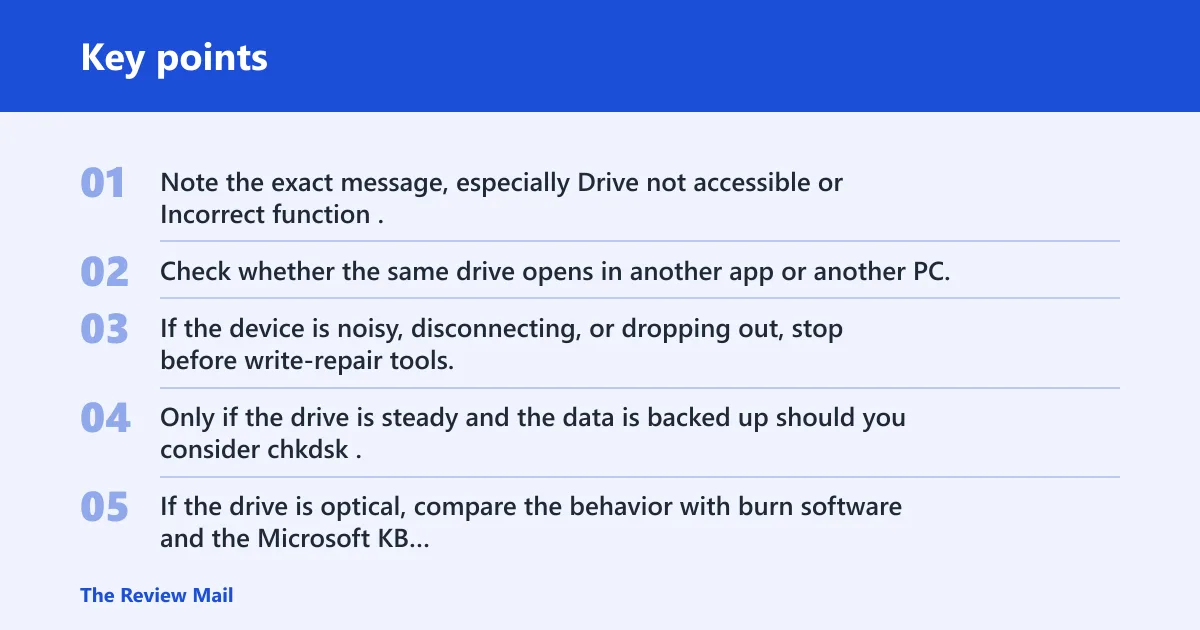
- Note the exact message, especially Drive not accessible or Incorrect function.
- Check whether the same drive opens in another app or another PC.
- Only if the drive is steady and the data is backed up should you consider
chkdsk. - If the drive is optical, compare the behavior with burn software and the Microsoft KB references above.
How do I fix F drive not showing up in Windows 10?
Start by finding the device in Disk Management, then confirm whether F was lost or reassigned. If Windows knows the hardware but File Explorer does not, the fix is usually a mount or letter problem rather than a dead device.
- Open Disk Management and confirm the drive appears there.
- Run diskpart and list volume so you can match the real device to the letter.
- If the drive has no letter, assign one only after confirming the correct physical device.
- Restart Windows Explorer from Task Manager.
- Test the drive in another USB port, cable, or PC if it is external.
How do I get Windows 10 to recognize my F drive again?
Recognition problems usually start with the device not being mounted, the wrong letter being assigned, or Explorer failing to refresh. If the device is optical, the issue may sit in Windows’ disc-recording layer instead of the drive itself.
- Confirm the device in Disk Management.
- Use Get-Volume or diskpart list volume to verify the current letter owner.
- Restart Windows Explorer after any letter change.
- For optical drives, check whether another burning app still sees the disc drive.
- Update or uninstall the device entry in Device Manager only after you have matched the correct hardware.
Should I run chkdsk if my F drive is not working?
Only after you know the drive is stable and the data is safe. If the drive is making noise, disconnecting, or showing failure symptoms, a write-repair step can make recovery harder. If the drive is steady and Windows shows a readable volume, chkdsk can be a later step, not the first one.
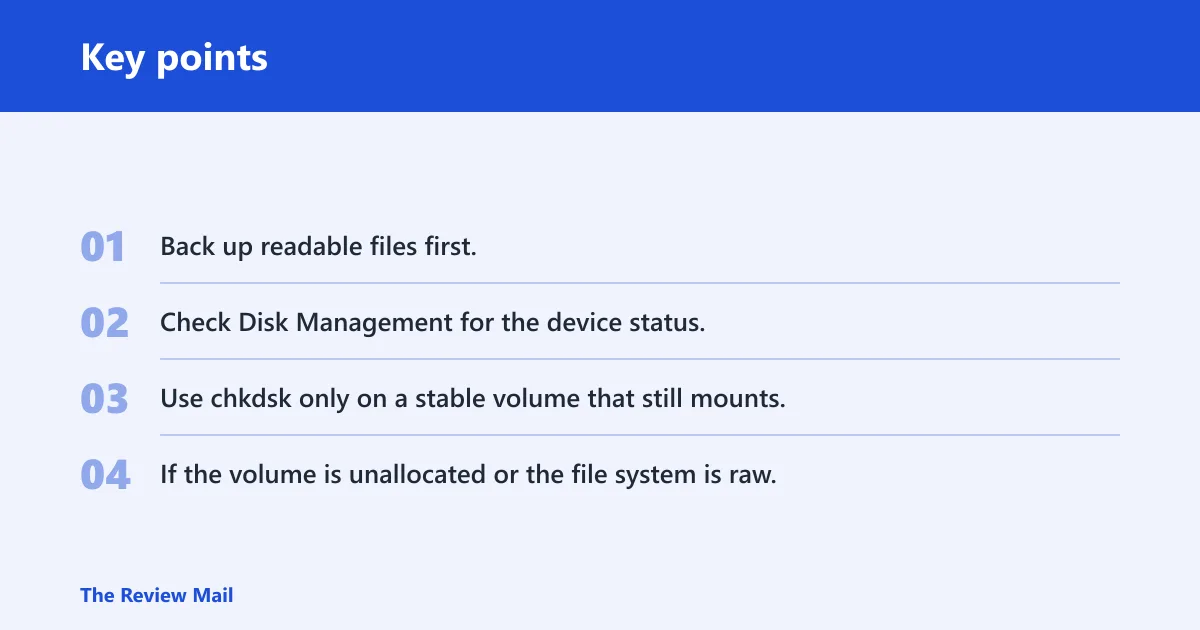
- Back up readable files first.
- Check Disk Management for the device status.
- Use
chkdskonly on a stable volume that still mounts. - If the volume is unallocated or the file system is raw, confirm the device identity before any repair.
Frequently asked questions
Why does F drive say not accessible or incorrect function?
That usually means Windows can see the letter but cannot complete the read operation. The next check is whether the device opens in another app or on another PC, because that split tells you whether the fault is in Windows’ access layer, the file system, or the device itself.
What does it mean when the F drive has no access?
It means the letter exists, but Windows cannot read the contents through the current access path. Open Disk Management first, then compare the result with diskpart list volume or Get-Volume so you know whether the problem is a missing mount, a wrong letter, or unreadable media.
Why can I burn discs on F but not open the drive?
That pattern points to optical-drive recognition or Explorer-specific access trouble. If a burning app can still use the drive, the hardware may be fine while Windows’ built-in disc handling is failing. Check the CD-R, CD-RW, or DVD-ROM branch and compare it with the KB references named above.
Is the F drive letter gone because of a drive letter conflict?
Often, yes. Another volume can take F after an update or reconnect. Use diskpart list volume or Get-Volume to identify the current owner before you change anything, then reassign the correct physical device and restart Windows Explorer.
Why is my F drive not working in Windows 10?
Most often, Windows has lost the mount, reassigned the letter, or failed to read the file system. Start with the symptom: missing from Explorer, visible but inaccessible, or working in one app only. Each one points to a different fix, and that order matters more than any single repair tool.
Prevention: after a letter change, reopen File Explorer only after restarting Windows Explorer, and avoid deleting mount points unless you have confirmed they are not tied to an app or folder path.