
Administrator Disabled Windows 11
If Windows 11 says you need administrator permission, check three things first: your account type, the built-in Administrator account, and Group Policy or security rules that block tools. Picking the wrong layer wastes time and can leave settings unchanged or lock you out of recovery tools. This guide shows how to identify the restriction and what to do next.
What the disabled administrator state means
Windows 10 and 11 include an administrator account, but it is disabled by default. That built-in account is hidden from normal daily use, and it is not the same as your Microsoft account or local account with admin rights.
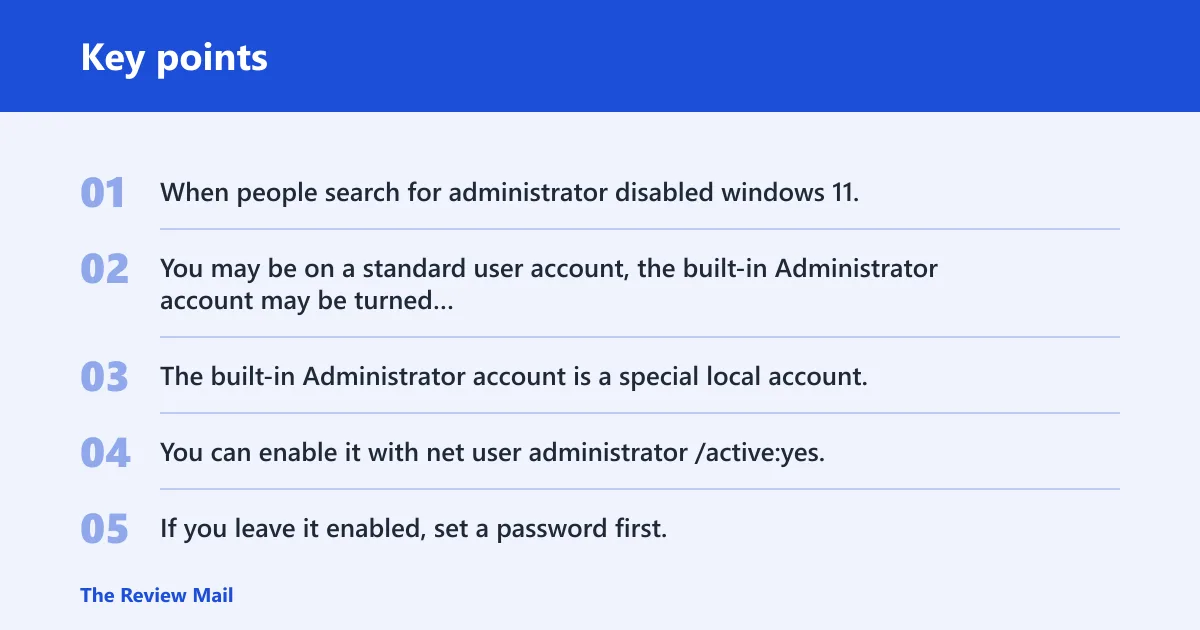
When people search for administrator disabled windows 11, the issue often falls into one of three buckets. You may be on a standard user account, the built-in Administrator account may be turned off, or a policy may block changes even when an admin account exists.
Built-in Administrator vs. your own account
The built-in Administrator account is a special local account. You can enable it with net user administrator /active:yes, and the same guide recommends turning it back off later with net user administrator /active:no. If you leave it enabled, set a password first.
Your own account may already have admin rights without being the built-in Administrator. Microsoft Q&A advises checking Settings > Accounts > Your info to confirm whether the current account already has Administrator status. (Microsoft Learn)
Why Windows 11 disables it by default
The built-in Administrator account exists for recovery and repair work, not daily sign-in. Leaving it on can create an easy target if the machine is shared, borrowed, or left on a network. That is why the default state is off.
Use it only when the other admin path is blocked or missing. For ordinary account changes, a standard admin account is usually the safer fix.
When the problem is policy, not the account
Some blocks may come from family settings, OEM setup choices, or domain policy. In those cases, the account may exist and still fail when you try to open Task Manager, change account type, or run administrative tools.
That is why task manager disabled by administrator should be treated as a broader restriction signal, not a separate mystery. The fix may be another admin account, a policy change, or recovery access instead of enabling the built-in Administrator.
Administrator permission problems: what you can check first
Start with the narrowest check. If your account is standard, you need an existing admin to approve a change. If the built-in Administrator is disabled, you may need to enable it from an elevated Command Prompt or PowerShell session. If policy blocks the tool, the account change may still fail.
Signs you are on a standard account
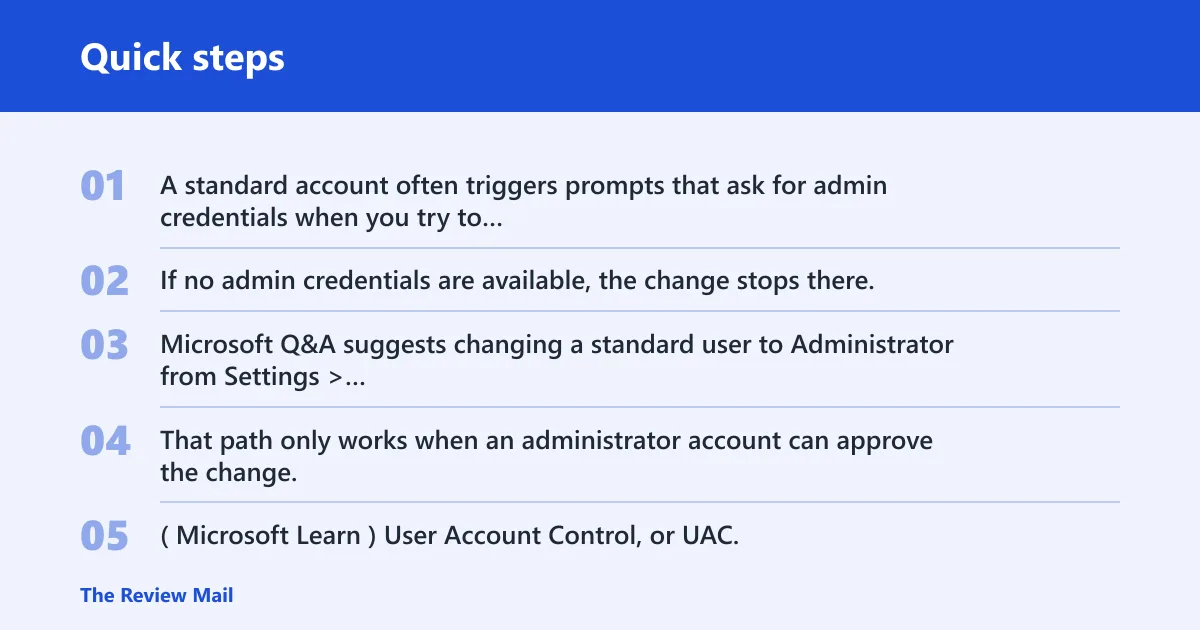
A standard account often triggers prompts that ask for admin credentials when you try to change account type, install software, or alter protected settings. If no admin credentials are available, the change stops there.
Microsoft Q&A suggests changing a standard user to Administrator from Settings > Accounts > Other users. That path only works when an administrator account can approve the change. (Microsoft Learn)
How to tell whether UAC is blocking the change
User Account Control, or UAC, asks for consent before protected changes go through. If the prompt appears and you cannot approve it with an administrator account, the action fails even though the setting page opened normally.
That is different from a missing admin account. The page is available, but the permission check stops the change.
Why Task Manager may say it is disabled by administrator
When Task Manager is disabled by administrator, the machine may apply a restriction through policy, family controls, or another admin account. That warning often appears with other blocked tools, not by itself.
Suppose a Windows 11 Home PC opens Settings normally, but Task Manager and Command Prompt both fail with permission messages. That points more toward a policy or restriction layer than a simple account-type mistake.
Windows 11 admin access decision table
| Symptom | Likely cause | Safest fix | Required access level | Risk level |
|---|---|---|---|---|
| “Permission denied” when changing account settings | You are on a standard account | Use an existing administrator to approve the change in Settings or Control Panel | Current administrator credentials | Low |
| No administrator account appears in the sign-in list | The built-in Administrator is disabled, or no other admin is configured | Check for another admin account; if none exists, use elevated recovery or repair paths | Recovery access or another admin account | Medium |
| UAC prompt appears but cannot be approved | You do not have admin approval for the change | Log in with an administrator account or have one approve the action | Administrator credentials | Low |
| Task Manager says it is disabled by administrator | Policy or restriction is blocking administrative tools | Check for family controls, OEM setup rules, or domain policy before changing accounts | Administrative or policy control | Medium |
| Command Prompt opens, but net user changes fail | The shell was not launched with administrative privileges | Open Command Prompt again with administrator privileges, then run the command once more | Admin elevation | Low |
| PowerShell runs, but the activation command does nothing useful | PowerShell was not elevated | Open PowerShell with admin privileges and rerun the same command | Admin elevation | Low |
| Computer Management is missing on the machine | Windows 11 Home limitation | Use Settings, Control Panel, or an elevated command instead | Admin access, if available | Low |
| You can reach account tools, but changes revert or stay blocked | Family settings, OEM setup, or domain policy is enforcing the restriction | Review the controlling policy source before changing the local account | Policy admin access | Medium |
How do you enable the built-in Administrator account?
Open Command Prompt or PowerShell with administrative privileges, then run net user administrator /active:yes. The guide says the command completes with the message The command completed successfully. If you plan to keep the account enabled, add a password before using it for anything sensitive.
Run Command Prompt as administrator
- Open Start and search for Command Prompt.
- Choose the option to open it with administrator privileges.
- Enter net user administrator /active:yes.
- Wait for the success message.
- Set a password if the account will remain enabled.
Command Prompt must be opened with administrative privileges before net user can activate or deactivate the account. Without elevation, the command may appear to run but will not make the change.
Use PowerShell with admin privileges
PowerShell can run the same activation command, but it also generally needs an elevated session. Use the same net user administrator /active:yes command after opening PowerShell as administrator.
That gives you the same result as Command Prompt. The tool is different; the permission requirement is not.
Set a password before leaving it enabled
If you keep the built-in Administrator account on, protect it with a password and use it only when needed. A passwordless admin account creates avoidable risk, especially on a shared or unattended device.
A common first-timer mistake is enabling the account to fix one blocked setting, then leaving it active for convenience. That removes the safety margin the default setting is meant to preserve.
How do you change a standard user to Administrator?
You can change an ordinary account to Administrator in Settings, Control Panel, Computer Management, or netplwiz, but each path still depends on existing administrative access. If no admin credentials are available, the menu may open while the actual change remains blocked.
Change account type in Settings
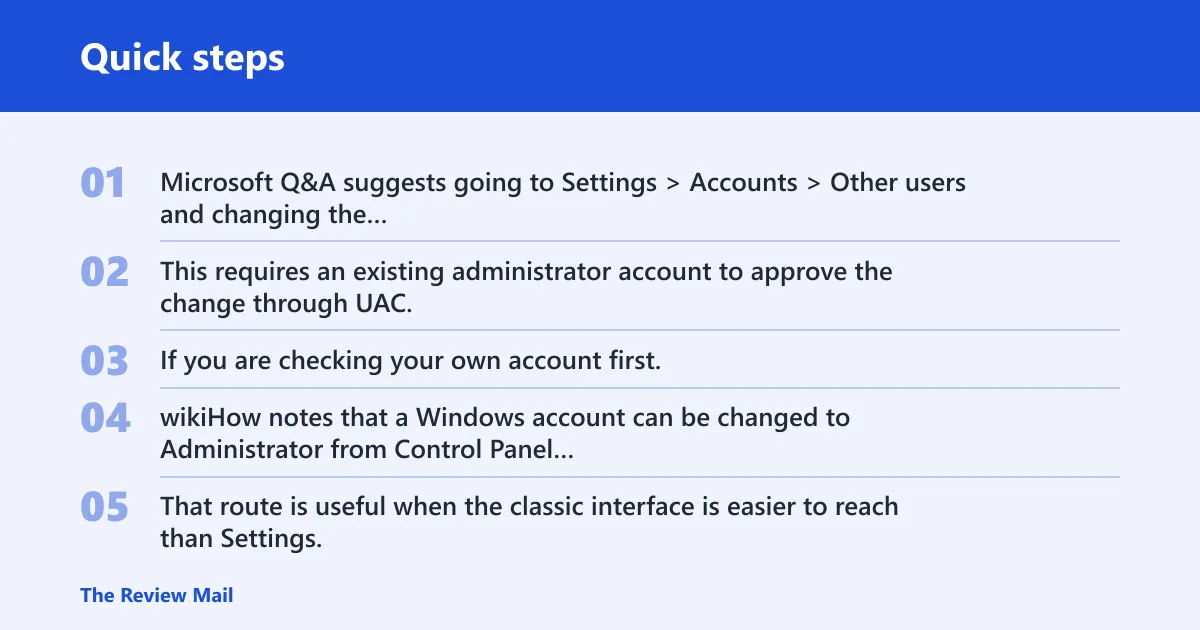
The same source suggests going to Settings > Accounts > Other users and changing the account type there. This requires an existing administrator account to approve the change through UAC.
If you are checking your own account first, Microsoft Q&A also points to Settings > Accounts > Your info so you can see whether you already have Administrator status.
Use Control Panel if the admin account is available
wikiHow notes that a Windows account can be changed to Administrator from Control Panel > User Accounts. That route is useful when the classic interface is easier to reach than Settings.
It still depends on current admin credentials. Control Panel does not bypass the permission model.
Use Computer Management on supported editions
How-To Geek lists Computer Management as one of several admin methods, and it also notes that Computer Management cannot be used on Windows Home edition. That matters if you are following advice that assumes Pro or Enterprise.
If you are on Home, skip that path and use Settings, Control Panel, or another elevated method instead.
Use netplwiz from an elevated session
How-To Geek also lists netplwiz as a route for changing local group membership. It must be launched with administrative privileges, or the group change will not stick.
Use it only when you already have admin access. It is not a replacement for missing credentials.
What if you cannot sign in as administrator?
If no administrator can sign in, look for another local admin account first. If none exists, you may need recovery or Safe Mode paths, especially when login is blocked entirely. Do not assume the built-in Administrator is available; it is disabled by default.
Look for another admin account on the PC
Check whether another account on the sign-in screen already has admin rights. If a second admin exists, use that account to approve the change in Settings, Control Panel, or a tool like netplwiz.
That is the least risky path and usually the fastest.
Use recovery or Safe Mode paths when login is blocked
If you cannot get into any administrator account at all, recovery tools may be the only path left. Windows repair environments can help when the machine will not present a usable admin session.
WinCert notes that Safe Mode could automatically enable the Administrator account in Windows 7. Do not assume the same behavior on Windows 11; use that as a reminder that recovery behavior can differ by version.
Check family controls, OEM setup, or domain policy
Some machines arrive with restrictions already in place. Family settings can block tools. OEM setup can add its own limits. A work device can also be controlled by domain policy.
In those cases, changing a local account is only part of the problem. The controlling policy has to be addressed too.
How do you turn the built-in Administrator off again?
Disable the built-in Administrator after the repair is done with net user administrator /active:no. The same command that turns it on also turns it off. If you keep it enabled, make sure it has a password and is not being used for daily work.
Disable it after the repair is finished
Run the deactivation command from an elevated Command Prompt or elevated PowerShell window. Confirm that the account is no longer needed before you turn it off, especially if the machine still has another admin account available.
That keeps the recovery path available when needed, without leaving a permanent high-privilege login exposed.
Frequently asked questions
How activate administrator account windows 11?
Open Command Prompt with administrative privileges and enter net user administrator /active:yes. PowerShell can run the same command, but it also needs admin elevation. If the command returns success, you should then switch users or sign out to see the account.
Why is administrator account disabled windows 11?
It is disabled by default for security and recovery control. Microsoft keeps it off so it is not used for everyday work. If you need it, enable it only for a specific repair or access task, then turn it back off afterward with net user administrator /active:no.
Why is task manager disabled by administrator windows 11?
That message usually points to a broader restriction, not a broken Task Manager alone. The device may be under policy, family controls, OEM setup rules, or another admin account’s limits. Check the account type and policy source before trying to change the tool itself.