Wireless Network Adapter Missing Windows 11
First check which state you have: Device Manager shows the wireless adapter with a warning icon, a hidden or disabled adapter, or no adapter at all; only the first two usually point to driver or setting fixes, while “no adapter” shifts you toward BIOS, hardware, or service checks. Miss the state, and you can waste hours reinstalling drivers that were never the problem. This guide shows the fastest fix path for each Windows 11 Wi-Fi disappearance case, including offline steps.
Which wireless-adapter state do you have?
Start by matching the symptom to the device state, then follow only the fix path that fits it. A missing Quick Settings tile is not the same problem as a disabled adapter in Device Manager, and both are different from a Network Controller entry or a system that cannot find any wireless hardware at all.
| Symptom | Device Manager result | Likely cause | Best next step |
|---|---|---|---|
| Quick Settings missing only | Wi-Fi adapter still listed under Network adapters | Windows UI change, WLAN service issue, or radio toggle problem | Check WLAN AutoConfig, then verify the WLAN interface |
| Adapter disabled | Adapter appears, often dimmed or marked disabled | Power saving, manual disable, or policy change | Enable the adapter in Device Manager |
| Network Controller present | Under Other devices with a warning icon | Missing or wrong wireless driver | Copy Hardware IDs and install the correct driver package |
| Code 10 / 22 / 28 / 43 / 45 | Device exists, but status shows an error code | Disabled, missing driver, failed start, or not connected | Use the code to choose the next step instead of guessing |
| No wireless device anywhere | Nothing under Network adapters or Other devices | Hardware, firmware, BIOS, or a missing service check | Check BIOS/UEFI, physical hardware, and WLAN service state |
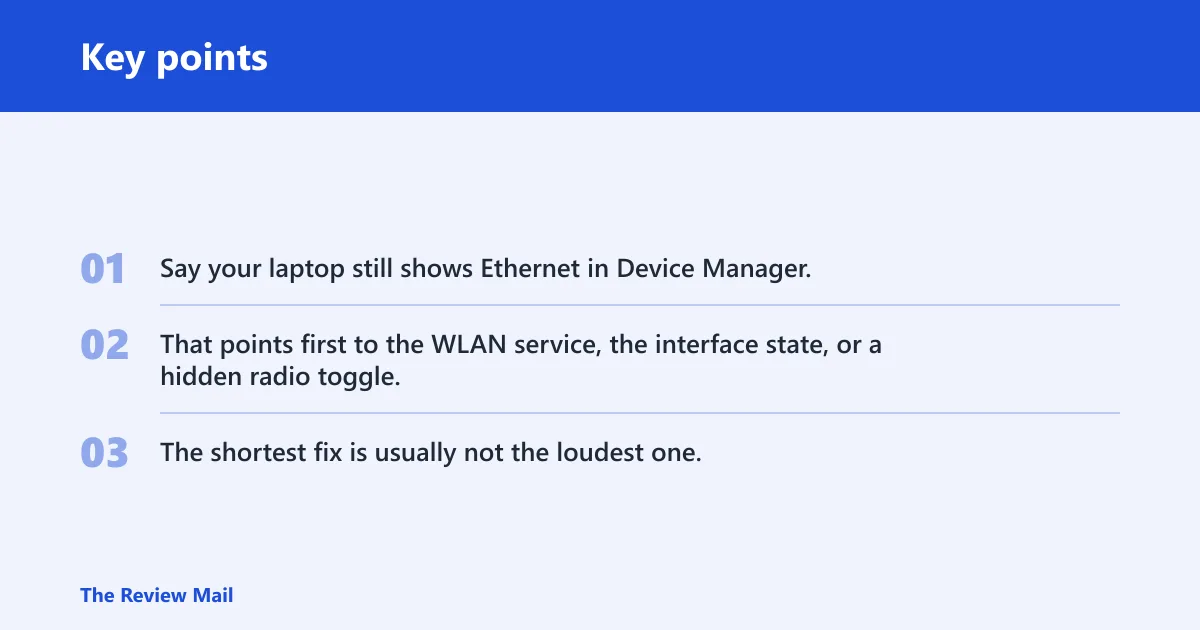
Say your laptop still shows Ethernet in Device Manager, but the Wi-Fi button vanished from Quick Settings after a Windows 11 update. That points first to the WLAN service, the interface state, or a hidden radio toggle, not immediately to a dead card. The shortest fix is usually not the loudest one.
Check Device Manager first
Open Device Manager, then inspect both Network adapters and Other devices. Turn on Show hidden devices, then use Action > Scan for hardware changes. Read the device status code before you touch drivers, because Code 28 means one thing, while Code 45 means something else entirely.
Open the right sections
Look under Network adapters for the wireless card itself, and under Other devices for Network Controller. If the adapter is present but grayed out, it may be disabled or hidden. If nothing wireless appears at all, that matters more than a generic “Wi-Fi is gone” complaint.
Use the status code, not guesswork
Device Manager status codes are short clues. Code 22 usually means the device is disabled. Code 28 means the driver is not installed. Code 10 and Code 43 point to start or hardware failure. Code 45 means Windows thinks the device is not connected.
Why is the adapter missing?
A wireless network adapter can vanish because it was disabled, hidden, paired with the wrong driver, changed state after a Windows 11 update, or hit a firmware, BIOS, or hardware fault. The fix path depends on which of those you can prove from the system state.
Disabled or hidden hardware
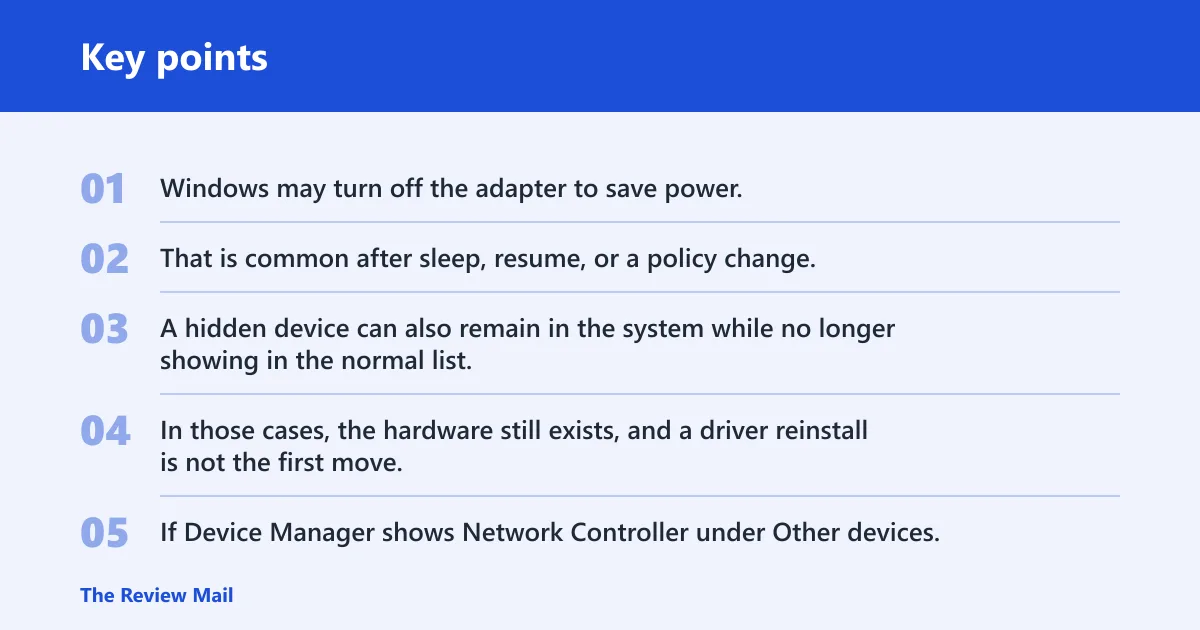
Windows may turn off the adapter to save power. That is common after sleep, resume, or a policy change. A hidden device can also remain in the system while no longer showing in the normal list. In those cases, the hardware still exists, and a driver reinstall is not the first move.
Missing or wrong driver
If Device Manager shows Network Controller under Other devices, Windows sees the hardware but does not have the right driver package for it. That is the clearest sign that you should use the adapter’s Hardware IDs to match the correct official driver from the PC or chip maker.
Windows update or settings change
Wi-Fi problems can start after a Windows 11 update. That does not prove the update broke the card, only that the timing changed. A service stop, a new power setting, or a driver mismatch can follow the same pattern, so keep the evidence chain in order.
Hardware or firmware fault
If no wireless device appears anywhere, the issue may be the card itself, its connection, or system firmware. That matters for internal PCIe and CNVio adapters, and for USB wireless adapters too. A service restart cannot make absent hardware appear in Windows.
Network Controller and status codes
Network Controller in Device Manager usually means Windows can see a wireless chip but does not have the correct driver for it. That is different from a missing adapter and different again from a disabled one. If the entry exists, copy its Hardware IDs before you install anything.
How to use Hardware IDs
Open the device’s properties, then the Details tab, and select Hardware Ids. Copy the full strings. Those IDs identify the exact wireless chip, which matters because many systems ship with more than one possible adapter family. Use those IDs to choose the official package, not a generic Wi-Fi download.
What the main codes mean
Code 10 points to a device that failed to start. Code 22 means the device is disabled. Code 28 means the driver is not installed. Code 43 often signals a hardware or device error. Code 45 means Windows cannot see the device as connected.
Suppose a desktop USB Wi-Fi adapter shows Code 28 after a fresh Windows 11 update. That is a driver problem until proven otherwise. If the same adapter later shows Code 45 after being unplugged from a loose front-panel port, the next step changes completely.
Wireless network adapter proof table
Use this table to separate the evidence sources before you fix anything. Device Manager, Settings, and WLAN are different checks. When they disagree, that disagreement is the clue.
| State | What to check | What it tells you | Next move |
|---|---|---|---|
| Quick Settings missing only | Settings, Device Manager, WLAN AutoConfig | Windows may still detect the adapter even if the tile is gone | Check the WLAN service and interface first |
| Adapter disabled | Device Manager > Network adapters | The hardware exists but is turned off | Enable the adapter |
| Network Controller | Device Manager > Other devices | Windows sees the chip but lacks the correct driver | Copy Hardware IDs and install the right package |
| Code 10 / 22 / 28 / 43 / 45 | Device status | The code narrows the fault to disablement, driver, start failure, or connection | Follow the matching code path |
| No wireless device anywhere | Device Manager, BIOS/UEFI, physical adapter | Windows may not be detecting the hardware at all | Check BIOS, reseat or inspect hardware, then recover drivers only if the device returns |
Can Windows expose the WLAN interface?
Yes, and that check helps you avoid late-stage resets that will not help. Run netsh wlan show interfaces to see whether Windows exposes a WLAN interface at all. If the command returns an interface, the wireless stack is present even if the app or tile looks broken.
Check WLAN AutoConfig in services.msc
Open services.msc, then find WLAN AutoConfig. Its startup type should be Automatic, and its state should not be stuck on Stopped. This service manages wireless networking. It affects Wi-Fi behavior, but it does not create missing PCIe, CNVio, or USB hardware.
When the interface is present but Wi-Fi is still broken
If the WLAN interface exists, Device Manager shows the adapter, and the service is running, the fault is more likely configuration or driver related. If the interface is absent and the adapter is absent too, do not spend time on service restarts. Those checks cannot enumerate hardware that Windows does not see.
Fix the shortest matching state
Match the fix to the state you proved. Re-enable a disabled adapter. Install the correct driver if you have Network Controller or Code 28. Use offline recovery if the affected PC has no internet. Move to Network reset only after the basic evidence says Windows still sees the adapter.
Re-enable a disabled adapter
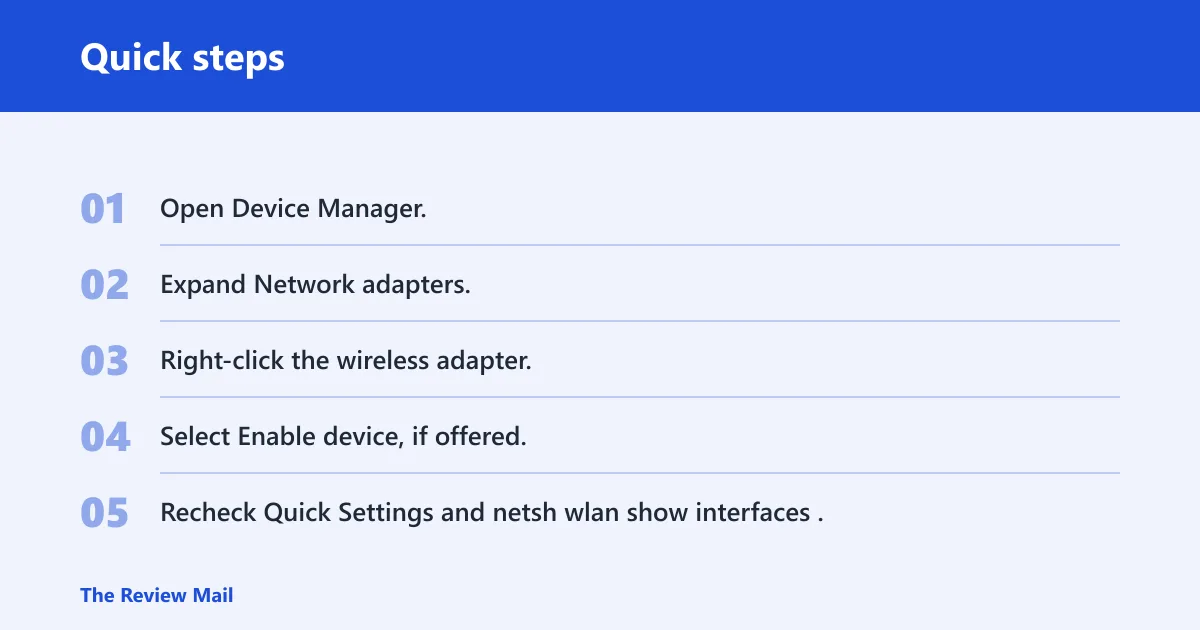
- Open Device Manager.
- Expand Network adapters.
- Right-click the wireless adapter.
- Select Enable device, if offered.
- Recheck Quick Settings and
netsh wlan show interfaces.
Install the correct driver package
If Device Manager shows Network Controller or Code 28, use the Hardware IDs to identify the exact wireless chip. Then install the official driver package for that chip, not a broad “Wi-Fi driver” bundle. A bad driver can make the adapter disappear, but the fix still starts with the device state.
Recover a driver without internet on the affected PC
If the PC has no connection, use another device to download the matching wireless driver from the PC maker or chip maker. Copy it by USB, then install it locally. If the adapter is internal and still absent after that, check BIOS/UEFI settings and physical seating before repeating software steps.
Use Network reset only after the basics
Network reset is found in Settings > Network & Internet > Advanced network settings, and the button is labeled Reset now. It can clear network configuration and reinstall adapters, but it also removes custom settings. It should not be the first move when the adapter state is still unknown.
Should you reset Windows network settings?
Use Network reset when the adapter exists, the WLAN service is running, and the problem looks like a corrupted Windows network configuration. Skip it when Device Manager shows no wireless hardware at all, when the adapter is disabled, or when you still need the Hardware IDs from a Network Controller entry.
What Network reset changes
Network reset in Windows 11 clears network configuration, reinstalls adapters, and removes custom settings. That can fix broken profiles, leftover VPN entries, or stale virtual adapters. It is a cleanup step, not a diagnosis step, so use it after you already know the hardware is visible.
What it removes
Expect to lose saved network settings and any manual changes tied to the network stack. If you rely on special DNS values, VPN profiles, or custom adapter settings, write them down first. Windows may also need a reboot after the reset completes.
When to skip it
Skip Network reset if the adapter is missing from both Device Manager and netsh wlan show interfaces, or if the problem is clearly a disabled device. Resetting too early can blur the evidence and make the real fault harder to trace.
Frequently asked questions
Why is my wireless network adapter missing in Windows 11?
It may be disabled, hidden, missing its driver, or not detected at all. Check Device Manager first, then compare it with Settings and netsh wlan show interfaces. A Windows 11 update can trigger the issue, but the fix depends on the actual state you find.
How do I get my Wi-Fi adapter back in Device Manager?
Open Device Manager, turn on Show hidden devices, and scan for hardware changes. If the adapter is disabled, enable it. If you see Network Controller, copy the Hardware IDs and install the correct driver package. If nothing appears anywhere, check BIOS or hardware next.
What does Network Controller in Device Manager mean?
It usually means Windows sees the wireless hardware but lacks the correct driver. The quickest next step is to open the device properties, copy the Hardware IDs, and match them to the official driver package. Code 28 often appears in the same situation.
Should I use Network reset when my Wi-Fi adapter is missing?
Not first. Use Network reset only after Device Manager confirms the adapter still exists and the issue looks like a broken network configuration. It is found under Settings > Network & Internet > Advanced network settings, and it can remove custom settings you may want to keep.
How do I know if my Wi-Fi card is disabled or actually missing?
If Device Manager lists the adapter or shows a disabled status code such as Code 22, it is present but turned off. If Network Controller appears, the chip is visible but the driver is missing. If no wireless device appears anywhere, Windows may not detect the hardware.
What if no wireless device appears anywhere in Windows 11?
Treat that as a hardware, BIOS, or connection problem until proven otherwise. Check Device Manager, then BIOS or UEFI, and inspect any removable USB adapter or internal card seating. A service restart cannot make absent PCIe, CNVio, or USB hardware appear in Windows.