Wi-Fi Keeps Disconnecting Windows 11 Reddit Fixes
On Windows 11, Wi‑Fi drops usually point to a network stack or driver issue. Start with the adapter and driver before touching anything else. Ignore that order, and you waste time on the wrong fix, then lose calls, downloads, and patience. This guide gives a symptom-first ladder for Windows 11.
What repeated Wi-Fi drops usually mean
Repeated disconnects usually mean the fault sits in one of three places: the Windows network stack, the Wi-Fi adapter, or the router path that device is using. If other devices stay online while one PC keeps dropping, start on the PC first, not the router.
Quick signs it is Windows 11, the router, or the adapter
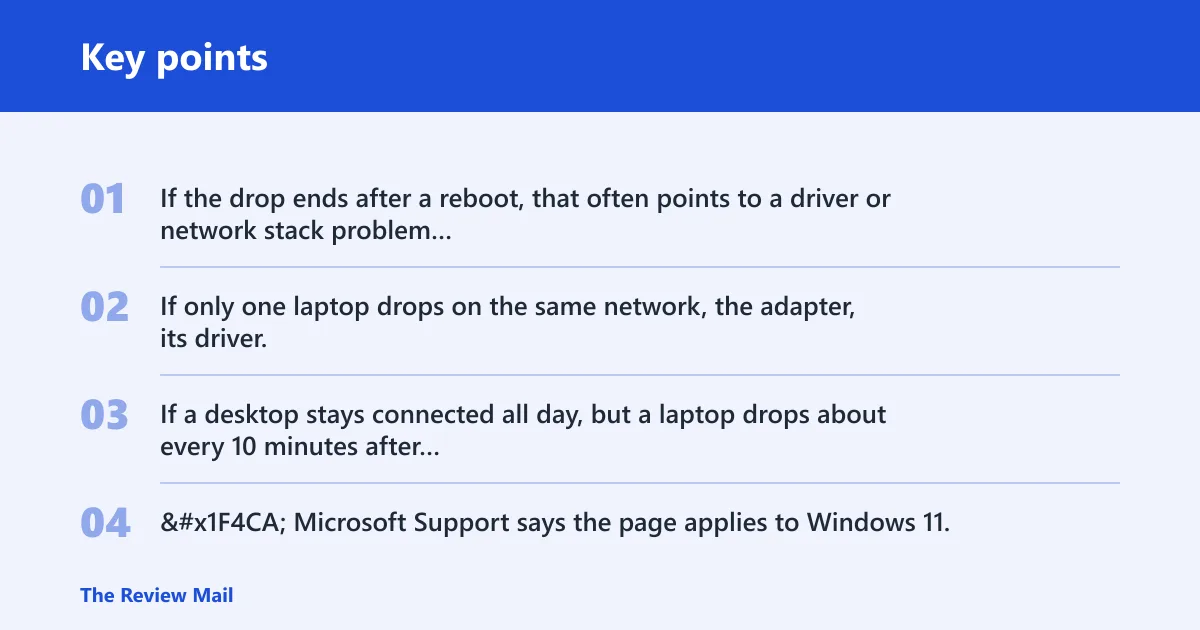
If the drop ends after a reboot, that often points to a driver or network stack problem rather than a dead router, per Microsoft support. If only one laptop drops on the same network, the adapter, its driver, or its power settings are the better first suspects.
If a desktop stays connected all day, but a laptop drops about every 10 minutes after waking from sleep, the pattern points more to the laptop’s power and driver behavior than to the access point.
📊 Microsoft Support says the page applies to Windows 11. Source: Microsoft.
Which fix to try first?
| Symptom pattern | Likely cause | Quickest check | Best first fix | When to escalate |
|---|---|---|---|---|
| Drops after Windows update | Generic or incompatible Wi-Fi driver | Device Manager shows a new driver date or adapter name changed | Install the manufacturer driver | If the problem remains, uninstall and reinstall from the vendor site |
| Drops after sleep/wake | Adapter power management | Connection dies right after resume | Disable adapter power-off settings | If it still happens, update or reinstall the driver |
| Drops only on one device | Adapter, driver, or Windows networking service | Other phones and PCs stay connected | Check WLAN AutoConfig, then reset the network stack | If the issue remains, reinstall the adapter driver |
| Drops on a mesh network | Path switching or interference | The PC switches between nodes or weak bands | Check router channels and mesh band steering | If switching still flaps, review the adapter and driver |
| Drops while gaming | Adapter instability or network path changes | Ping spikes before disconnects | Turn off VPN during testing | If the link still falls, check the router and driver |
| Disconnects stop after reboot | WLAN AutoConfig or network stack instability | Reboot restores Wi-Fi for a while | Run winsock, IP, and DNS repair commands | If reboot becomes the only fix, reinstall the driver |
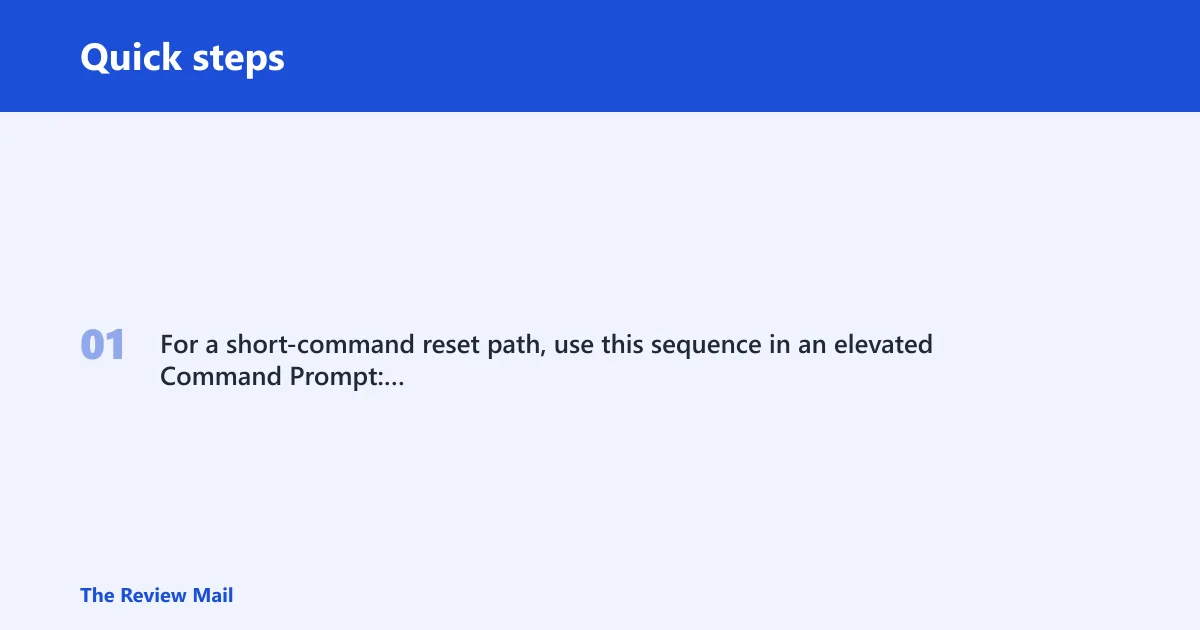
For a short-command reset path, use this sequence in an elevated Command Prompt:
ipconfig /release
ipconfig /flushdns
ipconfig /renew
netsh winsock reset
netsh int ip reset
Why does Windows 11 keep disconnecting from Wi-Fi?
In many cases, Windows 11 drops Wi‑Fi because a driver, power setting, or WLAN service is unstable, especially when the connection returns after a reboot. Microsoft points to the network stack and adapter first, and How-To Geek also notes router issues, incorrect PC network settings, and adapter trouble as common causes.
Why rebooting can hide the real trigger
A reboot clears temporary network state, which can make a bad driver or stalled WLAN service look fixed for a while. That is why rebooting is useful as a clue, not as a final fix.
Say your laptop drops after 20 minutes of video calls, then works again after restart. That pattern is consistent with a driver or service that fails under load.
Most common causes, ranked by pattern
- Adapter power management. Common on laptops. Device Manager may let Windows turn off the card to save power.
- Driver mismatch after an update. Windows updates can replace a vendor driver with a generic one.
- WLAN AutoConfig or the network stack. The service or stack stops behaving normally until reboot.
Wi-Fi driver fix order
Begin with the manufacturer driver, then decide whether to update or reinstall based on timing. If the problem began after a Windows update, reinstalling the latest compatible package from the laptop or adapter maker is the usual next step, per Microsoft support.
Update the manufacturer driver
- Open Device Manager > Network adapters.
- Open the properties for your Wi-Fi adapter.
- Check the Driver tab for the provider and date.
- Use Update driver or install the latest package from the manufacturer site.
Reinstall the adapter after a bad update
- Open Device Manager > Network adapters.
- Right-click the Wi-Fi adapter and choose Uninstall device.
- Select the box to delete the driver if Windows offers it.
- Restart the PC.
- Install the latest driver from the manufacturer site, then test again.
Wi-Fi power settings to change
Power settings matter most on laptops, where the adapter can be pushed into a lower-power state. Microsoft says to disable Wi‑Fi adapter power saving, and How-To Geek also notes that a laptop power plan can limit wireless behavior.
Device Manager power management
- Open Device Manager > Network adapters.
- Open the Wi-Fi adapter properties.
- Go to the Power Management tab.
- Clear Allow the computer to turn off this device to save power.
- Restart or reconnect and test the link.
Wireless Adapter Settings in your power plan
- Open Control Panel > Power Options.
- Change plan settings for the active plan.
- Open Advanced power settings.
- Expand Wireless Adapter Settings > Power Saving Mode.
- Set it to Maximum Performance for both battery and plugged in, if shown.
How do you stop Windows from dropping the connection after sleep?
If the connection fails right after sleep or lid open, treat it as a power-state problem first. That pattern usually points to adapter power saving or a driver that does not wake cleanly.
What to change on laptops first
- Turn off Allow the computer to turn off this device to save power in Device Manager.
- Set Wireless Adapter Settings to Maximum Performance in the power plan.
- If the drop began after a Windows update, reinstall the driver before trying another update.
- Check whether the issue appears only after closing the lid or after long sleep, then test again.
Network stack and service fixes
If the adapter settings look right, the next stop is the Windows networking layer. Microsoft recommends checking WLAN AutoConfig in services.msc and running network stack repair commands, including winsock and IP resets, followed by DNS flush and reboot.
Check WLAN AutoConfig
- Press Win + R, type
services.msc, and press Enter. - Find WLAN AutoConfig.
- Open its properties and set Startup type to Automatic.
- Make sure the service status shows Running.
Reset Winsock, IP, DHCP, and DNS
- Open Command Prompt as administrator.
- Run
netsh winsock reset. - Run
netsh int ip reset. - Run
ipconfig /release,ipconfig /renew, andipconfig /flushdns. - Restart the PC.
How do you handle mesh, VPN, and gaming drops?
When the drop happens on a mesh system, during VPN use, or in games, the trigger is often the path the PC chooses, not the broadband line itself. The adapter can lose a stable path and reconnect repeatedly, especially when it keeps switching access points.
Roaming on mesh networks
- Open Device Manager > Network adapters.
- Open the Wi-Fi adapter Properties.
- Go to Advanced.
- Review the adapter’s roaming-related settings if available, then reconnect and see whether the device still switches between mesh nodes.
- If the link still flaps, check router channels and mesh band steering.
VPN conflicts and gaming-specific disconnects
- Disconnect the VPN completely and test the same Wi-Fi network again.
- If gaming drops stop, keep the VPN off while testing the adapter.
- If the issue started after a Windows update, reinstall or update the Wi-Fi driver next.
- If the link still fails, check router channels and mesh band steering.
When router channel changes make sense
- Check whether the router is using crowded 2.4 GHz channels.
- On 5 GHz, review the available channel selection in the router settings.
- If the network has both bands, test the band that is most stable for the PC.
- Use this branch after adapter, driver, and power settings have been checked.
Still not working?
If the ladder above does not stabilize the link, move to a deeper repair. Microsoft lists a new user profile and a repair or reset install of Windows 11 as next-step options for deeper system issues. If the adapter still fails after a clean driver install, vendor support may need to check firmware or hardware compatibility.
Prevention: on laptops, keep adapter power saving off so sleep and resume are less likely to trigger repeat drops.
Frequently asked questions
Why does Windows keep disconnecting from Wi-Fi?
When a reboot temporarily fixes it, the usual suspects are the driver, the network stack, or the WLAN AutoConfig service. Start with the adapter’s Power Management tab, then run netsh winsock reset and netsh int ip reset, followed by a restart.
Why does my Wi-Fi keep disconnecting on Windows 11?
Windows 11 often drops Wi‑Fi because of adapter power saving or a driver changed by Windows Update. Open Device Manager, clear Allow the computer to turn off this device to save power, and then install the latest manufacturer driver if the issue began after an update.
Why does my Wi-Fi keep disconnecting and reconnecting on Windows 11?
That reconnect loop usually means the adapter is recovering from a driver fault or a network stack issue. Refresh the network stack with ipconfig /release, ipconfig /renew, and ipconfig /flushdns, then test again.
Why does my Wi-Fi keep disconnecting after a Windows update?
Windows updates can replace a vendor driver with a generic one, which is why the problem may start right after patching. Open Device Manager, check the Wi-Fi driver version, then reinstall the manufacturer driver from the PC or adapter maker as needed.
How do I stop Windows 11 from dropping Wi-Fi connections?
Use the shortest path first: disable adapter power saving, set Wireless Adapter Settings to Maximum Performance, and confirm WLAN AutoConfig is running and set to Automatic. If the drops still happen, reset the network stack and reinstall the Wi‑Fi driver from the manufacturer.
What fixes Wi-Fi disconnections when other devices stay connected?
That pattern usually means the router is not the only problem. Focus on the Windows PC: check the adapter’s Power Management tab, test the vendor driver, and inspect WLAN AutoConfig. If only one device drops on a mesh network, review the router path and band steering.
Should I reinstall my Wi-Fi driver if Windows 11 keeps disconnecting?
Yes, if the issue began after an update or if the adapter is running a generic driver. Uninstall it from Device Manager, delete the driver if offered, restart, and install the latest package from the PC or adapter maker. If the problem began immediately after an update, try reinstalling the current manufacturer driver first.
How do I stop Windows from turning off my Wi-Fi adapter?
Open Device Manager, go to the Wi-Fi adapter’s Power Management tab, and clear Allow the computer to turn off this device to save power. On laptops, also set Wireless Adapter Settings to Maximum Performance in the active power plan.
Why does the problem go away after rebooting?
Rebooting clears temporary network state, which can hide a driver or network stack fault for a while. That is why a reboot is a clue, not a cure. If the drop returns, run the stack reset commands and then check the driver and WLAN AutoConfig service.
Is this a router issue or a Windows issue?
If other devices stay connected while one Windows 11 PC drops, treat it as a Windows-side problem first. If every device falls off at once, then the router or mesh becomes the better branch. A single-device pattern usually starts with driver and power settings.
Why does my wifi keep disconnecting windows 10?
The supplied guidance supports Windows 11. The same basic steps here apply to a Windows 11 PC: check Device Manager power saving, reset Winsock and IP, and make sure WLAN AutoConfig is running before moving to router checks or a driver reinstall.
Why does windows keep disconnecting from wifi?
That pattern usually means the adapter, driver, or network stack is unstable rather than the broadband line itself. Start with the device that drops, not the whole network: disable adapter power saving, review the driver, and run the IP and DNS repair commands if rebooting only works briefly.