INVALID_KERNEL_STACK_ADDRESS BSOD fix in Windows 11
Treat INVALID_KERNEL_STACK_ADDRESS as a stack-integrity failure: if it appears after a driver update, roll back that driver first; if it repeats across boots, I would test RAM and firmware before chasing Windows files. Ignore it and you can end up in restart loops, corrupted dumps, or a machine that hides the real fault behind random crashes. This guide shows how to read the dump, separate driver corruption from bad memory, BIOS/UEFI instability, and boot-chain problems, and then fix each one in order.
This guide is part of our Windows BSOD stop codes: full list and fixes series.
What INVALID_KERNEL_STACK_ADDRESS means on Windows 11

This stop code points to kernel stack corruption or an invalid stack reference during a context switch. Microsoft identifies it as a bug check code, which points to a stack-state problem during a context switch, so a dump is needed to confirm the cause. (per Microsoft support)
What the restart pattern tells you before you touch anything
If it happens once after a driver install, the odds lean toward that change. If it repeats across reboots, or appears with different modules blamed each time, the cause is usually broader: memory instability, firmware settings, storage or boot-chain damage, or a driver that keeps corrupting the kernel path.
How do i fix invalid_kernel_stack_address bsod in windows 11
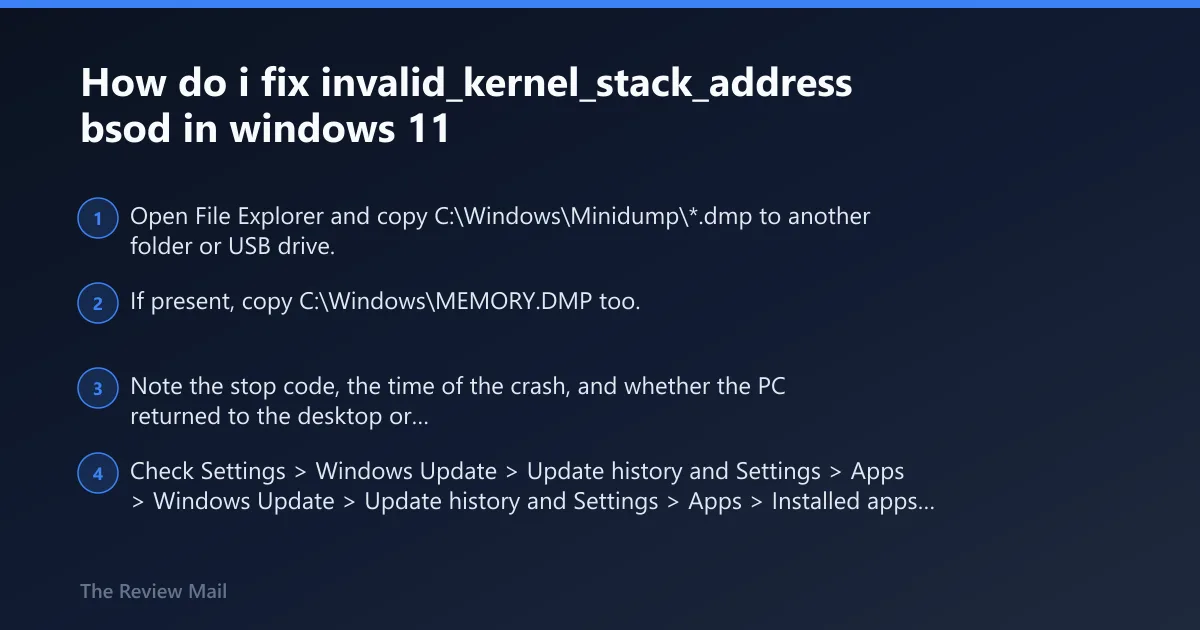
The fastest first move is to save the dump files, then roll back the most recent driver or firmware change if there was one. If Windows still boots, use the dump to decide whether to stop at a driver rollback or move on to RAM, BIOS/UEFI, and boot repairs.
How to collect the evidence before you change anything
Copy the files before a cleanup tool removes them. Windows 11 keeps small memory dumps in %SystemRoot%\Minidump, and a larger MEMORY.DMP may sit in %SystemRoot%\MEMORY.DMP. Save the exact stop text, time, and whether the PC restarted once or looped.
- Open File Explorer and copy
C:\Windows\Minidump\*.dmpto another folder or USB drive. - If present, copy
C:\Windows\MEMORY.DMPtoo. - Note the stop code, the time of the crash, and whether the PC returned to the desktop or restarted again.
- Check Settings > Windows Update > Update history and Settings > Apps > Installed apps for recent driver or utility changes.
Decision table: what to do next
| Stop screen | Dump file | Boot state | Latest change | Next best action |
|---|---|---|---|---|
| One crash, then desktop | Minidump present | Normal boot works | Driver or app update | Open the dump in WinDbg, then roll back the suspect driver first |
| Repeated crashes | Minidump present | Desktop still reachable | No clear change | Check the blamed module, then test RAM and firmware settings if the blame shifts |
| Restart loop | No dump visible yet | Can reach WinRE or Safe Mode | Recent BIOS, storage, or driver update | Use WinRE or Safe Mode for rollback, then copy dumps before deeper changes |
| Restart loop | No dump | No desktop | No recent change | Use WinRE, then offline repair and driver rollback before memory tests |
What usually causes INVALID_KERNEL_STACK_ADDRESS?
Most often, the cause is a bad or corrupted driver path. Less commonly, unstable RAM settings, overclocking, BIOS/UEFI issues, storage faults, or boot-chain damage can poison the stack before Windows can recover. One crash is a clue, not proof.
Recent driver corruption or a bad driver update
If the crash started after a new device driver, the first fix is rollback, not reinstalling Windows. A filter driver, storage utility, VPN client, or antivirus hook can also touch the kernel path and trip the stack check.
- Open Device Manager.
- Find the device that changed recently, or the one named in the dump.
- Right-click it, choose Properties > Driver.
- Select Roll Back Driver. If that is unavailable, choose Uninstall device, then reboot.
- Install the latest driver from the PC maker or chipset maker only after the machine is stable.
RAM instability, overclock settings, or XMP/EXPO issues
Memory instability can corrupt the stack before the crash screen appears. That includes unstable XMP/EXPO profiles, manual memory tuning, and aggressive CPU overclocks that were stable until a BIOS change or temperature shift.
- Enter BIOS/UEFI and load default settings.
- Disable XMP/EXPO and any CPU or memory overclock.
- Boot Windows and see whether the stop code returns.
- Run Windows Memory Diagnostic from Start or use memtest86 for a deeper pass.
Run sfc /scannow, then run DISM /Online /Cleanup-Image /RestoreHealth.
Firmware, storage, or boot-chain instability
If the dump does not point at a single driver, the next bucket is firmware or the boot chain. A recent BIOS update, storage controller change, damaged system files, or a broken boot path can all create kernel stack failures that move around from boot to boot.
- Run
sfc /scannow, thenDISM /Online /Cleanup-Image /RestoreHealth. - Use
chkdskon the system drive if file corruption or disk errors are suspected. - Check BIOS/UEFI for default settings and remove any overclock.
- If the issue began after firmware work, revert or update the BIOS using the board or PC vendor’s method.
How do i read a minidump for invalid_kernel_stack_address
Open the dump in Microsoft WinDbg, run !analyze -v, and compare the bug check arguments, blamed module, and failure bucket. A single minidump can point to a driver name, but it cannot prove guilt by itself. Use it to choose the next test, not to stop there.
Open the dump in WinDbg and load symbols
WinDbg reads both %SystemRoot%\Minidump files and MEMORY.DMP. The full or kernel dump gives more context than a minidump, but it also contains more data, so keep it protected. Symbols must load before the module list is useful.
- Open WinDbg as administrator.
- Select File > Open dump file, then choose the newest .dmp.
- Run !analyze -v.
- Review the MODULE_NAME, IMAGE_NAME, and FAILURE_BUCKET_ID fields.
- Look at the bug check arguments and whether the same module repeats across dumps.
What points to a driver versus memory or firmware instability
A repeating third-party module, especially one tied to storage, VPN, antivirus, or a chipset function, usually points to a driver first. Random blamed modules, changing crash locations, or errors that vanish when XMP/EXPO is disabled point more toward RAM or firmware instability.
If Windows will not boot, use WinRE and Safe Mode
When the PC is trapped in a restart loop, use Windows Recovery Environment first, then Safe Mode for rollback or file copy. On BitLocker-protected systems, recovery may ask for the BitLocker key before repairs or boot options can be used.
Get into Windows Recovery Environment from a restart loop
- Turn the PC on and force a shutdown as soon as Windows starts loading.
- Repeat the interruption until Preparing Automatic Repair appears.
- Choose Advanced options > Troubleshoot.
- Use Startup Settings to enter Safe Mode, or use System Restore if a restore point exists.
Use Safe Mode for rollback, repair, or file copy
Safe Mode loads fewer drivers, which makes it useful for removing the last bad change. If the system reaches Safe Mode, copy dump files out first, then roll back the suspect driver or uninstall the tool tied to the crash.
- Go to Settings > System > Recovery > Advanced startup > Restart now.
- Choose Troubleshoot > Advanced options > Startup Settings.
- Press the key for Safe Mode.
- Open Device Manager and roll back the suspect driver, or run System Restore.
Still getting the BSOD after rollback?
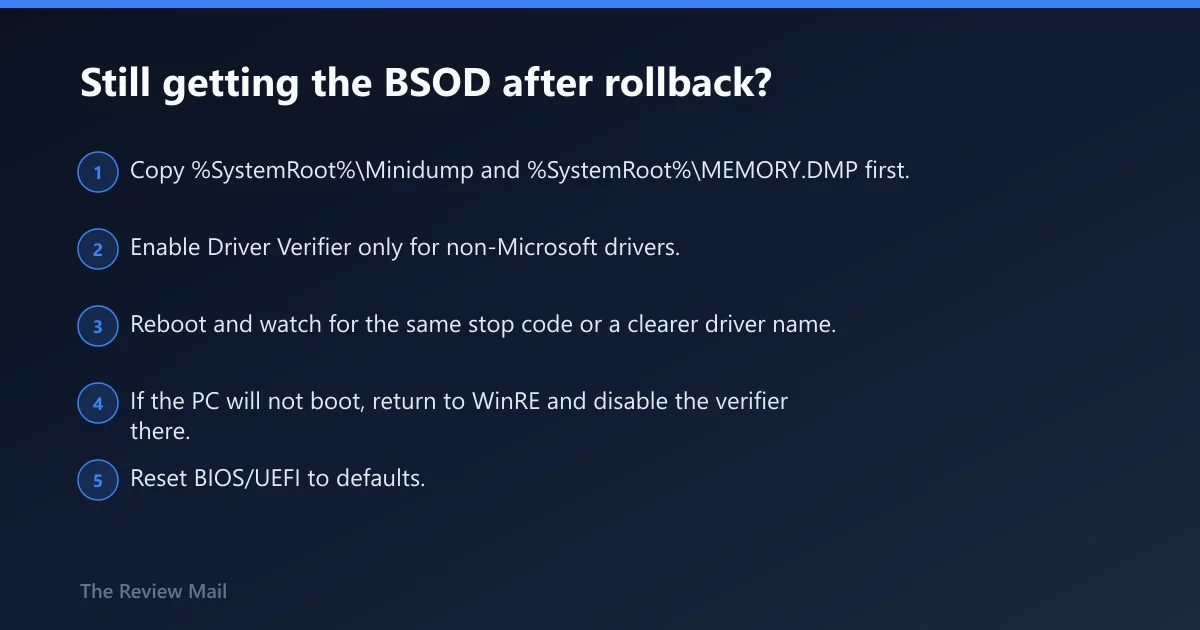
If rollback does not stop the crashes, move to memory tests, firmware checks, and then controlled stress tools. If the blamed component keeps changing, the fault is broader than one driver. At that point, deeper hardware testing is justified.
Use Driver Verifier only after the evidence is saved
Driver Verifier can expose a bad driver faster, but it can also make boot loops worse. Use it only after the dump files are copied and the system can still be recovered through Safe Mode or WinRE.
- Copy %SystemRoot%\Minidump and %SystemRoot%\MEMORY.DMP first.
- Enable Driver Verifier only for non-Microsoft drivers.
- Reboot and watch for the same stop code or a clearer driver name.
- If the PC will not boot, return to WinRE and disable the verifier there.
When to suspect CPU or motherboard issues
CPU or motherboard faults are less common than driver or memory problems, but they move up the list if crashes continue after driver rollback, default firmware settings, and memory tests. A system that fails in multiple operating systems or at hardware diagnostics also shifts suspicion toward the board, power delivery, or processor.
- Reset BIOS/UEFI to defaults.
- Disable XMP/EXPO and any overclock.
- Run memtest86 or Windows Memory Diagnostic.
- If crashes continue, seek vendor support for board, CPU, or storage diagnostics.
Prevention: keep BIOS settings at default unless there is a reason to change them, and install one driver change at a time so the next dump is easier to read.
Frequently asked questions
what causes invalid_kernel_stack_address on windows 11
The common buckets are a corrupted or bad driver, unstable RAM settings, BIOS/UEFI or storage instability, and boot-chain damage. One dump does not prove which one is guilty, so the next step is to compare the dump with the most recent hardware or software change.
is invalid_kernel_stack_address a driver problem
Often yes, but not always. If the stop code appears right after a driver install or update, rollback is the first move. If the same stop code repeats after default BIOS settings and memory tests, the cause may sit in RAM, firmware, storage, or a boot component.
can ram cause invalid_kernel_stack_address bsod
Yes. Bad RAM or unstable XMP/EXPO settings can break stack integrity before Windows can recover. Use Windows Memory Diagnostic or memtest86, then retest with memory profiles disabled in BIOS/UEFI. One pass is not final proof; repeat if the blame keeps moving.
what should i do if invalid_kernel_stack_address happens in a boot loop
Go into WinRE, then use Startup Settings to reach Safe Mode. Copy the dump files first, then roll back the last driver or restore a known-good point. If BitLocker appears, enter the recovery key before repair options will open.
does invalid_kernel_stack_address mean my cpu or motherboard is bad
Not by itself. CPU or motherboard problems become more likely only after driver rollback, default firmware settings, and memory tests fail to change the pattern. If the machine also fails outside Windows, vendor hardware diagnostics or board-level service is the next step.