0x000000c1: What It Means and How to Fix It Fast Now
Stop code 0x000000c1 usually means a kernel component or driver failed, so my first move is to identify the crashing subsystem from the dump, then roll back, update, or remove the matching driver. Skip that step and you can burn hours on random fixes while the crash keeps coming back. This guide shows how I trace 0x000000c1 after a driver change, Windows Update, or repeat BSOD and pick the right fix path.
This guide is part of our Windows BSOD stop codes: full list and fixes series.
What 0x000000c1 means in plain English
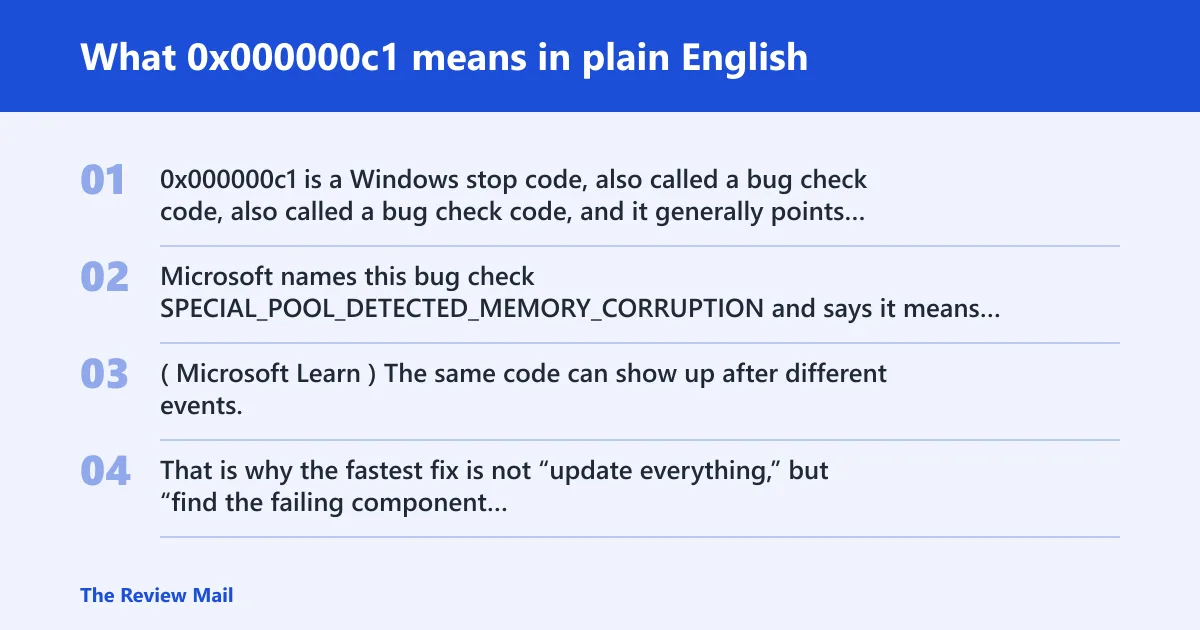
0x000000c1 is a Windows stop code, also called a bug check code, and it generally points to a kernel-level crash rather than a normal app failure. Microsoft names this bug check SPECIAL_POOL_DETECTED_MEMORY_CORRUPTION and says it means a driver wrote to an invalid section of special pool (per Microsoft support). (Microsoft Learn)
The same code can show up after different events. That is why the fastest fix is not “update everything,” but “find the failing component first.” If the crash repeats, the dump, Event Viewer, and recent change history usually narrow the field fast.
Likely causes, ranked by what to check first
Most often, a recently changed device driver is the first place I check. Less commonly, repeated crashes point to memory trouble, storage corruption, or a bad Windows update state that leaves the system unstable.
- Recently installed or updated driver. The timing lines up with the first blue screen.
- RAM faults under load. The crash moves between different drivers or appears during heavy use.
- Storage or file corruption. The system logs show disk errors, failed updates, or corrupt system files.
- Broader Windows damage. The system keeps crashing after driver and hardware checks fail.
What should I check first after a BSOD with 0x000000c1?
Start with the repeat pattern, the last change before the crash, and whether Safe Mode changes the behavior. If the BSOD appears only after a new driver, update, VPN install, printer package, or Windows Update, that timing usually matters more than the stop code alone.
- Write down the exact crash time and what changed in the prior 24 to 48 hours.
- Open Settings > Windows Update > Update history and check for recent driver or quality updates.
- Open Device Manager, find the most recent device you touched, and inspect Properties > Driver.
- If the system boots, restart once and see whether the crash repeats at the same step.
- Try Safe Mode next if the crash keeps happening. If the system steadies there, third-party software or a driver is more likely than core Windows damage.
Could this be a driver problem?
Yes. A newly installed or recently updated driver is the first thing to compare with the crash time, because 0x000000c1 is tied to driver writes into special pool (per Microsoft support). If the stop code began right after a hardware utility, VPN, printer package, storage tool, or graphics update, that driver is a prime suspect.
- Open Device Manager.
- Right-click the device that changed most recently, then open Properties > Driver.
- Choose Roll Back Driver if the crash began after an update.
- Choose Uninstall device if the driver was added recently and rollback is unavailable.
- Reboot and test the same workload again.
- If the device is still unstable, install the vendor’s last known good driver instead of the newest one.
Can Safe Mode help diagnose stop code 0x000000c1?
Yes. Safe Mode loads a minimal set of drivers, so it can help separate a third-party cause from a core Windows problem. If the machine stops crashing in Safe Mode, the suspect list gets shorter fast. If it still crashes there, memory, storage, or deeper OS damage moves up the list.
- Open Settings > System > Recovery > Advanced startup and restart into recovery.
- Choose Troubleshoot > Advanced options > Startup Settings.
- Select Safe Mode or Safe Mode with Networking.
- Recreate the same task that caused the BSOD.
- If the crash stops, uninstall or roll back the last driver, VPN, printer, or filter driver you added.
- If the crash continues, move to dump analysis and hardware checks.
How do I find the faulty driver behind 0x000000c1?
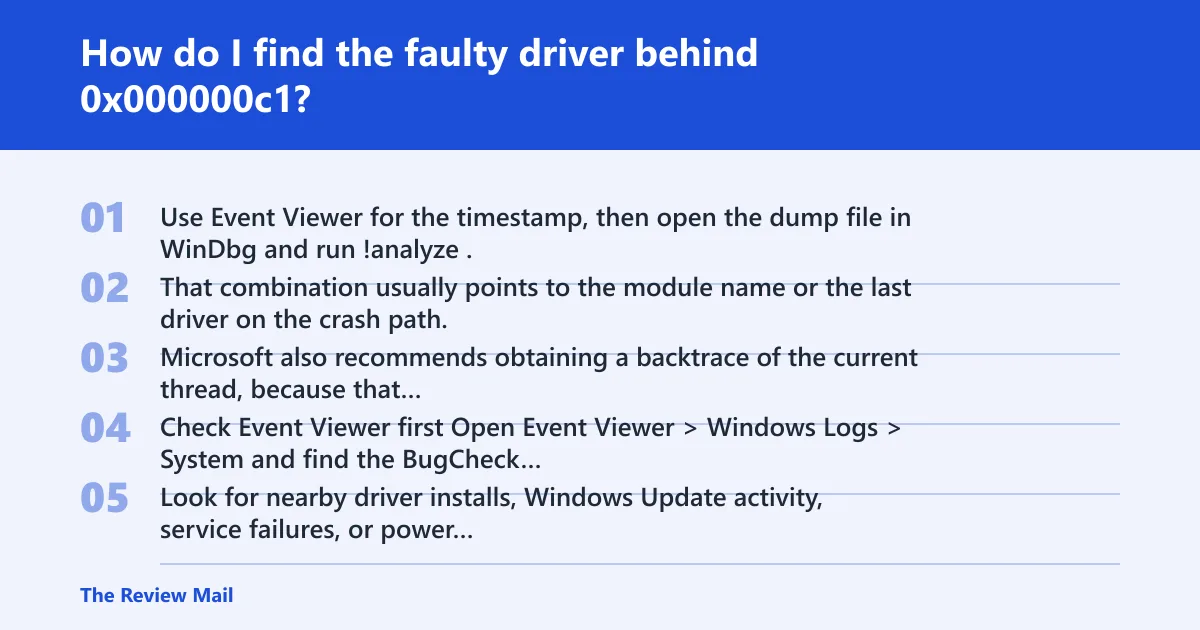
Use Event Viewer for the timestamp, then open the dump file in WinDbg and run !analyze. That combination usually points to the module name or the last driver on the crash path. Microsoft also recommends obtaining a backtrace of the current thread, because that trace often reveals the source of the error (per Microsoft support).
Check Event Viewer first
Open Event Viewer > Windows Logs > System and find the BugCheck event that matches the blue-screen time. Look for nearby driver installs, Windows Update activity, service failures, or power events that happened just before the crash.
Open the dump in WinDbg
Crash dumps live in C:\Windows\Minidump for minidumps and C:\Windows\MEMORY.DMP for a full dump. Open the file in WinDbg, then run !analyze -v. Check the MODULE_NAME, IMAGE_NAME, and FAILURE_BUCKET_ID fields first.
If the same driver keeps appearing in multiple dumps, that is the best rollback target. If the dump points to different modules each time, the problem may be memory or storage instead of one bad driver.
What dump file tools can I use to analyze 0x000000c1?
WinDbg is the best first tool for a kernel dump, because it can read minidumps and full dumps and it supports stop code lookup. Use a minidump for a quick look, then move to a full dump if the smaller file does not show enough context.
- Confirm dump creation in Settings > System > About > Advanced system settings or System Properties under startup and recovery.
- Open the newest file in
C:\Windows\MinidumporC:\Windows\MEMORY.DMP. - In WinDbg, run
!analyze -v. - Note the driver name, stack trace, and any reference to special pool or invalid memory access.
- Use that driver name to decide whether to update, roll back, or uninstall.
Is 0x000000c1 a driver problem or a hardware problem?
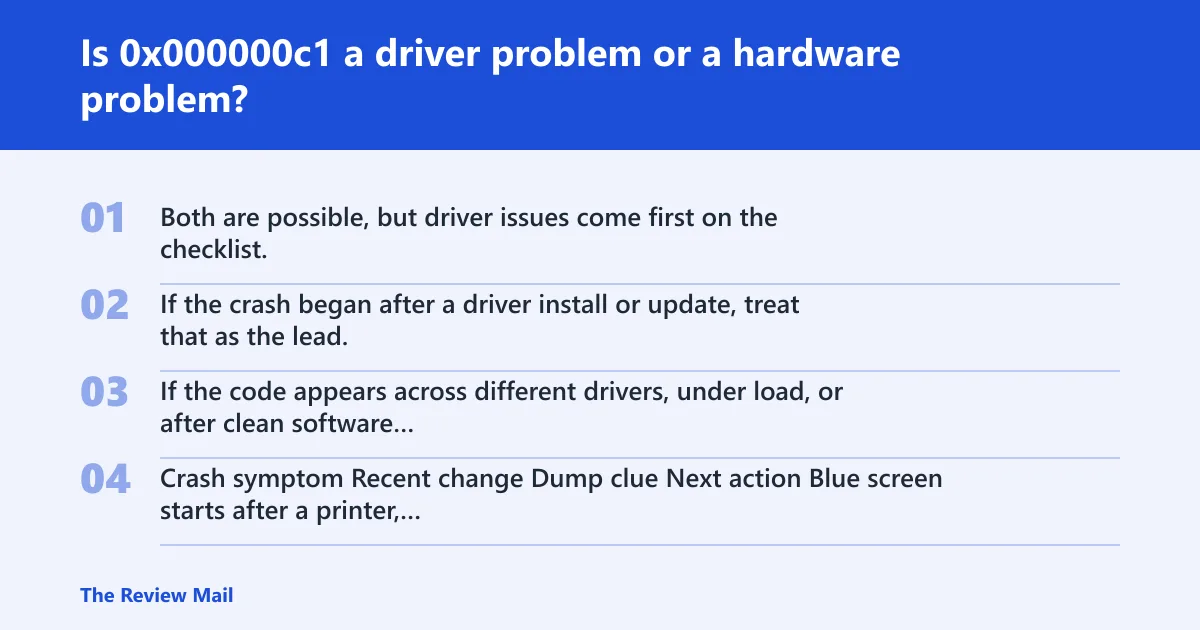
Both are possible, but driver issues come first on the checklist. If the crash began after a driver install or update, treat that as the lead. If the code appears across different drivers, under load, or after clean software changes, memory or storage becomes more likely.
| Crash symptom | Recent change | Dump clue | Next action |
|---|---|---|---|
| Blue screen starts after a printer, VPN, or GPU update | New or updated driver within 1–2 days | Same module name in multiple dumps | Driver rollback |
| Crash happens during games, copies, or heavy multitasking | No driver change, but load is high | Different modules each time | Windows Memory Diagnostic |
| Boot loops or file errors after updates | Windows Update finished recently | Corrupt file or disk-related events | Disk check |
| Crash vanishes in Safe Mode | Third-party software was added | Driver points to vendor package | Uninstall the matching driver |
Memory and storage checks for crashes that keep coming back
If the crash keeps moving between drivers, or it appears under heavy load, check RAM next. If logs and symptoms point away from drivers, check the disk and system files before you rebuild Windows.
- Run Windows Memory Diagnostic from the Start menu, or use memtest86 if the crash is hard to catch.
- Open an elevated Command Prompt and run
sfc /scannow. - If SFC reports issues it cannot repair, run
DISM /Online /Cleanup-Image /RestoreHealthand then run SFC again. - Check the disk with
chkdsk /scanor schedule a full disk check on reboot if Windows reports file-system errors. - After one clean boot, repeat the same workload to see whether the failure returns.
When does 0x000000c1 require a Windows reinstall?
A reinstall is the last step, not the first. Use it when the dump stays unclear after driver rollback, Safe Mode testing, memory diagnostics, disk checks, and file repair, or when the system will not boot far enough to complete those checks. System Restore is worth trying earlier if the failure started right after a bad update or driver change.
If the restore point predates the crash and the machine can still reach recovery, open Advanced startup > Troubleshoot > Advanced options > System Restore and roll back to a known good state. If that fails, a repair install is the next lighter option. A full reinstall makes sense only after targeted checks fail.
Prevention: keep a restore point before driver and firmware changes, especially for GPU, VPN, storage, and printer packages.
Can Windows Update or a recent driver install trigger this stop code?
Yes. A Windows Update package, a fresh device driver, or a bundled vendor utility can trigger the crash if it changes how a kernel driver touches memory. The timing matters more than the brand name. Check update history and device install dates against the first blue screen.
- Open Settings > Windows Update > Update history and note the last successful update.
- Open Device Manager and sort by the device you last changed.
- If a new driver lines up with the crash, use Roll Back Driver or Uninstall device.
- If Windows Update is the trigger, use Settings > System > Troubleshoot > Other troubleshooters and run the Windows Update Troubleshooter.
- If needed, restore the system to a point before the update.
Frequently asked questions
What does 0x000000c1 mean on Windows?
It is a bug check code tied to SPECIAL_POOL_DETECTED_MEMORY_CORRUPTION. In practice, that means a kernel driver wrote where it should not have written. The best next step is to open the dump in WinDbg and see which module appears in !analyze -v.
What should I check first after a BSOD with 0x000000c1?
Check the most recent driver, Windows Update entry, or app install before doing anything else. Then confirm whether the crash repeats, and test Safe Mode. That sequence tells you whether to focus on a driver rollback, a memory test, or a disk check.
Can Safe Mode help diagnose stop code 0x000000c1?
Yes. Safe Mode strips away many third-party drivers and services, so it is a clean isolation test. If the system becomes stable there, remove the newest driver or vendor package next. If it still crashes, move to memory diagnostics and dump analysis.
How do I find the faulty driver behind 0x000000c1?
Use Event Viewer > Windows Logs > System to match the bugcheck time, then open the newest minidump in WinDbg and run !analyze -v. The module name in the stack or failure bucket usually points to the driver to roll back or uninstall.
Should I update, roll back, or uninstall a driver for this stop code?
Roll back if the crash began right after an update. Uninstall if the problem started after a newly added driver or package and rollback is not available. Update only when the current driver is clearly older than the vendor’s stable release and the dump points to that device.
When does 0x000000c1 require a Windows reinstall?
Only after dump analysis, Safe Mode, driver changes, memory tests, disk checks, and file repair fail, or when the machine cannot boot well enough to run them. If Windows can still reach recovery, try System Restore or a repair install before a full wipe.