0x00000117 Fix: VIDEO_TDR_TIMEOUT_DETECTED on Windows
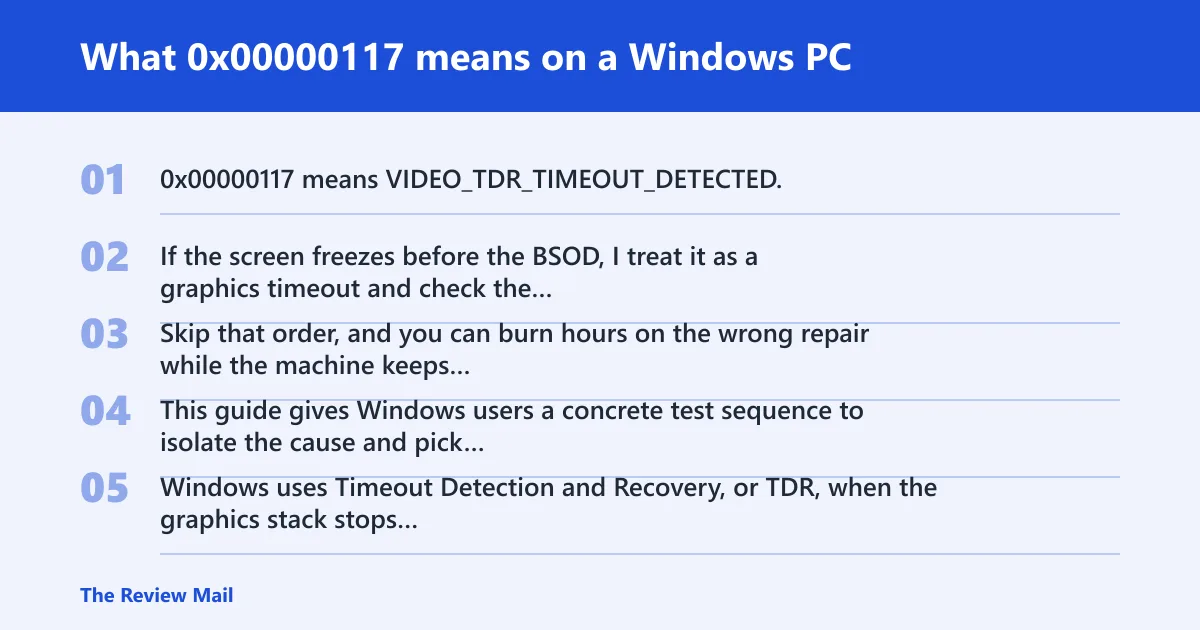
0x00000117 means VIDEO_TDR_TIMEOUT_DETECTED. If the screen freezes before the BSOD, I treat it as a graphics timeout and check the display driver first, then heat or power, then GPU hardware. Skip that order, and you can burn hours on the wrong repair while the machine keeps crashing under load. This guide gives Windows users a concrete test sequence to isolate the cause and pick the right fix.
Windows uses Timeout Detection and Recovery, or TDR, when the graphics stack stops answering. The default timeout is 2 seconds. During recovery, the GPU scheduler calls DxgkDdiResetFromTimeout to reinitialize the display miniport driver. A successful recovery can mean the display driver hung and then came back; a failed recovery can end in the stop code. (Microsoft Learn)
What 0x00000117 means on a Windows PC
What the crash usually looks like
A freeze first. Then a blue screen, sometimes after the display has already gone black or the cursor stops moving. The lockup can happen while a game loads, while video is playing, after sleep, or when an external display is attached. Those details matter more than the code alone.
According to Bug Check 0x117 VIDEO_TDR_TIMEOUT_DETECTED – Windows … — The bug check value is 0x00000117. (source)
What usually causes 0x00000117?
This stop code usually starts in the graphics path, not with generic Windows corruption. Driver changes are the first thing I check, especially after a new GPU package, but load spikes, sleep and wake transitions, external-display handoffs, and overclocked settings can all be part of the same problem.
Likely causes, from most often to less often
- Recent GPU or display driver change.
- Load-related timeout during gaming, rendering, or video playback.
- Sleep, wake, or monitor connection trigger.
- Overclocking, memory timing changes, or other tuning.
- Cooling or power delivery problems under load.
Microsoft’s debugger guidance also notes over-clocked components, incorrect compatibility and settings, insufficient cooling, and insufficient power as possible contributors. Microsoft’s stop-code guidance says third-party driver code is a major share of crashes overall, so the display driver stays near the top of the list.
Which cause is most likely in your case?
The fastest way to narrow this down is to match the crash context to the next test and capture evidence before changing anything. The table below separates driver-only failures from load, sleep, monitor, or tuning problems. Save the dump file, the exact scenario, and the driver version before you touch settings.
| Crash context | Most likely path | Evidence to capture | Next test |
|---|---|---|---|
| Gaming load | Driver or GPU stability under load | Game title, scene or benchmark, GPU temperature, installed driver version, dump file name | Retest the same game or benchmark after a clean driver update and stock settings |
| Idle crash | Driver, sleep-state handoff, or background graphics activity | Idle time before crash, monitors attached, screen saver, dump file, recent Windows Update history | Boot cleanly, leave the system at the desktop, then watch for the same freeze |
| External monitor trigger | Display stack or docking path | Port used, dock model, cable type, whether the crash starts at plug-in or wake | Test with one monitor, one cable, and the direct GPU output |
| After driver update | Bad driver branch or leftover driver state | Previous driver version, new version, date of install, any rollback already done | Roll back or clean-install the vendor driver, then repeat the exact trigger |
| After sleep/wake | Power-state transition in the display stack | Sleep mode used, lid close or manual sleep, external display status, dump file | Disable fast sleep-related changes by testing a normal shutdown and cold boot |
| After overclocking | Hardware stability factor | CPU, GPU, and memory settings; XMP/EXPO status; fan curve; power plan | Return all tuning to stock and repeat the same workload |
What evidence matters before you change anything
- Write down the exact trigger: game, app, idle desktop, sleep/wake, or external display event.
- Save the driver version from Device Manager > Display adapters > your GPU > Properties > Driver.
- Keep the dump file path handy, such as
C:\Windows\MEMORY.DMPor the latest minidump file. - Note whether the system is running stock settings or any CPU, GPU, or memory tuning.
How do I fix a suspected driver problem?
Start with the display driver and Windows updates. A clean driver branch is the most practical first repair because a display-driver timeout often follows a recent change. If the problem started right after an install, a rollback or uninstall-and-reinstall cycle is usually the fastest way to separate software from hardware.
Do this first
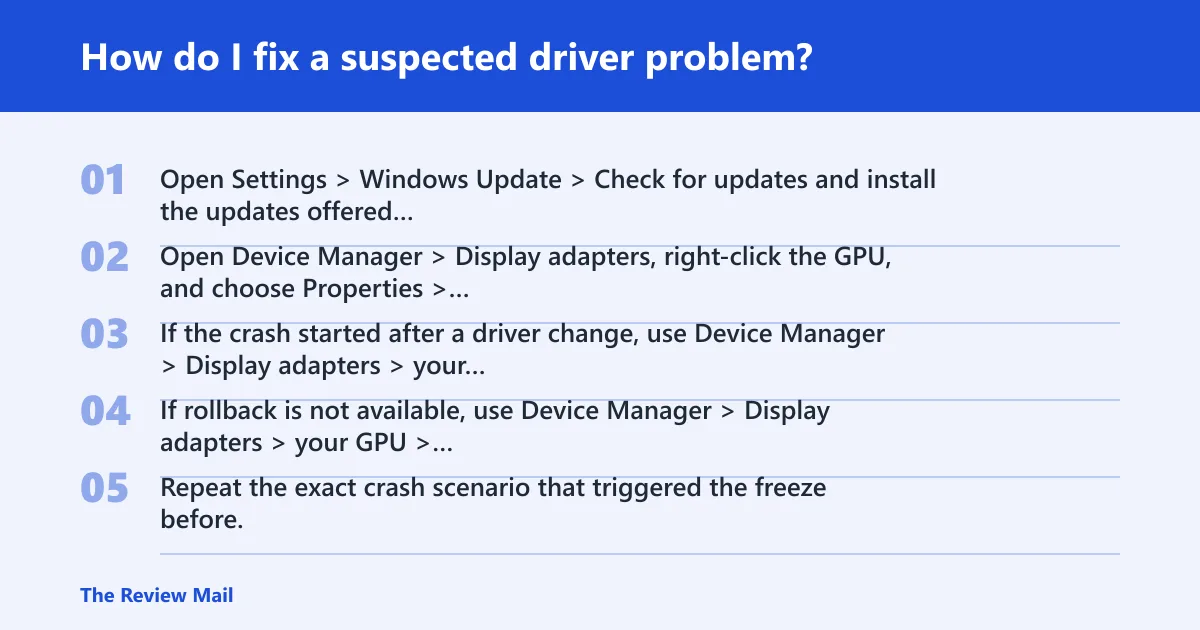
- Open Settings > Windows Update > Check for updates and install the updates offered there, including optional driver updates if they are provided through that channel.
- Open Device Manager > Display adapters, right-click the GPU, and choose Properties > Driver to check the current version and date.
- If the crash started after a driver change, use Device Manager > Display adapters > your GPU > Properties > Driver > Roll Back Driver when available.
- If rollback is not available, use Device Manager > Display adapters > your GPU > Uninstall device, then restart and install the latest vendor package.
- Repeat the exact crash scenario that triggered the freeze before.
When the driver install looks clean but the crash returns
Run sfc /scannow. Then run DISM /Online /Cleanup-Image /RestoreHealth. Those checks do not replace graphics-driver testing, but they help rule out system-file damage before deeper diagnostics. If the same display stack still fails, move to the dump file instead of cycling through random repairs.
How do I rule out GPU instability, power, or cooling issues?
If the crash keeps happening after a clean driver update, return the machine to stock settings and test again. That means CPU, GPU, and memory tuning off. Overclocking, memory timing changes, cooling limits, and power delivery problems can all look like a driver fault until the system is tested at default settings.
Stock-setting test sequence
- Reset CPU and GPU tuning to default in BIOS or the vendor tuning tool.
- Turn off XMP, EXPO, or manual memory timing changes for the test run.
- Set Windows to a balanced power plan and avoid extreme performance presets.
- Repeat the exact workload that caused the crash: the same game, the same export, or the same sleep/wake path.
- If the crash happens only under heavy load, repeat the test at reduced tuning and a standard power configuration.
What the result tells you
If the machine stays stable at stock settings, the next suspect is usually driver state or the specific workload path. If it still crashes under the same conditions, gather the dump and treat it as a hardware-stability or board-level problem until the module data says otherwise.
How do I check the crash dump for 0x00000117?
Open the dump in WinDbg and inspect the module, stack, and bug-check parameters. MEMORY.DMP, a minidump, or Automatic memory dump may help show whether the fault points to a display driver image or to a broader graphics-stability issue. The dump is what separates guesswork from a real decision.
Open the dump and inspect it
- Start Microsoft WinDbg.
- Use File > Open dump file and open
C:\Windows\MEMORY.DMP,or open the most recent file fromC:\Windows\Minidump. - Run !analyze and read the faulting module name and stack trace.
- Look for TDR_RECOVERY_CONTEXT in bug check parameter 1.
- Note any display miniport driver names and whether the stack points into the graphics path.
How to read the result
If the analysis points to a specific display driver image, stay on the software path first. If the module name is generic, absent, or the crash repeats across clean driver installs and stock settings, the evidence shifts toward a hardware-stability problem and away from a simple driver reinstall.
Still not working?
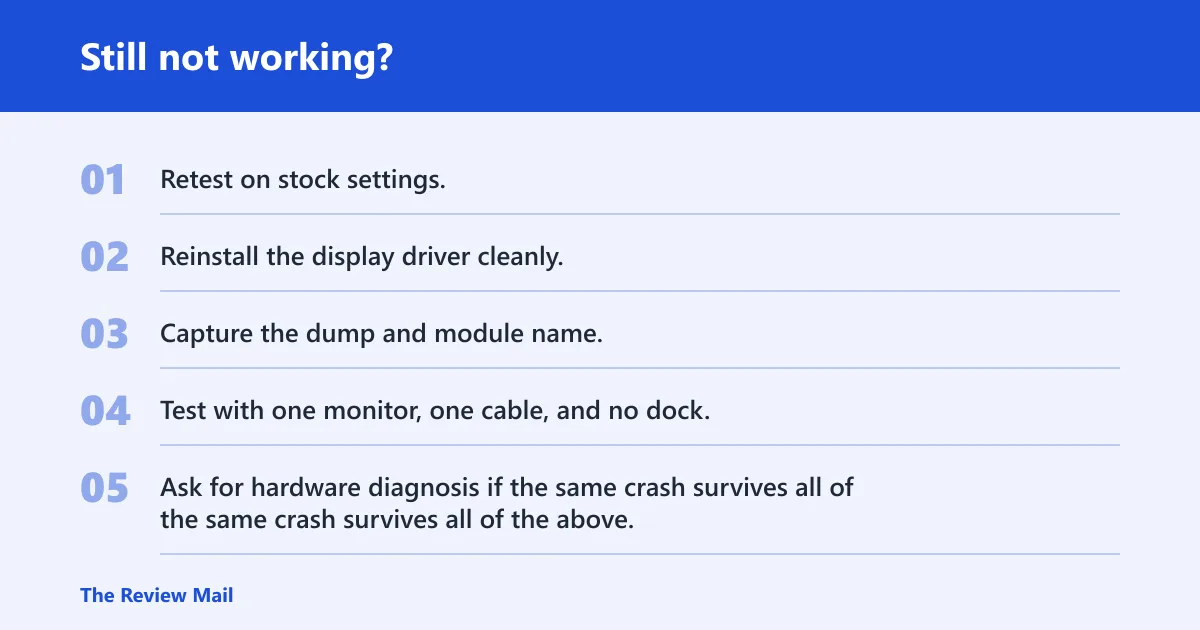
If the crash keeps coming back after driver updates, Windows updates, stock settings, and a dump check, stop chasing random fixes. Collect the exact scenario, the dump file, the driver version, and the WinDbg output, then move to vendor support or a repair shop that can test the GPU, board, power delivery, and memory under controlled load.
Escalation ladder
- Retest on stock settings.
- Reinstall the display driver cleanly.
- Capture the dump and module name.
- Test with one monitor, one cable, and no dock.
- Ask for hardware diagnosis if the same crash survives all of the above.
Prevention: after the system is stable, keep the display driver current and avoid new GPU, CPU, or memory tuning until the machine has passed the same workload several times without a freeze.
Frequently asked questions
What does stop code 0x00000117 mean?
It points to a graphics timeout, so the practical first move is to check the display driver version and the crash context before changing hardware. Open Device Manager > Display adapters, confirm the driver date, then inspect the latest dump in WinDbg with !analyze to see whether the module name points to the display stack.
How do I fix VIDEO_TDR_TIMEOUT_DETECTED in Windows?
Install the latest GPU driver, apply Windows updates, and retest the exact trigger that caused the freeze. If it still happens, return CPU, GPU, and memory settings to stock, then open the dump file in WinDbg and check the faulting module name before moving to deeper hardware testing.
Is 0x00000117 caused by a graphics driver or bad GPU?
Either is possible, but the dump file decides which path to follow first. A display-driver image in the stack keeps you on the software path; repeated crashes after clean installs and stock settings push the case toward hardware instability and a broader GPU diagnosis.
What should I do if my screen freezes before the blue screen?
Record the exact action in progress, such as a game load, sleep or wake, or a monitor change, then capture the dump after reboot. That trigger detail belongs next to the module name in WinDbg, because the scenario often separates a driver issue from a load or display-hand-off problem.
Which driver updates matter most for 0x00000117?
The display driver matters first, then the Windows build and any vendor graphics package that handles the GPU path. Check Settings > Windows Update, then the GPU vendor’s current package, then retest the same scenario that failed before you start changing BIOS or tuning settings.
Can overheating or power issues trigger 0x00000117?
Yes, those are practical suspects when the crash appears only under load or after tuning changes. Return to stock settings, test the same workload again, and watch whether the freeze survives a balanced power plan and normal cooling before you assume the display driver is the only problem.