0x00000123 BSOD: causes, checks, fixes, and repair steps
For 0x00000123, I start with the crash timing, dump files, and the last driver or BIOS change to identify the failing subsystem; if the bugcheck appears during load, I blame the newest hardware path first. Guessing wastes time and can hide a failing driver, storage device, RAM issue, or firmware bug. This guide shows a quick way to read the evidence and narrow the cause on recent Windows versions.
This guide is part of our Windows BSOD stop codes: full list and fixes series.
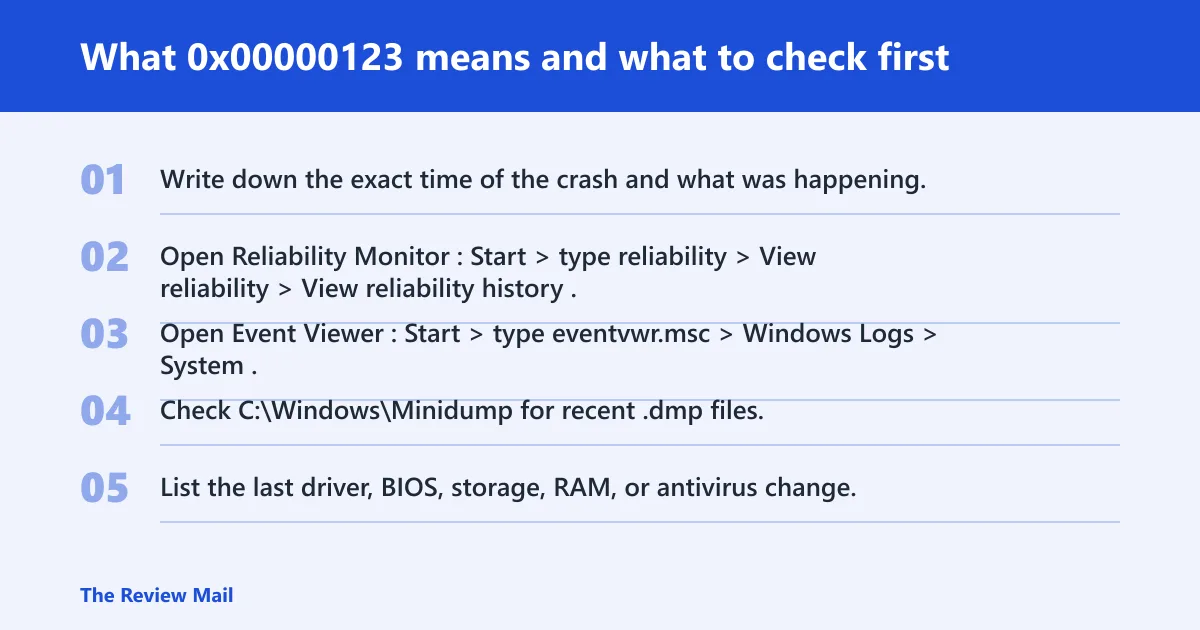
What 0x00000123 means and what to check first
0x00000123 is the Windows bug check CRYPTO_SELF_TEST_FAILURE (per Microsoft support). I usually see it during boot, right after a driver or firmware change, or under load when a low-level component fails its own integrity check. (Microsoft Learn)
Start with timing, not guesses. Note whether the crash happens at the logo screen, on the sign-in screen, during heavy disk or GPU use, or only after a recent update.
What to record before changing anything
- Write down the exact time of the crash and what was happening.
- Open Reliability Monitor: Start > type reliability > View reliability history.
- Open Event Viewer: Start > type
eventvwr.msc> Windows Logs > System. - Check
C:\Windows\Minidumpfor recent .dmp files. - List the last driver, BIOS, storage, RAM, or antivirus change.
Likely causes, ranked by how often they fit this crash
Most often, this code points to an unstable memory path, a bad kernel-mode driver, or firmware that no longer matches the hardware settings. Less often, disk corruption or a damaged Windows image makes the same stop code appear.
Memory faults and unstable memory settings
Bad RAM, an aggressive XMP profile, or an unstable memory controller can trip the self-test path very early. Crashes that appear under load, after a cold boot, or only when all memory slots are populated fit this pattern.
Recent driver changes or bad kernel-mode drivers
Recent chipset, GPU, and storage driver changes are common suspects when the machine was stable before an update. If the crash began after a driver install, rollback is a faster test than reinstalling Windows.
Storage faults or file corruption
A failing drive, file-system damage, or broken Windows system files can create repeated crashes that look random. If startup gets slower first, or the machine freezes before the blue screen, check storage before anything else.
BIOS, UEFI, or firmware issues
Wrong defaults, a memory profile that no longer fits the hardware, or outdated firmware can make a stable system crash after a board or RAM change. This is especially likely after an upgrade, a new SSD, or a recent firmware flash.
Memory problems: test RAM and undo unstable settings
If the crash started after a RAM upgrade, XMP change, or CPU overclock, reverse that first. Memory instability is one of the fastest causes to rule in or out because it can corrupt low-level checks before Windows fully loads.
Turn off XMP or any overclock first
- Enter BIOS/UEFI during startup, usually with F2, Del, or the vendor key.
- Load Optimized Defaults or Default Settings.
- Disable XMP, EXPO, or manual CPU overclock settings.
- Save and exit, then retest the machine at stock settings.
Run a memory test and watch for repeatable errors
- Open Start and run Windows Memory Diagnostic.
- Choose Restart now and check for problems.
- For a deeper pass, boot memtest86 from USB and let it run several passes.
- If errors repeat in the same slot or with one stick removed, stop testing that module.
Check whether crashes happen only under load
If the system survives idle but fails during gaming, compression, large file copies, or heavy browser use, memory controller instability moves higher on the list. If the crash happens at boot with XMP disabled, move to firmware or a hardware fault.
Driver problems: roll back or reinstall the last changes
A kernel-mode driver can trigger 0x00000123 if it loads early or touches cryptographic, storage, or hardware-enforcement code. Recent updates matter most. A clean rollback is faster than broad repair work.
Review recent GPU, chipset, and storage driver updates
- Open Settings > Windows Update > Update history.
- Check Device Manager for the GPU, chipset, storage, and security devices.
- Note any driver version that changed just before the crash started.
- Focus first on the newest low-level driver, not peripheral software.
Use Device Manager to roll back or uninstall
- Right-click Start > Device Manager.
- Open the suspect device > Driver tab.
- Choose Roll Back Driver if available.
- If rollback is unavailable, choose Uninstall device, then reboot and install the vendor package again.
Clean reinstall a suspect driver when rollback fails
- Download the correct driver from the device or system vendor.
- Disconnect from the network if you need to block automatic replacement.
- Use Device Manager to uninstall the old driver.
- Install the vendor package, reboot, and retest.
Storage and Windows files: check the disk before you repair Windows
Disk checks come before full repair because a failing drive can make every other tool lie to you. If logs show disk errors, or if the machine freezes before crashing, check storage first, then repair Windows if needed.
Check SMART or vendor disk health data
- Open the SSD or drive vendor utility if installed.
- Look for reallocated sectors, media errors, or critical warnings.
- If no vendor tool exists, check Event Viewer > System for disk and storahci errors around the crash time.
Run file system repair
- Open Command Prompt as administrator.
- Run
chkdskC: /f /r. - Accept the schedule, then restart.
- If errors keep returning on the same volume, stop and inspect the drive itself.
Run system file and Windows image repair
- Open Command Prompt as administrator.
- Run
sfc /scannow. - Then run
DISM /Online /Cleanup-Image /RestoreHealth. - Reboot and check whether the blue screen returns.
BIOS and UEFI checks that can stop repeat crashes
When crashes begin after a firmware update, RAM upgrade, or board swap, BIOS and UEFI settings deserve a quick pass. A bad memory profile or unstable default can recreate the same failure on every boot.
Load default settings and retest
- Enter BIOS/UEFI setup.
- Choose Load Optimized Defaults, Load Setup Defaults, or the vendor equivalent.
- Save and exit.
- Boot Windows and see whether the stop code still appears.
Update firmware only after saving current settings
- Record current BIOS version and settings.
- Use the board or system vendor’s BIOS update method.
- Update only if the release notes mention stability, memory, or boot fixes.
- Reapply only the settings you need, then retest.
Review memory profile and boot-related settings
- Disable XMP, EXPO, or manual memory tuning.
- Leave Secure Boot at its default unless a specific test requires a change.
- Remove unsupported boot tweaks, then boot Windows normally.
Triage table: which evidence points to the next step
| Crash timing or symptom | What to collect | Next diagnostic action | What confirms the cause | When to stop testing |
|---|---|---|---|---|
| Crash at boot or sign-in | Minidump, Event Viewer System log, recent BIOS or driver changes | Load BIOS defaults; disable XMP; boot again | Stable boot at stock settings | Stop if the crash ends after defaults are restored |
| Crash under load | Reliability Monitor history, GPU or storage driver versions | Roll back the newest kernel-mode driver | Crash stops after rollback | Stop if the older driver fixes it |
| Freeze, then blue screen | Disk warnings, vendor SMART data, chkdsk output | Run chkdsk and check drive health | Repeated disk errors or SMART warnings | Escalate if the drive shows warnings |
| Random crashes after RAM change | Memtest86 results, slot-by-slot testing | Test one stick at a time | Errors repeat on one module or slot | Stop and replace the failing part |
| Recurring crashes after clean boot | Minidump analysis in WinDbg, Event Viewer IDs | Inspect the dump for the last loaded module | Same module or path appears across dumps | Escalate to hardware or vendor support |
Still crashing? Use Recovery tools or replace hardware
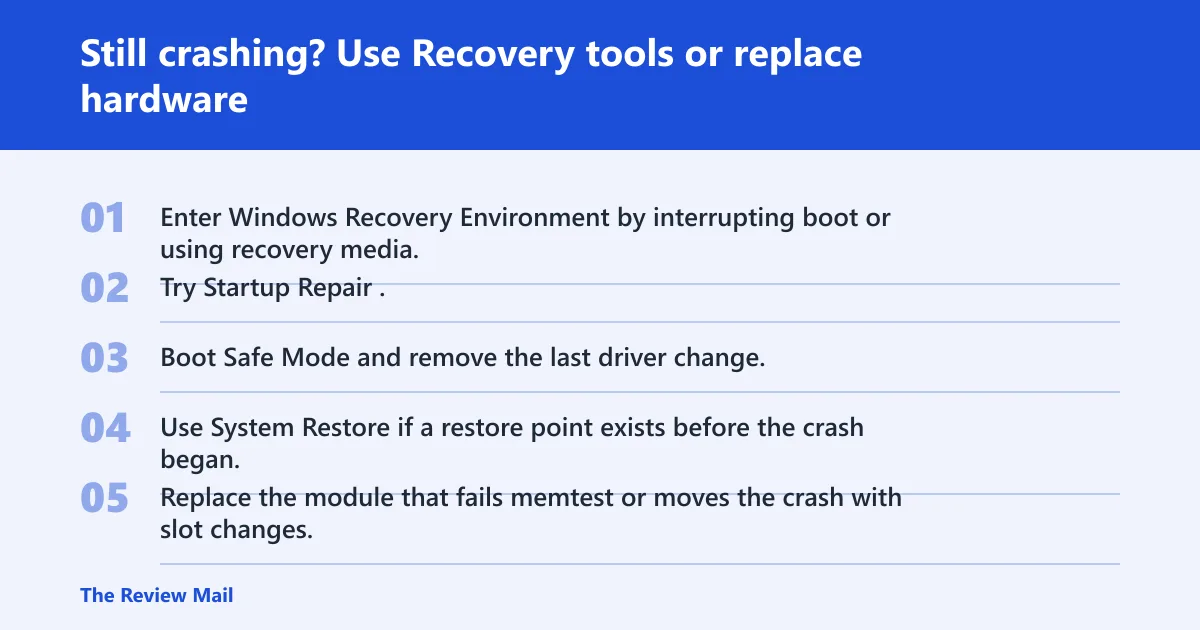
If Safe Mode still crashes, or if rollback, disk repair, and memory tests do not change the pattern, move to recovery tools and hardware isolation. At that point, repeated failures suggest a part that needs replacement or a firmware issue that ordinary repair will not fix.
Use Safe Mode, Startup Repair, and System Restore
- Enter Windows Recovery Environment by interrupting boot or using recovery media.
- Try Startup Repair.
- Boot Safe Mode and remove the last driver change.
- Use System Restore if a restore point exists before the crash began.
When recurring crashes point to a part replacement
- Replace the module that fails memtest or moves the crash with slot changes.
- Replace the drive if SMART or
chkdskpoints to physical damage. - Escalate motherboard or CPU diagnosis if the crash follows every RAM stick and every drive.
If that didn’t work, try this next
Move from the fastest reversible test to the next harder one: restore BIOS defaults, then test stock RAM settings, then roll back the newest driver, then repair the disk, then repair Windows files, then use recovery tools. If the system still throws the same stop code after clean boots and clean driver states, stop chasing software and get hands-on help.
Prevention: before major updates or BIOS changes, create a restore point and note current memory settings; that makes rollback faster if the crash returns.
Frequently asked questions
What does stop code 0x00000123 mean in Windows?
It is the bug check CRYPTO_SELF_TEST_FAILURE. The fastest next step is to check the crash timing, then inspect the latest minidump in C:\Windows\Minidump and the System log in Event Viewer. Those two sources usually tell you whether the failure followed a driver, firmware, or hardware change.
Is 0x00000123 a hardware or software BSOD?
It can be either. If it began after a driver, BIOS, or memory-profile change, treat software or firmware as the first suspect. If it appears under load or survives a rollback, move to RAM, storage, and board-level troubleshooting next.
How do I fix 0x00000123 on Windows 10 or Windows 11?
Start with BIOS defaults, disable XMP, and roll back the newest chipset, GPU, or storage driver. Then run sfc /scannow and DISM /Online /Cleanup-Image /RestoreHealth. If the crash still returns, boot to Safe Mode or WinRE and keep isolating the last change that preceded the failure.
Can bad RAM cause 0x00000123?
Yes. Unstable RAM, XMP, or a shaky memory controller can trigger early boot failures and load-related crashes. Turn off XMP in BIOS, then run Windows Memory Diagnostic or memtest86. If one stick or one slot repeats errors, stop there and replace the failing part.
Does 0x00000123 point to a driver problem?
Often, yes. The fastest check is the newest kernel-mode driver, especially GPU, chipset, or storage. Use Device Manager to roll back the last update, then reinstall the vendor package if rollback is not available. If the crash vanishes, the driver was the trigger.
What logs should I check after a 0x00000123 blue screen?
Check Reliability Monitor, Event Viewer under Windows Logs > System, and any minidump files in C:\Windows\Minidump. In WinDbg, look for the last loaded module and the stop timing. If the same module appears across multiple dumps, stop testing random parts and focus there.
Will Safe Mode help me troubleshoot 0x00000123?
Yes. Safe Mode strips out many third-party drivers and starts with a smaller set of services. If the machine is stable there, the problem usually sits with a driver, startup item, or firmware-linked setting. If Safe Mode also crashes, hardware or low-level firmware rises to the top.
When should I replace hardware for a 0x00000123 crash?
Replace hardware after a repeatable failure in memtest86, a drive that shows SMART warnings or recurring chkdsk errors, or a crash that follows one specific module or slot. If the system still fails after defaults, rollback, and repair steps, professional bench testing is the next sensible move.