0x000001ea BSOD: what it means and how to fix it fast
0x000001EA is the stop code for SECURE_PCI_CONFIG_SPACE_ACCESS_VIOLATION. Start by checking what changed last and by reviewing the crash dump if one exists, so you can narrow the fault to software, hardware, or a recent platform change.
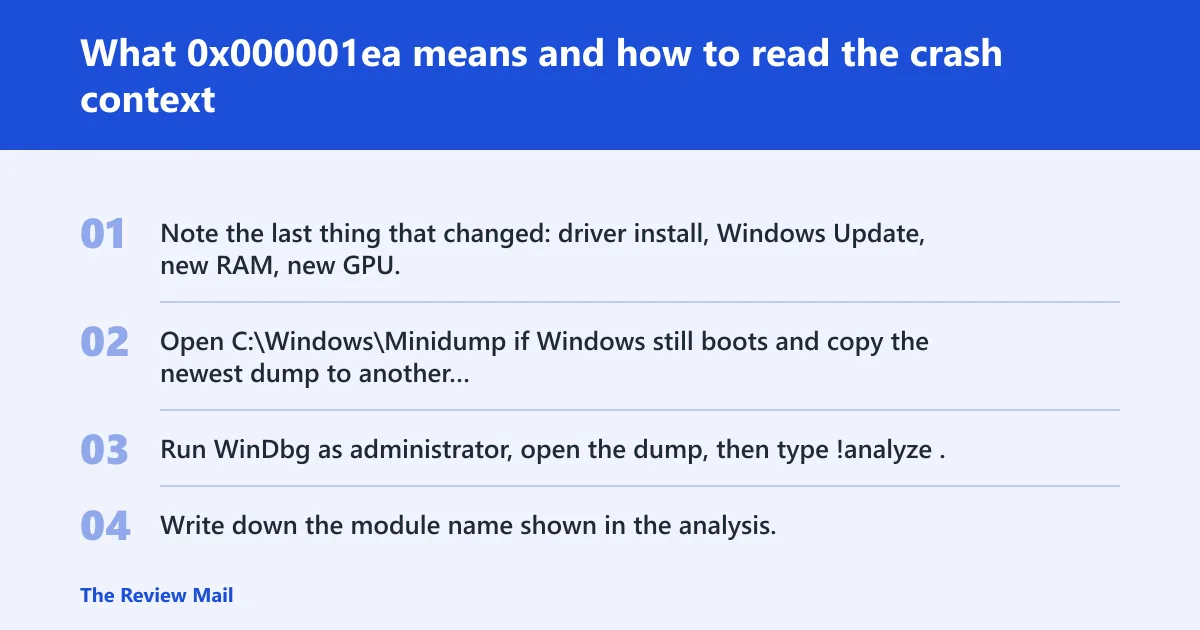
What 0x000001ea means and how to read the crash context
The first job is not to guess a fix. It is to decide whether the crash follows software, hardware, or a recent platform change.
If there is a minidump, open it in WinDbg and run !analyze to display information about the bug check and help determine the root cause. If there is no dump, the last change before the first crash matters more than any general checklist.
Use the crash context before changing anything
- Note the last thing that changed: driver install, Windows Update, new RAM, new GPU, BIOS update, or added storage.
- Open
C:\Windows\Minidumpif Windows still boots and copy the newest dump to another folder. - Run WinDbg as administrator, open the dump, then type !analyze.
- Write down the module name shown in the analysis.
Use this triage matrix before you change anything
The quickest path is to match the crash context to the most likely subsystem, then test that subsystem first. Do not start by swapping random parts. The table below is the short list that saves the most time on 0x000001ea.
| Crash context | Most likely subsystem | First two actions | Do not waste time on yet |
|---|---|---|---|
| Right after a driver update | Device drivers | Roll back the driver in Device Manager; if rollback is unavailable, choose Uninstall device, then reinstall the vendor package after the next boot | Replacing RAM or motherboard |
| Right after Windows Update | Driver, startup software, or firmware | Boot Safe Mode; check the minidump with WinDbg !analyze if one exists | Memtest before checking the update path |
| After new RAM or a case open | Memory | Power off the PC and unplug it; reseat the DIMMs; test one stick at a time in the same slot | Driver cleanup first |
| After a board, CPU, or add-in card change | BIOS / firmware | Confirm component compatibility; check whether a firmware update is needed | Assuming the GPU driver is the only suspect |
| Random crashes during heavy startup load | Startup software or memory pressure | Boot Safe Mode; use Autoruns from offline recovery to disable startup-loaded drivers | Reimaging the PC first |
Could a device driver be causing 0x000001ea?
Yes. A driver fault is worth checking when the crash follows a recent install, update, or rollback. Graphics card drivers can be involved, so the clean move is to reverse the last change before touching hardware.
- Open Device Manager.
- Find the device that changed most recently, often under Display adapters.
- Open Properties > Driver.
- Select Roll Back Driver if it is available.
- If rollback is unavailable, choose Uninstall device, then reinstall the vendor package after the next boot.
- If the crash began after a graphics driver update, use the earlier version first instead of stacking another new version on top.
A driver should be rolled back when the crash started immediately after the update and the old version is known to work. Reinstalling fits when files look damaged or the update is incomplete. If WinDbg !analyze names a specific module, test that module first instead of the whole driver stack.
Can bad RAM cause a 0x000001ea blue screen?
Yes. RAM faults can trigger this crash, and mismatched sticks can be a problem. If memory changed recently, treat it as a top suspect. The clean test order is physical reseat, single-stick testing, then comparison of the pair if each module passes alone.
- Power off the PC and unplug it.
- Open the case and reseat the DIMMs.
- If two sticks are installed, try booting with one stick at a time in the same slot.
- Repeat with the other stick in that same slot.
- If one stick fails and the other passes, leave the failing module out and retest the system.
- If both pass alone but fail together, compare speed, capacity, and model before using them together.
For software validation, run Windows Memory Diagnostic after the hardware pass. If the machine crashes during memory testing, the system still points back to RAM, slot, or board compatibility rather than a random driver.
Do BIOS, firmware, or new hardware changes matter here?
Yes. BIOS or firmware becomes relevant after a platform change, a new add-in card, or a recently updated board. The crash can appear when the board and the new component do not agree on initialization or PCI handling, so compatibility comes before driver changes.
- Check whether the crash began after a new CPU, motherboard, GPU, storage controller, or other add-in card was installed.
- Enter the BIOS setup and confirm the new part is listed correctly.
- Review the board vendor’s support notes for the installed part and firmware level.
- If the board is behind on firmware and the part is supported by a newer release, update firmware only after backing up data.
- If the part is new and compatibility is unclear, pause before reinstalling drivers again.
On a post-upgrade system, firmware compatibility often matters more than a second driver reinstall. If the machine worked before the hardware change, that change gets first review.
How do I boot Windows safely after 0x000001ea?
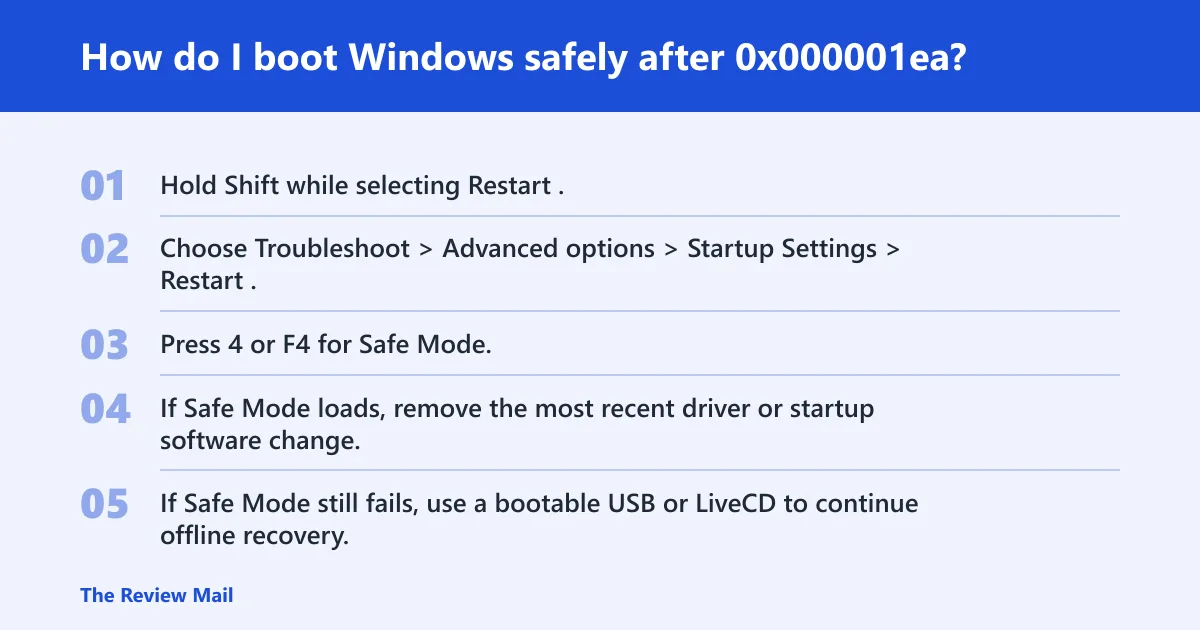
Safe Mode helps isolate startup drivers and startup apps when Windows still reaches the sign-in screen. If the system still crashes there, Safe Mode has done its job: it reduced the surface area and pointed away from ordinary startup loading.
- Hold Shift while selecting Restart.
- Choose Troubleshoot > Advanced options > Startup Settings > Restart.
- Press 4 or F4 for Safe Mode.
- If Safe Mode loads, remove the most recent driver or startup software change.
- If Safe Mode still fails, use a bootable USB or LiveCD to continue offline recovery.
Use a bootable USB or LiveCD when normal boot fails
If Windows will not boot, use a bootable USB or LiveCD as the recovery path. From that environment, use Autoruns to disable startup-loaded drivers and other boot-loading entries during offline recovery.
- Boot from the recovery USB or LiveCD.
- Open the offline Windows installation if prompted.
- Launch Autoruns.
- Clear the entries tied to recently added startup drivers or vendor utilities.
- Reboot into Windows and test before re-enabling anything.
What should I check first when 0x000001ea keeps happening?
When the crash repeats, stop treating it like a one-off. Start with the last change, then the dump, then the subsystem with the strongest clue. Low free disk space, startup software, and memory-heavy applications can add instability, but they should not outrank a recent driver, RAM, or firmware change.
- Check free disk space and clean out temporary files if the system is nearly full.
- Inspect recent software installs, especially antivirus and backup tools.
- Disable the newest startup apps in Task Manager > Startup.
- Uninstall or pause the most memory-hungry applications that start with Windows.
- Run
sfc /scannowand, if needed,DISM /Online /Cleanup-Image /RestoreHealth.
If a minidump exists, the module name from WinDbg !analyze should outrank guesswork. That is the shortest route from repeated crashes to a named fault.
How do I fix 0x000001ea after a Windows update?
After a Windows update, the usual sequence is driver rollback, Safe Mode, then offline startup control. The update may have exposed an older driver, a conflicting service, or a board/firmware mismatch that did not matter before the reboot cycle.
- Open Settings > Windows Update > Update history and note the last installed update.
- Go to Device Manager and roll back the newest affected driver.
- Boot into Safe Mode with Shift + Restart.
- If the system still will not stay up, boot a LiveCD or recovery USB and disable startup-loaded drivers with Autoruns.
- Retry the update path only after the machine is stable again.
On Windows 11 and Windows 10, the menus differ a little, but the sequence does not: confirm the update, revert the driver, then isolate startup loading.
Can software conflicts trigger 0x000001ea?
Antivirus products, backup tools, startup apps, and memory-heavy applications can interfere with driver loading or add enough pressure to expose a weak component. These are not the first thing to check, but they are reasonable to review once the direct driver and RAM paths are covered.
- Open Settings > Apps > Installed apps.
- Uninstall the most recent antivirus or backup utility.
- Open Task Manager > Startup and disable recently added launchers.
- Reboot and test one change at a time.
- If the system becomes stable, reintroduce only one app at a time.
Keep this pass short. If removing a backup tool stops the crash, do not move on to BIOS work. If nothing changes, return to the driver or memory branch.
When should I reinstall a driver versus replace hardware for 0x000001ea?
Reinstall a driver when the crash began after a driver update, rollback, or new device package and the minidump points to that module. Replace or remove hardware when single-stick RAM tests fail, a component fails only when paired with another, or the system crashes even after the suspect driver is removed and the board firmware is current.
- Use WinDbg !analyze if a dump exists.
- If the failing module is a driver, roll it back or uninstall and reinstall it.
- If a DIMM fails the one-stick test, keep it out.
- If both sticks pass alone but fail together, do not mix them until speed, capacity, and model match.
- If the crash survives all of that, move to firmware compatibility or vendor support.
Prevention: Keep BIOS and critical drivers on versions that match the hardware installed, and avoid piling multiple driver changes into one day. That makes the next crash easier to trace.
Frequently asked questions
What does 0x000001ea mean in Windows?
It is the stop code for SECURE_PCI_CONFIG_SPACE_ACCESS_VIOLATION. If a minidump exists, open it in WinDbg and run !analyze to identify the module that failed. That gives a far better starting point than guessing from the blue screen alone.
Is 0x000001ea a driver problem or hardware problem?
Either is possible. The answer depends on what changed last. A recent driver update points to rollback or reinstall; new RAM points to reseating and single-stick tests; a board or component change pushes BIOS and compatibility checks higher on the list.
How do I fix 0x000001ea after a Windows update?
Start with Device Manager and roll back the newest driver, then boot Safe Mode with Shift + Restart. If Windows will not stay up, boot a recovery USB and use Autoruns to disable startup-loaded drivers before trying the update path again.
Can bad RAM cause a 0x000001ea blue screen?
Yes. Power off and unplug the PC, reseat the DIMMs, then test one stick at a time in the same slot. If one stick fails and the other passes, leave the failing module out. If both pass alone but fail together, compare their speed, capacity, and model.
How do I boot Windows safely after 0x000001ea?
Hold Shift while selecting Restart, then choose Troubleshoot > Advanced options > Startup Settings. Safe Mode is useful for isolating startup drivers. If it still crashes there, move to a bootable USB or LiveCD recovery path.
Can software conflicts trigger 0x000001ea?
Yes. Antivirus tools, backup software, startup apps, and memory-heavy programs can interfere with driver loading or stress a weak subsystem. Uninstall the newest conflicting package first, then disable the most recent startup entries in Task Manager > Startup.