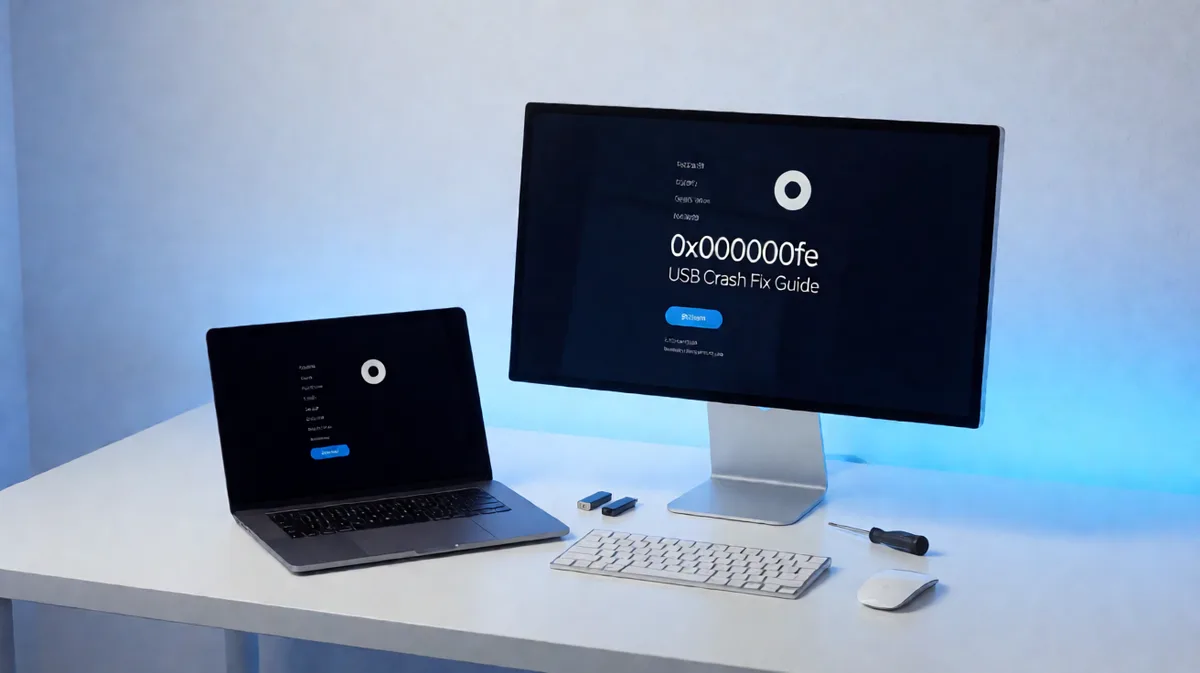
0x000000fe BSOD: USB Crash Fix Guide for Windows PCs
Stop 0x000000fe by isolating USB hardware and USB drivers first: disconnect external USB devices, then test one device and one controller path at a time until the crash stops. If you skip a methodical order, you can waste time swapping parts and miss the failing USB component. The BUGCODE_USB_DRIVER bug check has a value of 0x000000FE, and it indicates that an error has occurred in a universal serial bus (USB) driver.
This guide is part of our Windows BSOD stop codes: full list and fixes series.
What 0x000000fe means in Windows
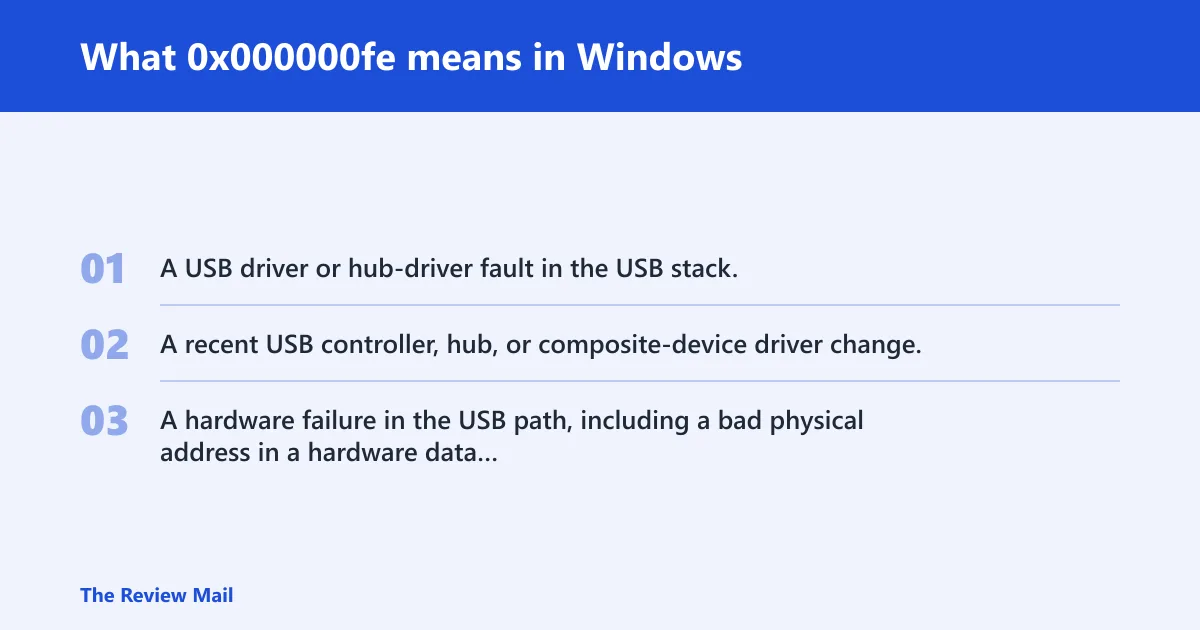
0x000000FE is the BUGCODE_USB_DRIVER bug check. In plain terms, Windows stopped because an error occurred in a USB driver path, so the first step is to remove nonessential USB hardware and see whether the crash stops before changing software.
Why this code often points to the USB stack
Microsoft documents that this stop code indicates an error in a USB driver. Bugcheck parameters can help narrow the path: parameter 1 value 0x1 means an internal error has occurred in the USB stack, 0x2 means the USB client driver has submitted a URB that is still attached to another IRP pending in the bus driver, 0x3 means the USB miniport driver has generated a bug check, 0x4 means the caller has submitted an IRP that is already pending in the USB bus driver, 0x5 means a hardware failure has occurred because of a bad physical address found in a hardware data structure, 0x6 means an internal data structure (object) is corrupted, 0x7 says to see the provided message string for detailed information, and 0x8 subvalue 2 means an IRP was received by the hub driver that it does not expect or has not registered for.
First-boot versus repeat-crash behavior
If the blue screen appears on the first boot after a new device or driver change, start with that change. If it repeats across reboots, continue isolating the USB path and recently changed drivers before moving on to other repair steps. If 0x000000fe won't go away after the same repair is repeated, go back to the dump and event log for the next clue instead of repeating the same step.
Likely causes
- A USB driver or hub-driver fault in the USB stack.
- A recent USB controller, hub, or composite-device driver change.
- A hardware failure in the USB path, including a bad physical address in a hardware data structure.
For example, if the crash starts after a device is attached, that timing points to the USB path that was just used, not to a specific part by default. A common first-timer mistake is to replace hardware before checking whether a recent USB driver change is involved. On some Lenovo systems, the same stop code can still be approached the same way: isolate USB hardware first, then review recent USB driver changes.
Can a USB device cause 0x000000fe?
Yes. A USB device can be involved when a USB driver path faults, but the stop code itself does not identify a specific device type. Start by reducing the system to the minimum attached hardware, then reconnect one piece at a time until the crash comes back.
- Shut down the PC.
- Unplug every nonessential USB item.
- Leave only keyboard, mouse, and one display path if needed.
- Boot the system and wait for the same workload that usually triggers the crash.
- Reconnect one device, one cable, one port at a time.
- Swap ports before swapping devices, then swap cables before replacing hardware.
What to test next
Use a rear motherboard port before a front-panel port. Avoid daisy-chained hubs for the first test. If the problem appears only with one attached USB device, test that same device on another port and with another cable if available. If the crash still follows the same USB path, that path is more suspect than the individual peripheral.
How do you find the faulty driver for this BSOD?
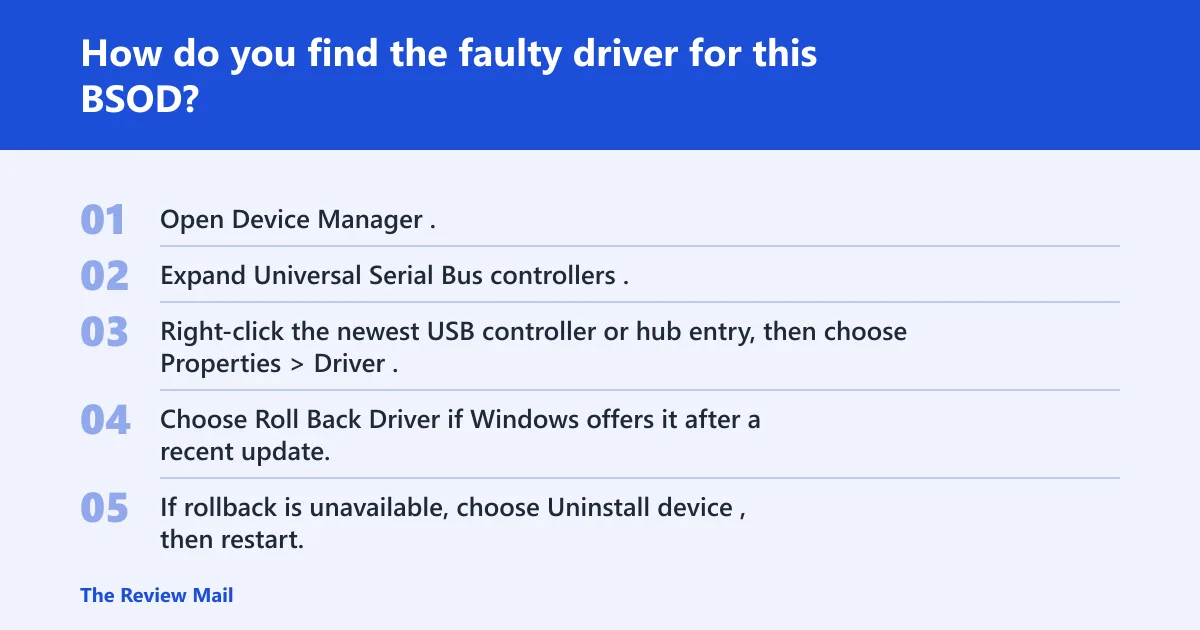
Check recent USB driver changes, then use Event Viewer and minidumps to identify the module before you roll anything back. The goal is to see whether the crash points to a controller driver, a hub driver, or a USB composite component before you touch other repair tools.
- Open Device Manager.
- Expand Universal Serial Bus controllers.
- Right-click the newest USB controller or hub entry, then choose Properties > Driver.
- Choose Roll Back Driver if Windows offers it after a recent update.
- If rollback is unavailable, choose Uninstall device, then restart.
- Open Event Viewer and check Windows Logs > System for Kernel-Power and bugcheck entries around the crash time.
What Event Viewer should tell you
Match the timestamp of the blue screen with the Kernel-Power entry and the bugcheck event. If a USB device, hub, or controller driver update happened minutes before the crash, that is the first rollback target. Repeating crashes with no recent change make the minidump more important than the event log alone.
How minidumps help
Windows stores minidumps in C:\Windows\Minidump. Open them in WinDbg, the Microsoft debugger, and load the dump file to inspect the bugcheck parameters and the failing module name. Parameter values can separate an internal USB stack error, a bad IRP state, a miniport bug check, a corrupted object, or an unexpected hub-driver request.
Driver Verifier only after recovery is ready
Driver Verifier can help catch a bad driver, but it can also force more crashes. Use it only when you have a clear way back into Safe Mode and after you have copied the dump files and noted the current driver state. It is a diagnostic tool, not a first fix.
What should you do if 0x000000fe happens at startup?
At startup, boot to Safe Mode or the recovery environment first, then remove the last USB or driver change before trying repairs. Safe Mode loads a smaller set of drivers, which can make it easier to isolate the affected USB path or controller driver.
Startup isolation order
- Enter Safe Mode through Windows Recovery.
- Unplug all external USB devices except keyboard and mouse.
- Undo the last driver, dock firmware, or chipset update.
- Boot normally and retest.
- If the crash returns, check the dump and event log instead of repeating the same repair.
If the system only crashes after the login screen, a peripheral or its driver is more likely than a boot-time Windows component. If it fails before sign-in, focus first on recently attached USB hardware and the controller path that initializes during boot.
USB crash triage table and evidence trail
Try this sequence in order: device, port, cable, controller, then the OS. Record what changes between each reboot. That evidence tells you whether to remove hardware, roll back a driver, or move to file repair. The bugcheck parameters in the dump and the timestamps in Event Viewer should drive the next step, not guesswork.
| Isolation step | Evidence to collect | Decision for the next move |
|---|---|---|
| Disconnect all nonessential USB hardware | Event Viewer timestamp, crash recurrence, any attached device model | If the crash stops, reconnect one device at a time |
| Change one port and one cable | Which port, which cable, whether the same device still crashes | If only one path fails, replace that cable or port path |
| Inspect controller and hub drivers | Driver version, install date, rollback availability, dump module name | If the crash follows a driver update, roll back or reinstall |
| Open the minidump in WinDbg | Bugcheck parameters, failing module, stack notes | If the dump points to USB stack corruption, continue driver isolation |
| Run OS repair only after device and driver checks | SFC output, DISM result, whether the crash remains after repair | If the crash persists, return to the dump and event log |
When the dump points to a USB stack problem
Parameter 1 values can matter. Microsoft documents values that map to internal USB stack errors, bad IRP states, miniport bugs, an internal data structure corruption, an unexpected hub-driver request, and a bad physical address found in a hardware data structure. That is why the dump matters more than a generic “USB error” label.
When should you repair Windows files with SFC and DISM?
Run System File Checker after USB hardware and driver checks fail, not before. Use DISM if SFC reports corruption it cannot fix or if Windows component repair is needed. If the blue screen remains after USB isolation, file repair is the next logical step.
- Open an elevated Command Prompt.
- Run
sfc /scannow. - If SFC reports corruption it cannot fix, run
DISM /Online /Cleanup-Image /RestoreHealth. - Restart the PC.
- Retest with only the minimum USB hardware attached.
- If the crash returns, go back to the dump and event log instead of repeating the same repair.
If that did not work
Try a different USB controller path, such as a separate chipset driver source from the PC maker or motherboard vendor. If a known-good external device crashes this PC but works on another machine, the controller path or system board is more suspect than the peripheral.
Still not working?
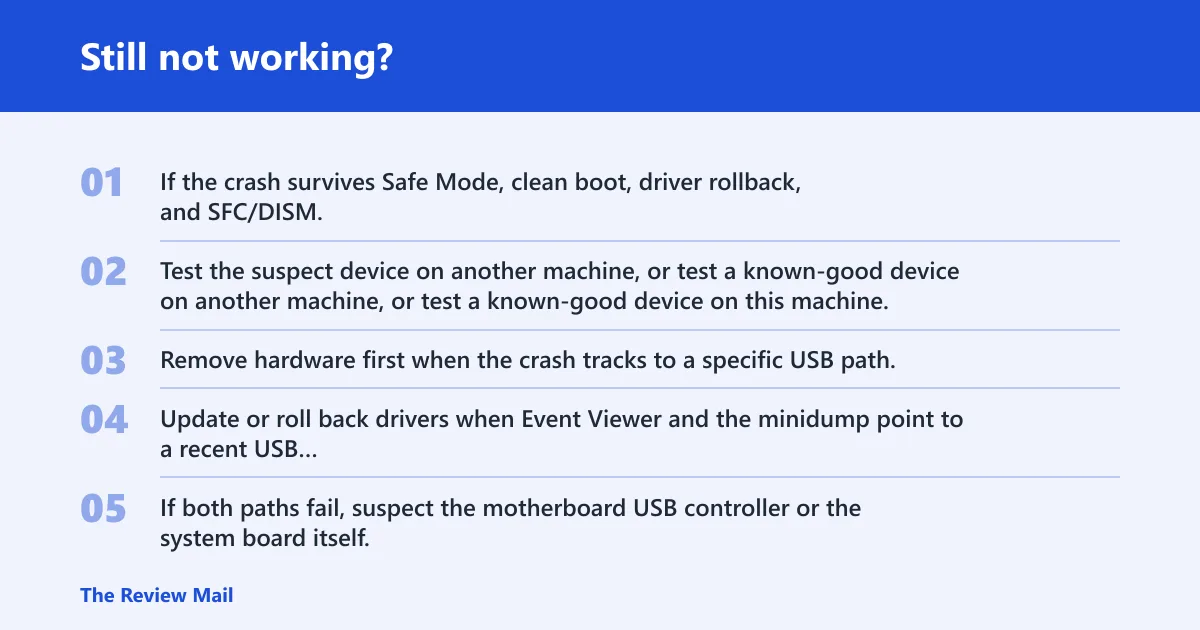
If the crash survives Safe Mode, clean boot, driver rollback, and SFC/DISM, stop swapping random parts and move to hardware service or IT support. Test the suspect device on another machine, or test a known-good device on this machine, to separate a bad peripheral from a bad controller path.
When to remove hardware versus update drivers
Remove hardware first when the crash tracks to a specific USB path. Update or roll back drivers when Event Viewer and the minidump point to a recent USB controller, hub, or composite-device change. If both paths fail, suspect the motherboard USB controller or the system board itself.
Prevention
Keep dock, hub, and controller firmware changes separate from Windows updates when possible, so a future crash has one obvious recent change to inspect.
Frequently asked questions
What does 0x000000fe mean in Windows?
It is the BUGCODE_USB_DRIVER stop code, which means Windows detected a failure in a USB driver path. The useful next step is to remove external USB devices, then check Event Viewer and the minidump for the module or parameter pattern before changing anything else.
Is 0x000000fe a driver problem or hardware problem?
It can be either. A controller or hub driver update may trigger it, but a hardware failure in the USB path can do the same. Use the dump and the crash timing to decide whether to roll back software or remove hardware first.
How do I fix a 0x000000fe blue screen in Windows 11?
In Windows 11, it can help to start in Safe Mode, unplug nonessential USB hardware, and use Device Manager to roll back or uninstall the newest USB-related driver. Then run sfc /scannow, followed by DISM /Online /Cleanup-Image /RestoreHealth if SFC reports corruption.
Can a USB device cause 0x000000fe?
Yes. A USB device can be part of the path that triggers the crash, especially when a hub or composite-device driver is involved. Test one device at a time on a different port, then test the same device with a different cable if available.
What should I do if 0x000000fe happens at startup?
Boot into Safe Mode or Windows Recovery first, then remove the last USB or driver change. If startup still fails, check Event Viewer for the last successful boot and the bugcheck timestamp, then inspect the minidump in WinDbg for the failing USB module.
How do I find the faulty driver for a BSOD stop code?
Check Device Manager for recent USB driver changes, then open C:\Windows\Minidump in WinDbg. Look at the bugcheck parameters and the module name in the stack. If the same USB driver appears across multiple dumps, that driver deserves rollback or reinstall first.
Can corrupted system files cause this stop code?
Yes, but they are only one possible cause. If USB hardware isolation and driver rollback do not stop the crash, run sfc /scannow and then Dism /Online /Cleanup-Image /RestoreHealth. Retest after each repair before changing more parts.