Manually Initiated Crash BSOD Fix for Windows 11 PCs
A “manually initiated crash” BSOD on Windows 11 is usually intentional: if someone pressed the crash hotkey or a test tool forced bugcheck, treat it as expected; if it appears without a trigger, check for the same stop code in Event Viewer and dump files. Ignoring that split can send you after false hardware faults or cause you to miss a real startup, update, or driver problem. This guide explains how to spot a deliberate crash, confirm the evidence, and decide what to check next.
This guide is part of our Windows BSOD stop codes: full list and fixes series.
What does a manually initiated crash BSOD mean on Windows 11?
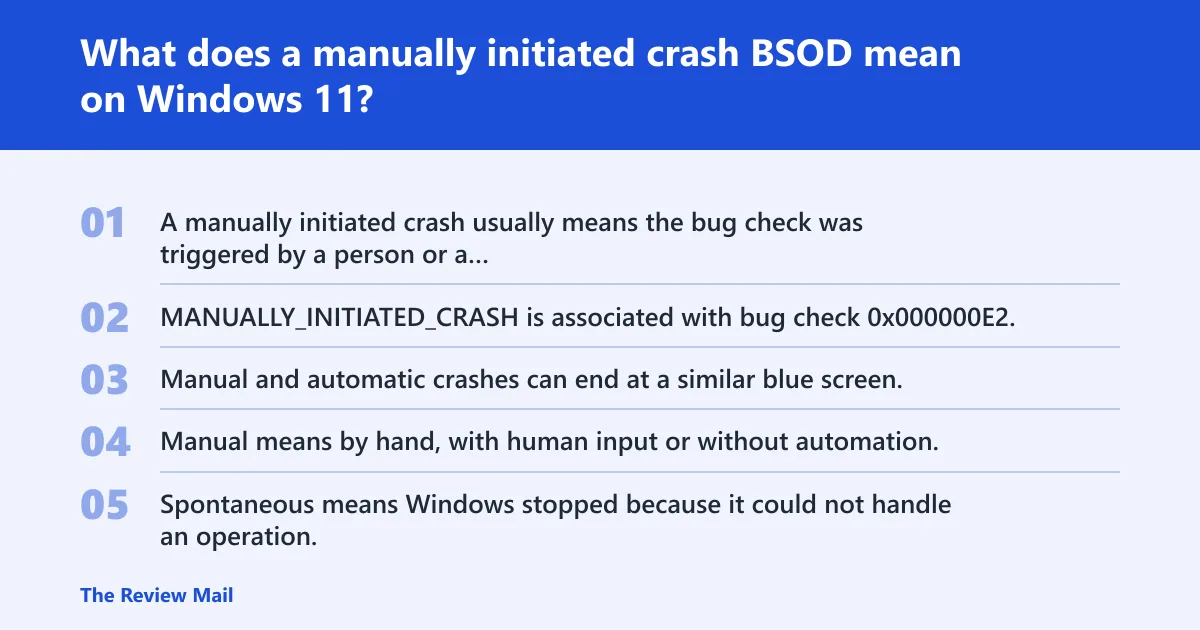
A manually initiated crash usually means the bug check was triggered by a person or a test path, rather than by an unexpected fault. MANUALLY_INITIATED_CRASH is associated with bug check 0x000000E2, which typically indicates a deliberate crash initiated through a debugger or another manual path.
How a deliberate crash differs from a spontaneous bug check
Manual and automatic crashes can end at a similar blue screen. The trigger is what changes. Manual means by hand, with human input or without automation. Spontaneous means Windows stopped because it could not handle an operation. That difference changes the next move.
What the blue screen can and cannot tell you
The screen may show a sad face and a stop code, but that text often does not identify the root cause on its own. Blue screens can happen during startup, after an update, or while using apps, and the same screen can point to very different problems.
Why the same stop screen can point to different problems
The most practical causes, in order, are a buggy update, a device driver conflict, an app compatibility issue, or a hardware fault. The blue screen is only one clue. The crash context and the last change carry more weight.
Say your test lab machine hits a blue screen after a keyboard-triggered bugcheck during a driver test. That is expected evidence collection, not a broken PC. Suppose a laptop shows the same stop code twice before sign-in; that pattern calls for recovery steps, not a test-crash assumption.
📊 On Windows 11, a BSoD is the error shown when the system cannot handle an operation. Source: Windowscentral.
Use this triage table to decide the next step
Start with the crash context, then answer the checklist. The safest next action depends on whether the blue screen happened at startup, after an update, during normal desktop use, or on purpose.
| Crash context | Was it manually triggered? | Yes/no checklist | Safest next diagnostic step |
|---|---|---|---|
| Startup / before sign-in | Usually no | No hotkey, no debugger command, no test tool, repeats at boot? | Use Startup Repair, then Safe Mode |
| After a Windows 11 update or upgrade | Usually no | Did the issue begin right after the update, rollback, or install? | Roll back the update or upgrade, then remove non-essential devices |
| Desktop during normal use | Usually no | Does it repeat in one app, after one driver change, or with one device? | Rollback or remove the most recent driver or app change |
| Intentional test crash | Yes | Was a debugger, hotkey, or test script used on purpose? | Confirm the dump file and stop code, then return to the test plan |
Likely causes, from most to least common
For Windows 11 blue screens, start with the crash context and the most recent change. A recent update, driver, or app install is more likely than failed hardware. Hardware moves up the list only after software and compatibility checks fail.
Did the crash happen during startup?
Startup blue screens often point to boot-time driver issues, corrupted system files, or a recent change that blocks sign-in. Windows 11 startup troubleshooting often begins with Startup Repair and Safe Mode, since those paths can help you remove the newest change before the desktop loads.
- Go to Settings > System > Recovery > Advanced startup > Restart now.
- Select Troubleshoot > Advanced options > Startup Repair.
- If the blue screen repeats, return to Advanced options > Startup Settings and choose Safe Mode.
- In Safe Mode, remove the most recent driver or app change with Device Manager or Settings > Apps > Installed apps.
- Restart normally and check whether the boot loop is gone.
Safe Mode entry:
Settings > System > Recovery > Advanced startup > Restart now
Troubleshoot > Advanced options > Startup Settings

Driver rollback path:
Device Manager > (device) > Properties > Driver tab > Roll Back Driver / Uninstall device

System file repair:
sfc /scannow
DISM /Online /Cleanup-Image /RestoreHealth
Did it start after a Windows 11 update or upgrade?
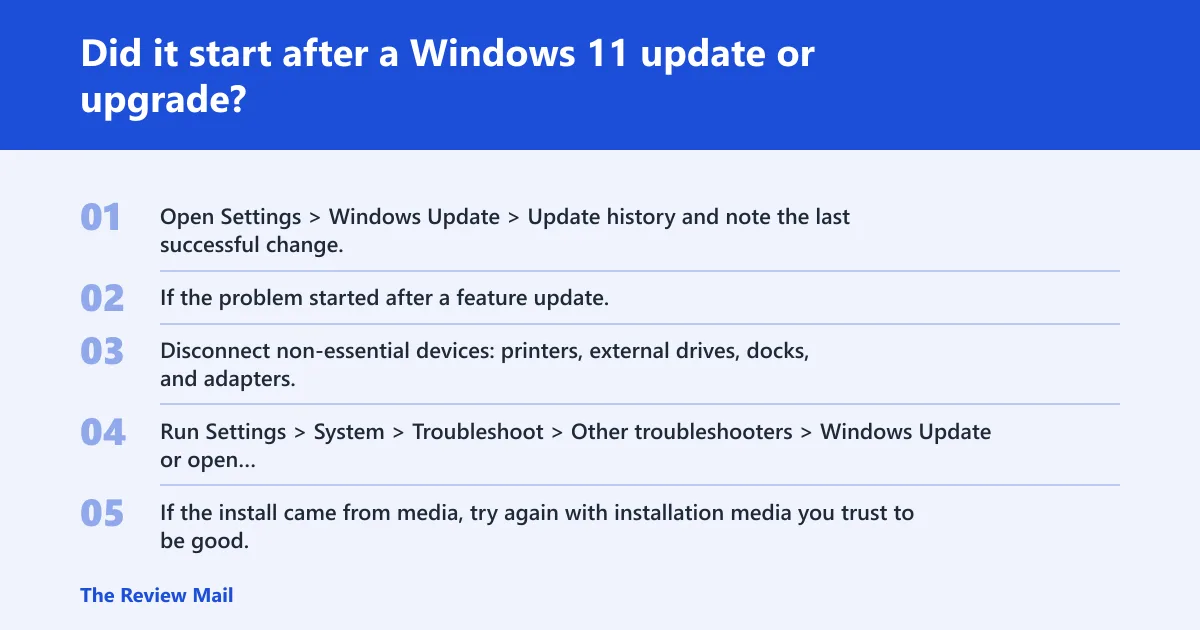
Blue screens after an update or upgrade often trace to a bad install, a compatibility problem, or a device that no longer fits the new build. Windows 11 upgrade troubleshooting should focus on rollback options, installation media quality, and anything non-essential that can be unplugged.
- Open Settings > Windows Update > Update history and note the last successful change.
- If the problem started after a feature update, use Settings > System > Recovery and choose the rollback option if it is still available.
- Disconnect non-essential devices: printers, external drives, docks, and adapters.
- Run Settings > System > Troubleshoot > Other troubleshooters > Windows Update or open ms-settings:troubleshoot.
- If the install came from media, try again with installation media you trust to be good.
Can a buggy update cause a Windows 11 blue screen?
Yes. A bad update can trigger blue screens, boot loops, or failures that begin right after installation. If the timing matches the update window, treat that as the first lead and undo the change before you test hardware.
Did it happen on the desktop during normal use?
Desktop blue screens usually point to drivers, apps, or a failing component that shows up under load. If the PC works until one app opens, one device connects, or one game starts, isolate that change before moving to larger repairs.
- Open Settings > Apps > Installed apps and remove the most recent app install.
- Open Device Manager, right-click the most recent driver change, and choose Properties > Driver > Roll Back Driver or Uninstall device.
- Use Task Manager > Startup apps to disable non-essential startup items.
- If the crash repeats in one action, test that action after a clean boot from msconfig.
- Run
sfc /scannowand thenDISM /Online /Cleanup-Image /RestoreHealth.
Picture a desktop that blue-screens only when a 4K video editor opens. That pattern points first to the editor or its driver path, not the power supply. A common first-timer mistake is replacing hardware before checking the app version and the graphics driver version.
How do I tell the difference between a stop error, bug check, and BSOD?
They all point to the same Windows crash screen. Stop error is one common name, bug check is the internal Windows term, and BSOD is the public nickname for the blue screen. The label changes, but the triage steps stay the same.
How do I fix a manually initiated crash stop code in Windows 11?
Start by confirming whether the crash was deliberate. If it was, the fix is usually not a repair at all. If it was not deliberate, use the stop code, the crash timing, and the dump file to decide whether to remove a driver, undo an update, or repair Windows files.
- Check
C:\Windows\Minidump\*.dmpand the exact stop code shown on the blue screen. - Open Event Viewer > Windows Logs > System and look for the matching bug check event.
- If the blue screen followed a recent update, uninstall it from Settings > Windows Update > Update history.
- If it followed a driver or app install, roll that change back in Device Manager or Settings > Apps.
- If Windows still will not boot normally, run Startup Repair from Advanced startup.
Still not working?
If the same crash keeps returning after rollback, Safe Mode, and file repair, move to deeper isolation. Run Windows Memory Diagnostic (mdsched.exe) or memtest86, then test storage with chkdsk. If the crashes persist across clean software states, a failing component becomes more likely.
That is the point where hardware replacement enters the conversation. Replace only after the software path is exhausted, because a blue screen alone does not prove a bad motherboard, SSD, or RAM stick.
Prevention is simple here: after a stable boot, install one driver or one app change at a time, then check whether the crash returns. That makes the next fault much easier to identify.
Frequently asked questions
Why does Windows 11 show a manually initiated crash BSOD?
Windows 11 shows that screen when a deliberate bugcheck was triggered, often through a debugger or a keyboard path. If nobody triggered it, treat it like an ordinary stop error and review the dump file, the event log, and the most recent driver or update change.
Is a manually initiated crash BSOD a real hardware failure?
Not by default. A deliberate crash can be part of testing or diagnostics. Only treat it as a hardware problem if the same stop code returns without a trigger, across different boots, after Safe Mode, and after removing recent software or driver changes.
What causes a blue screen after a Windows 11 update?
A post-update blue screen usually points to a buggy update, a driver conflict, or compatibility trouble. Start with rollback options, then disconnect non-essential devices and retry. If the machine boot-loops, use Advanced startup and Startup Repair before trying hardware tests.
How do I troubleshoot BSODs on startup in Windows 11?
Use Settings > System > Recovery > Advanced startup > Restart now, then choose Startup Repair or Startup Settings for Safe Mode. Once in Safe Mode, remove the newest driver, app, or update that could be blocking boot.