0x0000014F: What It Means and How to Fix It Fast Now
0x0000014f is a Windows stop code that can appear when a system component fails to respond within the allotted time, preventing Windows from exiting connected standby. On HP devices and other PCs, the same troubleshooting order applies: check for a dump file, undo the newest change, and test storage and memory before replacing hardware. If the crash repeats after a recent change, start with rollback rather than guessing the part at fault.
What 0x0000014f means in plain language
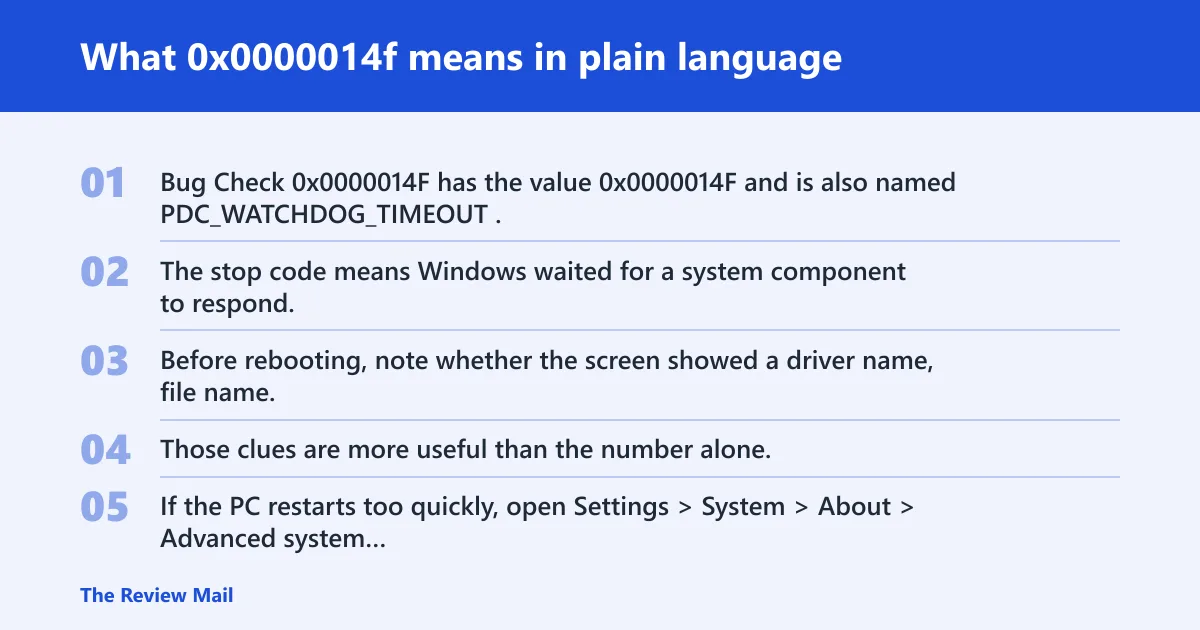
Bug Check 0x0000014F has the value 0x0000014F and is also named PDC_WATCHDOG_TIMEOUT. The stop code means Windows waited for a system component to respond, but it did not respond in time, and the system could not leave connected standby.
Before rebooting, note whether the screen showed a driver name, file name, or a recent hardware or firmware change. Those clues are more useful than the number alone. If the PC restarts too quickly, open Settings > System > About > Advanced system settings > Startup and Recovery on the next boot and make sure memory dumps are enabled.
What causes a 0x0000014f blue screen?
The most useful next step is to check whether Windows wrote a dump file after the crash. If it did, you can inspect the dump to see what failed. If it did not, focus first on crash-capture settings and any recent driver, firmware, or Windows update.
Missing dump file or disabled crash capture
If there is no dump file, you do not yet have enough evidence to identify the fault. That often means crash capture is off, the system restarted too quickly, or Windows could not write the file.
- Open System Properties > Advanced > Startup and Recovery.
- Set Write debugging information to Automatic memory dump or Small memory dump (256 KB).
- Confirm the dump folder points to %SystemRoot%\Minidump for small dumps.
- Check free space on C: and reboot.
A single driver or recent device change
A crash soon after a new GPU, storage, Wi-Fi, or chipset driver is installed can point to that change. Keep the test narrow and change one item at a time.
- Open Device Manager.
- Right-click the newest device or adapter and choose Properties > Driver.
- Use Roll Back Driver if available, or Uninstall device and restart.
- If needed, run msconfig and use Selective startup for a clean boot.
Storage-related errors
If crashes happen during wake, update, or boot, check for file-system or disk-path problems before replacing hardware.
- Open Command Prompt as administrator.
- Run
chkdskC: /f and allow the restart if prompted. - Open Event Viewer > Windows Logs > System and look for disk or Ntfs errors around the crash time.
- If errors repeat, test the SSD or HDD in vendor diagnostics and review controller drivers in Device Manager.
Memory instability from RAM, XMP, or overclock settings
Random crash codes, changing parameters, and failures that move around after each reboot often fit memory instability. XMP, EXPO, or an overclock can make a system fail only under standby, wake, or heavy load.
- Enter BIOS or UEFI setup.
- Disable XMP, EXPO, or manual overclock settings.
- Boot Windows and run Windows Memory Diagnostic from the Start menu.
- If the issue continues, use memtest86 and test one stick at a time.
A crash that started after a Windows or driver update
If the crash began right after Patch Tuesday, a cumulative update, or a firmware push, use that timing as a clue and test rollback first.
- Open Settings > Windows Update > Update history.
- Remove the latest quality update from Uninstall updates if the timing fits.
- Check Device Manager for newly updated drivers and roll back the newest one.
- On laptops, check the vendor BIOS or firmware page before deeper repairs.
How do I check the dump file for 0x0000014f?
Check C:\Windows\Minidump for small dumps and C:\Windows\MEMORY.DMP for a kernel dump. If neither file exists, the system did not write one, and you should return to crash-capture settings.
Open the dump in Windows Debugger, also called WinDbg, from Debugging Tools for Windows. Microsoft Learn provides WinDbg for bug check analysis, and the !analyze -show <code> command is used with a hex stop code. Use !analyze -show 0x0000014F after opening the dump.
If a gaming PC starts crashing only after a GPU driver update and the same module appears in multiple dumps, that is enough to justify a rollback rather than a random parts swap.
How do I fix error 0x0000014f on Windows 11?
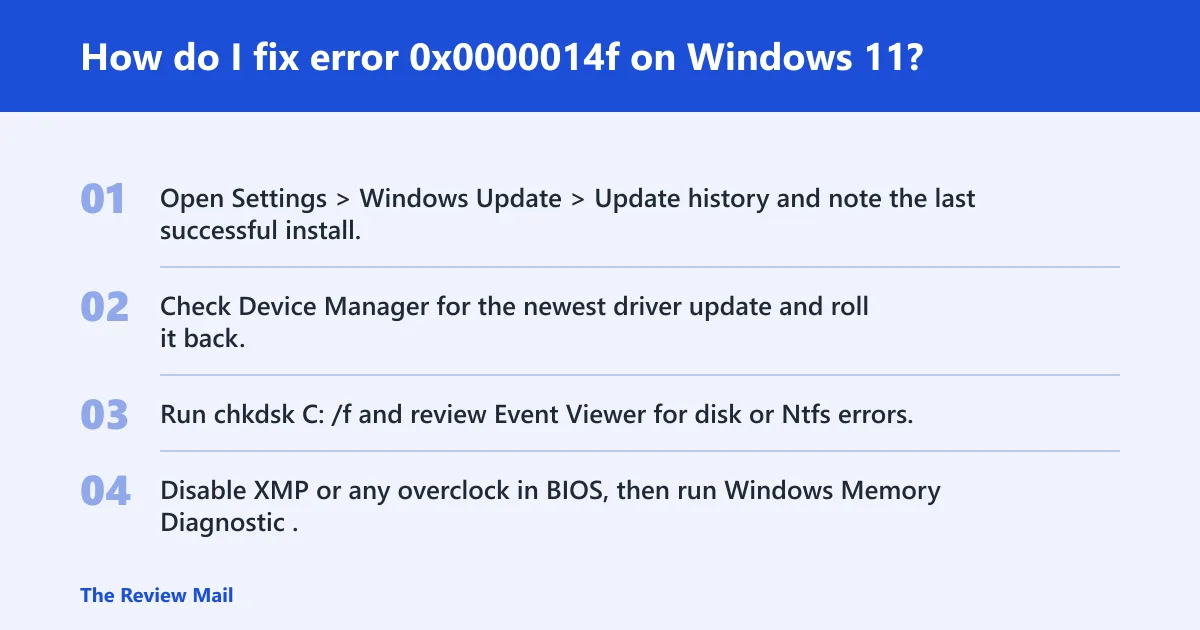
On Windows 11, begin with the same order: confirm whether a dump exists, undo the newest driver, firmware, or update, and test storage and memory before replacing parts.
- Open Settings > Windows Update > Update history and note the last successful install.
- Check Device Manager for the newest driver update and roll it back.
- Run
chkdskC: /f and review Event Viewer for disk or Ntfs errors. - Disable XMP or any overclock in BIOS, then run Windows Memory Diagnostic.
If the PC keeps rebooting, boot into Safe Mode and check whether the crash still happens. If Safe Mode is stable, a third-party driver or service is more likely than the core Windows installation.
Is 0x0000014f a driver, disk, or memory problem?
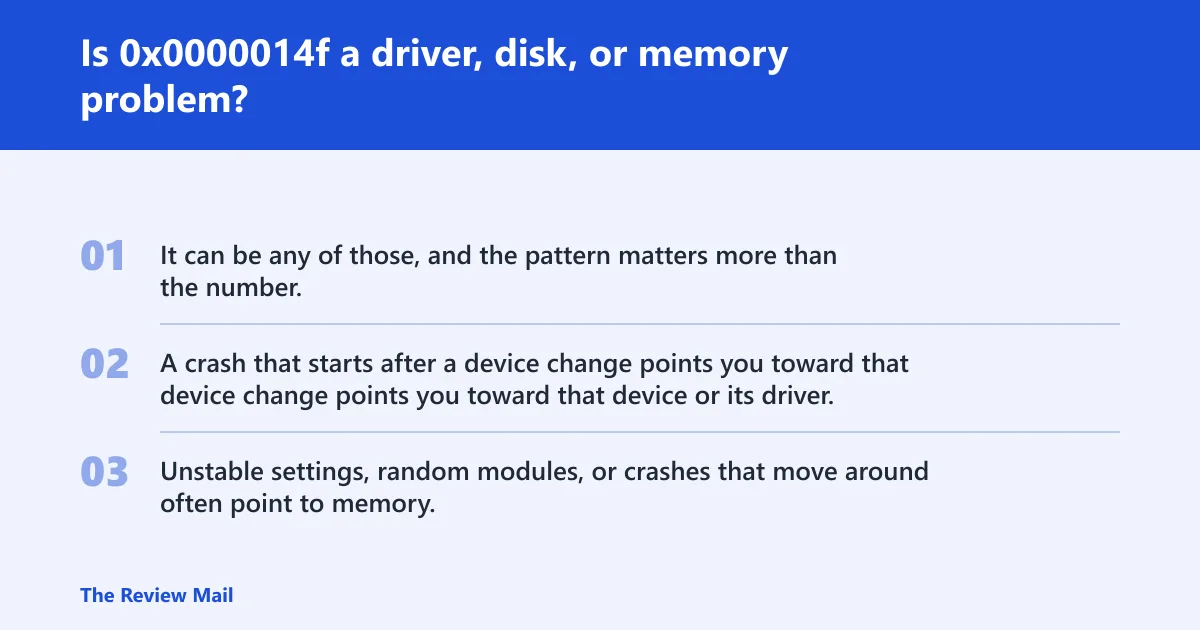
It can be any of those, and the pattern matters more than the number. A crash that starts after a device change points you toward that device or its driver. Disk or Ntfs errors point to storage. Unstable settings, random modules, or crashes that move around often point to memory.
| Crash evidence | What to check | Tool to use | Escalate to WinDbg when |
|---|---|---|---|
| No dump file | Crash-capture settings, free space, automatic restart | System Properties, Startup and Recovery | After you enable dumps and reproduce the crash |
| One driver keeps failing | Newest device, BIOS, or vendor driver | Device Manager, Clean boot | When rollback or uninstall does not stop repeat crashes |
| Storage errors appear in logs | Disk, controller, cable, SSD firmware | Event Viewer, chkdsk | After log review and disk checks still point to the same path |
| Memory errors or unstable settings | XMP, overclock, bad stick, bad slot | Windows Memory Diagnostic, memtest86 | When one module or profile repeatedly fails |
| Crashes continue after updates | Windows update, driver rollback, firmware version | Settings > Windows Update, Device Manager | When the same module or stack trace appears in multiple dumps |
Can Windows updates trigger 0x0000014f BSODs?
Yes. A Windows update can expose a standby, driver, or firmware defect that was already present. Check update history first, then compare the crash timing with the newest driver or firmware change.
- Open Settings > Windows Update > Update history.
- Select Uninstall updates and remove the newest quality update if the timing matches.
- Check Device Manager for the newest driver version and roll it back.
- Reboot and see whether the system still crashes during wake, sleep, or startup.
How do I stop 0x0000014f from recurring after reboot?
Block the same crash path from loading again. That means disabling the newest change, booting once in Safe Mode if needed, and checking whether Windows wrote any dump file at all.
- Boot into Safe Mode and confirm whether the blue screen repeats.
- Undo the latest driver, firmware, or Windows update.
- Run
chkdskC: /f and Windows Memory Diagnostic. - If crashes continue, collect the dump and open it in WinDbg with !analyze -show
0x0000014F.
Prevention: keep BIOS, chipset, storage, and GPU drivers aligned with the device vendor’s current release, and avoid overclock profiles while you are troubleshooting. That gives you a clean baseline if the stop code returns.
When should I use WinDbg for stop code 0x0000014f?
Use WinDbg when you have a dump file and the crash repeats, changes after rollback, or does not fit one obvious cause. Open the dump and run !analyze -show 0x0000014F. If there is no dump, adjust crash-capture settings first.
Frequently asked questions
What if 0x0000014f appears on startup or in Safe Mode?
If Safe Mode still crashes, the problem is less likely to be a normal startup app and more likely to involve storage, memory, or a core driver. If Safe Mode is stable, the newest third-party driver or service moves to the top of the list.
What should I do first on an HP PC?
Follow the same order: check for a dump file, undo the newest driver or update, then test storage and memory. If the machine is an HP laptop or desktop, the built-in Windows tools and Device Manager steps above still apply.