System Service Exception Windows 11 Fix: Fast Steps
For a SYSTEM_SERVICE_EXCEPTION Windows 11 fix, start with the crash clue: if the blue screen names a .sys driver, fix that driver first; if it follows disk errors or updates, check the file system and system files. Working the wrong layer can lead to repeat boot loops and data loss. This guide gives a fast triage path, then the exact steps for driver, disk, and corrupted-file repairs.
What SYSTEM_SERVICE_EXCEPTION means on Windows 11
SYSTEM_SERVICE_EXCEPTION is a Blue Screen of Death stop code on Windows, and it is associated with a bug check code sometimes shown as 0x3B. Microsoft describes it as an exception while executing code below a system thread, so the crash often points to a bad interaction between drivers, memory, or protected Windows components. One layer can fail while another still looks normal.
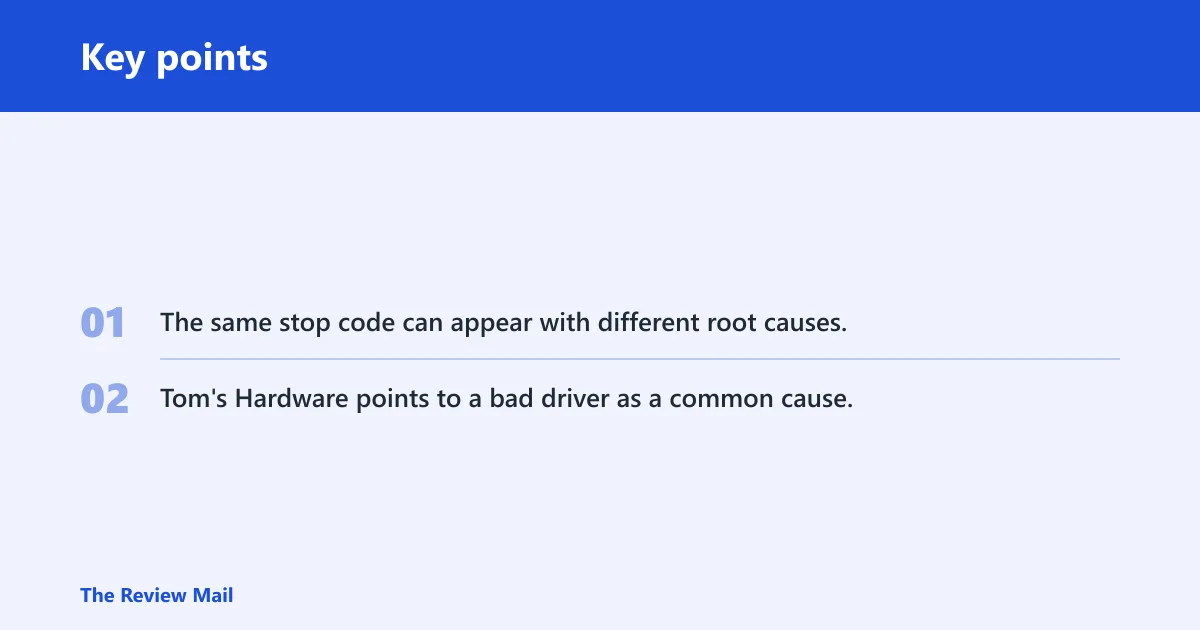
The same stop code can appear with different root causes. Tom’s Hardware points to a bad driver as a common cause, but the blue screen can also name an operating-system driver such as Ntfs.sys, which changes the fix path from “replace one app driver” to “repair the OS storage layer.”
📊 The article frames the error as affecting Windows 10 or 11. Source: Tomshardware.
Which cause is most likely?
Start by ranking the clue that appeared first. Most often, a named driver points to a driver fault; if the crash began right after an update or new driver, that change is the best suspect; and if DISM and SFC complete cleanly but the BSOD keeps returning, move toward storage, verifier, or deeper kernel troubleshooting. Before you change anything, write down the exact stop code, any driver name on the screen, whether the issue began after an update, and whether it repeats in Safe Mode.
Use this 3-path decision table first
| Clue | What it suggests | Next best action | Evidence to collect |
|---|---|---|---|
| The blue screen names a driver | A driver fault, or an OS-level driver such as Ntfs.sys | Identify the driver and roll it back or replace it | Photo of the screen, minidump from C:\Windows\Minidump, Event Viewer crash time |
| The crash started after a driver or Windows update | Recent change and current driver or update do not agree | Rollback the last driver or uninstall the most recent update first | Update history, Device Manager version info, Reliability Monitor timeline |
| DISM and SFC finish cleanly but the BSOD continues | Something below simple file repair is still broken | Move to Safe Mode, Driver Verifier, and storage checks | DISM and SFC results, Safe Mode result, minidump pattern |
What should I do first after a SYSTEM_SERVICE_EXCEPTION blue screen?
The first move is to capture the clue, not to reinstall everything. Note the stop code, any .sys name printed on the blue screen, whether the failure started after a specific update or driver change, and whether the machine stays stable in Safe Mode. That snapshot often saves hours of blind troubleshooting.
- Take a photo of the blue screen before rebooting.
- Open Reliability Monitor from Start and note the failure time and any “Windows was not properly shut down” entry.
- Open Event Viewer and check Windows Logs > System for errors at the same minute as the crash.
- If Windows still boots, copy any new files from
C:\Windows\Minidumpfor later review (per Microsoft support). - Try Safe Mode. If it does not happen there, a third-party driver is more likely than a core Windows file problem.
What if the blue screen names a driver?
A named driver changes the fix path because it gives you a target. If the screen names a non-Microsoft .sys file, treat it as a driver fault first. If it names an OS-level driver such as Ntfs.sys, the issue is more likely in Windows storage or file-system code than in a single app that can be uninstalled (per Microsoft support; Tom’s Hardware gives Ntfs.sys as a real-world example).
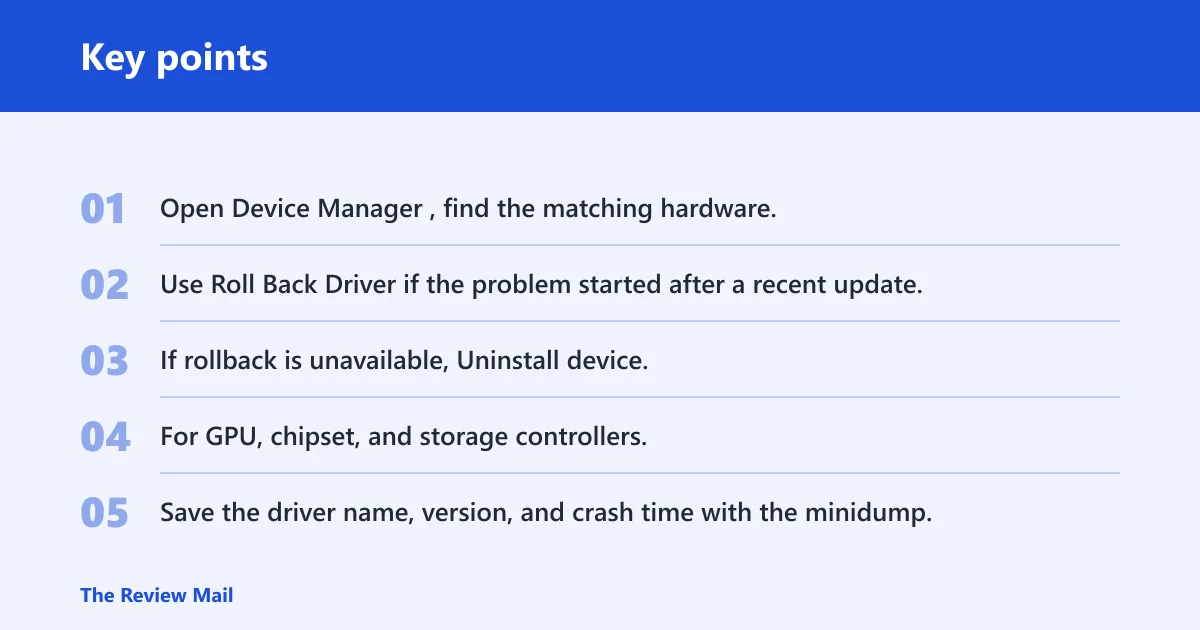
- Open Device Manager, find the matching hardware, and choose Properties > Driver to note the version and date.
- Use Roll Back Driver if the problem started after a recent update.
- If rollback is unavailable, Uninstall device, then restart and install the OEM package from the device manufacturer’s website, not Windows Update.
- For GPU, chipset, and storage controllers, install the latest stable package from the OEM support page.
- Save the driver name, version, and crash time with the minidump.
Say your laptop starts blue-screening after a graphics driver update and the stop screen points to a display .sys file. Rolling back that single driver is a better first step than running random repairs, because the failure pattern already matches a recent kernel driver change.
What if the crash began after a recent driver or update change?
When the timing lines up with a recent update, use that clue first. Microsoft lists “recent update” as a common trigger pattern, and the next step is to check for a driver-and-update mismatch before you move to deeper repairs (per Microsoft support). Safe Mode helps separate a third-party driver fault from a startup-service problem.
- Go to Settings > Windows Update > Update history and note the last quality update, feature update, or driver update.
- Open Device Manager and roll back the most recent driver tied to the failing hardware.
- If the problem began after a Windows update, go to Settings > Windows Update > Update history > Uninstall updates and remove the most recent update.
- Restart into Safe Mode and see whether the crash repeats.
- If Safe Mode is stable, the next step is usually a clean driver reinstall or selective update rollback, not a file repair loop.
Suppose a desktop is stable for 10 minutes after boot, then crashes only when the Wi-Fi driver loads. That pattern points away from a general Windows file problem and toward the network driver itself, or the update that changed it.
What if Windows files may be corrupted?
Run DISM first, then SFC. DISM /online /cleanup-image /restorehealth repairs the Windows Component Store, and SFC /scannow checks Windows system files and replaces damaged or missing protected files. That order matters because SFC depends on a healthy component store when it repairs protected files (per Microsoft support; Tom’s Hardware notes DISM repairs the Windows Component Store and SFC checks Windows system files). (Microsoft Support)
- Open Command Prompt as administrator.
- Run
DISM /Online /Cleanup-Image /RestoreHealth. - When it finishes, run
sfc /scannow. - Restart and retest the same action that triggered the blue screen.
- If the stop code names Ntfs.sys or another storage-related OS driver, follow up with
chkdskC: /f /r from an elevated Command Prompt and allow the reboot scan to run.
Can corrupted Windows files cause SYSTEM_SERVICE_EXCEPTION? Yes, but only one layer of the problem may be damaged. If DISM and SFC both complete without finding issues and the crash still returns, the next suspect is more likely a driver, storage fault, or another kernel component than a missing protected file.
Still not working?
If DISM, SFC, rollback, and Safe Mode do not stop the crash, move to evidence-driven escalation. Driver Verifier can expose hidden conflicts, but use it only after you have a minidump, the stop code, and the driver name if one was shown. If the machine boots unreliably, keep the data path first and avoid broad changes until the culprit is identified.
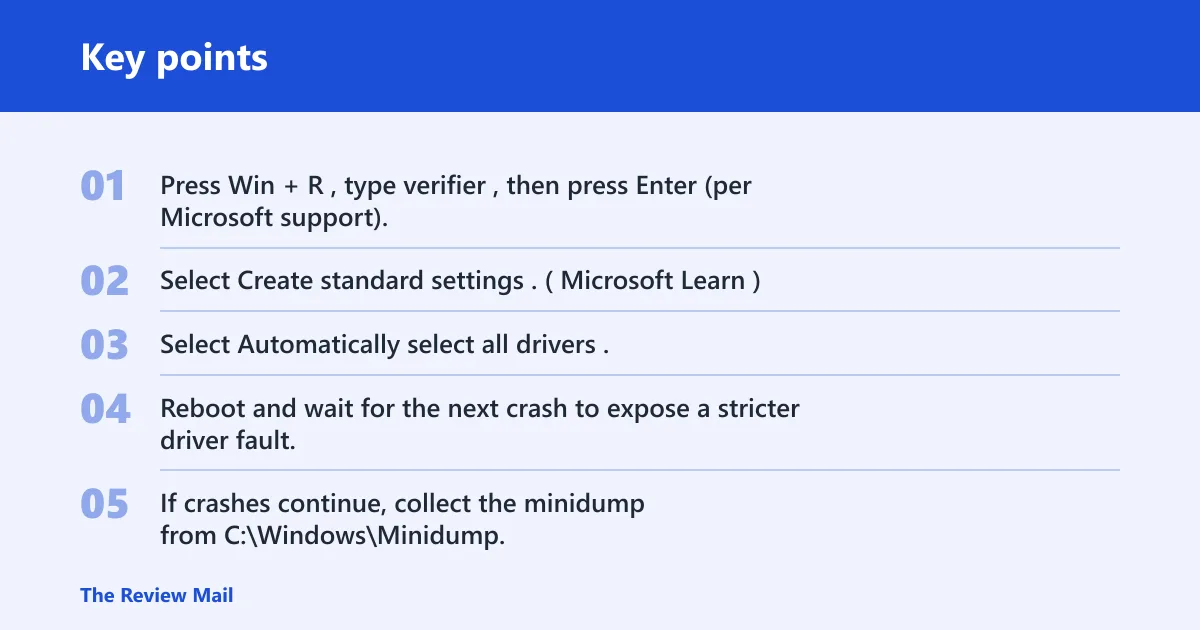
- Press Win + R, type verifier, then press Enter (per Microsoft support).
- Select Create standard settings. (Microsoft Learn)
- Select Automatically select all drivers.
- Reboot and wait for the next crash to expose a stricter driver fault.
- If crashes continue, collect the minidump from
C:\Windows\Minidump, export Reliability Monitor details, and bring both to OEM or professional support.
A common mistake is to disable the storage controller and graphics driver together, which can make a System Service Exception in Windows 11 much harder to troubleshoot. That makes the crash pattern harder to read. Change one layer, then retest.
Prevention: keep a local copy of the exact OEM driver package that matches your GPU, chipset, and storage controller. If a new package causes a repeat crash, rollback is faster when the previous version is already on hand.
Frequently asked questions
how to fix system service exception
Start with the clue on the blue screen. If it names a driver, roll that driver back or replace it through Device Manager. If it follows an update, uninstall the last update. If Windows files look suspect, run DISM /Online /Cleanup-Image /RestoreHealth followed by sfc /scannow.
Why does SYSTEM_SERVICE_EXCEPTION keep happening on Windows 11?
Repeated crashes usually mean the same layer is failing again: a driver that reloads every boot, a storage issue, or a protected file that repairs but gets hit again. Check Reliability Monitor, then use Safe Mode to see whether the crash disappears there. That split tells you whether to focus on drivers or Windows repair.
Is SYSTEM_SERVICE_EXCEPTION caused by drivers or RAM?
Drivers are often the first place to look, but memory faults can also trigger this stop code. If you want to separate them, run Windows Memory Diagnostic or memtest86 after checking the named driver path. A clean memory test shifts attention back to the driver, disk, or OS file layer.
How do I fix stop code SYSTEM_SERVICE_EXCEPTION 0x3B?
Bug check code 0x3B is tied to this stop code, but it does not point to one single cause. Use the screen name, recent changes, and minidumps to pick the path. Then run rollback, DISM /Online /Cleanup-Image /RestoreHealth, sfc /scannow, or Driver Verifier in that order.
How do I tell which driver caused SYSTEM_SERVICE_EXCEPTION?
Look for the driver name printed on the blue screen first. If it is not obvious, open the newest file in C:\Windows\Minidump with a crash tool, or use verifier to force the bad driver to reveal itself. Match that name with Device Manager before reinstalling anything.