Device Manager Not Opening in Windows 11: 7 Fixes Fast
If Device Manager won’t open in Windows 11, start with Win+R > devmgmt.msc. If that fails, the fix depends on whether search, permissions, system files, or disk or OS damage is blocking MMC. Skipping the wrong cause wastes time and can hide driver or hardware faults. This guide walks you through checks for search, shell, policy, corruption, and repair tools, in that order.
This guide is part of our Windows driver errors: full list and fixes series.
What Device Manager failing to open usually means
Device Manager is the Windows hardware management console. It can open from Start search, the Run dialog, Command Prompt, or Computer Management. If it will not open, the problem is often not the console itself. Search may be broken, the shell may be stuck, or Windows may be blocking the launch path.
Microsoft Support says to open Device Manager by entering device manager in Start, and Microsoft’s guidance page is labeled for Windows 10, which still helps with the same console and launch path. A Microsoft Q&A answer also points to Win+R and devmgmt.msc. TechViral lists nine methods, which points to several failure modes, not one fixed cause.
What to check first if the window is blank, missing, or frozen
If Start search shows a blank result, missing result, or nothing at all, treat that as a search problem first. If Run opens but devmgmt.msc does nothing, that points more toward an MMC, shell, permission, or policy issue. If Windows briefly shows a busy pointer or freezes, the launch may be blocked by corrupted files or system damage.
Also confirm that Device Manager is not already open behind another window or on another desktop. A hidden or backgrounded window can look like a failed launch, especially after a display glitch or when a profile issue leaves the app off-screen. Check that before running repair commands.
Which fixes are safe without admin rights
You can try several checks without admin rights. Win+R, Start search, Computer Management navigation, and a simple restart are safe first steps. Opening the System Maintenance troubleshooter is also a low-risk option. Commands such as SFC, DISM, and chkdsk often need an elevated Command Prompt, so save those for later.
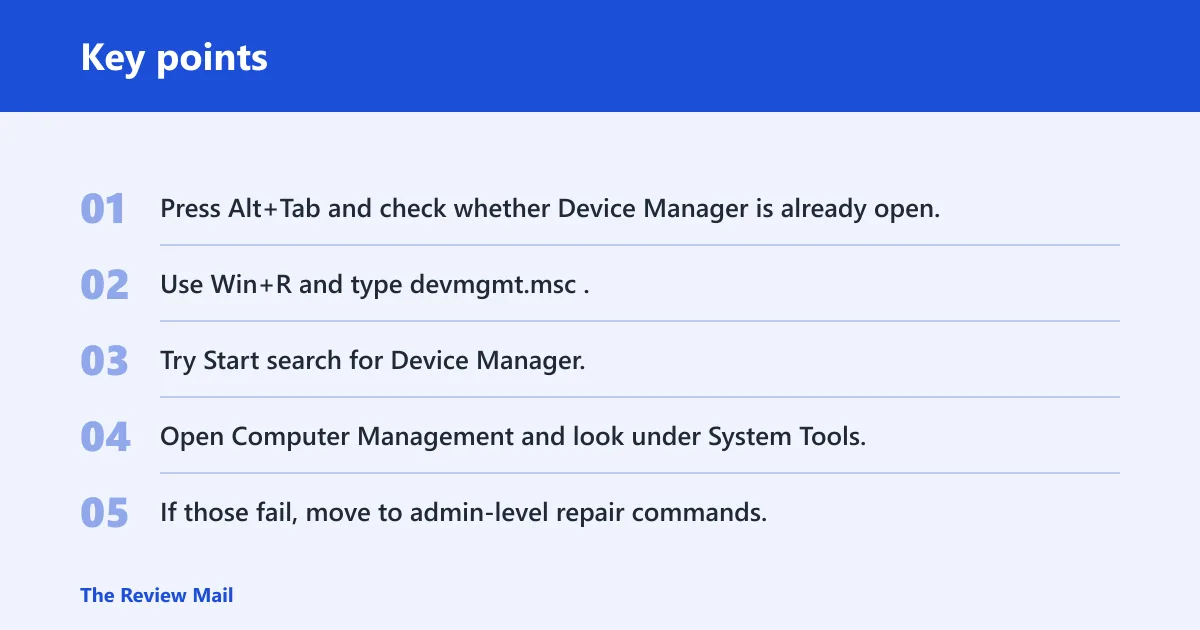
- Press Alt+Tab and check whether Device Manager is already open.
- Use Win+R and type
devmgmt.msc. - Try Start search for Device Manager.
- Open Computer Management and look under System Tools.
- If those fail, move to admin-level repair commands.
📊 Microsoft Support labels the page as applying to Windows 10. Source: Open Device Manager.
How do you open Device Manager from Run in Windows 11?
Press Windows key + R to open the Run dialog, type devmgmt.msc, and press Enter to try opening Device Manager. That is the fastest direct launch method when Start search fails. If Run opens Device Manager, the issue is likely with search, the Start UI, or a shortcut path, not with the console itself.
A Microsoft Q&A answer recommends Win+R and devmgmt.msc, and that same thread is tagged Windows for home | Other | Devices and drivers. TechViral also recommends the RUN dialog box first. That makes Run the right place to start when you need to separate a search problem from a launch problem.
Open Device Manager from Start search if Run works
If devmgmt.msc opens Device Manager but Start search does not, the search index or Start menu UI is the issue. That is a shell-layer problem, not proof of a broken Device Manager installation. In that case, a restart, Windows Update, or the search troubleshooter path is more relevant than disk repair.
If Start search returns a Device Manager entry but clicking it does nothing, note whether the taskbar flashes or another window appears. That detail helps separate an app launch failure from a blocked UI response.
What it means if devmgmt.msc does nothing
If Run accepts devmgmt.msc and nothing happens, Windows is failing before the console opens. That often points to MMC issues, corrupted shell files, policy restrictions, or a damaged launch path. At that point, move to alternate entry points and repair commands instead of repeating the same shortcut.
Use Computer Management and Command Prompt as alternate paths
Computer Management contains Device Manager under System Tools, so it is a useful alternate route when Start search or Run misbehaves. Command Prompt can also launch Device Manager, and an elevated Command Prompt is needed for repair commands such as SFC, DISM, and chkdsk. TechViral recommends both paths.
Find Device Manager under System Tools in Computer Management
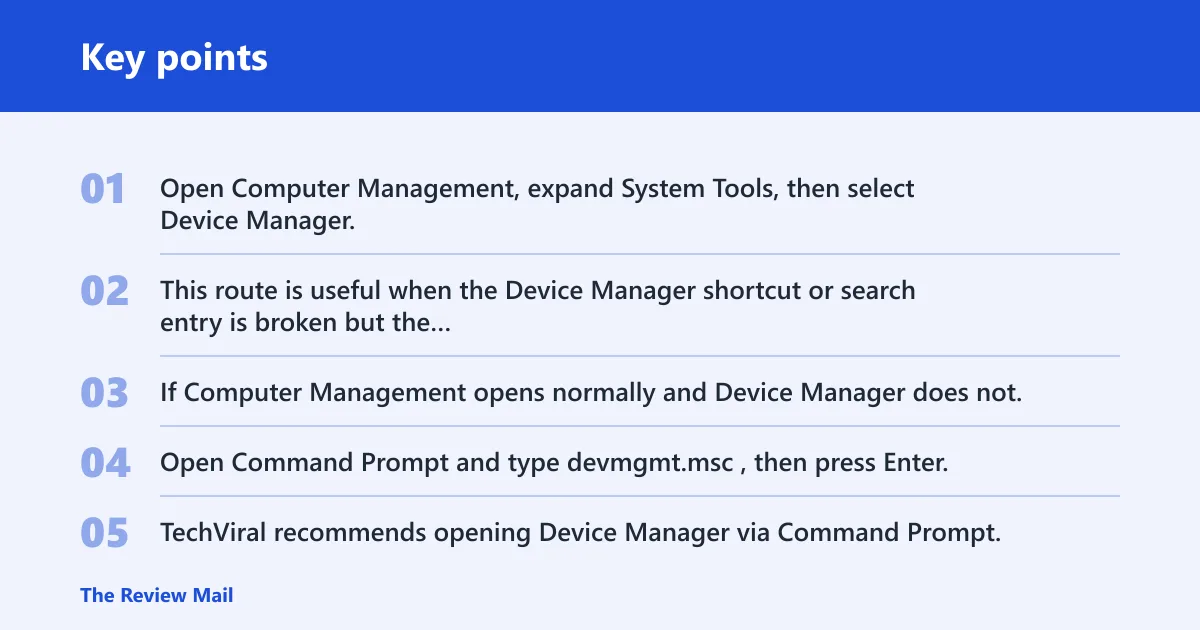
Open Computer Management, expand System Tools, then select Device Manager. This route is useful when the Device Manager shortcut or search entry is broken but the underlying management console still works. If Computer Management opens normally and Device Manager does not, the issue is more specific to that snap-in path.
Launch Device Manager from Command Prompt
Open Command Prompt and type devmgmt.msc, then press Enter. TechViral recommends opening Device Manager via Command Prompt, and it also notes opening it with administrative privileges. If the normal prompt fails but the elevated one works, that strongly suggests a permissions or policy barrier.
A common mistake is running repair commands before checking this path. If Command Prompt can start Device Manager, the fix is likely not deep corruption. It may be a Start menu problem, a profile issue, or a managed-device restriction.
When an admin Command Prompt is required
Use an administrator Command Prompt for SFC, DISM, and chkdsk if those commands need elevated permissions. Those commands need elevated rights because they check and repair protected files or disk structures. If you are on a work-managed PC, elevation may be blocked by policy, and that is a clue in itself. A policy block can stop Device Manager from opening even when the shortcut is valid.
Why is device manager not opening in windows 11?
Device Manager may not open in Windows 11 because the failure is not in Device Manager alone. Common causes include MMC or shell corruption, system file damage, disk errors, and policy or permission blocks. On managed devices, Group Policy, disabled services, or restricted rights can also stop the console from launching.
Windows 11 updates can also leave a temporary glitch in the shell or management console. Pending updates may fix that. A recent update can also break it, which is why rollback and System Restore remain useful later steps.
MMC, shell, or shortcut corruption
MMC is the Microsoft Management Console that hosts tools such as Device Manager. If MMC or the shell is damaged, the shortcut may fail even though the tool is still present. That is where alternate launch paths matter, because they tell you whether the issue is the shortcut or the component.
System file corruption or Windows component damage
Corrupted system files can stop Device Manager from opening. That is where SFC and DISM fit. TechViral recommends SFC /scannow for corrupted system files, and then three DISM commands if SFC reports errors. If those repairs find damage, the problem may be broader than a single console.
Policy, permission, or managed-device blocks
On enterprise or school PCs, Group Policy can restrict device settings or management tools. A blocked admin token, a disabled service, or a locked-down profile can all look like a broken Device Manager. If the same command works in an elevated prompt but not in a standard one, that points to permissions rather than file damage.
Use this symptom-to-fix decision table
This table turns the problem into triage. Start with the symptom that best matches what you see, then follow the fastest test. The first fix column marks steps that are safe without admin rights, and the escalation path tells you when to move to admin-only repairs or rollback.
| Symptom | Most likely cause | Fastest test | First fix | Escalation path |
|---|---|---|---|---|
| Start search shows no Device Manager result | Search or Start UI problem | Press Win+R and run devmgmt.msc | Safe without admin rights: restart, then retry search and Run | Windows Update, search repair, then System Restore if available |
Run opens but devmgmt.msc does nothing | MMC, shell, or shortcut corruption | Open Device Manager from Computer Management | Safe without admin rights: try Computer Management and reboot | Admin Command Prompt, SFC /scannow, then DISM RestoreHealth |
| Device Manager opens only from elevated Command Prompt | Permission or policy restriction | Compare standard and admin Command Prompt behavior | Admin-only: use the elevated path and check policy limits | Review Group Policy or managed-device rules |
| Launch hangs, freezes, or closes immediately | System file damage or OS component issue | Run SFC /scannow in an admin prompt | Admin-only: SFC, then DISM CheckHealth and ScanHealth | DISM RestoreHealth, Windows Update, then System Restore |
| Multiple tools fail, including Device Manager and other consoles | Disk errors or wider OS damage | Run chkdsk C: /f from an admin prompt | Admin-only: disk check, then reboot | DISM, SFC, Windows Update, and finally System Restore |
| Device Manager seems to open but no window appears | Hidden window or profile issue | Use Alt+Tab and check other desktops | Safe without admin rights: maximize, bring to front, restart Explorer or sign out | Computer Management, then repair commands if the issue returns |
Repair system files and Windows components
When shortcut checks fail, repair the Windows files that support the console. Start with SFC, then move to DISM, and use chkdsk if the drive may be part of the problem. TechViral recommends SFC /scannow, three DISM commands, and chkdsk C: /f for hard-drive issues.
Run SFC /scannow
Open an administrator Command Prompt and run SFC /scannow. SFC, or system file checker, scans protected Windows files for corruption and replaces known-bad copies when possible. It is a first-line repair when a console fails without an obvious user-level cause.
Use DISM CheckHealth, ScanHealth, and RestoreHealth
If SFC reports errors or cannot finish cleanly, move to DISM. Use DISM CheckHealth first for a quick corruption flag, then ScanHealth for a deeper scan, and RestoreHealth to repair the Windows image. DISM repairs the component store that SFC depends on.
Run chkdsk C: /f for disk-related errors
If Windows is freezing, loading slowly, or multiple system tools fail, the drive may be part of the problem. TechViral recommends chkdsk C: /f for hard drive issues. Run it from an elevated Command Prompt and allow the check to schedule if Windows says the volume is in use.
What if Device Manager still will not open after repairs?
If repairs do not fix it, move to Windows Update, the System Maintenance troubleshooter, and System Restore. Pending updates may patch a bug that blocks the console. The System Maintenance troubleshooter may help repair desktop shortcuts and file-path issues. System Restore can roll the PC back if a restore point exists.
Install pending Windows updates
Open Settings, go to Windows Update, and choose Check for Updates. TechViral recommends this step, and it matters because a pending fix or a bad update can both affect Device Manager. If the issue began after a recent update, this also helps you decide whether rollback is worth trying.
Run the System Maintenance troubleshooter
The System Maintenance troubleshooter can address desktop shortcuts and file-path problems that interfere with opening tools. Use it when Device Manager opens through one route but not another, or when a shortcut seems broken. It is a sensible middle step before rollback.
Use System Restore if a restore point exists
System Restore requires an existing restore point, and it rolls the PC back to an earlier state. TechViral notes that requirement plainly. Use it when the problem started after a driver change, an update, or another system change, and earlier repair steps have not helped.
Frequently asked questions
what to do if device manager is not opening
Start with Win+R and type devmgmt.msc. If that fails, compare the symptom with the decision table: search failure, hidden window, permissions, corruption, or disk damage. Then move in order from safe checks to admin-only repairs such as SFC, DISM, and chkdsk.
how do you fix a window that won’t open
First check whether the window is hidden behind another app or on another desktop. If it is truly not opening, try the alternate launch path from Run, then Computer Management. If multiple Windows tools fail, repair system files with SFC and DISM and check for updates.
what if devmgmt.msc does not open device manager
If devmgmt.msc does nothing, test Computer Management next. If that also fails, run Device Manager from an elevated Command Prompt, then repair Windows files with SFC and DISM. If the console still refuses to open, check Windows Update and consider System Restore.
how do i repair device manager when windows 11 freezes
If Windows 11 freezes during the attempt, treat it as a system issue rather than a single app failure. Check whether the freeze happens only in standard mode or also in an elevated prompt. Then use SFC, DISM, and chkdsk, and reboot after each repair attempt when prompted.