Ethernet Network Not Working in Windows
Check the failure layer first. If the Ethernet link light is off, fix the cable, port, or adapter. If the link is on, check IP and DHCP, then DNS, then the driver. Skipping that order wastes time and sends you to the wrong fix. Start with the cable and lights, then move to Windows status.
What the symptom means
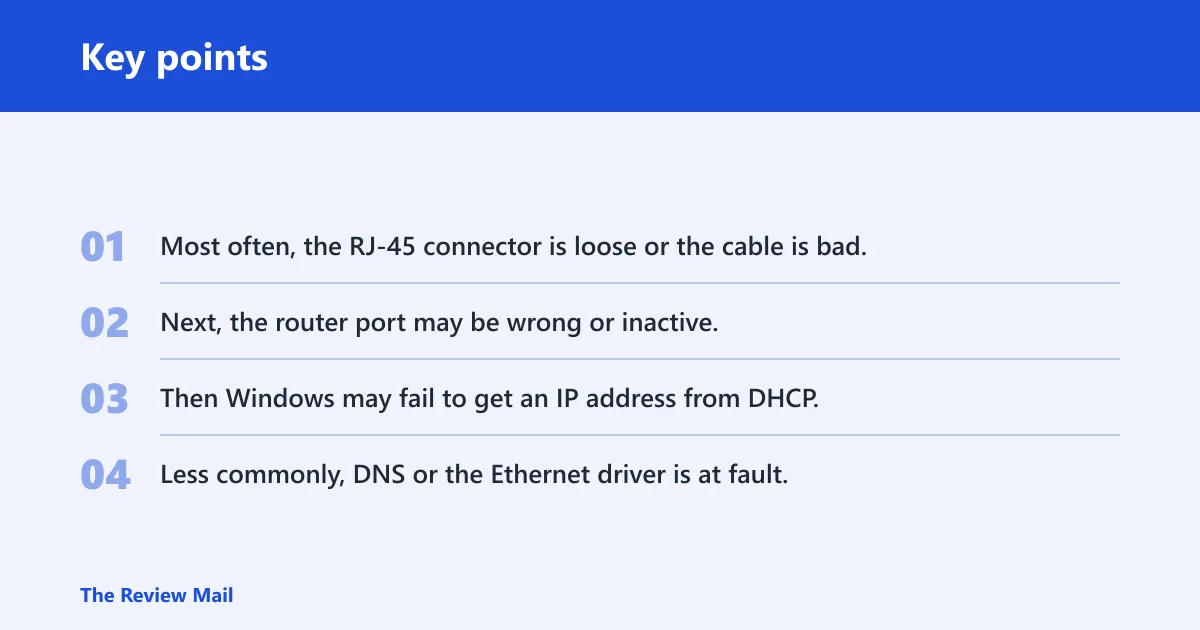
Many Ethernet failures can be grouped into four buckets. A dead link means the physical connection is broken. A connected icon with no internet usually points to IP assignment, DNS, or router issues. A missing adapter in Windows is a visibility or driver problem, not the same as a bad cable. Use the shortest path first.
Likely causes
- Most often, the RJ-45 connector is loose or the cable is bad.
- Next, the router port may be wrong or inactive.
- Then Windows may fail to get an IP address from DHCP.
- Less commonly, DNS or the Ethernet driver is at fault.
Ethernet decision tree table
| Symptom | Likely failure layer | Fastest test | Exact next step |
|---|---|---|---|
| No link light on the PC or router port | Physical link | Check the RJ-45 plug at both ends and try a different cable | Seat the connector fully, then move the cable to another router LAN port |
| Ethernet shows connected but no internet | IP/DHCP or DNS | Open Windows Network troubleshooter and compare with another device on the same router port | Run ipconfig /release, ipconfig /renew, then ipconfig /flushdns from an administrator Command Prompt |
| Ethernet is missing in Windows | Adapter visibility or driver | Check Device Manager under Network adapters | Show hidden devices, then update, roll back, or reinstall the Ethernet adapter driver |
| Ethernet appears disconnected in Settings | Physical link or adapter state | Open Settings > Network & internet > Ethernet and inspect the status | Check cable seating, port lights, and then the adapter in Device Manager |
Why is there no link light?
A dark link light points to a physical connection problem. Check the RJ-45 cable first, because a loose connector is a common cause. If the cable is fully seated at both ends and the light is still off, move the cable to a different router port or swap the cable before touching Windows.
- Unplug and reseat the Ethernet cable at the PC and router. The RJ-45 connector should click into place.
- Check the port lights on both ends. A solid or blinking status light usually means the link is alive; no light can mean no physical connection.
- Try a different Ethernet cable first.
- Confirm the cable is in a router LAN port, not the Internet/WAN port. Microsoft calls out that distinction.
- Try a different router port if one is available.
Say your desktop shows no link light after you move the cable from one side of the desk to the other. If the light comes back as soon as you swap to a different cable, the cable was the fault. If the light stays off on every port, the adapter or router port becomes the stronger suspect.
Why is Ethernet connected but no internet?
That usually means the physical link is working, but Windows is not getting usable network data or DNS cannot resolve names. On Windows 11, start with the built-in Network and Internet troubleshooter in the Get Help app. Then renew the address and clear DNS from an administrator Command Prompt.
- Open the Windows 11 Get Help app and run the Network and Internet troubleshooter.
- Open Command Prompt as administrator.
- Run
ipconfig /release. - Run
ipconfig /renew. - Run
ipconfig /flushdns. - Open
ipconfig /alland check three things: an IPv4 address, a default gateway, and whether Media State shows connected.
If the IPv4 address looks like 169.254.x.x, DHCP likely did not hand out a normal address. A valid lease should also show a default gateway, which is usually the router’s local address. If Media State is disconnected, the problem is still below Windows networking and usually sits with the link or adapter.
Suppose a laptop shows “Connected” in Windows, but every website fails and ipconfig /all shows an IPv4 address with no default gateway. That points to address assignment, not a browser issue. If the gateway is present but names fail, the DNS step is the one to finish before changing drivers.
Why is Ethernet missing in Windows?
If Ethernet does not appear in Windows settings or the network list, treat it as a visibility problem first. Check Device Manager under Network adapters if Ethernet is missing. If the adapter is hidden or marked with a warning icon, Windows is seeing the hardware or its driver badly, not failing at the internet stage.
- Open Device Manager.
- Expand Network adapters.
- If needed, choose View > Show hidden devices.
- Look for the Ethernet adapter and open its Properties.
- Use Update driver if Windows Update just changed the system and the adapter vanished or misbehaved.
- Use Roll Back Driver if the problem started after a Windows update and the older driver is still available.
- Use Uninstall device, then restart, if the driver appears corrupted. Windows will usually reinstall it after reboot or after a hardware rescan.
If the PC has no built-in Ethernet port, Microsoft says a USB to Ethernet adapter is a valid option. That is a different situation from a missing driver. The adapter can give you a wired port without opening the case.
Could the driver be the problem?
Yes. Driver damage or a bad update can break Ethernet even when the cable and router are fine. Start in Device Manager, then reset the network stack if the adapter still behaves badly. Use rollback first when the fault began right after a Windows update; use uninstall and reinstall when the driver looks broken or unstable.
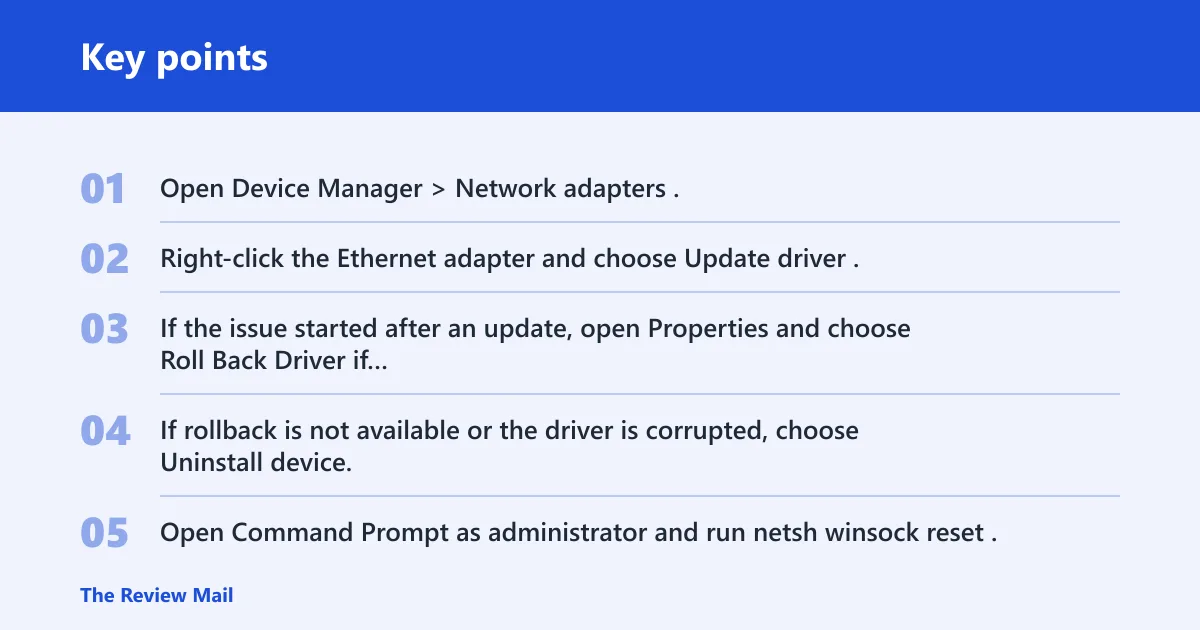
- Open Device Manager > Network adapters.
- Right-click the Ethernet adapter and choose Update driver.
- If the issue started after an update, open Properties and choose Roll Back Driver if available.
- If rollback is not available or the driver is corrupted, choose Uninstall device, then restart.
- Open Command Prompt as administrator and run
netsh winsock reset. - Then run
netsh int ip reset. - Restart the PC after the TCP/IP reset.
These commands repair different layers. Winsock handles how Windows talks to network services. The TCP/IP reset rebuilds core IP settings. Keep them separate and restart after netsh int ip reset, because the change does not fully apply until Windows reloads networking.
Still not working?
If the first repairs fail, move outward. Power cycle the modem and router, waiting at least 30 seconds before turning them back on. Then test another device on the same router port, and test your PC on a different router port with a different cable. That separates PC faults from router or ISP faults fast.
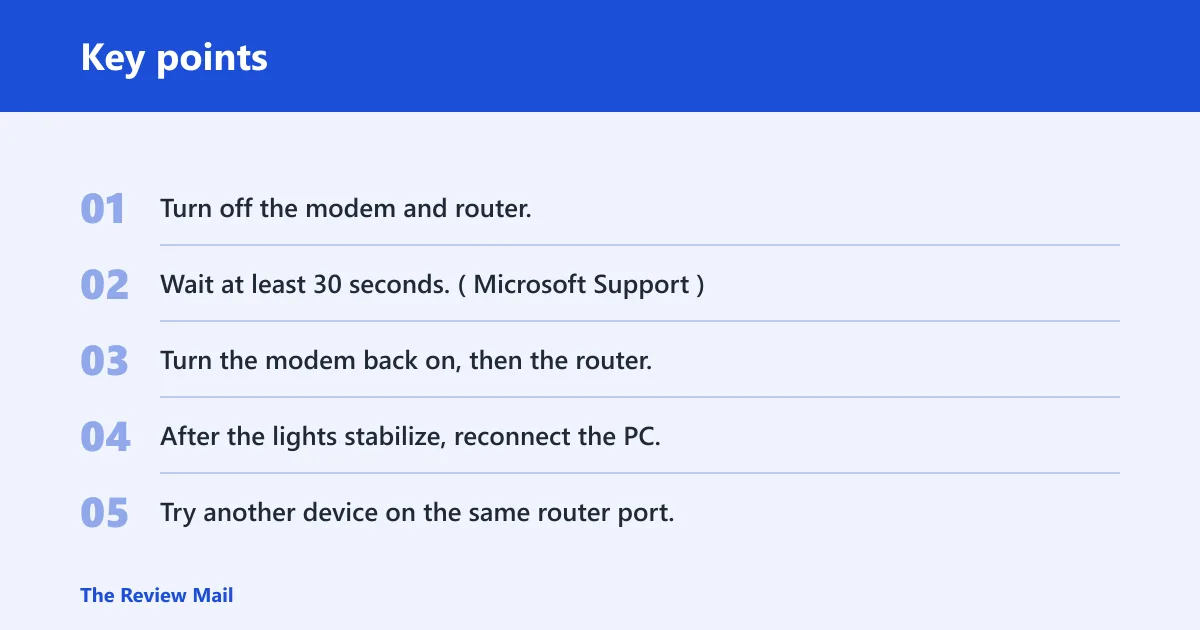
- Turn off the modem and router.
- Wait at least 30 seconds. (Microsoft Support)
- Turn the modem back on, then the router.
- After the lights stabilize, reconnect the PC.
- Try another device on the same router port.
- Try your PC on a different LAN port with a different cable.
If another device also fails on that same router port, the router port or ISP line is more likely than Windows. If only one PC fails everywhere, the adapter or driver remains the stronger suspect. A common first-timer mistake is to keep changing Windows settings before checking whether the router’s Internet/WAN port was used by accident.
Prevention is simple: keep one known-good Ethernet cable nearby and label a working router LAN port. That makes the next failure easier to isolate.
Frequently asked questions
Why isn’t my ethernet working on my PC?
Start with the cable and link light, then check whether Windows gets an IP address. If the cable is seated and the port light is off, the fault is below Windows. If the light is on, open Command Prompt as administrator and run ipconfig /release, ipconfig /renew, and ipconfig /flushdns.
Why is ethernet not working in Windows 11?
On Windows 11, begin with the Network and Internet troubleshooter in the Get Help app. If that does not fix it, check Settings > Network & internet > Ethernet, then use Device Manager > Network adapters for driver repair. That order separates link, address, and driver problems quickly.
Why is ethernet not showing in network settings in Windows 11?
Open Device Manager and expand Network adapters. If the adapter is hidden, enable View > Show hidden devices. If it is listed but broken, update, roll back, or uninstall the Ethernet driver, then restart. If the PC has no Ethernet port, Microsoft says a USB to Ethernet adapter is an option.
Can’t connect to ethernet on my Windows computer?
Check the router port first, then the cable, then Windows. Use a different cable and another LAN port, because those two swaps separate a bad cable from a dead port. If the link is up but traffic fails, run the Windows troubleshooter and renew the address from an administrator Command Prompt.
What should I do if Windows says connected but no internet over ethernet?
Open Command Prompt as administrator and run ipconfig /release, ipconfig /renew, then ipconfig /flushdns. After that, inspect ipconfig /all for an IPv4 address, a default gateway, and a connected Media State. If the gateway is missing, DHCP is the likely failure layer.
Why is my ethernet adapter not working after a Windows update?
Open Device Manager > Network adapters and check the Ethernet driver first. If the issue began right after the update, choose Roll Back Driver when it is available. If rollback is not offered, uninstall the adapter, restart, and then run netsh winsock reset and netsh int ip reset from an administrator Command Prompt.