Wi-fi Doesn T Have a Valid Ip Configuration Windows 11
On Windows 11, “Wi‑Fi doesn’t have a valid IP configuration” usually means DHCP or the PC’s adapter is failing. Start with 3 checks: airplane mode off, reconnect or restart, then test another device on the same network. If you ignore it, Wi‑Fi may show connected while you stay offline. This guide separates PC, router, and DHCP faults quickly, then points you to the right fix first.
What the error means in Windows 11
This message means Windows joined the Wi‑Fi link but did not get a usable local IPv4 address and gateway from the router. A valid local IP configuration is required for normal network access, so the PC may connect to the access point and still have no internet or local network access.
DHCP is the router service that automatically assigns that address. When DHCP fails, the router may be out of leases, the lease may be stuck, or Windows may fail to request or store the address correctly. The TCP/IP stack can also get into a bad state and block the assignment path.
In Windows 11, check the adapter status before changing settings. Open Command Prompt and run ipconfig. If the Wi‑Fi adapter shows a 169.254.x.x address, Windows self-assigned an address because DHCP did not hand out a real one.
📊 The wikiHow guide covers Windows 10 or 11 PCs. Source: Wikihow, article titled “Ethernet Doesn’t Have a Valid IP Configuration.”
Wi-Fi IP decision table
Use this table to separate PC, router, DHCP, and software causes before you change settings. Stop at the first row that matches your symptom and run the single best next test.
| Symptom pattern | Likely fault domain | Single best next test |
|---|---|---|
| Wi‑Fi connects but no internet | PC or DHCP | Run ipconfig and check whether the Wi‑Fi adapter has a valid IPv4 address and default gateway |
| Other devices work, but this PC does not | PC | Run the Windows network troubleshooter on the failing PC |
| No devices work on the network | Router/DHCP | Reboot the router, then check whether DHCP is enabled and the address pool is not exhausted |
| IP renew fails in Command Prompt | PC or software | Run ipconfig /release followed by ipconfig /renew again after closing VPN or security tools |
| Adapter shows limited connectivity | PC/DHCP | Check for a 169.254.x.x address in ipconfig |
| VPN installed | Software | Disconnect or exit the VPN, then retry DHCP renewal |
| Static IP previously set | PC | Check whether the adapter is still using manual IPv4 settings in ncpa.cpl |
| Router reboot changed nothing | PC or software | Reset Winsock and the TCP/IP stack, then test the Wi‑Fi adapter driver |
Say your laptop connects to the home Wi‑Fi, but the browser shows no pages and ipconfig lists 169.254.17.92. That points to DHCP, not radio signal strength. A second device that still works on the same network shifts attention to the laptop and away from the router.
Suppose the router is a modem-router combo and every device loses internet at once after a storm. That is a router-side or ISP-side path, not a single-PC problem. A reboot may clear a stuck lease state, but a dead address pool still needs a router check.
Should you restart the PC or router first?
Restart the PC first, then power cycle the router if the PC still shows the same IP error. That order clears a stale Windows network state before you disturb the router’s DHCP leases. If only one device fails, the fault is more likely on the PC.
Power cycle the PC and then the router
- Disconnect from Wi‑Fi.
- Restart Windows 11.
- After Windows reloads, test the same Wi‑Fi again.
- If the error remains, unplug the router for about 30 seconds and power it back on.
- Wait for the router to finish booting, then reconnect the PC.
What to check on the router after reboot
Check that the router’s DHCP server is enabled and that its address pool still has free leases. Routers Network notes that too many connected devices can exhaust the pool, which leaves new clients without a valid address. Also look for duplicate leases and confirm the router is handing out addresses to other devices.
If the router has an admin page, open it and verify the LAN address and DHCP range. Routers Network also points users to 192.168.1.1 as a common admin address, though your network may use a different one.
When a reboot is enough and when it is not
A reboot is enough when the lease was stuck and Windows picks up a fresh address after restart. It is not enough when one PC fails on every network, when the router hands out no addresses at all, or when VPN or endpoint security keeps blocking the lease request.
Run Windows 11 network diagnostics
Use the Network Troubleshooter first. It is the built-in Windows diagnostic tool for this error, and it can confirm that Windows sees the same IP configuration problem before you change deeper settings. If it reproduces the same fault, keep going with the lease and stack fixes.
Check the connection status before moving
Open Settings, then Network & internet, and look at the Wi‑Fi status before you run more commands. If Windows says connected but the adapter has no usable IPv4 address, you are still in the DHCP path. If the troubleshooter points to the adapter, that leans toward a PC-side issue.
How do I renew my IP address and reset TCP/IP on Windows 11?
Renew the address first, then reset the network stack if the lease still looks wrong. Use ipconfig /release and ipconfig /renew to request a fresh address from DHCP. If that fails, reset Winsock and the TCP/IP stack with the exact commands below, then restart Windows.
Run the lease refresh commands
- Open Command Prompt as administrator.
- Type
ipconfig /releaseand press Enter. - Type
ipconfig /renewand press Enter. - If the address still looks wrong, continue to the reset commands below.
Reset Winsock and TCP/IP
- In the same administrator Command Prompt, run
netsh winsock reset. - Then run
netsh int ip reset. - Restart Windows 11 after both commands finish.
Routers Network includes this same command sequence, and it is worth using in that order because Winsock and TCP/IP sit between Windows and the network adapter. If the adapter can see Wi‑Fi but still cannot obtain a lease, this reset often clears the blockage.
Can a Wi-Fi driver cause this invalid IP configuration error?
Yes. A faulty Wi‑Fi adapter driver can block address assignment, which leaves Windows connected to the radio link but unable to complete DHCP. If the same error keeps returning after a reboot and lease refresh, the driver moves up the list fast.
Update or reinstall the adapter in Device Manager
PC Guide says to use the Windows key and X to open Device Manager. From there, expand Network adapters, right-click the Wi‑Fi adapter, and update the driver first. If updating does not help, PC Guide recommends right-clicking the faulty wireless adapter and choosing Uninstall device, then restarting Windows so it reinstalls the adapter.
- Press Windows key + X.
- Open Device Manager.
- Expand Network adapters.
- Right-click the Wi‑Fi adapter and update it.
- If needed, choose Uninstall device and restart.
Check for VPN or endpoint security interference
Try the connection with VPN software closed. Some VPNs add filter drivers or replace routing rules, which can block DHCP or leave the adapter on a stale route. Endpoint security tools can do the same. If the error disappears with those tools off, reconfigure them before touching router settings.
Is the router’s DHCP setup the problem?
It may be. DHCP is the router-side service that automatically assigns the IP address, and it is a common failure point for this error. If several devices fail at once, or the router reboot changed nothing, check the router before you change the PC again.
Verify DHCP is enabled
Open the router admin panel and confirm DHCP is on. If DHCP is disabled, the router will not hand out addresses to new clients. That alone can produce the exact “no valid IP configuration” message on every device that depends on automatic addressing.
Check the address pool and duplicate leases
Look at the DHCP pool size and current leases. If too many devices are connected, the pool may be exhausted. Also look for duplicate leases or a reservation that conflicts with another device, since either problem can leave Windows without a usable lease.
If the router is online but clients still fail to get an address, check for a captive portal, ISP outage, or upstream service block. That is the point where the failure is no longer inside Windows. A router can be powered on and still unable to pass valid client addresses.
Can I set a static IP address as a last resort?
Yes, but treat it as a fallback, not the first fix. If DHCP keeps failing, you can set a manual IPv4 address in Windows 11. You must choose an unused and unreserved address and enter the correct default gateway, or the PC may conflict with another device or lose access to the router.
Open network settings with ncpa.cpl
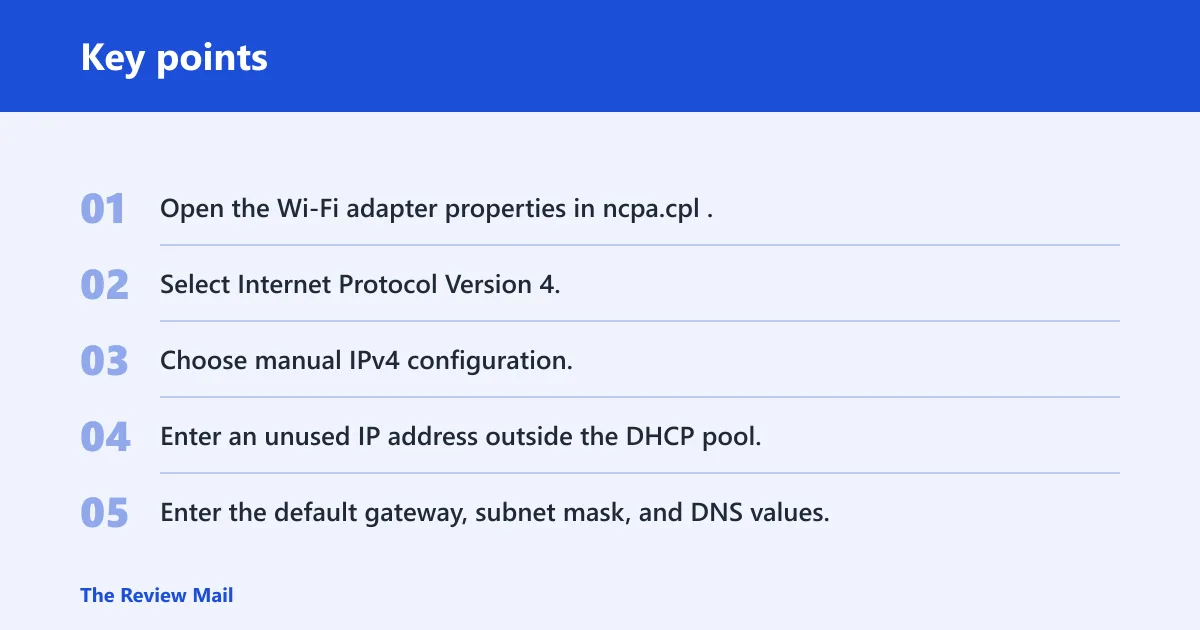
Press Windows key + R, type ncpa.cpl, and press Enter to open Network Connections. Right-click the Wi‑Fi adapter, open its properties, and edit the IPv4 settings. This path is faster than hunting through multiple settings screens.
Enter a safe manual IPv4 example
Use values that fit your network. If your router uses 192.168.1.1 as the gateway and its DHCP range starts at 192.168.1.100, you might choose 192.168.1.50 for the PC if that address is unused. Enter the subnet mask, default gateway, and DNS server values exactly as your network requires.
- Open the Wi‑Fi adapter properties in ncpa.cpl.
- Select Internet Protocol Version 4.
- Choose manual IPv4 configuration.
- Enter an unused IP address outside the DHCP pool.
- Enter the default gateway, subnet mask, and DNS values.
A common first-timer mistake is picking an address already inside the router’s DHCP range. That can create an IP conflict and make the error return in a different form. If the static address works, keep it documented so you can restore automatic DHCP later if needed.
Frequently asked questions
Why does Wi-Fi say it doesn’t have a valid IP configuration on Windows 11?
It usually means Windows connected to the Wi‑Fi radio but did not get a valid address from DHCP. The fault can sit on the PC, router, or software layer. Start by checking whether other devices on the same network still work, then confirm the failing PC’s adapter has a real IPv4 address.
How do I fix Wi-Fi doesn’t have a valid IP configuration in Windows 11?
Start with the quick path: restart the PC, then the router, run the Network Troubleshooter, refresh the lease with ipconfig /release and ipconfig /renew, and reset Winsock plus TCP/IP if needed. If the issue stays with one PC, update or reinstall the Wi‑Fi driver.
Should I restart the router or the PC first for this error?
Restart the PC first, then the router if the error stays. That sequence clears a local Windows fault before you disturb the router’s DHCP leases. If every device on the network is failing, the router comes higher on the list and may need a DHCP check right away.
What if forgetting the Wi-Fi network doesn’t fix the issue?
Move on. Forgetting the network clears saved credentials, but it does not repair DHCP, TCP/IP, or a bad driver. If the same network still fails after reconnecting, test the adapter with ipconfig, then check the router’s DHCP settings or the VPN and security software path.