This Device Is Not Configured Correctly: Windows 10 Fix
If Windows 10 shows Device Manager Code 1, start with the driver path that matches the device class: use the USB fix for USB hardware, and use the matching chipset, network, audio, display, or Bluetooth driver path for non-USB hardware. Using the wrong path can leave the device unavailable and waste time on changes that do nothing.
What Code 1 means in device Manager
Code 1 means Device Manager cannot set up the device correctly, and it often points to a missing, incorrect, corrupt, or outdated driver. The fastest first step is to open Device Manager, find the flagged device, and try the narrowest driver fix that matches its hardware class.
How to open device Manager in Windows 10
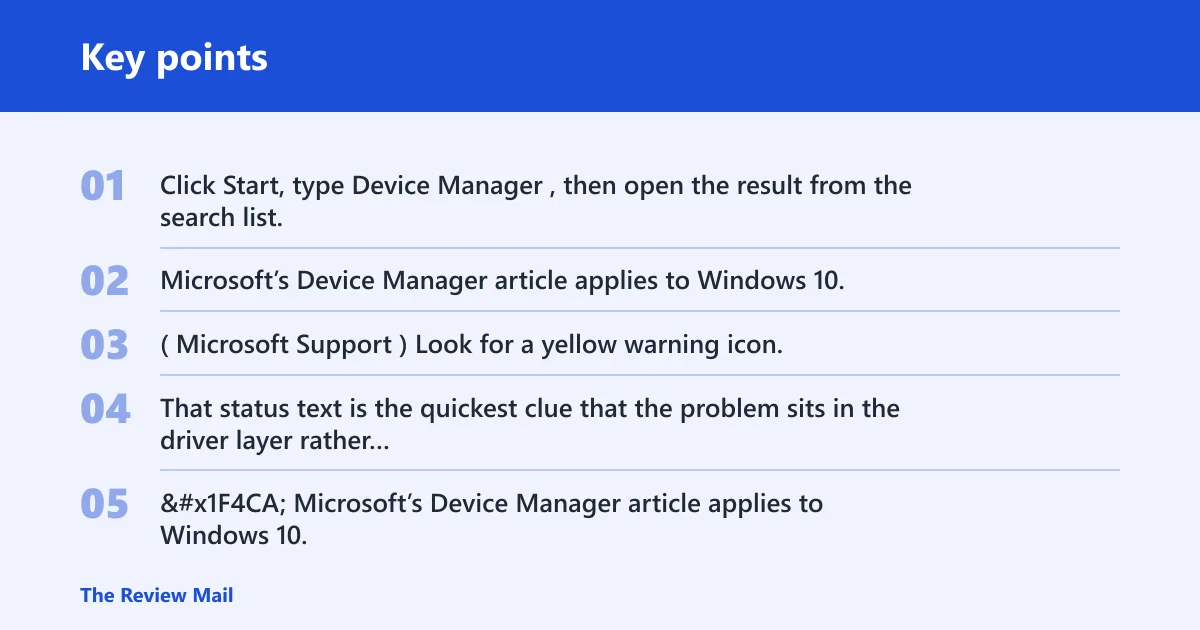
Click Start, type Device Manager, then open the result from the search list. Microsoft’s Device Manager article applies to Windows 10, and this utility is where you find the faulty device, open Properties, and use Update driver, Uninstall device, or Roll Back Driver. (Microsoft Support)
Look for a yellow warning icon, or open Properties and read the Device status box. That status text is the quickest clue that the problem sits in the driver layer rather than in the app you opened.
📊 Microsoft’s Device Manager article applies to Windows 10. Source: Open Device Manager.
Likely causes by device type
Separate USB hardware from non-USB hardware first. USB devices can fail because of filter driver conflicts, while audio, Bluetooth, display, and external storage problems more often come from a bad vendor driver, a Windows Update replacement, or a device that needs rollback after a recent change.
Say your USB headset shows Code 1, but the same headset works on another PC. That points first to the local USB driver path, not to the headset itself. Suppose a laptop touchpad or internal Bluetooth adapter shows Code 1 after a driver update; that points more toward reinstall, rollback, or a vendor package.
A common mistake is assuming every “This device is not configured correctly” alert can be fixed with the same driver download. A USB flash drive, a Realtek audio device, and a display adapter do not usually need the same fix path, and the registry cleanup below should stay limited to USB class devices.
Code 1 fix by device type
| Device category | Likely cause | First action | Second action | When not to use the registry fix |
|---|---|---|---|---|
| USB | Missing or conflicting USB driver, often after a device or filter change | Open Device Manager, update the USB driver, then unplug the device, shut down the PC, wait a few seconds, start it again, and reconnect the device | Delete USB filter values in Registry Editor after a restore point | Do not use it for Bluetooth, audio, display, or other non-USB hardware |
| Audio | Bad vendor audio package or Windows-replaced driver | Install the vendor audio driver | Uninstall the device, then restart Windows 10 and reconnect the device | Not a USB-class repair unless the audio device is actually USB |
| Bluetooth | Wrong adapter driver or failed stack reinstall | Update from the adapter maker’s driver page | Roll back the driver if the failure started after an update | Not for internal non-USB radio devices without USB class keys |
| Display | Bad GPU package or Windows Update mismatch | Install the vendor display driver | Uninstall the adapter and reboot | Never apply USB filter cleanup to display adapters |
| External storage | Missing storage bridge driver, cable, port, or power problem | Try another cable, port, or power source | Update the storage bridge or enclosure driver | Do not use the USB registry fix if the device is not a USB class device |
How do you fix a USB Code 1 error?
For USB hardware, start with the driver itself, then rule out a bad port, cable, or power cycle issue, and only then use the registry cleanup. The USB-specific fix belongs to devices that map to the USB class GUID {36FC9E60-C465-11CF-8056-444553540000}; it should not be used for non-USB hardware.
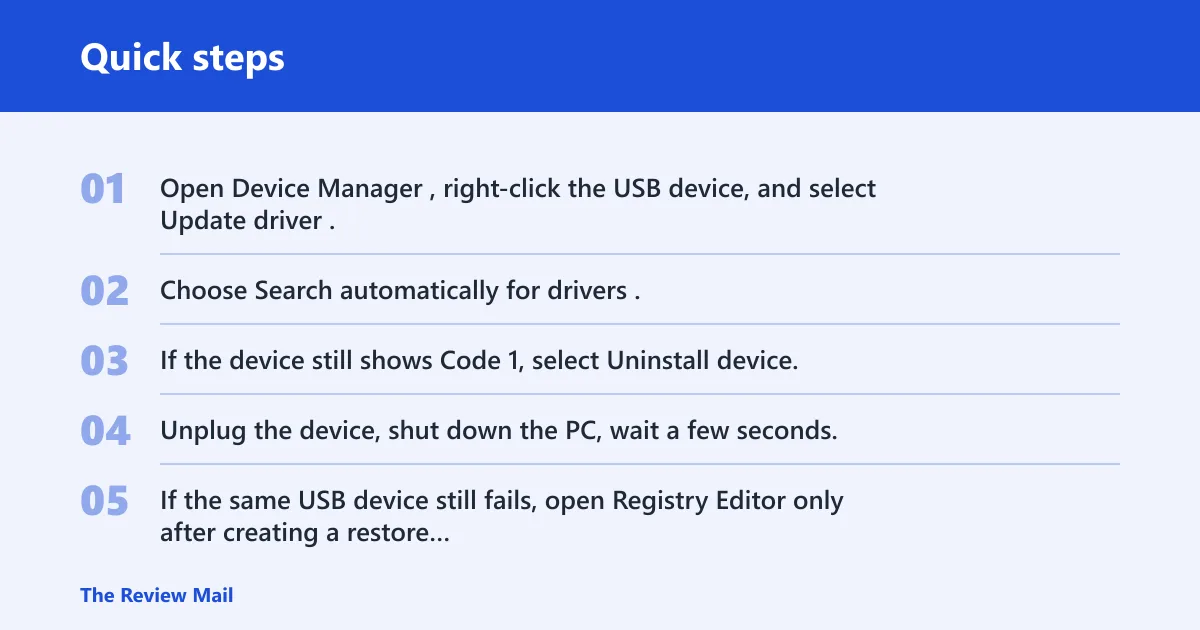
- Open Device Manager, right-click the USB device, and select Update driver.
- Choose Search automatically for drivers. If that fails, use Browse my computer for drivers and point to the vendor package.
- If the device still shows Code 1, select Uninstall device, then restart Windows 10 and reconnect the device.
- Unplug the device, shut down the PC, wait a few seconds, then start it again and reconnect the device to a different USB port.
- If the same USB device still fails, open Registry Editor only after creating a restore point, then check the USB class key for UpperFilters and LowerFilters.
- Delete those two values from the USB class path
HKEY_LOCAL_MACHINE\SYSTEM\CurrentControlSet\Control\Class\{36FC9E60-C465-11CF-8056-444553540000}, then restart the PC.
When Windows keeps putting the same broken USB driver back after an update or uninstall, the device usually needs a vendor package rather than the generic one. Windows Update can reinstall a driver that still carries the same fault, so the replacement must come from the hardware maker when possible.
How do you fix a non-USB Code 1 error?
For audio, Bluetooth, display, chipset, and many external storage devices, stay out of the USB registry path and use the driver tools in Device Manager first. If the failure began after a driver change, Roll Back Driver is often the narrowest option. If the device was missing a proper package, use the vendor’s driver page.
- In Device Manager, open the problem device’s Properties and check the Driver tab.
- Choose Update Driver, then Search automatically for drivers. If Windows finds nothing useful, go to the vendor site and install the latest package for that exact model.
- If the issue began right after an update, choose Roll Back Driver from the same tab.
- If rollback is unavailable, choose Uninstall device, restart Windows 10, and let it redetect the hardware.
- For external storage, power the device off if it has its own supply, then reconnect it through a different port and cable before repeating the driver steps.
For Dell systems and other branded PCs, the maker’s support page may list chipset, audio, Bluetooth, and graphics packages in the order they should be installed. That matters because a generic Windows driver can load, but still leave the device in Code 1 after reboot.
What if Windows keeps reinstalling the same broken driver?
When Update driver or uninstall keeps returning the same bad package, stop the loop by installing the vendor driver first, then checking which provider Windows is using. Device Manager shows the driver provider and version on the Driver tab, which tells you whether Windows or the vendor package is still in control.
- In Device Manager, open Properties for the device and note the Driver Provider and Driver Version.
- Install the manufacturer’s driver package from the vendor support page before you reconnect the device again.
- After installation, restart Windows 10 so the new files replace the old ones in memory.
- For USB hardware, try a different port and cable, then power-cycle the device if it has a switch or battery.
- If Windows reverts to the same driver, uninstall the device again, reboot, and install the vendor package before reconnecting it.
If a display adapter, Bluetooth radio, or audio device stays on Code 1 after reinstall, check the Details tab and the device’s hardware IDs. That helps confirm whether you are dealing with the right driver package or with a device that needs a firmware or chipset update instead.
What should you do before editing the registry?
Create a System Restore Point before touching Registry Editor or making driver changes that affect hardware startup. The USB filter fix removes UpperFilters and LowerFilters, so a restore point gives you a way back if the wrong key is edited or the device stops loading.
- Search Create a restore point from Start.
- Open System Properties, select the system drive, and choose Configure if protection is off.
- Turn on protection, then select Create and name the restore point.
- Back up the USB class key before deleting anything in Registry Editor.
- Use the USB registry fix only for USB hardware, and stop if the device is not in that class.
Do not use the registry cleanup for non-USB hardware. If the device category is audio, Bluetooth, display, or internal storage, return to the driver path instead. The registry fix is narrow on purpose.
Still not working?
If the device still shows Code 1 after the correct driver path, the next escalation is the device maker’s support package, firmware update, or a known hardware fault. At that point, collect the exact device name, the Driver Provider, the Driver Version, and the status text from Device Manager before contacting vendor support.
For USB peripherals, try the device on another Windows 10 PC. If it fails there too, the problem may be the peripheral itself. If it works elsewhere, the local PC likely needs a chipset, USB controller, or root hub driver from the system maker.
Frequently asked questions
How do I fix This device is not configured correctly on Windows 10?
Open Device Manager, find the device with the warning icon, and check its Driver tab. Try Update driver first, then Uninstall device and restart Windows 10. If the device is USB, use the USB class-key cleanup only after creating a restore point.
Should I update or reinstall the driver for Code 1?
Start with Update driver. If that fails, uninstall the device, restart Windows 10, and reinstall the vendor package if one exists. When the problem began after a recent update, Roll Back Driver is usually the narrower choice than a fresh install.
What registry keys are involved in Code 1 fixes?
The values removed are UpperFilters and LowerFilters. Do not apply that path to non-USB hardware.
Can a faulty driver cause This device is not configured correctly?
Yes. A bad, outdated, corrupt, or missing driver is one of the main reasons a device lands in Code 1. That is why the first pass is usually driver update, uninstall and reinstall, or a vendor package rather than a registry change.
What should I do before editing the registry for a driver error?
Create a System Restore Point, then back up the relevant key before deleting any filter values. If you cannot confirm that the device is USB class hardware, stop and use the driver path instead. That keeps the registry fix limited to the right device type.