PNP Detected Fatal Error: Fix It with These Checks
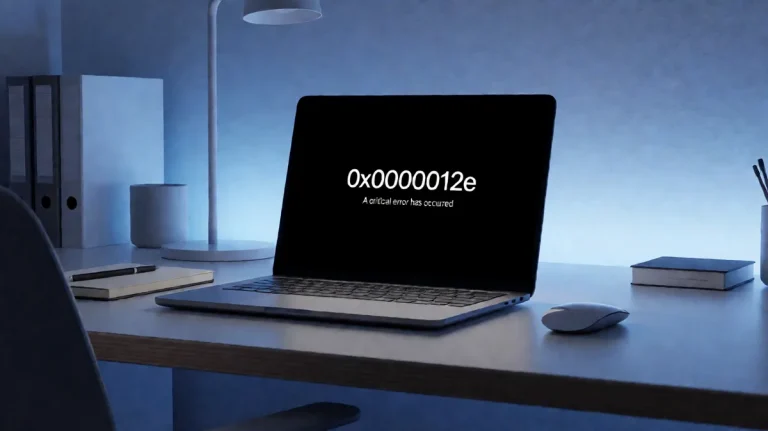
PNP_DETECTED_FATAL_ERROR is a Windows stop code that appears when Plug and Play has run into a fatal problem while detecting, configuring, or starting a device or its driver. Common triggers include a recent driver change, a newly attached USB or dock device, an update that introduced a conflict, or a hardware fault. If the PC keeps restarting, isolate recent changes first so you can narrow the cause faster.
This guide is part of our Windows BSOD stop codes: full list and fixes series.
Stop code 0xCA: timing clues and triage actions
This stop code is Windows bug check 0x000000CA as documented by Microsoft Learn. It indicates that the system hit a severe Plug and Play failure while handling device detection or setup. A crash during startup can point to a boot-time driver or storage issue, while a crash after sign-in often points to a driver or service that loads later.
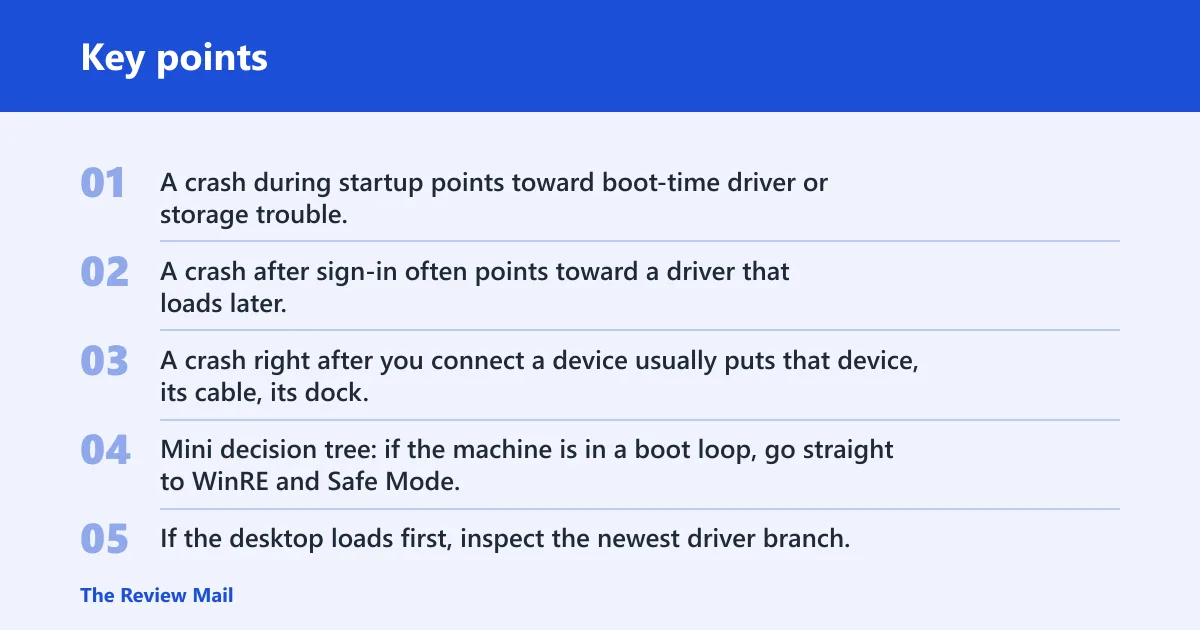
The timing matters. A crash during startup points toward boot-time driver or storage trouble. A crash after sign-in often points toward a driver that loads later. A crash right after you connect a device usually puts that device, its cable, its dock, or its driver near the top of the list.
PNP_DETECTED_FATAL_ERROR triage table
| Symptom timing | Most likely cause class | Safest first action | When to escalate |
|---|---|---|---|
| Boot loop before the desktop appears | Driver, recent update, or startup storage fault | Enter WinRE, then Safe Mode | If Safe Mode also crashes, move to System Restore or hardware checks |
| Desktop appears, then BSOD happens later | Driver loaded after sign-in, service, or software conflict | Use Device Manager to roll back or uninstall the newest driver | If the same crash returns after rollback, suspect the device or hardware branch |
| Crash starts immediately after plugging in a device | Faulty USB device, dock, hub, cable, or driver | Unplug the new device and boot without it | If another port or another PC shows the same failure, suspect the device itself |
| Crash persists after updates and driver rollback | Storage, memory, or motherboard-level fault | Run chkdsk C: /f /r, then sfc /scannow and DISM /Online /Cleanup-Image /RestoreHealth | If errors repeat, test memory and seek hardware support |
Mini decision tree: if the machine is in a boot loop, go straight to WinRE and Safe Mode. If the desktop loads first, inspect the newest driver branch. If the crash starts right after a device is connected, unplug that device and test again before making broader Windows changes.
Why does PNP detected fatal error happen on Windows 11?
On Windows 11, the crash pattern commonly follows a device or driver mismatch. A new dock, USB adapter, printer, GPU, Wi‑Fi card, chipset package, or storage controller can interrupt normal Plug and Play setup. A recent cumulative update, a corrupted system file, or a failing SSD, RAM stick, or motherboard slot can also be involved.
Say your laptop starts blue-screening only after a USB-C dock is attached. That points to the dock branch first. Suppose the machine boots normally until the login screen, then crashes after the desktop appears. That timing makes a later-loading driver more suspect than the display itself.
Disconnect new devices first
Start with the lowest-risk fix. A bad USB device, dock, hub, storage enclosure, or cable can trip Plug and Play before Windows settles in, and disconnecting it is faster than changing software settings first.
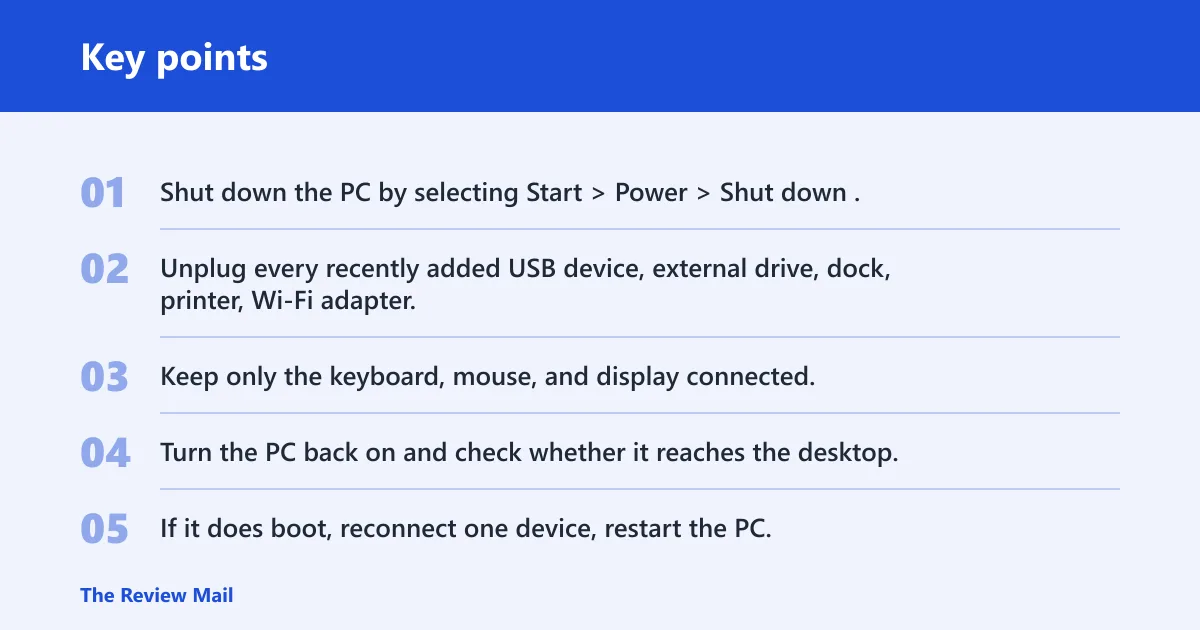
- Shut down the PC by selecting Start > Power > Shut down. If the system is frozen, hold the power button until it turns off.
- Unplug every recently added USB device, external drive, dock, printer, Wi‑Fi adapter, and card reader.
- Keep only the keyboard, mouse, and display connected.
- Turn the PC back on and check whether it reaches the desktop.
- If it does boot, reconnect one device, restart the PC, and test again before adding the next device.
If one device brings the blue screen back, stop there. Test that device on another port, another cable, or another PC before changing any driver settings.
Fix drivers in Device Manager
If the crash started after a driver install, upgrade, or hardware change, Device Manager is the safest place to work first. Open it with devmgmt.msc or right-click Windows + X and choose Device Manager.
- Expand the device category most likely to match the crash: display adapters, network adapters, storage controllers, USB controllers, or the device name itself.
- Right-click the device and choose Properties > Driver.
- Select Roll Back Driver if it is available.
- If rollback is unavailable or does not work, choose Uninstall device.
- Restart the PC and check whether the BSOD returns.
If the device disappears after uninstall and Windows loads a generic driver, that is useful. If the same blue screen returns before you can sign in, the next branch is Safe Mode and update removal.
Remove bad updates
Use this branch when the crash began after a patch, feature update, or cumulative build. If Windows will not boot, use WinRE from the sign-in screen or by interrupting startup, then continue with recovery options from there, as explained by Microsoft Support.
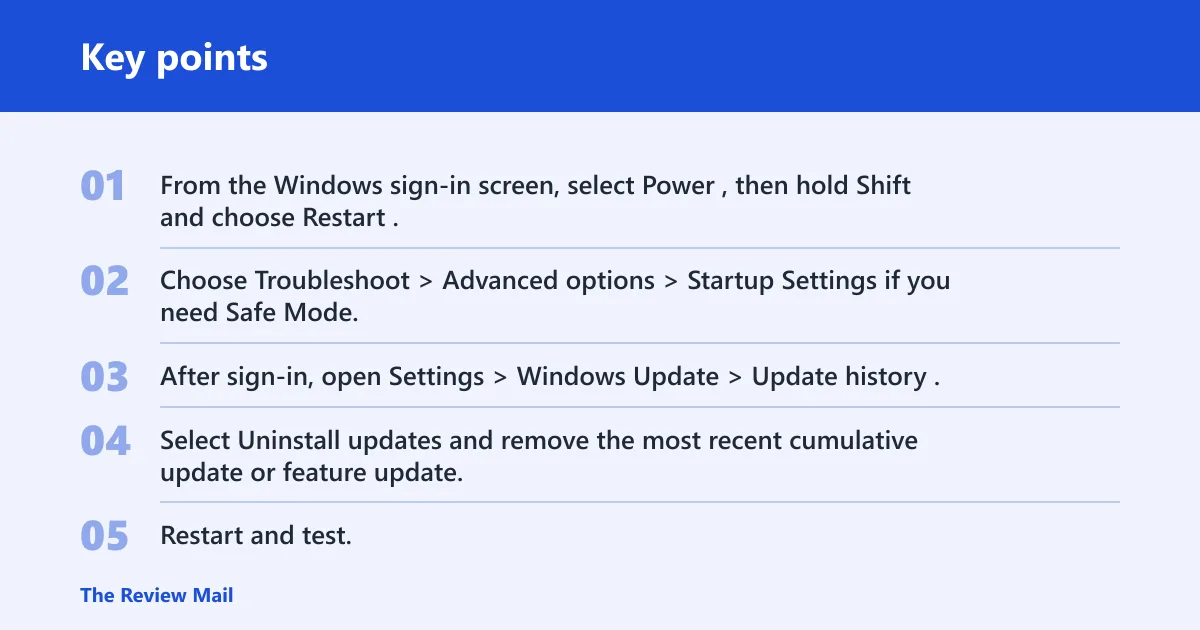
- From the Windows sign-in screen, select Power, then hold Shift and choose Restart. If the PC cannot reach sign-in, turn it on and interrupt startup three times to open recovery.
- Choose Troubleshoot > Advanced options > Startup Settings if you need Safe Mode.
- After sign-in, open Settings > Windows Update > Update history.
- Select Uninstall updates and remove the most recent cumulative update or feature update.
- Restart and test.
If update removal does not help, use Advanced options in WinRE and choose System Restore to roll back system files, drivers, and programs to a known-good point.
Repair Windows files and disk
When the crash keeps returning after device and update changes, check for file-system or system-file corruption. Run chkdsk C: /f /r first. Then run sfc /scannow and, if Windows still looks damaged, DISM /Online /Cleanup-Image /RestoreHealth.
- Open Command Prompt as an administrator, or open it from WinRE.
- Run
chkdskC: /f /r and let it finish. - Run
sfc /scannow. - If SFC reports problems it cannot fix, run
DISM /Online /Cleanup-Image /RestoreHealth. - Restart and see whether startup stabilizes.
chkdsk C: /f /r
sfc /scannow
DISM /Online /Cleanup-Image /RestoreHealth
If Windows still fails before the desktop appears, open recovery again and run Startup Repair. If the PC reaches the desktop but the blue screen keeps returning, go back to the last driver or device branch and test one change at a time.
What usually causes it?
A bad or mismatched driver, a recent Windows update, a new USB or dock device, or deeper hardware trouble can all trigger the stop code. Driver rollback and device removal are good first checks because they address the most common change-related causes before more invasive repairs.
Storage faults can also sit underneath the crash, especially if CHKDSK finds volume problems. Memory faults are less common, but if the system still crashes after removing devices, rolling back drivers, and undoing recent updates, the odds of a hardware fault rise.
When to suspect hardware instead of software
Suspect hardware when the same crash follows one physical device no matter which driver version you use, when it happens before login every time, or when it survives Safe Mode, rollback, update removal, and file repairs. A failing SSD, RAM module, dock, cable, or motherboard slot can keep the system unstable even after Windows changes are undone.
If the crash returns on a clean boot with every new device removed, move beyond software recovery. Run Windows Memory Diagnostic with mdsched.exe or a trusted bootable memory test, and ask the system vendor to inspect the storage or mainboard path.
Frequently asked questions
How do I fix PNP_DETECTED_FATAL_ERROR if Windows won’t boot?
Open Windows Recovery by holding Shift while selecting Restart from the sign-in screen, or by interrupting startup until recovery appears. Then choose Troubleshoot > Advanced options > Startup Settings to enter Safe Mode. From there, remove the newest driver in Device Manager, uninstall the latest update in Update history, or use System Restore.
Which drivers commonly trigger PNP_DETECTED_FATAL_ERROR?
Focus on display, network, storage controller, USB controller, printer, and dock-related drivers first. Those devices often load early or interact with Plug and Play during startup, so a bad version can produce a blue screen before the desktop becomes usable. Roll back the most recent driver branch first.
Should I uninstall recent Windows updates for PNP detected fatal error?
Yes, if the crash began after a patch, feature update, or build change. Open Settings > Windows Update > Update history > Uninstall updates and remove the newest cumulative or feature update first. If Windows will not boot, do the same work from WinRE or Safe Mode.
Can a bad USB device cause PNP detected fatal error?
Yes. A faulty USB flash drive, hub, dock, external drive, or cable can trigger the crash when Windows tries to enumerate it. Unplug all recent USB additions, boot with only the keyboard, mouse, and display attached, then reconnect devices one at a time to isolate the offender.
How do I roll back a driver after a BSOD?
Open Device Manager with devmgmt.msc or Windows + X, right-click the suspect device, open Properties, then the Driver tab. Choose Roll Back Driver if available. If not, use Uninstall device, restart, and let Windows reload a clean baseline.
When should I suspect hardware instead of software?
Switch to hardware suspicion when the crash keeps returning after Safe Mode, driver rollback, update removal, CHKDSK, SFC, and DISM. If it follows one physical device, happens before sign-in, or shows up on multiple Windows installs, the problem is more likely storage, memory, or motherboard-related than software.
Still not working? Back up data as soon as you can reach the desktop, then use a repair install, reset, or full reinstall if the system will not stabilize. If the crash survives those steps or blocks access to recovery tools, contact the PC or motherboard vendor and ask for hardware diagnostics before you keep reinstalling Windows.