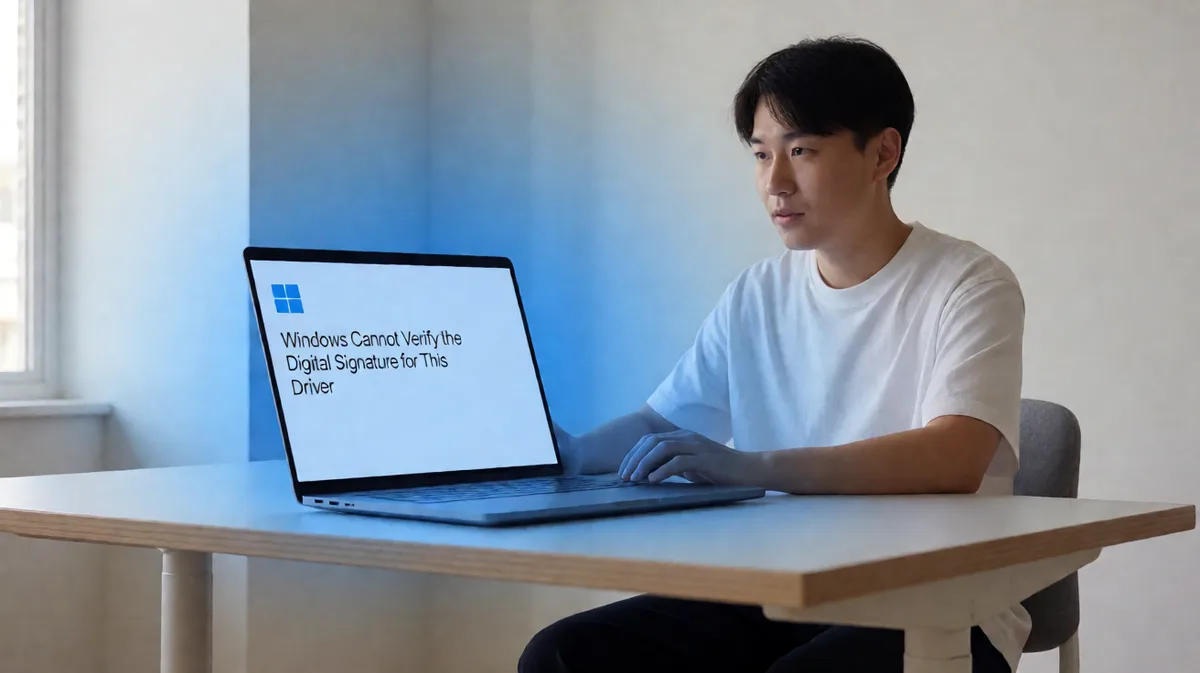
Windows Cannot Verify the Digital Signature for This Driver
Fix it by checking the driver first: if it is legacy or unsigned, replace it with a signed version or remove it; only use test-signing or startup bypasses for trusted, temporary recovery, not as a permanent fix. Ignoring the error can block boot, break device installs, or expose Windows 10 to unsafe drivers. This guide shows how to tell whether the driver is corrupted, unsupported, or truly legacy, then pick the least risky Windows 10 fix.
What this error means
Windows is blocking a kernel driver because Driver Signature Enforcement could not verify its signature. Start with Device Manager: identify the exact device, then roll back, uninstall, or replace the driver with a Microsoft signed driver from Windows Update or the hardware maker.
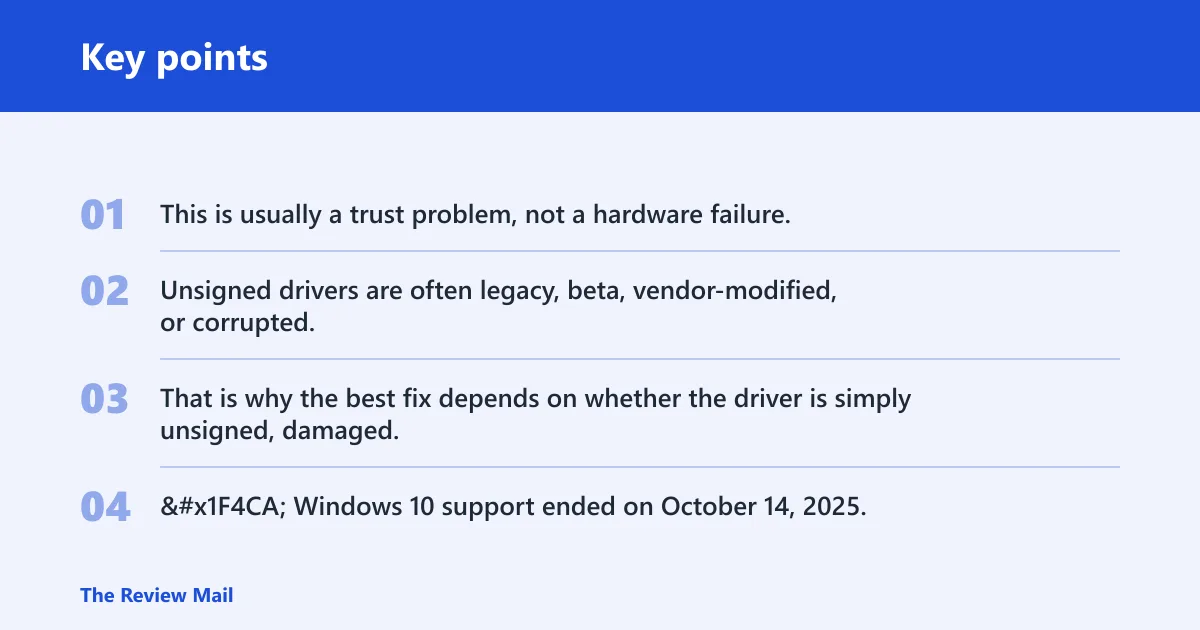
This is usually a trust problem, not a hardware failure. Unsigned drivers are often legacy, beta, vendor-modified, or corrupted; Windows 10 can also flag an installer when the package or certificate looks wrong, which some repair guides describe as a malformed certificate. That is why the best fix depends on whether the driver is simply unsigned, damaged, or no longer compatible.
Driver signature decision table
| Symptom | Likely cause | Safest action | When to stop using the driver |
|---|---|---|---|
| Older printer, Wi-Fi card, or scanner fails after install | Legacy unsigned driver | Get a Microsoft signed driver from Windows Update or the maker’s support page | Stop if the only option is a forced bypass |
| Error appears right after a new driver package | Newly installed driver is unsupported or corrupted | Roll back, then uninstall and install a signed version | Stop if the same package fails twice |
| Windows will not boot normally | Blocking driver loads during startup | Use Safe Mode or Advanced startup, then remove the driver | Stop if the device is required for boot and no signed version exists |
| Error returns after each restart | Only a temporary enforcement bypass was used | Replace the driver permanently; do not keep bypassing security checks | Stop as soon as the unsigned package keeps returning |
| Same device keeps breaking on Windows 10 | Unsupported hardware or vendor software | Use a signed driver or replace the device software | Stop if the vendor offers no signed build for your Windows version |
📊 Windows 10 support ended on October 14, 2025. Source: Microsoft.
Why does Windows 10 say it cannot verify the digital signature for this driver?
Windows 10 says this when the driver package is not trusted by its signing checks. The most common reasons are an unsigned package, an outdated installer or root certificate, or a file that was modified, damaged, or never meant for your current Windows build. Some reports group these as malformed certificate cases. Thewindowsclub.com notes these steps apply to Windows 11/10.
Say your laptop camera driver worked on an older build, then fails after an update. That points to an unsupported or vendor-modified package. Suppose a driver install begins, then the warning appears before the device is even added. That more often points to a damaged installer or incomplete download.
- Open Device Manager.
- Find the device with a warning icon, then open Properties > Driver.
- Check whether the driver date looks old or the provider is the device maker, Microsoft, or neither.
- If the device is legacy, stop using the current package and look for a signed replacement.
- If the install was new, remove it and reinstall from a fresh signed package.
How do I fix Windows cannot verify the digital signature for this driver?
Start in Device Manager, because that tells you whether to roll back, uninstall, or replace the driver. If the problem started right after a change, rollback is the least risky step. If the package is suspicious or corrupted, uninstall it and install a Microsoft signed driver from Windows Update or the hardware maker.
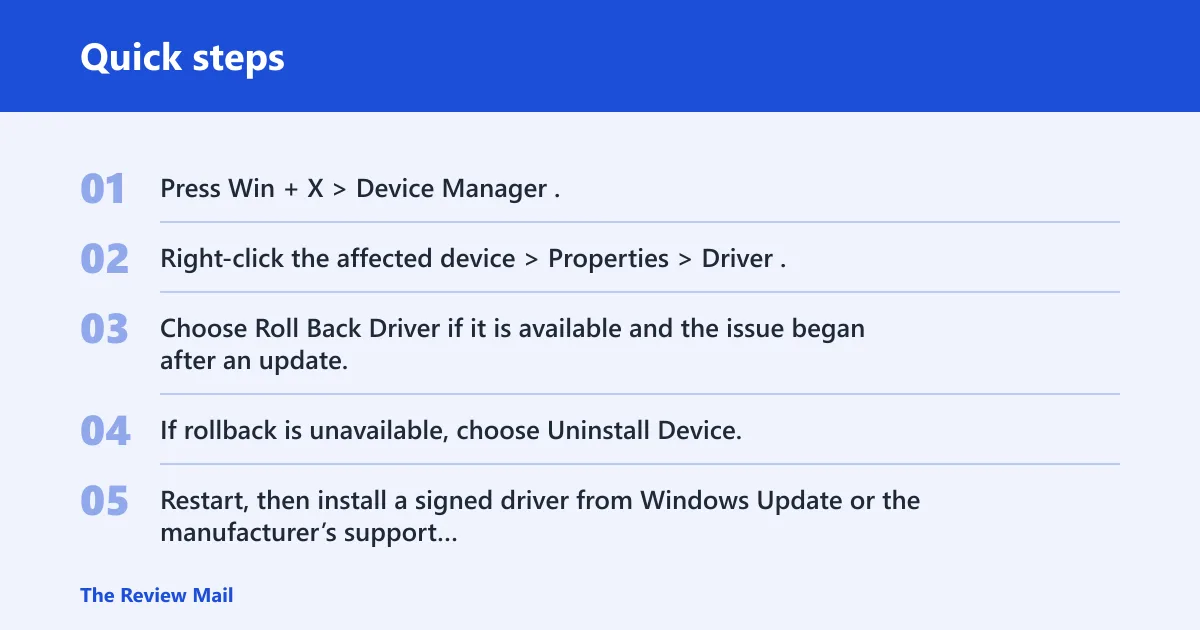
- Press Win + X > Device Manager.
- Right-click the affected device > Properties > Driver.
- Choose Roll Back Driver if it is available and the issue began after an update.
- If rollback is unavailable, choose Uninstall Device, then check Delete the driver software for this device if shown.
- Restart, then install a signed driver from Windows Update or the manufacturer’s support page.
How do I bypass driver signature enforcement?
Use the bypass only when you trust the driver and need a temporary recovery path. It lets Windows boot with signature checks relaxed for the next session, which is why the error can return after a restart. That return is expected when you have not replaced the unsigned package.
- Open Settings > Update & Security > Recovery.
- Under Advanced startup, select Restart now.
- After restart, choose Troubleshoot > Advanced options > Startup Settings.
- Select Restart.
- Press the option that disables driver signature enforcement, then finish the install or removal task.
Fix a boot problem in Safe Mode
Use Safe Mode when normal startup fails after a driver install. It loads a smaller set of drivers, which makes it easier to remove the bad one and install a signed replacement. This is the faster path when the system is stuck in a restart loop or the desktop never appears.
- Open Advanced startup from the sign-in screen or by interrupting startup if Windows will not load.
- Choose Troubleshoot > Advanced options > Startup Settings.
- Restart, then press the key for Safe Mode.
- Open Device Manager, remove the problem driver, or roll it back.
- Install a Microsoft signed driver that matches the hardware and Windows 10 build.
Need a permanent fix?
The permanent fix is a Microsoft signed driver that matches the device and your Windows version. Get it from Windows Update first, then try the hardware maker’s support page if Windows does not offer one. Microsoft says Windows 10 support ended on October 14, 2025, and that it no longer gets free updates or technical assistance after that date, which can make signed driver availability and repair choices more important.
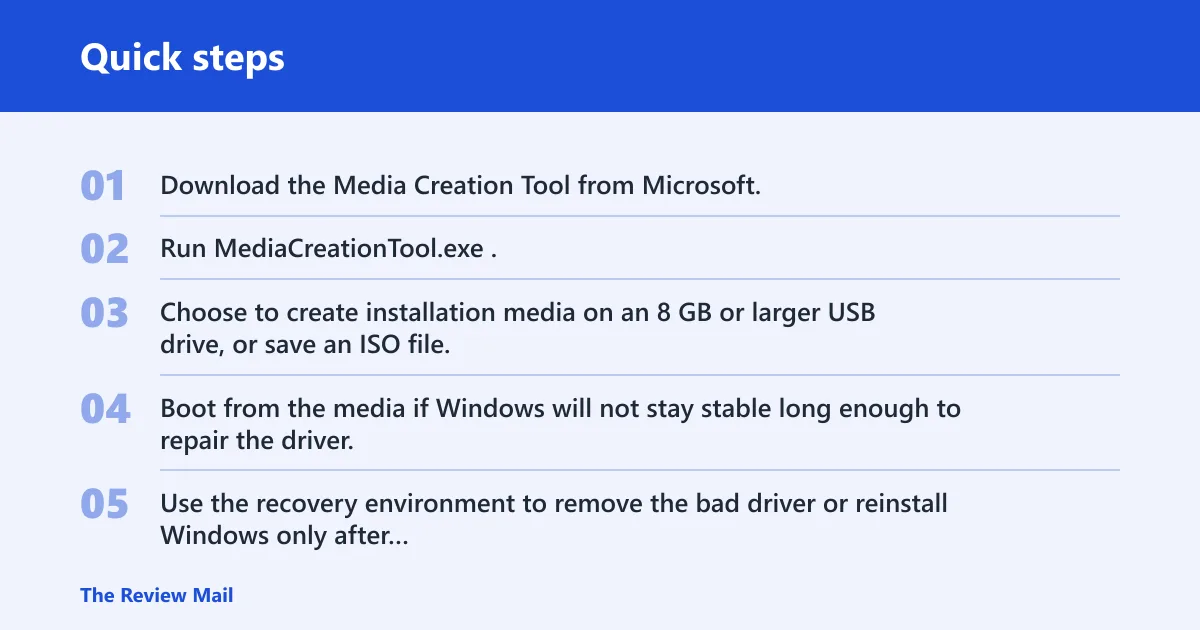
If normal boot is unstable, create repair media with the Media Creation Tool. Microsoft’s download is MediaCreationTool.exe; it needs about 8 GB of space on a blank USB flash drive, and it can create Windows 10 installation media as a USB or ISO file. Microsoft recommends backing up files before reinstalling Windows, and the tool can be used for a clean installation or reinstall.
- Download the Media Creation Tool from Microsoft.
- Run MediaCreationTool.exe.
- Choose to create installation media on an 8 GB or larger USB drive, or save an ISO file.
- Boot from the media if Windows will not stay stable long enough to repair the driver.
- Use the recovery environment to remove the bad driver or reinstall Windows only after the driver path fails.
If that didn’t work, try this next
Use offline recovery before a full reinstall. Boot from the USB media, open the repair options, and remove the driver package from the offline Windows install if the desktop never loads. If the hardware still has no signed driver for Windows 10, stop using it until the vendor provides one or replace the device software.
A common first-timer mistake is to keep choosing the bypass every time the driver fails. That hides the problem for one boot, then brings it back on the next restart. The better move is to remove the old package and install a signed replacement so security checks stay on.
Frequently asked questions
How do I disable driver signature enforcement in Windows 10?
Go to Settings > Update & Security > Recovery > Advanced startup > Restart now, then choose Troubleshoot > Advanced options > Startup Settings. After restart, pick the option that disables signature enforcement for that session only.
Can I install an unsigned driver on Windows 10?
Only as a temporary recovery step if you trust the source and have no signed replacement yet. Install it through the bypass path, then replace it with a Microsoft signed driver as soon as possible. Do not leave signature checks off as a standing setup.
What if the driver signature error keeps coming back after restart?
That usually means you only bypassed enforcement for one boot. Remove the driver in Device Manager, then install a signed replacement. If Windows will not stay up long enough, boot to Safe Mode or use repair media from the Media Creation Tool.
Where can I get a signed driver for Windows 10?
Start with Windows Update, then check the device maker’s support page for a Windows 10 package signed by Microsoft or the OEM. Match the exact hardware model and Windows version; a driver for a similar device often fails the same signature check.