Windows Cannot Determine Which Resources Are Required Fix
Windows 10 Code 33 often appears when Device Manager cannot start a device normally. Start by checking the driver and recent changes, then move through Windows 10 upgrade quick fixes and hardware checks if needed. Ignoring it can leave the device unavailable or unstable.
Likely causes
Most often, this problem is caused by an outdated or corrupted driver. It can also happen after a Windows update, after a driver change, or when Windows files are damaged. The safest order is restart, driver, Windows repair, firmware, then hardware.
For example, if a laptop Wi-Fi adapter shows a warning icon after a feature update, a driver mismatch is a common possibility. If a USB audio interface only disappears when a certain hub is attached, the port, cable, or hub is a more likely place to check first.
How do I fix Windows cannot determine which resources are required for this device in Windows 10?
Start with the least disruptive fixes: restart Windows, update or reinstall the affected driver, then run Windows Update and the built-in repair tools. If the error remains after those steps, move to firmware and hardware checks. That order keeps you from changing BIOS settings or replacing parts before simpler causes are ruled out.
- Restart the PC once.
- Open Device Manager, right-click the affected device, and choose Update driver from the context menu.
- Try Search automatically for drivers. If that fails, install the current driver from the device maker’s support page.
- If the problem stays, return to Device Manager, choose Uninstall device, restart the PC, and let Windows reload the device.
- Run the repair tools in the later sections before touching firmware.
What does Code 33 mean in Device Manager?
Code 33 is a Device Manager resource-allocation failure. Windows cannot assign the resources the device needs to start correctly, so the device is blocked instead of running with a bad configuration. It can affect graphics cards, network adapters, sound devices, storage controllers, and other peripherals.
Can outdated drivers cause the Windows cannot determine which resources are required error?
Yes. Outdated or corrupted drivers are a common cause, especially after a Windows update or a device maker’s driver change. If the driver is built for an older Windows release, or if its files are damaged, Device Manager may not be able to assign resources and the device can fail to start.
- Open Device Manager.
- Expand the category that contains the device.
- Right-click the device with the warning symbol and choose Update driver.
- Select Search automatically for drivers first.
- If Windows finds nothing useful, download the current driver from the device maker, then install it manually.
- If the error started right after a driver change, choose Properties > Driver > Roll Back Driver if that button is available.
Can Windows Update fix a resource allocation error in Device Manager?
Sometimes. Windows Update may install a newer driver or a system patch that helps restore the problem device. The Windows Update troubleshooter can also detect a corrupted update download or a pending reboot that is blocking updates.
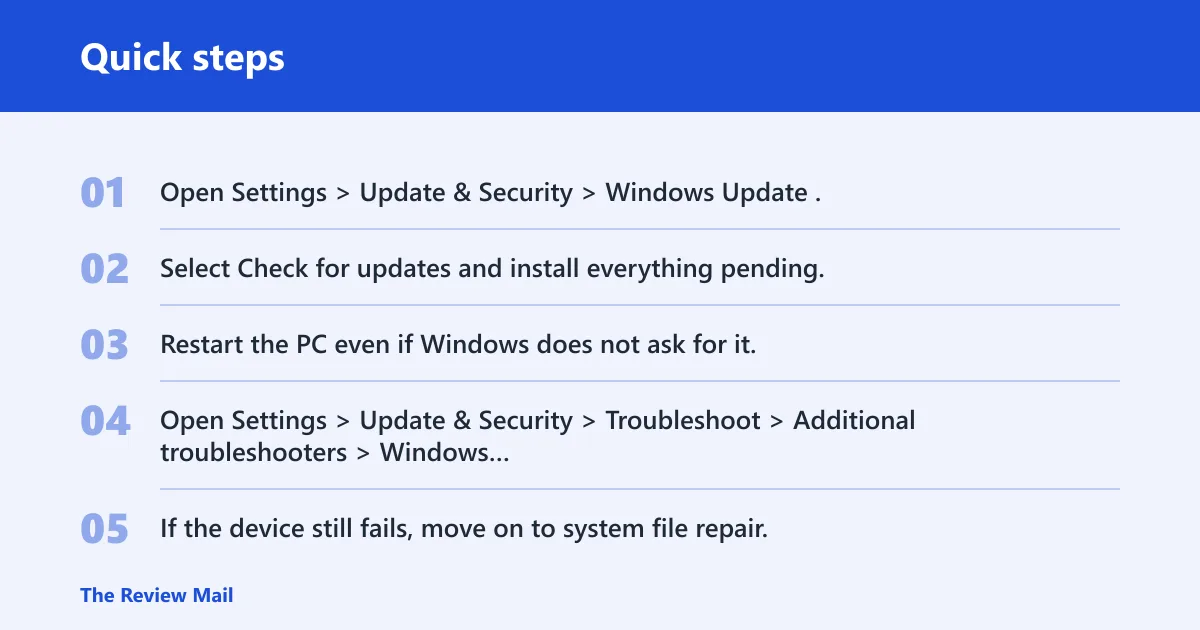
- Open Settings > Update & Security > Windows Update.
- Select Check for updates and install everything pending.
- Restart the PC even if Windows does not ask for it.
- Open Settings > Update & Security > Troubleshoot > Additional troubleshooters > Windows Update, then run the troubleshooter.
- If the device still fails, move on to system file repair.
Use the Windows repair tools in order
Run these from least disruptive to more invasive. Start with sfc /scannow in an elevated Command Prompt. If that does not fix the issue, run DISM /Online /Cleanup-image /Restorehealth. Then check the system drive with chkdsk /F; if the drive is in use, Windows will schedule the repair for restart.
- Open Command Prompt as administrator.
- Run
sfc /scannowand wait for the file check to finish. - If SFC reports unrepaired files, run
DISM /Online /Cleanup-image /Restorehealth. - Run
chkdsk /Fon the system drive.
Should I update BIOS or firmware for a Code 33 error?
Update BIOS or firmware only after the driver and Windows repair steps fail. A firmware update may help if the device class depends on it, but it is more disruptive than a driver update.
- Confirm the exact motherboard, laptop model, or device model.
- Check the manufacturer support page for the newest BIOS, firmware, or device microcode package.
- Read the release notes for fixes tied to device enumeration, PCIe, USB, storage, or adapter stability.
- Apply the update only if the vendor says it addresses the device class you are troubleshooting.
- Restart and recheck Device Manager after the update completes.
Code 33 triage checklist
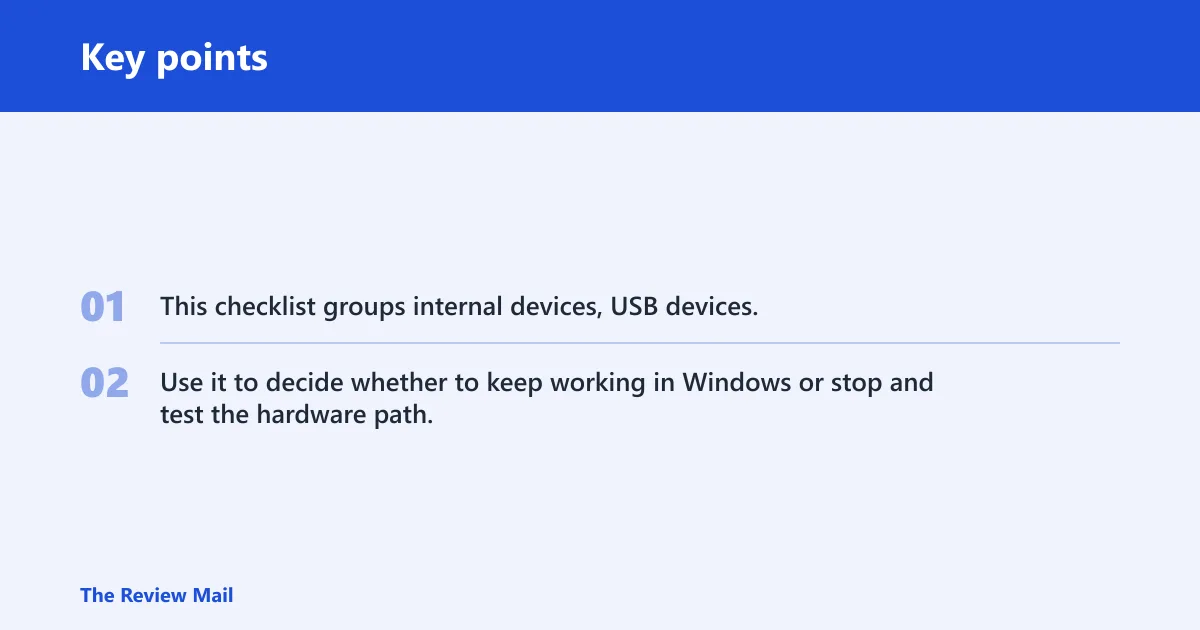
This checklist groups internal devices, USB devices, and storage or network adapters so you can test the relevant layer first. Use it to decide whether to keep working in Windows or stop and test the hardware path.
| Symptom | Likely cause | Fastest safe test | Next action |
|---|---|---|---|
| Internal device shows Code 33 after a restart | Driver mismatch or seating problem | Update or roll back the driver in Device Manager | Reseat the card or internal cable, then test firmware if the driver step fails |
| USB device works on one port but not another | Port, cable, hub, or power issue | Plug it into a different direct USB port with no hub | Replace the cable or stop using the hub before trying deeper Windows repair |
| Storage or network adapter has Code 33 and the device disappears or drops out | Driver corruption, system file damage, or adapter fault | Install the vendor driver, then run SFC and DISM | Check cables, reseat the adapter, and test the device in another machine if possible |
Check hardware and connections
If the driver, update, and repair steps do not clear the error, check the physical side. For USB devices, try a different cable, a different port, and direct connection without a dock or hub. For internal cards, power down fully, reseat the card, and check any auxiliary power plugs. For storage or network devices, confirm the cable is firm on both ends and inspect the adapter seating.
- Shut the PC down completely.
- Reseat the device or the cable if it is internal.
- Move USB devices to another port, preferably a direct motherboard port.
- Remove nonessential external hardware such as docks and extra USB devices while testing.
- Boot again and check whether Code 33 remains on the same device.
Still not working?
If the device still shows the error after driver updates, Windows Update, SFC, DISM, chkdsk, firmware checks, and connection tests, suspect the hardware itself. At that point, test the device in another PC if possible, or replace it. If it is built in, ask the PC maker or device vendor for a known-good driver package, a firmware note, or a board-level service path.
Keep the device driver current after major Windows updates, and avoid mixing old vendor drivers with newer Windows builds unless the maker says they are supported.
Frequently asked questions
Why does Windows say it cannot determine which resources are required for this device?
Windows says this when Device Manager cannot assign the resources a device needs to start. The device is detected, but Windows cannot complete the setup. Start with the driver, then check Windows files and hardware if the warning remains.
Do I need to reinstall the device driver for this error?
Often, yes. Open Device Manager, remove the affected device with Uninstall device, then restart so Windows reloads it. If Windows keeps the same error, install the latest vendor driver manually and check whether a rollback is available for a recent driver change.
How do I check whether hardware conflicts are causing the Code 33 error?
Compare the device behavior across ports, cables, or another PC if that is possible. If the error follows the device everywhere, hardware becomes more likely. If it only fails in one slot, one port, or one system, the issue is probably in that machine’s driver, firmware, or connection path.