Bsod Driver Pnp Watchdog
Start with the branch that matches your PC. If Windows still boots, check storage, chipset, and recent driver changes. If it boot-loops or stalls at startup, use Safe Mode, WinRE, or Startup Repair first. Picking the wrong branch burns time and can turn a fixable driver or disk problem into repeated failed boots. This guide covers bootable and non-bootable cases and gives quick diagnostic steps for Windows 10 and Windows 11.
What DRIVER_PNP_WATCHDOG means
This stop code indicates that Windows ran into a problem while starting Plug and Play devices, loading drivers, or talking to storage during startup. On Windows 10 and Windows 11, the screen can appear as a blue-screen stop code, a bug check, or a sudden restart, and the useful clue is when it appears, not the exact wording.
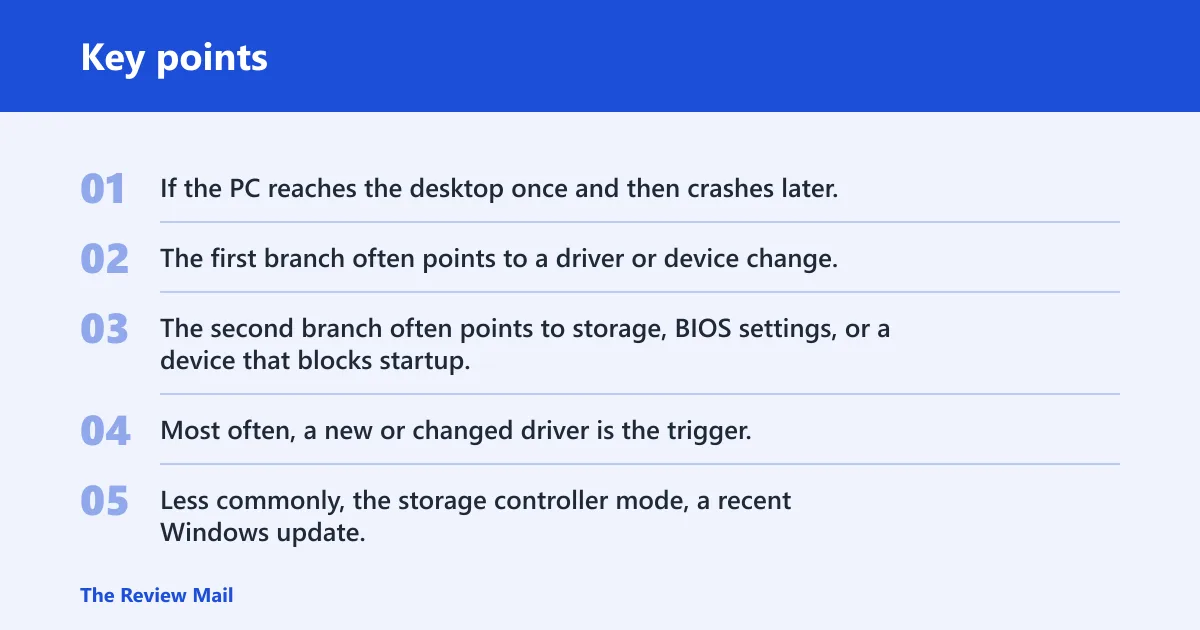
If the PC reaches the desktop once and then crashes later, treat it differently from a boot loop that hits the Windows logo and restarts before login. The first branch often points to a driver or device change. The second branch often points to storage, BIOS settings, or a device that blocks startup.
Likely causes
Most often, a new or changed driver is the trigger. Less commonly, the storage controller mode, a recent Windows update, corrupt system files, or hardware on the SSD, USB path, or another device can interrupt Plug and Play during boot.
Say your laptop boots normally until a USB Wi‑Fi adapter is inserted, then restarts on the next reboot. That pattern points away from a random Windows fault and toward the driver or device path you just changed.
What should I try first when I get a driver pnp watchdog blue screen?
First, unplug any new external hardware, restart once, and see whether Safe Mode loads. If Windows still starts, go straight to Device Manager and free disk space before changing BIOS settings. If it will not restart cleanly, move to WinRE or Startup Settings.
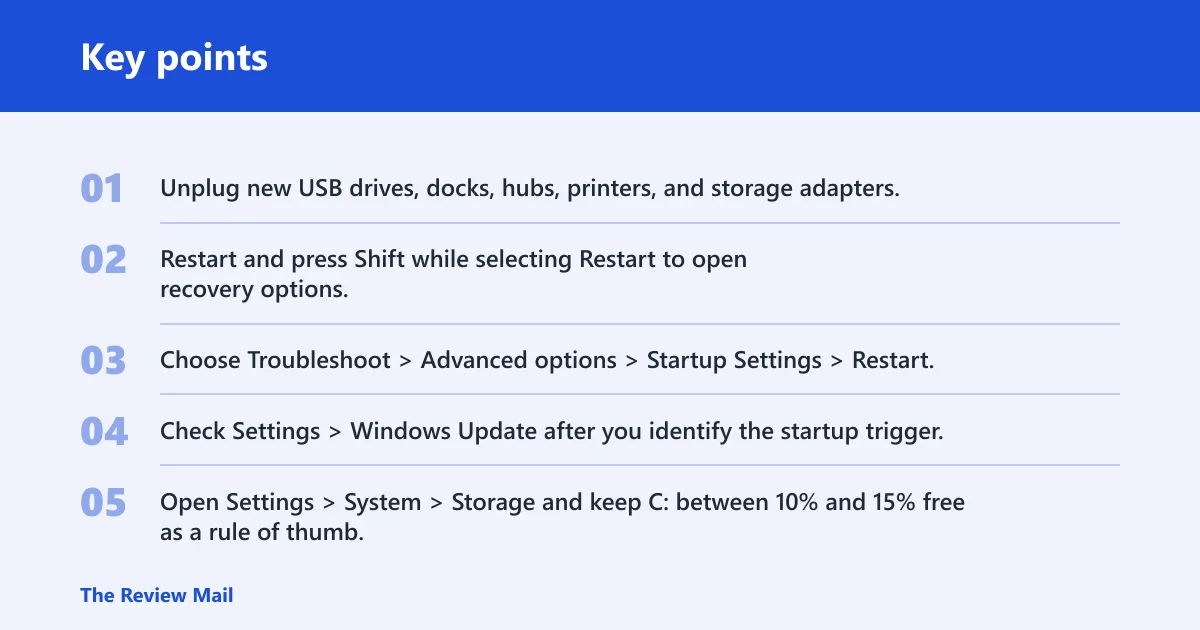
- Unplug new USB drives, docks, hubs, printers, and storage adapters.
- Restart and press Shift while selecting Restart to open recovery options.
- Choose Troubleshoot > Advanced options > Startup Settings > Restart, then pick 4 or F4 for Safe Mode. (Microsoft Learn)
- Check Settings > Windows Update after you identify the startup trigger, and install pending updates if the machine is otherwise stable.
- Open Settings > System > Storage and keep C: between 10% and 15% free as a rule of thumb. (Microsoft Support)
Safe Mode path:
Troubleshoot > Advanced options > Startup Settings
Fix a boot loop after the Windows logo
A boot loop after the logo usually means Windows is failing before the desktop loads. Start with Safe Mode, then remove the most recent device change, check for flagged drivers, and clear any low-disk-space condition that could block startup repair or update rollback.
- Enter Safe Mode through WinRE if normal restart fails.
- Open Device Manager and scan for devices with a yellow exclamation mark.
- Right-click the problem device, choose Update driver, then Disable device or Uninstall device if the update fails.
- Open Settings > Windows Update and install the latest updates.
- Open File Explorer, check the free space on C:, and delete unneeded files if the drive is nearly full, then restart.
Check the exact failure:
Open Event Viewer > Windows Logs > System and review recent critical errors and bug check entries.
Fix crashes during USB install media
If the blue screen appears while booting from Windows setup media, focus on the installer path first. A bad USB port, a corrupt install stick, or a BIOS storage mode that does not match the installer’s expectations can stop setup before it reaches the disk selection screen.
- Try a different USB port, preferably a rear motherboard port on a desktop.
- Recreate the installation media if setup fails at the same stage twice.
- Enter BIOS/UEFI and check the storage controller mode.
- Restore BIOS or UEFI defaults if a custom setting was added recently.
- Note the exact setup stage where the crash appears: language screen, disk list, or first reboot.
Suppose setup crashes only after you select the target SSD, but not before. That pattern points more toward storage mode or disk access than toward the USB stick itself.
Fix crashes after the desktop loads
If Windows reaches the desktop, the problem is often narrower and easier to isolate. Start with the device that changed most recently, then inspect Device Manager, roll back the driver if possible, and test whether Safe Mode stays stable.
- Open Device Manager and expand any category with a warning icon.
- Right-click the changed device and choose Properties > Driver > Roll Back Driver if available.
- If rollback is unavailable or fails, choose Uninstall device, then reboot.
- Open Settings > Apps > Installed apps and remove recent hardware software or filter utilities.
- Run
sfc /scannow, thenDISM /Online /Cleanup-Image /RestoreHealth.
Command Prompt (Admin):
sfc /scannow
DISM /Online /Cleanup-Image /RestoreHealth
Fix post-update crashes
If the blue screen started right after a Windows update or a driver update, treat the most recent change as the lead suspect. Roll back the update if Windows offers that option, then reinstall updates only after the machine boots cleanly again.
- Open Settings > Windows Update > Update history.
- Check whether the crash began after a cumulative update, driver package, or firmware package.
- Use Recovery options or Uninstall updates if the problem began immediately afterward.
- After recovery, run Windows Update again and install the latest fixes.
- If a restore point exists, try System Restore from Advanced options.
Can a BIOS setting fix driver pnp watchdog?
Yes. BIOS or UEFI settings can matter when storage detection changes after an update, a drive swap, or a motherboard reset. A SATA controller mode mismatch is a common startup-level issue, and changing AHCI, RAID, or RST modes incorrectly can make Windows unbootable. OEM laptops often depend on a factory storage setting that should not be changed casually.
- Enter BIOS/UEFI Setup during startup.
- Load Setup Defaults or Optimized Defaults.
- Check the SATA controller or storage mode and compare it with the previous setting if you know it.
- Save changes, restart, and test whether Windows reaches Safe Mode or the desktop.
- If the machine is an OEM laptop, run the vendor’s built-in diagnostics from its boot menu.
OEM laptop checks to try
On branded laptops, default firmware settings and factory storage modes matter more than many generic guides admit. If the machine ships with a vendor recovery path or built-in diagnostics, use those before reinstalling Windows or replacing hardware.
- Load BIOS defaults first.
- Confirm the storage mode matches the factory setting.
- Run built-in diagnostics from the vendor boot menu.
- Check the manufacturer support page for the exact model’s storage, chipset, and firmware packages.
- If the laptop uses a RAID or Intel RST style setup, do not change that mode without confirming the original configuration.
Recovery options if basics fail
If Safe Mode, Device Manager, updates, and BIOS checks do not clear the crash, move to recovery features instead of guessing. System Restore can back out a bad change, and Startup Repair or Reset this PC may be the next step if Windows still will not start.
- Open Troubleshoot > Advanced options from WinRE.
- Try System Restore if a restore point is available.
- Use Startup Repair for repeat boot failures.
- Choose Reset this PC only after saving files if Windows repair paths fail.
- If hardware symptoms continue, back up data and run vendor diagnostics before replacing parts.
Recovery decision table
| Symptom pattern | Most likely cause | Next action | What evidence to capture |
|---|---|---|---|
| Boot loop after Windows logo | Driver load failure, storage mode mismatch, or bad startup update | Enter Safe Mode, remove recent hardware, check Device Manager, then run Windows Update | Whether Safe Mode loads, recent driver changes, BIOS storage mode |
| BSOD during USB install media | Bad installer USB, port issue, or firmware storage setting mismatch | Try a different USB port, rebuild the media, and review BIOS/UEFI storage mode | Exact setup stage, USB port used, BIOS storage mode |
| Desktop-accessible crashes | Changed driver, device conflict, or corrupt system files | Open Device Manager, roll back or uninstall the changed device, then run SFC and DISM | Which device changed, whether Safe Mode is stable, recent installs |
| Post-update crashes | Bad Windows Update, driver package, or firmware update | Uninstall the last update if available, then reinstall updates after recovery | Update history, restore point availability, crash timing after update |
| OEM laptop cases | Factory storage setting change or model-specific firmware/driver issue | Load BIOS defaults, confirm factory storage mode, run vendor diagnostics | Model number, BIOS defaults status, factory storage mode, diagnostic result |
Frequently asked questions
What does driver pnp watchdog mean on Windows 11?
On Windows 11, it usually means Windows hit a serious startup or driver-loading problem while handling Plug and Play devices. Check whether the PC still reaches the desktop, because that decides whether you start in Safe Mode or jump to WinRE, Startup Repair, and driver rollback.
How do I fix driver pnp watchdog if Windows won’t boot?
Use WinRE first: Shift + Restart is only available if Windows can still open recovery options, so on a PC that will not boot you usually need WinRE from repeated failed boots, installation media, or a recovery key. From there, go to Troubleshoot > Advanced options > Startup Settings. Then enter Safe Mode, remove recent hardware, and try System Restore or Startup Repair before changing BIOS settings or reinstalling Windows.
Is driver pnp watchdog caused by a driver or hardware problem?
It can be either. A driver change is common when Windows still reaches the desktop, while storage, USB, or motherboard-level hardware issues are more likely when the crash happens before login or during install media startup. The timing tells you which branch to test first.
Does driver pnp watchdog happen on Windows 10 and Windows 11?
Yes. The same basic checks apply on both versions: Safe Mode, Device Manager, updates, storage checks, and recovery options. The exact blue-screen text can vary by version.