Irq Configuration Is Incorrect
“IRQ configuration is incorrect” usually means Windows and the device, BIOS, or driver disagree about hardware resources. If Device Manager shows Code 12, start with driver and BIOS resource settings before replacing the card. Ignore it and the device may stay disabled, share interrupts badly, or fail after every reboot. This guide walks you through a Windows decision tree to separate driver faults, BIOS resource conflicts, and actual hardware contention.
This guide is part of our Windows driver errors: full list and fixes series.
What the IRQ error means
An IRQ, or Interrupt Request, is a hardware signal sent to the processor so a device can get attention. On older PC-compatible systems, interrupts were assigned as IRQ numbers, historically limited to IRQ0 through IRQ15 with the PIC architecture. Modern APIC-based systems support far more interrupt lines, so true conflicts are much less common on current PCs.
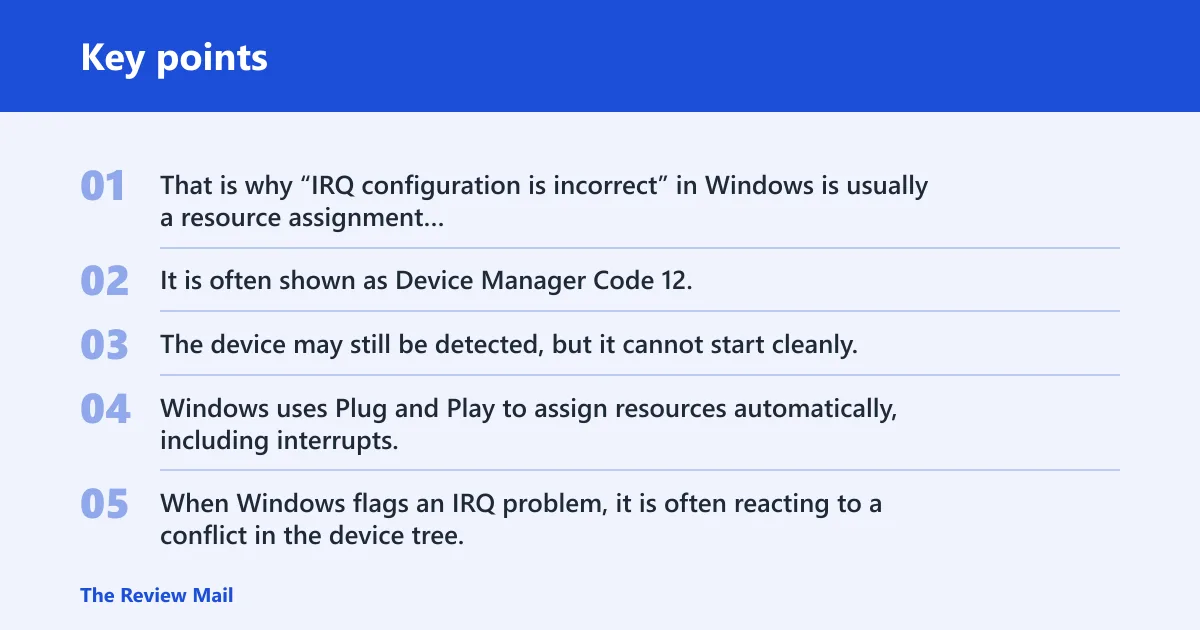
That is why “IRQ configuration is incorrect” in Windows is usually a resource assignment problem, not a generic crash message. It is often shown as Device Manager Code 12, which means Windows could not assign a usable resource set to the device. The device may still be detected, but it cannot start cleanly.
Why Windows flags a bad resource assignment
Windows uses Plug and Play to assign resources automatically, including interrupts, so manual IRQ handling is far less common than it was on older systems. When Windows flags an IRQ problem, it is often reacting to a conflict in the device tree, a stale driver reference, or a firmware routing problem that leaves the device without a valid assignment.
Do not confuse that with a blue-screen stop error. IRQL_NOT_LESS_OR_EQUAL is a common Windows Blue Screen of Death stop code, and Tom’s Hardware describes it as memory related. That points to a different failure path from a device-manager IRQ warning.
Why modern PCs see fewer true IRQ conflicts
PIC-based systems had a small interrupt budget. On Intel 8259 PICs, interrupt inputs are commonly referred to as IRQ0 through IRQ7, with the master handling IRQ 0 to 7 and the slave IRQ 8 to 15. APIC systems changed that model. (Wikipedia)
That extra capacity is why current machines rarely hit classic IRQ collisions. When they do, the problem is usually not two cards fighting for the same line in the old sense. It is more often a driver, ACPI routing, or firmware issue that leaves Windows unable to place the device cleanly.
Is it a driver or hardware conflict?
Start by separating three patterns: a driver problem, a BIOS or ACPI routing problem, and genuine device failure. A driver issue usually follows the device regardless of slot or port. A routing issue often moves with the motherboard setting or firmware version. Actual hardware failure tends to persist even after the software and firmware are corrected.
Driver symptoms
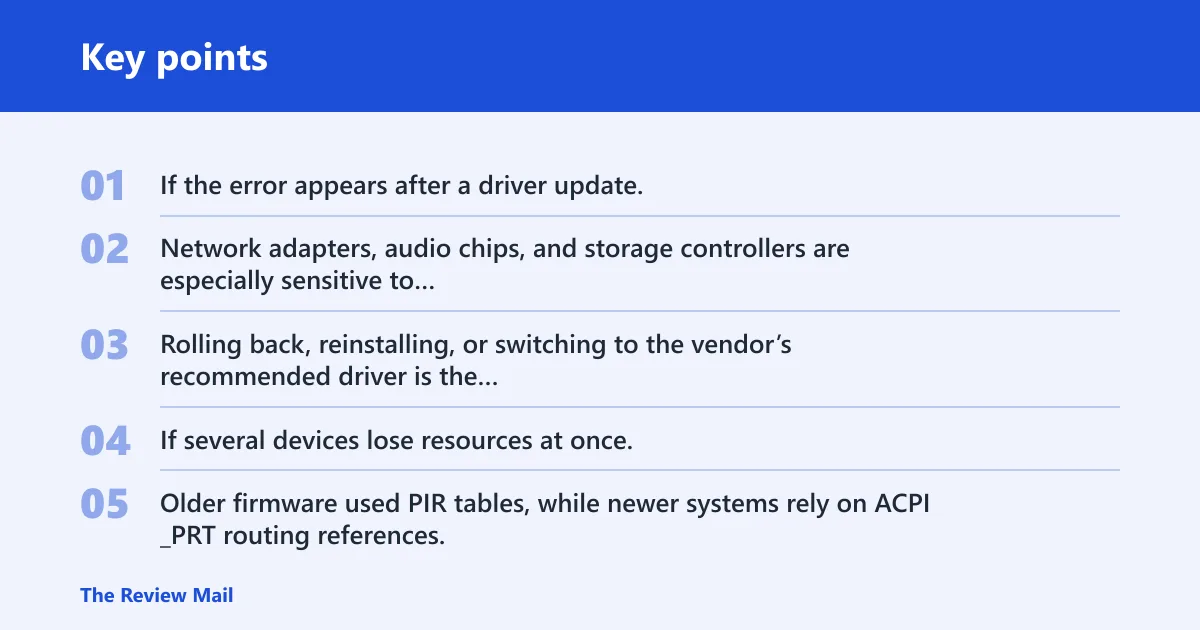
If the error appears after a driver update, or the device works in Safe Mode but not in normal Windows, suspect the driver first. Network adapters, audio chips, and storage controllers are especially sensitive to driver regressions because they depend on low-level resource handling. Rolling back, reinstalling, or switching to the vendor’s recommended driver is the safest first step.
BIOS or ACPI routing symptoms
If several devices lose resources at once, or the same device fails across multiple driver versions, look at BIOS or ACPI routing. Older firmware used PIR tables, while newer systems rely on ACPI _PRT routing references. A bad firmware table can hand Windows an assignment that looks valid on paper but does not match the board’s real wiring.
Say your desktop’s onboard audio disappears after a firmware update while the GPU still works. If Device Manager now shows a Code 12 on the audio controller and the IRQ list changed after the update, that points more toward routing than toward the audio driver itself.
Legacy sharing and actual device failure
Legacy ISA-style hardware can still share interrupts in ways that look odd to modern eyes. That is normal on some older boards, especially with add-in cards that predate APIC-era behavior. But if a device shares an IRQ and still functions, the sharing itself is not the problem. A failure to start, repeated disconnects, or missing functions is the real clue.
Suppose an older PCI sound card shares an IRQ with a USB controller and crackles only when the USB bus is busy. That pattern suggests resource pressure or a flaky card, not a fatal Windows error. If the card fails even in a different slot with the same firmware settings, hardware becomes more likely.
Check the IRQ in Windows
Windows gives you two practical views: Device Manager and System Information. Device Manager is useful for the device’s live resource assignment. System Information gives a broader hardware-resource list. Check both before changing settings, because one view can hide the pattern.
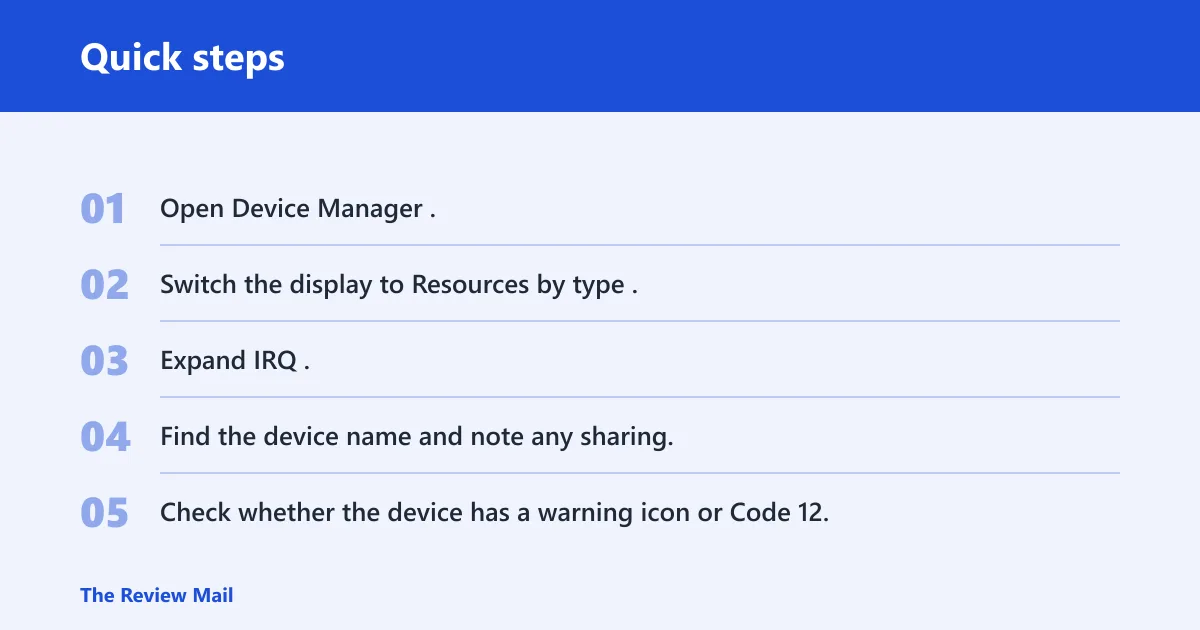
Device Manager resources by type
Windows can show IRQs in Device Manager using the Resources by type view. Open Device Manager, choose the view that groups resources by type, and look for the IRQ section. That view helps you see which devices share a line and whether the troubled device has been assigned anything at all.
- Open Device Manager.
- Switch the display to Resources by type.
- Expand IRQ.
- Find the device name and note any sharing.
- Check whether the device has a warning icon or Code 12.
System Information IRQ view
Windows System Information exposes IRQs under Hardware Resources > IRQs. Open msinfo32.exe, expand Hardware Resources, then select IRQs. This view is handy when you need to compare multiple devices at once, especially after a firmware change or when the Device Manager list looks crowded.
What suspicious sharing looks like
Sharing is not automatically bad. On modern APIC systems, shared interrupt handling is normal. What looks suspicious is a pattern where the affected device shares with several high-activity controllers and then fails under load, or where the same device always lands on the same contested assignment after every reboot.
| Symptom | Likely subsystem | Where to verify in Windows | Safest next action |
|---|---|---|---|
| Device Manager Code 12 on a single adapter after a driver update | Driver | Device Manager, Resources by type | Roll back or reinstall the driver; then retest |
| Multiple onboard devices lose resources after a BIOS update | BIOS/ACPI | Device Manager and msinfo32.exe > Hardware Resources > IRQs | Check firmware settings and update the BIOS if needed |
| Old expansion card works only in one slot | Legacy IRQ sharing | Device Manager IRQ view | Move the card, then leave the share alone if it works |
| Device disappears, fails to enumerate, or shows the same fault on another PC | Hardware | Device Manager and hardware-resources views | Reseat the device or replace it |
| USB controller or audio device drops out under load | Driver or hardware | Device Manager IRQ view plus Event Viewer | Update the driver first; then check the device and cable |
Can you change the IRQ setting?
Sometimes, but not always. Windows can show and in limited cases change device resource assignments, yet modern systems usually let firmware and Plug and Play do the work. If the hardware exposes a setting in BIOS or firmware, that is where many routing changes belong. If not, do not force a manual assignment.
What Windows can and cannot change
Windows can re-enumerate devices, reinstall drivers, and sometimes assign resources differently after a restart. It cannot override every board-level routing limit. On APIC-based systems, the operating system usually manages IRQ use automatically, and that is the correct behavior for most current PCs.
Where BIOS or firmware matters
BIOS and ACPI matter when the board’s firmware is handing Windows the wrong map. That is where legacy PIR tables or newer ACPI _PRT routing can affect device placement. If the motherboard has options for onboard controllers, interrupt sharing, or legacy compatibility modes, check those first before touching the device itself.
When to leave the assignment alone
If Device Manager shows sharing but the device works, leave it alone. Shared IRQs are common on newer systems. Changing settings just to make the list look cleaner can create a worse problem, especially on a machine that already uses APIC and Plug and Play correctly.
Why older PCs still conflict
Older PCs had a much smaller interrupt pool. The PIC architecture provided 16 IRQs, and that limited count made sharing and rerouting more delicate. IRQ 0 typically went to the system timer, IRQ 1 to the keyboard, and IRQ 14 was typically assigned to the primary IDE controller. That left little room when expansion cards piled up.
Legacy cards and mixed hardware are the usual troublemakers now. A vintage PCI modem, an older sound card, or a board with partial ACPI support can still create a real conflict, especially if the firmware exposes poor routing or the card expects behavior from the ISA era.
What devices commonly share IRQ lines on older PCs?
On older systems, network cards, audio cards, storage controllers, and early USB adapters commonly shared lines with each other or with onboard controllers. That was normal when the platform had limited IRQs, but it became a problem if one device needed steady latency and another flooded the line with interrupts.
What to do by device type
The device class matters because the likely fault path changes. A network adapter points first to the driver and then to board routing. Audio failures often point to driver conflicts or legacy sharing. Storage and USB problems raise the stakes, because a bad resource assignment can look like a disappearing bus or a dead controller.
Network adapters
For network hardware, start with the adapter driver, then check whether the device moved after a recent BIOS or chipset update. If the adapter shows Code 12, reinstall the vendor driver and compare the IRQ list before and after reboot. If the fault follows the physical slot, the card or slot may be bad.
Audio devices
Audio devices can be sensitive to interrupt contention, especially on older boards with onboard audio plus add-in cards. Check whether the codec shares an IRQ with a busy controller, then reinstall or roll back the audio driver. If the problem started after a firmware change, check onboard-device settings in BIOS before replacing the hardware.
Storage and USB devices
Storage controllers and USB adapters deserve quick attention because they can affect the whole system. If a storage controller shows an IRQ problem, back up data first, then inspect the driver and firmware. For USB, check whether the issue affects one port, one hub, or the whole controller. A dead controller points more toward hardware or firmware than toward a simple driver mismatch.
IRQ vs IRQL_NOT_LESS_OR_EQUAL
An IRQ device error and an IRQL_NOT_LESS_OR_EQUAL stop error are different problems. The IRQ message is about device resource assignment. The blue-screen stop code is about the kernel touching invalid or inaccessible memory. That is why the fixes differ: one path focuses on drivers, firmware, and resources; the other often points to corrupt files, incompatible drivers, faulty hardware, or incomplete installs.
Do not use IRQ steps to treat a BSOD unless Device Manager also shows a resource warning. If the machine is crashing at boot with IRQL_NOT_LESS_OR_EQUAL, the next step is usually driver and memory diagnosis, not BIOS IRQ changes.
What should you do if a device stops working after an IRQ error?
Start with the least risky fix: note the device class, check Device Manager and msinfo32.exe, then compare the IRQ assignment before changing anything. If the issue began after a driver or firmware update, roll that change back first. If the device is older, reseat it or try another slot. Replace the hardware only after the driver and routing paths have been ruled out.
- Confirm whether Device Manager shows a warning or Code 12.
- Check Resources by type in Device Manager.
- Check Hardware Resources > IRQs in System Information.
- Reinstall or roll back the device driver.
- Review BIOS or ACPI settings if the issue tracks the motherboard.
- Reseat, move, or replace the device if the fault remains.
Frequently asked questions
What does “IRQ configuration is incorrect” mean in Windows?
It usually means Windows could not assign a clean hardware resource set to the device. In practice, that often appears as Device Manager Code 12. The message points to a resource or routing problem, not a generic crash, and the device may stay disabled until the assignment is corrected.
Is IRQ configuration is incorrect caused by a driver or hardware conflict?
Either is possible, but the pattern decides it. A driver fault often follows one device across boots or after an update. A hardware or routing fault may affect several devices, survive driver changes, or move with a BIOS setting, a slot, or a cable.
How do I check which IRQ a device is using in Device Manager?
Open Device Manager, switch to Resources by type, and expand the IRQ section. Find the device and look for its line assignment and any sharing. Then compare that view with msinfo32.exe under Hardware Resources > IRQs for a broader picture.
Can I change IRQ settings in Windows or only in BIOS?
On current PCs, Windows usually manages IRQs automatically through Plug and Play and APIC routing. If the hardware exposes a relevant setting, BIOS or firmware is the place to look. Manual changes inside Windows are limited and often unnecessary unless the device is very old.
How is IRQ different from IRQL_NOT_LESS_OR_EQUAL?
IRQ is a device resource issue: Windows and the hardware disagree about an interrupt assignment. IRQL_NOT_LESS_OR_EQUAL is a blue-screen stop code tied to invalid memory access at the kernel level. One calls for resource, driver, and firmware checks; the other points to memory, driver, or system integrity issues.