Application or Service Has Shut Down This Hardware Device
Start in Device Manager. If the status says “This device cannot start. (Code 10)” or “An application or service has shut down this hardware device,” fix the driver or service first; treat it as hardware failure only after two clean driver reinstalls and a service check fail. Mixing up the cause wastes time, can break working devices, and leaves you without the hardware you need. This guide shows a practical order to separate driver corruption, service shutdown, and possible device failure on Windows 10.
This guide is part of our Windows driver errors: full list and fixes series.
What this Device Manager error means
In Device Manager, this message usually means Windows stopped a device from operating normally and marked it with a failure status, often alongside Code 10. The problem may clear after a reboot, but it can also point to a bad driver, a blocked service, a power setting, or real device trouble.
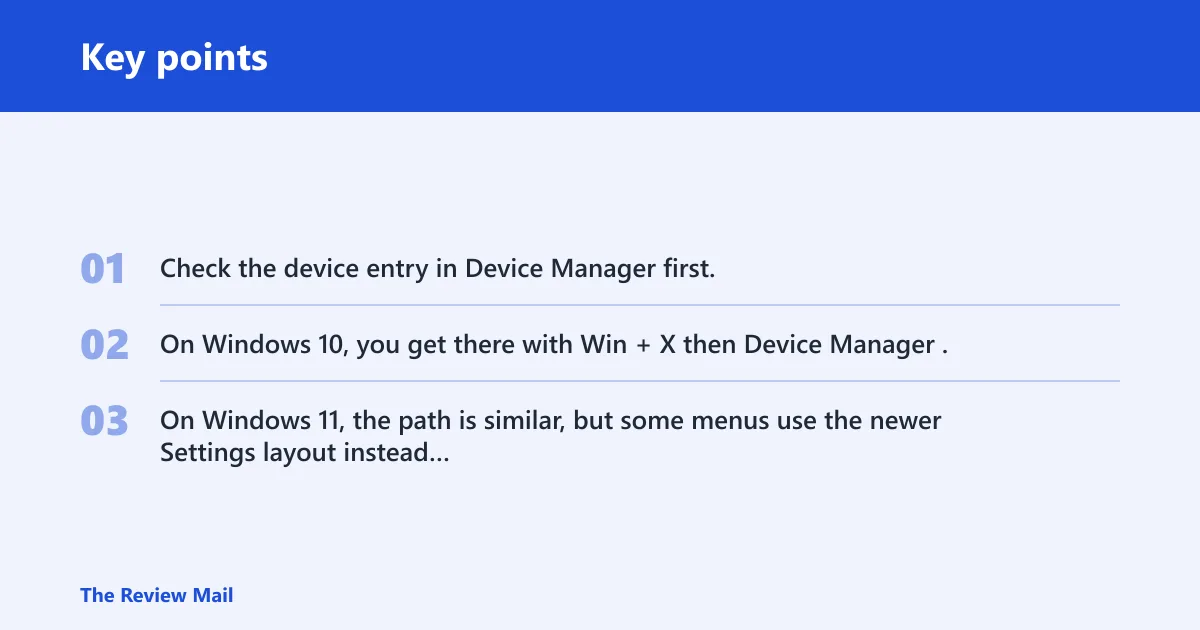
Check the device entry in Device Manager first. On Windows 10, you get there with Win + X then Device Manager. On Windows 11, the path is similar, but some menus use the newer Settings layout instead of the old Control Panel wording.
Likely causes
Rank the possibilities from most likely to least likely: a temporary system error, an outdated or corrupted device driver, a Windows service or policy block, then an actual hardware or port failure. That order matters because the fastest safe fix is usually not the final one.
- Temporary system error: often follows sleep, a crash, startup, or a USB reconnect.
- Bad or corrupt driver: missing files, wrong package, or a driver that stopped matching the device.
- Service, policy, or power block: common with Bluetooth, audio, VPN-related adapters, and USB devices on laptops.
- Hardware failure: the device, cable, hub, port, or internal controller is no longer stable.
Should you restart first?
Yes. Restarting is the first-line step because a temporary system error can clear on reboot, and that costs less time than driver repair. If the error vanishes after restart, keep an eye on it before changing anything else.
- Save open work.
- Select the Windows icon on the taskbar.
- Open the Power menu.
- Choose Restart.
- After Windows reloads, open Device Manager and check the same device again.
- If the device uses USB, unplug it, wait about 10 seconds, then reconnect it to another port or hub.
For example, if a USB printer shows the error right after sleep and then works after a reboot, that points to a temporary state issue rather than immediate hardware failure.
How do you fix the driver?
If the restart does not clear the warning, fix the driver next. The usual path is Update driver in Device Manager, followed by the manufacturer’s package if Windows keeps reinstalling the same broken version.
- Open Device Manager.
- Right-click the problem device.
- Select Update driver.
- Choose Search automatically for drivers.
- If Windows finds nothing useful, get the latest package from the device maker and install it manually.
- Restart again and recheck the status.
If the problem began right after a driver update, open the device’s Properties pane, switch to the Driver tab, and select Roll Back Driver if that button is available. If rollback is unavailable or fails, use Uninstall device, then Action > Scan for hardware changes.
Could a Windows service or power setting be blocking it?
Yes. Some devices fail because a Windows service, a power-management option, or a policy setting shuts them down. That is common with Bluetooth adapters, audio devices, network adapters, and USB controllers, including setups that fail on startup, on an HP laptop, or after a VPN client changes network behavior.
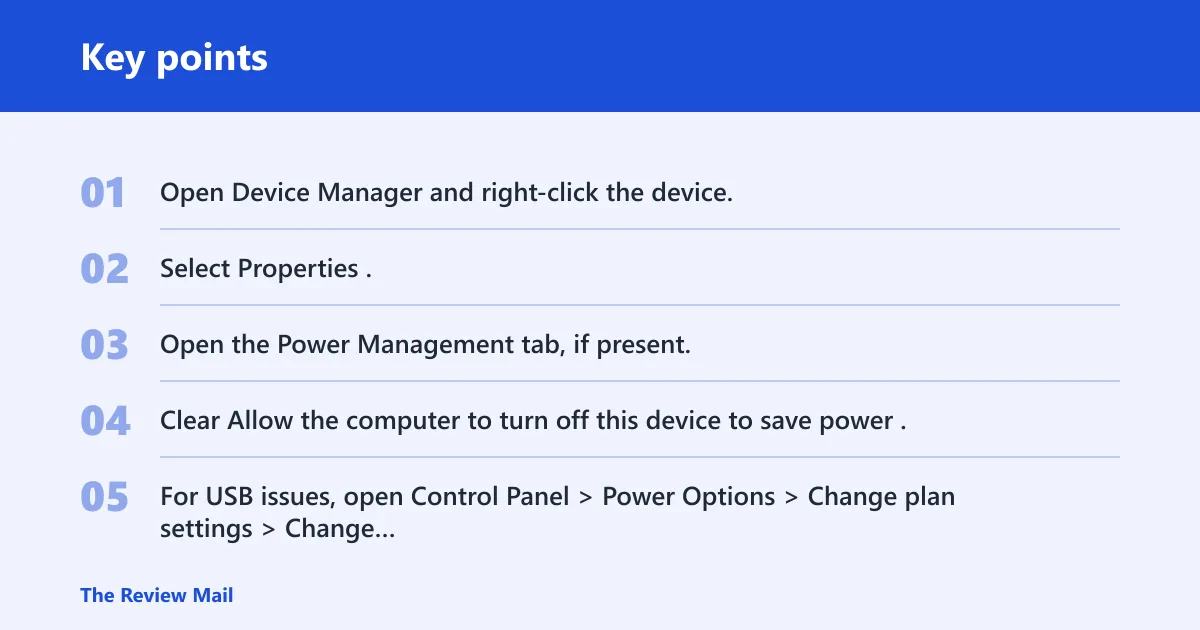
- Open Device Manager and right-click the device.
- Select Properties.
- Open the Power Management tab, if present.
- Clear Allow the computer to turn off this device to save power.
- For USB issues, open Control Panel > Power Options > Change plan settings > Change advanced power settings, then expand USB settings and check USB selective suspend setting.
- For Bluetooth or audio, open Services from the Start menu and confirm the related service is not disabled.
For instance, a Bluetooth headset that works after sign-in but drops with a shutdown message when the laptop sleeps often points to power management rather than a dead headset.
When should you uninstall the device?
Uninstall the device when the entry looks damaged, the driver keeps reinstalling badly, or update and rollback both fail. This is a normal escalation step, not a last-ditch guess. It is also safer than repeated random edits to services or registry settings.
- In Device Manager, right-click the affected device.
- Select Uninstall device.
- If offered, keep the driver removal box unchecked unless a manufacturer package specifically says to remove it first.
- Restart Windows.
- Reconnect the device or choose Action > Scan for hardware changes.
- Install the vendor driver package if Windows loads a generic one that still fails.
If the same error returns after a clean reinstall, stop repeating the loop. That is the point where you test the port, cable, hub, or device on another computer.
Device shutdown decision table
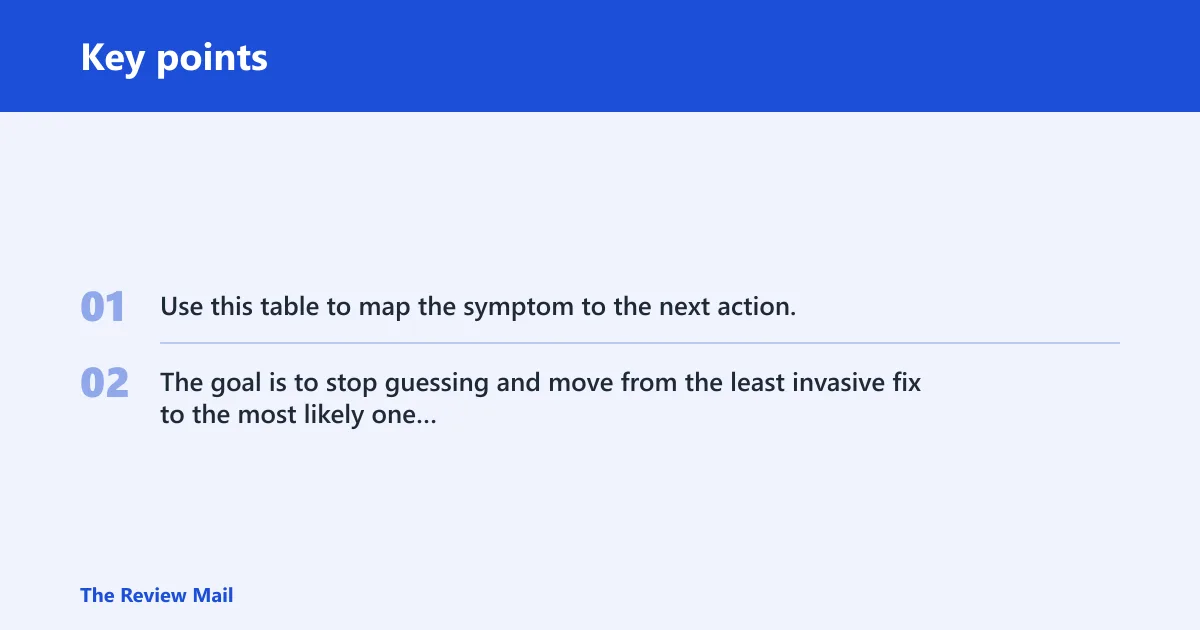
Use this table to map the symptom to the next action. The goal is to stop guessing and move from the least invasive fix to the most likely one without skipping the hardware test point.
| Symptom | Likely cause | First fix | Second fix | When to stop troubleshooting and test hardware |
|---|---|---|---|---|
| Error appears after sleep, startup, or a crash | Temporary system error | Restart Windows | Power cycle the device, port, or hub | If it returns after a clean reboot |
| Code 10 stays after restart | Driver is missing, outdated, or corrupted | Update driver in Device Manager | Install the manufacturer driver package | If two clean reinstalls still fail |
| Bluetooth, audio, or network drops after sign-in | Service or power block | Check power management and service status | Disable selective suspend or reinstall the service-linked driver | If the same device fails on another PC too |
| USB device fails in one port but not another | Port, cable, or hub issue | Move to a different port | Try a different cable or hub | If it fails on every port and every computer |
| Error returns after uninstall and reinstall | Hardware failure or deeper system fault | Scan for hardware changes | Test the device on another PC | Stop software fixes and seek vendor support |
Still not working?
If the error comes back after restart, driver update, rollback, and uninstall, move outward: try another USB port, another cable, another hub, and another PC. Then check Windows Update and any chipset, Bluetooth, audio, or network package from the device maker. If the same failure repeats, the device or host controller is likely beyond routine software repair.
- Open Settings > Update & Security > Windows Update on Windows 10, or the equivalent Update page on Windows 11.
- Install pending updates, then restart.
- Install the latest chipset or device-specific package from the maker.
- Test the device on another computer.
- If it still fails, contact the manufacturer or replace the device.
Prevention: for USB and audio gear, avoid hot-unplugging during startup or sleep transitions, and keep the vendor driver package current rather than relying only on a generic inbox driver.
Frequently asked questions
What does “application or service has shut down this hardware device” mean in Windows 10?
It means Windows has put the device into an error state inside Device Manager, often with Code 10. Start with a restart, then check the driver and service status. If the device works in another port or on another PC, the host-side setup is more likely than the hardware itself.
Is this error the same as Code 10 in Device Manager?
Often, yes. The status may appear as This device cannot start. (Code 10), sometimes with {Operation Failed}. Open the device’s Properties window in Device Manager and read the Device status box before changing anything else.
Can this error happen on Windows 10 and Windows 11?
Yes. The same driver, service, and power-management checks apply on both Windows 10 and Windows 11, although the Settings layout looks different. Use Device Manager for the device itself, then move to Update driver, rollback, or uninstall if the status does not clear.
What should I do if the error comes back after a reboot?
Treat a repeat after reboot as a driver or service problem, not a one-off glitch. Update the driver, then try rollback if the issue started after an update. If that fails, uninstall the device, restart, and test the same device on another port or another PC.
How do I fix this error for USB, Bluetooth, audio, or network devices?
Start in Device Manager, then check power management and the driver package that matches the device type. USB devices often need a different port or cable; Bluetooth and audio often need the related service running; network adapters often need a vendor chipset or adapter driver.
What is the fastest safe troubleshooting order for this Device Manager error?
Restart first, then check Device Manager for Code 10, then use Update driver, then rollback or uninstall if the problem began after a change. If the same failure survives about two clean reinstalls and a service check, test the hardware on another port or PC.