no_pages_available BSOD fix for Windows 11: triage guide
For a No Pages Available BSOD on Windows 11, separate boot-time crashes from driver-triggered ones first; if it returns after sleep, update, or one device install, roll back that driver before broader repairs. Skip that order and you can burn hours while the PC keeps looping on the same fault. This guide shows how to identify the crash source, then fix memory, storage, driver, and startup causes in the right sequence.
What No Pages Available means in Windows 11
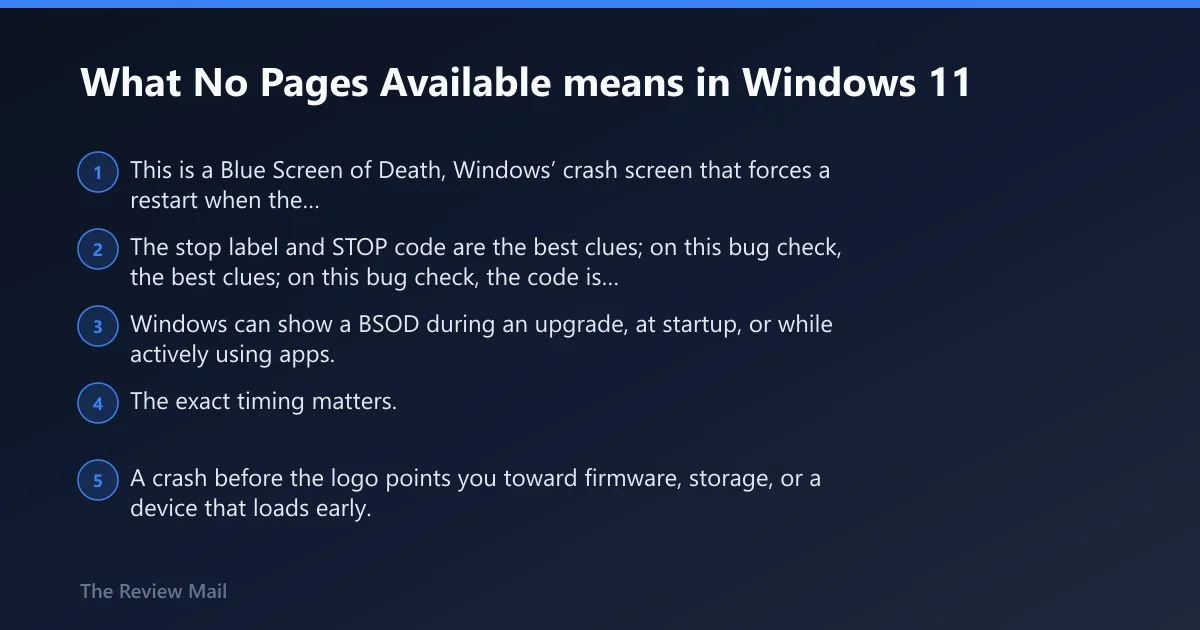
This is a Blue Screen of Death, Windows’ crash screen that forces a restart when the system cannot continue safely. The stop label and STOP code are the best clues; on this bug check, the code is 0x0000004D, which points to no free pages being available to continue operations (per Microsoft support).
Windows can show a BSOD during an upgrade, at startup, or while actively using apps. The exact timing matters. A crash before the logo points you toward firmware, storage, or a device that loads early. A crash after login points more often to a driver, filter, or system file problem.
What to note from the screen
Write down the STOP code in hexadecimal and when it appeared: before the logo, at the logo, at sign-in, after login, after sleep, or right after a driver or update change. Dell notes STOP codes are hexadecimal codes shown on the BSOD screen, and those codes narrow the fault much faster than guessing.
If you can reach the desktop once, save the exact crash timing, whether it happens more than once, and whether a single device or update came first. That sequence usually separates a bad driver from storage trouble.
What causes the No Pages Available stop error?
The most likely causes are a driver that blocks page writers, a storage driver that stops processing requests, or not enough pool available for the storage stack to write modified pages (per Microsoft support). Less often, a high-priority realtime thread can starve the balance set manager, and hardware faults can look similar.
For plain language triage, think in this order: driver conflicts first, then corrupt system files, then hardware failure such as faulty RAM or failing storage, then firmware settings, then attached devices. Dell also lists common BSOD examples such as PAGE_FAULT_IN_NONPAGED_AREA, IRQL_NOT_LESS_OR_EQUAL, CRITICAL_PROCESS_DIED, and MEMORY_MANAGEMENT.
How the crash timing changes the likely cause
A repeat crash after sleep, after a driver install, or after a Windows update usually points to a driver or filter problem. A crash that returns only at startup leans toward storage, memory, or firmware defaults. A one-off crash during heavy disk activity can still be a storage driver or failing SSD.
If the machine only fails when one peripheral is attached, treat that device as the trigger until proven otherwise.
Use this triage table before you start fixing anything
| When the crash happens | Most likely subsystem to inspect | Safest next fix to try first |
|---|---|---|
| Before the logo or in a boot loop | Storage, firmware defaults, early-loading driver, attached device | Disconnect all external peripherals, then try Startup Repair |
| At the logo or sign-in screen | Driver, storage stack, corrupt system files | Boot with peripherals removed, then use Safe Mode or Startup Repair |
| After logging in, after sleep, or right after an update or driver install | Driver conflict, filter driver, system file corruption | Roll back or uninstall the newest driver update |
| Only with one USB device, dock, webcam, or external drive attached | External peripheral or its driver | Remove that device and retest with only keyboard, mouse, and display |
How can I tell if a peripheral is causing the crash?
Disconnect USB drives, printers, webcams, docks, and external storage first, then boot again. Dell specifically recommends removing external devices to isolate startup crashes. If the machine boots after the removal, the last device connected is the top suspect, not Windows itself.
Leave only keyboard, mouse, and display attached. If the BSOD disappears, reconnect devices one at a time and reboot after each one. The device that reintroduces the blue screen is the one to update, replace, or leave disconnected.
What it means if the blue screen stops after a device is removed
A clean boot after removing one device means the crash path is likely in that peripheral, its cable, its dock, or its driver. If the device is storage-related, move any data off it before deeper testing. If it is a printer or webcam, update the device package from the vendor before reconnecting.
Is No Pages Available a driver problem or bad RAM?
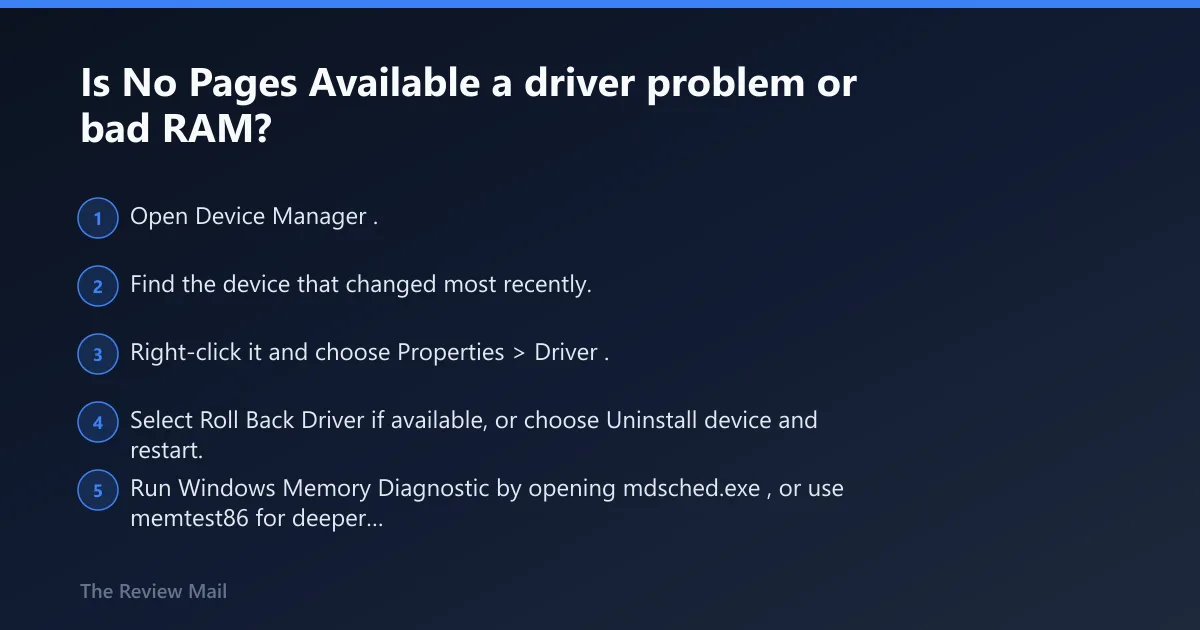
It is often a driver problem, but bad RAM or storage can produce the same symptom. A crash right after install, wake, or update usually points to a driver conflict. A crash that repeats during startup, file checks, or heavy disk use leans toward memory or storage trouble.
How to spot a driver-triggered crash
- Open Device Manager.
- Find the device that changed most recently.
- Right-click it and choose Properties > Driver.
- Select Roll Back Driver if available, or choose Uninstall device and restart.
If the crash started after a new GPU, network, storage, or chipset driver, rollback is the safest first move. A clean uninstall is better than stacking another update on top of a bad one.
How to spot memory or storage trouble
- Run Windows Memory Diagnostic by opening mdsched.exe, or use memtest86 for deeper testing after a full boot pass.
- Open an elevated Command Prompt and run
chkdskon the system drive. - After Windows boots, run
sfc /scannowand thenDISM /Online /Cleanup-Image /RestoreHealth.
If memory testing reports errors, treat RAM as suspect. If disk checks stall, report bad sectors, or the crash appears during file writes, storage is the stronger lead.
Collect the exact STOP code and parameters from the blue screen or C:\Windows\Minidump\*.dmp
Windows Memory Diagnostic: mdsched.exe
System File Checker: sfc /scannow
DISM: DISM /Online /Cleanup-Image /RestoreHealth
How do I fix no_pages_available BSOD in Windows 11?
Start with the least destructive fixes first: power down cleanly, remove external devices, then reset firmware defaults if the crash started after a BIOS change. If Windows still boots, move to driver rollback, Startup Repair, and system file repair before considering heavier recovery steps.
- Save your work if the desktop is still available.
- Press and hold the power button for 15-20 seconds to discharge residual power, then restart.
- Disconnect USB drives, printers, external storage, webcams, and docks.
- Enter BIOS or UEFI and choose Load defaults or Restore settings.
- If Windows won’t boot, go to Settings > Recovery > Advanced startup > Restart now > Troubleshoot > Advanced options > Startup Settings, then run Windows Startup Repair from recovery.
- Once Windows loads, run
sfc /scannowandDISM /Online /Cleanup-Image /RestoreHealth.
Windows Startup Repair can fix boot files and some startup damage, but it usually will not fix hardware failure or a problematic third-party driver. Use it as a recovery step, not a cure-all.
What if the PC crashes before I can log in?
Use Windows recovery to reach Startup Repair, then test hardware if the machine still loops. When the crash happens before sign-in, the safest path is to keep data loss low: avoid resets, avoid reinstalling first, and confirm whether the system can remain stable in recovery or Safe Mode.
Boot-loop path for Windows 11
- Force recovery by interrupting startup, or boot into Advanced startup.
- Choose Troubleshoot > Advanced options > Startup Repair.
- If prompted, enter Safe Mode through Startup Settings.
- In Safe Mode, uninstall the newest driver or update that preceded the crash.
- Run
chkdsk, thensfc /scannowif Windows stays up long enough.
On Dell systems, SupportAssist diagnostics can run a pre-boot system assessment to check hardware components and driver updates. Use that when the crash happens too early for normal troubleshooting.
Do I need to reset BIOS or UEFI for BSOD errors?
Reset BIOS or UEFI to defaults when the crash started after a firmware change, overclock, XMP setting, storage mode change, or other manual tweak. If settings are already at defaults, do not keep resetting them as a looped guess. The value is in removing one variable, not in repeating the same step.
Safe firmware reset order
- Enter BIOS or UEFI setup.
- Choose Load defaults or Restore settings.
- Save and exit.
- Boot once with peripherals disconnected.
- If the blue screen returns, move to hardware diagnostics and driver rollback instead of changing more firmware settings.
Prevention: after the PC is stable, avoid stacking multiple driver updates, firmware changes, and peripheral installs on the same day. That makes the next crash much harder to trace.
Still not working?
If the machine still blue-screens after Startup Repair, driver rollback, firmware defaults, and basic hardware checks, move to deeper hardware testing. On Dell systems, SupportAssist diagnostics is the next sensible step. If memory or storage tests fail, replace the failing part before trying a reset or reinstall.
If Windows boots but keeps crashing after repair commands, back up data immediately and run a vendor hardware test again. A repeated BSOD with the same STOP code, especially after the boot path is clean, usually means the problem sits below Windows.
Frequently asked questions
Can Windows Startup Repair fix a BSOD like this?
Yes, but only when the crash is tied to boot files, startup corruption, or a broken launch path. It will not fix a failed drive, bad memory, or a faulty driver package on its own. Use it early for boot loops, then move on to hardware checks if the loop returns.
What should I check first if my PC keeps blue-screening on boot?
Disconnect every external device except keyboard, mouse, and display, then try a clean boot path. If it still loops, open recovery and run Startup Repair. If that fails, use Dell SupportAssist diagnostics or another hardware test before trying a reset.