Windows 11 Printer Driver Update Stuck
A stuck printer driver update can happen if there are pending jobs blocking the process, the Windows Update database is stalled, or the manufacturer’s installer fails to communicate with the device. Clear the print queue and restart the Print Spooler service to resolve hangs caused by clogged job files.
Common causes and fixes for stuck printer driver updates
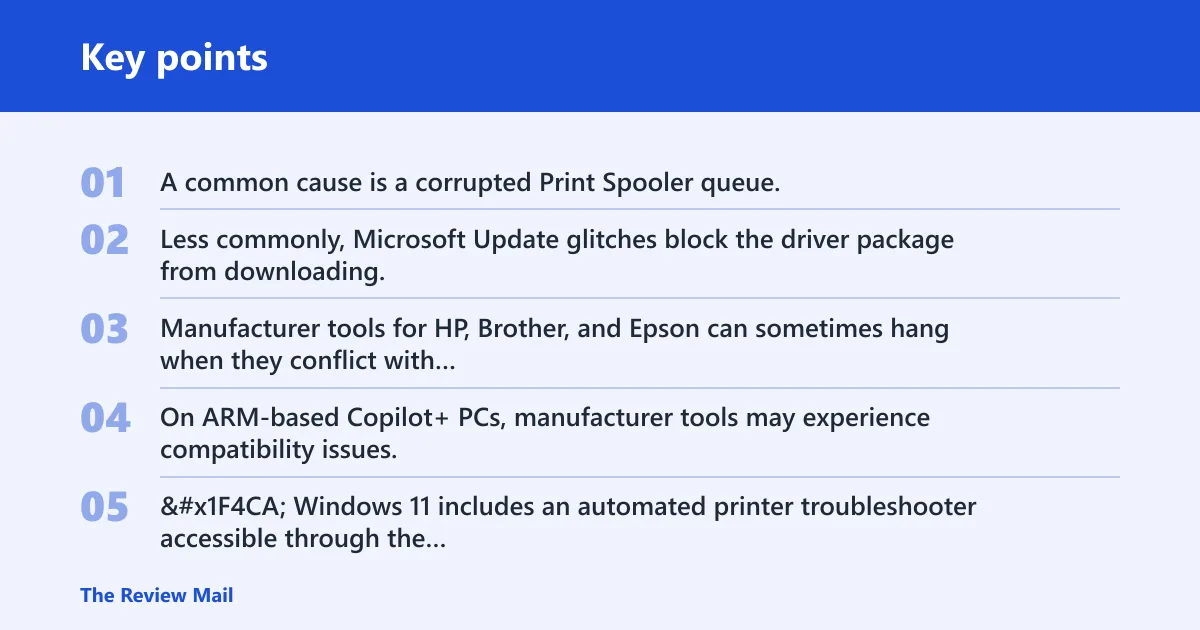
Several distinct factors create this state. A common cause is a corrupted Print Spooler queue, where pending jobs lock the service and prevent new drivers from installing. Less commonly, Microsoft Update glitches block the driver package from downloading. Manufacturer tools for HP, Brother, and Epson can sometimes hang when they conflict with existing driver registrations. On ARM-based Copilot+ PCs, manufacturer tools may experience compatibility issues, often requiring users to rely on Windows-native installation methods.
Stuck update diagnostic matrix
| Observed Symptom | Likely Cause | Fastest Fix |
|---|---|---|
| Update stuck at 0% for 30+ min | Windows Update service glitch | Restart Windows Update service and clear SoftwareDistribution folder |
| Driver says “unavailable” or greyed out | ARM architecture incompatibility | Add printer via Settings > Bluetooth & devices instead of using manufacturer installer |
| Update fails with Code 43 | Device or driver reporting a malfunction | Clean uninstall via Device Manager and manually install manufacturer driver |
| Spinning wheel freezes PC UI | Print Spooler queue corruption | Stop Spooler service and delete files in C:\Windows\System32\spool\PRINTERS |
| Manufacturer tool hangs at “Configuring” | Installer conflict or outdated service | Run HP/Brother uninstall tool first, then retry install in Safe Mode |
📊 Windows 11 includes an automated printer troubleshooter accessible through the Get Help app.
How to reset the print spooler and clear stuck queues
Restarting the Print Spooler service and deleting temporary queue files clears the blockage preventing driver updates from processing. This serves as a primary fix for hardware-related stalls.
Stop the service, remove the stuck files, and start the service again. This process unlocks the driver installer without requiring a system reboot.
- Press the Windows key, type cmd, right-click Command Prompt, and select Run as administrator.
- Type
net stop spoolerand press Enter to stop the Print Spooler service. - Open File Explorer and navigate to
C:\Windows\System32\spool\PRINTERS. - Delete all files in this folder. These temporary print job files block the update.
- Type
net start spoolerand press Enter to restart the service. - Retry the printer driver update.
Suppose the update progress bar sits at 0% while the print queue shows paused status in the printer properties. This specific scenario can indicate the spooler is locking device resources. Clearing the queue via the steps above releases the lock within seconds.
How to bypass Windows Update and install drivers manually
When Windows Update stalls or reports driver unavailability, bypass the automatic service and install the package directly from the manufacturer. Manual installation provides a fast bypass when the automatic channel fails.
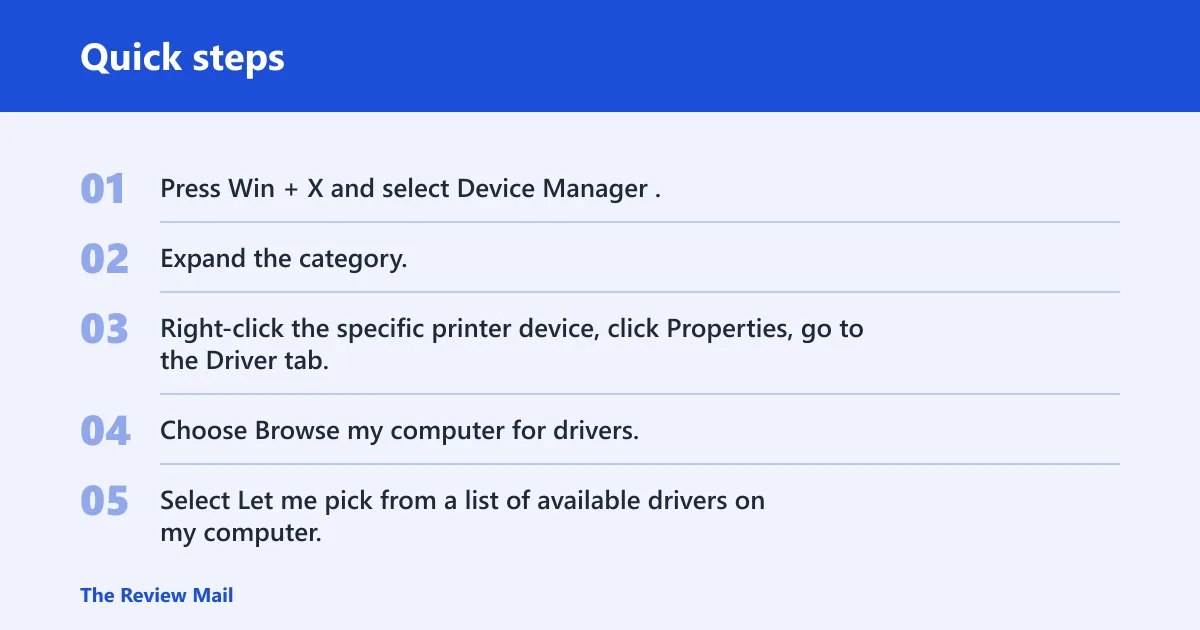
Locate the correct driver in Device Manager and force the installation manually.
- Press Win + X and select Device Manager.
- Expand the category. Printers may appear under Printers, Print queues, Imaging devices, or Other devices.
- Right-click the specific printer device, click Properties, go to the Driver tab, and select Update Driver.
- Choose Browse my computer for drivers.
- If the driver is missing, download the latest version from the manufacturer support page and point the installer to the extracted folder.
- If the current driver is corrupted, right-click the device and select Uninstall device. Check the box to attempt driver removal if available, reboot, and install the fresh manufacturer driver.
A common mistake involves looking for the printer under Universal Serial Bus devices. Hardware typically lists under Printers or Other devices if the driver fails to install correctly. If Device Manager shows a Code 43 error under the device, the manual uninstall and reinstall cycle described above can be used to address it.
How to handle ARM architecture compatibility errors
ARM PCs may encounter issues when adding or installing printers using specific manufacturer-provided installers. For these devices, the manufacturer tool can sometimes fail, causing availability errors.
Verify the processor architecture and use the universal print driver or Microsoft-native installation method instead of the OEM installer.
- Open Settings > System > About. Check the system type field. If it reads ARM-based processor, the device runs on ARM hardware.
- Do not run the manufacturer setup executable. Instead, go to Settings > Bluetooth & devices > Printers & scanners.
- Click Add device. Windows searches for the printer and attempts to install a compatible universal driver.
- If the specific model is not found, download the ARM64 specific driver package from the manufacturer site. Many OEMs now provide universal print drivers that work across several printer models on ARM hardware.
- For HP+ printers, verify network connectivity before starting.
What to do when standard troubleshooting fails
If clearing the spooler and manually installing the driver both fail, the system state may require deeper remediation. Use System Restore to roll back the operating system to a point before the update attempt, or perform a clean printer removal to reset all driver registrations.
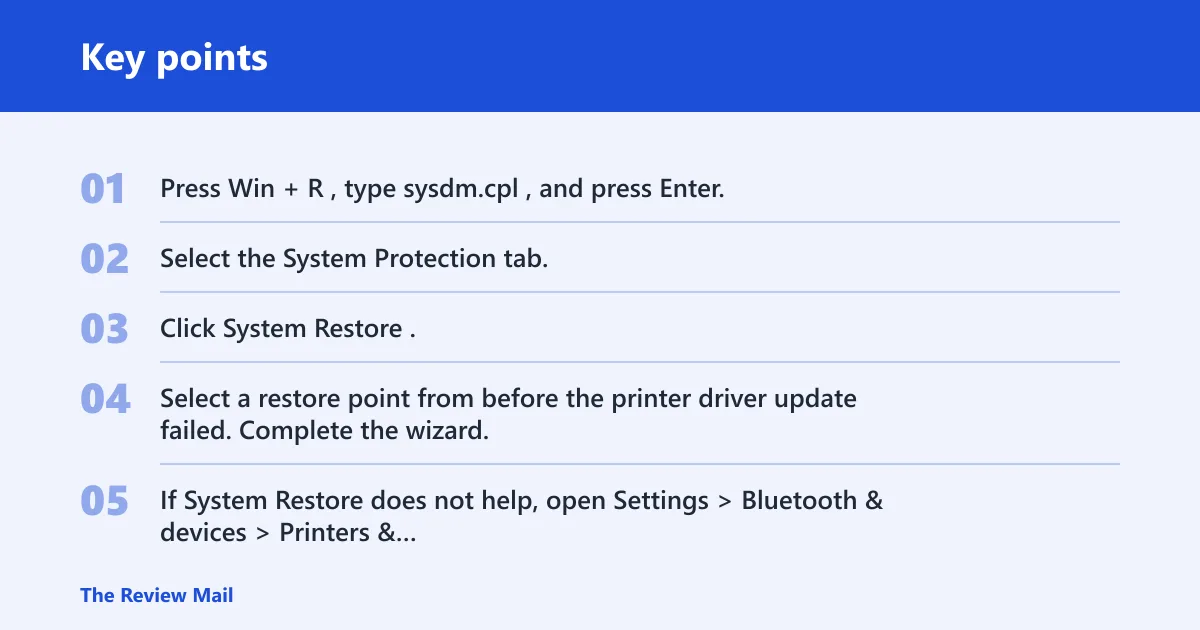
System Restore provides an effective rollback method for driver issues caused by recent Windows updates. Windows 11 version updates reset support lifecycles and may place safeguard holds on devices where known compatibility issues are detected during rollout, which affects driver availability.
- Press Win + R, type sysdm.cpl, and press Enter.
- Select the System Protection tab.
- Click System Restore.
- Select a restore point from before the printer driver update failed. Complete the wizard.
- If System Restore does not help, open Settings > Bluetooth & devices > Printers & scanners.
- Select the printer and click Remove.
- Open Device Manager, enable show hidden devices from the View menu, and uninstall any remaining ghost entries for that printer.
- Reboot the PC and re-add the printer from scratch.
Say your printer is an Epson EcoTank that works fine but shows a Code 39 error in Device Manager after an update. A clean removal of all driver instances, followed by a reboot, can help clear out driver loading issues.
Frequently asked questions
How to fix printer driver update stuck in Windows 11
First, stop the Print Spooler service and delete the contents of the C:\Windows\System32\spool\PRINTERS folder. Then, restart the service. If the update remains stuck at 0%, clear the Windows Update cache by stopping the wuauserv service and deleting files in C:\Windows\SoftwareDistribution. Retry the update afterward.
Why is printer driver unavailable Windows 11?
The driver unavailable error means Windows cannot locate the correct driver for the printer. This frequently occurs on ARM PCs when manufacturer installers fail to support the architecture. Switch to adding the printer via Settings > Bluetooth & devices, or download the specific ARM64 driver package from the manufacturer support site instead of running their standard installer.
How to clear print spooler stuck jobs Windows 11
Run net stop spooler in an elevated Command Prompt. Navigate to C:\Windows\System32\spool\PRINTERS and delete all files. Run net start spooler to restart the service. This clears hung jobs blocking the driver update process. Check the print queue in Settings > Printers & scanners to ensure it is empty.