Irq Test Failed Hp
If an HP PC reports “IRQ test failed” once after a driver or device change, treat it as a Windows resource conflict first; if it appears before Windows loads or repeats after a reset, suspect firmware or hardware. Ignoring the source wastes time, can lead to bad part swaps, and leaves boot failures unsolved. This guide shows how to separate HP firmware faults from legacy IRQ conflicts and Windows driver/device errors, then fix the right one.
Quick answer
On HP systems, this message matters most because of where it appears. If it shows during HP pre-boot diagnostics, the failure is outside Windows. If it appears after Windows starts, or after a new device or driver change, check resource allocation, a bad driver, or the device itself before changing firmware settings.
IRQ means an interrupt request sent by hardware to the CPU. Devices such as keyboards, mice, printers, disk controllers, and PCIe cards use interrupts so the processor can pause a task and service the device.
Likely causes
Most often, the fault is a peripheral, dock, USB adapter, or cable that changed recently. Less often, an internal add-in card or driver is the trigger. Storage controllers and motherboard-level problems sit lower on the list, but they matter more if the failure happens before Windows loads or the system will not boot reliably.
External device or cable issue
A bad mouse, dock, printer, hub, USB storage device, or cable can create a repeatable failure after connection. Because external devices are easiest to isolate, start there before changing BIOS settings or reinstalling Windows.
Internal device or driver issue
A wireless card, audio device, USB controller, or PCIe add-in card can conflict with a driver or resource assignment. Windows may still boot, but the affected device disappears, throws a warning, or triggers a stop error such as IRQL_NOT_LESS_OR_EQUAL.
Storage controller or motherboard issue
If the problem follows the boot drive, SATA controller, NVMe controller, or chipset path, the issue may be storage hardware, storage firmware, or board-level routing. That is more serious, especially when the machine fails before Windows can load tools.
Legacy IRQ conflict versus modern interrupt handling
Older PCs using fixed legacy IRQ lines were more prone to IRQ conflict, where two devices use the same IRQ channel and one of them misbehaves. Modern systems usually rely on APIC and MSI/MSI-X, so a true legacy-style conflict is less common, but old expansion hardware and special devices can still trigger it.
External devices and cables
If the fault started after you plugged something in, remove the newest external hardware first. USB docks, printers, storage adapters, and cheap hubs are common suspects because they add both a device and a cable path that can fail.
- Shut down the PC.
- Unplug any USB device, printer, dock, memory card reader, or external drive that is not needed to boot.
- Start the PC with only power, display, keyboard, and mouse attached.
- If the problem clears, reconnect one device at a time until the fault returns.
- Move the suspect device to a direct USB port, not a hub or dock, and retest.
Say your laptop boots normally until a USB-C dock is attached, then the HP diagnostic flags the fault. That points first to the dock, its cable, or a driver tied to the dock controller, not to the internal storage path.
Internal devices and drivers
When the error follows a new card, recent driver update, or device warning in Windows, inspect the internal device path next. Windows Device Manager can show whether a device is misbehaving, disabled, or carrying a resource problem.
- Open Device Manager from the Start menu search.
- Check for yellow warning icons under Network adapters, Sound, video and game controllers, Universal Serial Bus controllers, and System devices.
- Right-click the newest device or driver update and choose Properties > Driver > Roll Back Driver if available.
- If rollback is unavailable, choose Uninstall device, then restart.
- For a suspected expansion card, power off, reseat it, and retest. If needed, disable it in BIOS/UEFI to confirm the diagnosis.
Suppose a desktop starts failing after a new Wi‑Fi card is installed. If Device Manager shows the adapter with an error and the system is otherwise stable, that points more to the card or its driver than to the motherboard.
Storage controller and boot path
When the machine stalls at startup, reports disk errors, or loses the boot drive after a hardware change, focus on storage first. The problem may be the drive, its controller driver, or the BIOS storage mode rather than a generic interrupt fault.
- Check whether the drive appears in BIOS/UEFI setup.
- Open Device Manager and expand IDE ATA/ATAPI controllers or Storage controllers.
- In msinfo32, review Components > Storage for the drive and controller name.
- If the system recently changed SATA mode, return to the prior setting only if you know the original value.
- Use the drive maker’s diagnostics or the PC vendor’s storage test before replacing the board.
IRQ 14 is listed in reference tables as the primary IDE controller for hard drives, and IRQ 15 as the secondary IDE controller for hard drives. That matters mainly for older hardware. On a modern PC, a storage failure is more likely to involve the controller, firmware, or drive than a fixed legacy line.
IRQ conflict matrix
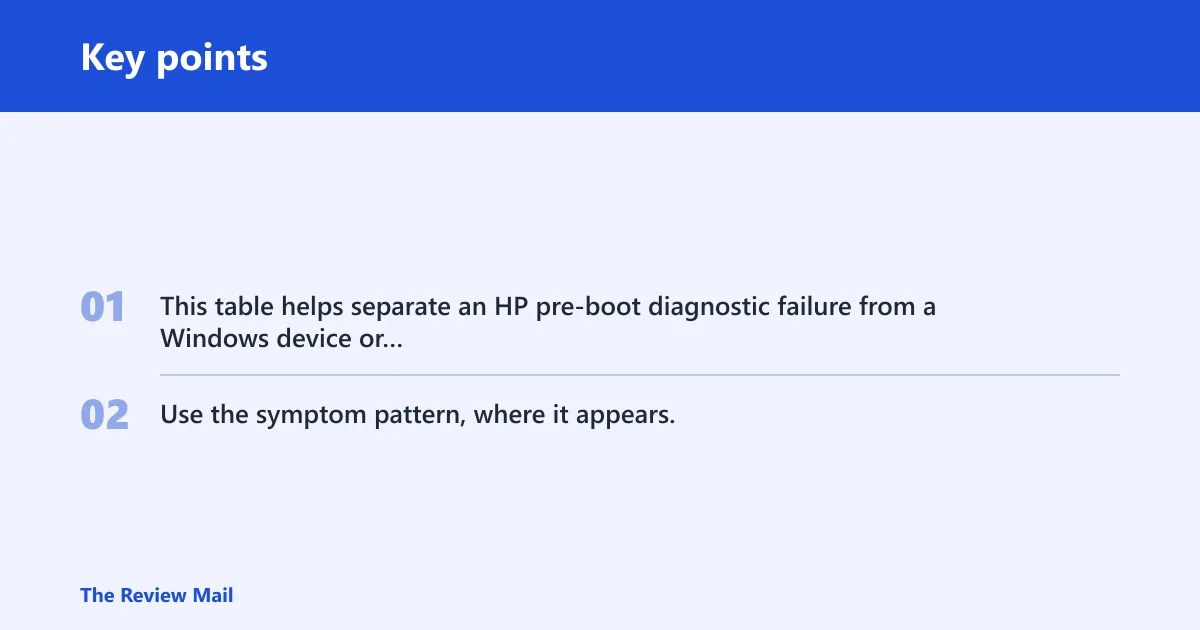
This table helps separate an HP pre-boot diagnostic failure from a Windows device or driver problem before you start swapping parts. Use the symptom pattern, where it appears, and the first checks to decide whether the issue is external, internal, or storage-related.
| Symptom pattern | Where it appears | Likely fault class | First 3 checks | Escalation path | Internal device scenario | External device scenario | Storage/controller scenario |
|---|---|---|---|---|---|---|---|
| Fails before Windows loads; repeats in HP diagnostics | Pre-boot HP firmware diagnostics | Firmware, board, storage controller, or attached hardware | Unplug externals; run HP diagnostics again; reset BIOS defaults | Clear CMOS; test drive/controller; service if repeatable | Suspect add-in card or onboard device | Remove dock, hub, printer, or USB drive | Check boot drive, SATA/NVMe path, and controller mode |
| Appears after Windows starts or after a driver update | Windows desktop, restart, or device installation | Driver, Windows resource allocation, or device fault | Device Manager; roll back newest driver; reboot clean | Uninstall device; reinstall vendor driver; test safe mode | Check warning icon or disable device | Try direct port, different cable, and no hub | Inspect storage controller driver and disk health |
| One device fails while the rest stay stable | Windows, usually after plug-in or wake | Single device or cable fault | Swap port; test another cable; remove recent driver | Replace device; test on another PC; gather device ID | Wireless, audio, or USB controller | Mouse, keyboard, printer, or external disk | Drive enclosure, SATA cable, or NVMe controller |
How do you check irq settings in windows?
Windows gives you two practical places to inspect IRQ assignments: Device Manager and System Information. Device Manager can show resources by type, while msinfo32 lists IRQs under Hardware Resources. If two devices appear to share a resource entry, that is a clue, not a verdict; the next step is to identify whether one device is failing or merely sharing an interrupt path.
Use Device Manager
Open Device Manager, choose View > Resources by type, then expand Interrupt request (IRQ). Windows users can view IRQs this way. If the hardware is healthy, several devices may share interrupts on a modern APIC system without trouble.
Use system information
Press Win + R, type msinfo32, and open it. Then go to Hardware Resources > IRQs. This view is useful when you want a plain list of IRQ assignments and need to note which device is attached to which entry.
Should you reset bios if irq test failed keeps coming back?
A BIOS or UEFI reset is often reasonable when the failure starts after firmware changes, a new device install, or an unusual boot setting. It is also worth trying if a pre-boot HP diagnostic keeps failing after all external devices are removed. If the problem only appears inside Windows, a BIOS reset is usually not the first move.
When a reset makes sense
Enter BIOS/UEFI setup and choose Load Setup Defaults or the vendor’s equivalent. That can clear a bad storage mode, boot order, or device setting that keeps the fault alive. Retest before changing anything else.
When to clear CMOS
If defaults do not help and the fault survives a full power-off, clear CMOS only when the hardware supports it and you can follow the vendor procedure. This is more useful for older systems, unstable boards, or settings that will not clear through firmware menus.
When firmware is not the real problem
If the error tracks a single driver, USB device, or PCIe add-in card, firmware reset will not cure it. In that case, return to Device Manager, remove the suspect driver, and test the device path first.
Still not working?
If the failure remains after disconnecting externals, rolling back drivers, and resetting BIOS defaults, capture the evidence before service. The most useful details are the exact message text, the device name, the IRQ or resource entry, any recent hardware or driver change, and whether the fault appears in HP diagnostics, Windows, or both.
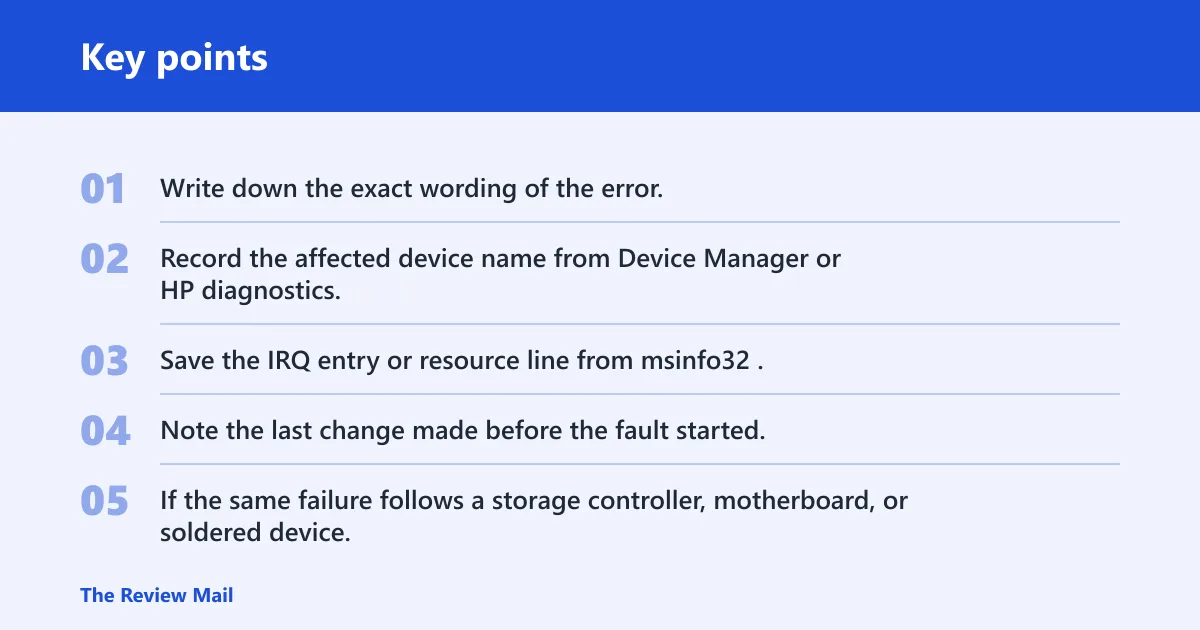
- Write down the exact wording of the error.
- Record the affected device name from Device Manager or HP diagnostics.
- Save the IRQ entry or resource line from msinfo32.
- Note the last change made before the fault started.
- If the same failure follows a storage controller, motherboard, or soldered device, stop troubleshooting and contact vendor support or a repair shop.
Prevent repeat failures by making one hardware or driver change at a time, then keeping a note of what changed. That makes it much easier to reverse the last step if the system starts throwing interrupt or resource errors.
Frequently asked questions
What does irq test failed mean on hp?
It is a sign that the machine did not like a device, resource assignment, or firmware path during a pre-boot check or Windows startup. The useful distinction is where it appears. Before Windows loads, suspect hardware, firmware, or the boot path; after Windows starts, suspect a driver or resource issue first.
How do I fix irq test failed hp?
Start by removing all nonessential USB devices, docking gear, and external drives, then retest. Next, check Device Manager for warning icons and roll back the newest driver. If the fault appears before Windows, reset BIOS defaults and retest the HP diagnostics before replacing parts.
Is irq test failed a hardware or driver problem?
Either one can cause it. If the message appears only after a driver update or a new device install, a driver or device problem is more likely. If it appears before Windows starts, or on every boot even after a reset, hardware, firmware, or storage-controller trouble moves higher on the list.
Can a bad device driver cause an irq test failed error?
Yes. A faulty driver can mis-handle interrupts, expose a resource conflict, or trigger a related stop error such as IRQL_NOT_LESS_OR_EQUAL. The best first check is Device Manager: roll back the newest driver, remove the device, and restart before changing BIOS settings.
How do I see irq conflicts in device manager?
Open Device Manager, choose View > Resources by type, and expand Interrupt request (IRQ). Then look for a suspicious device that matches the timing of the fault. If the same entry is shared, focus on the device that changed most recently or shows a warning icon.