Cannot Use This Hardware Device: Windows 10 Fix
Cannot use this hardware device because it has been prepared for safe removal is Code 47 in Windows 10; if unplugging and restarting do not clear it, use Device Manager, restart the device stack, or reinstall the driver. Leaving it alone can keep a dock, USB drive, or adapter hidden until the next full reset. This guide shows the fastest Windows 10 fixes and when to stop at a driver reinstall.
This guide is part of our Windows driver errors: full list and fixes series.
What code 47 means
In Device Manager, the General tab’s Device Status box shows the Code 47 message when Windows has marked the device as ready for removal but it is still attached to the computer.
That state often clears after a reconnect or a restart. In many cases, it is temporary, so treat it as a recovery problem first, not a hardware verdict. If the device is still physically attached, Windows may simply need a fresh enumeration to bring it back online.
Likely causes
Most often, Code 47 starts after a removal request. In some cases, a dock or adapter may remain in a removal state while it is still connected.
Safe removal prepared the device for removal
A Safe Removal action can leave the device unavailable even though the cable never moved. That is the standard path to this state.
An eject control put the device into removal mode
If the device has its own eject control, pressing it can trigger the same removal state. Do not press that button again while you are trying to recover it.
The device stayed connected after the removal request
This is the common stuck case. Windows thinks the device should be gone, but it is still present, so the entry stays in Code 47 until you force a fresh connection or restart.
How do you check the device status?
Open Device Manager, select the device, and read the Device Status text on the General tab.
- Right-click Start and choose Device Manager.
- Expand the device category, then double-click the affected device.
- Open the General tab.
- Read the Device Status box and confirm that Code 47 is listed.
- If Device Manager shows a different code, follow that code’s specific fix instead.
Say your external SSD still appears under Disk drives but shows Code 47 in the status box. That means Windows still has an active entry for the drive, even though it has been marked for removal.
Safe-removal recovery checklist
This checklist branches by device type and failure mode. Start with the row that matches your device. For removable USB storage, unplug the drive from the computer, wait a few seconds, and then reconnect it to the same PC. For built-in devices, use a restart instead of forcing a disconnect.
| Device type | Exact next action | What success looks like in Device Manager | Fallback if Code 47 remains |
|---|---|---|---|
| Removable USB storage | Unplug the drive from the computer, wait a few seconds, then reconnect it to the same PC. | The device reappears without Code 47 on the General tab. | Move it to another USB port on the same computer, then restart Windows if it still stays in removal state. |
| External drive dock | Keep the dock connected. If it has a power switch, turn it off, wait a few seconds, then turn it back on. | The disk or dock entry returns with a normal status instead of Code 47. | Restart Windows, then check whether the dock gets a fresh device entry. |
| USB peripheral | Disconnect the peripheral, then reconnect it to a different USB port. If needed, use a different cable. | The mouse, adapter, printer, or other peripheral shows a working status in Device Manager. | Test another port and then restart Windows if the same Code 47 entry returns. |
| Built-in device | Leave the device connected and restart Windows. If needed, shut down the PC fully and start it again. | The internal device shows up again without the safe-removal status. | If the status persists after startup, remove and reinstall the driver in Device Manager. |
How do you bring it back online?
Unplugging and plugging the device back in is the direct resolution. If you do not want to disconnect the device, restarting the computer can bring it online again. After either step, check Device Manager for a fresh device entry without Code 47.
- For removable gear, disconnect the cable or drive completely.
- Wait a few seconds, then reconnect it firmly.
- Open Device Manager and check the device again.
- If you do not want to disconnect the device, restart Windows instead.
- After sign-in, open Device Manager again and check for a normal status.
Suppose a USB flash drive disappears after safe removal and then still shows Code 47 after you plug it back in. A second reconnect often forces a new device entry, which is the outcome you want.
What if unplugging does not clear code 47?
If the device still shows Code 47 after a reconnect, work through the recovery path by device type. A port change, a dock restart, or a computer restart can force Windows to enumerate the device again.
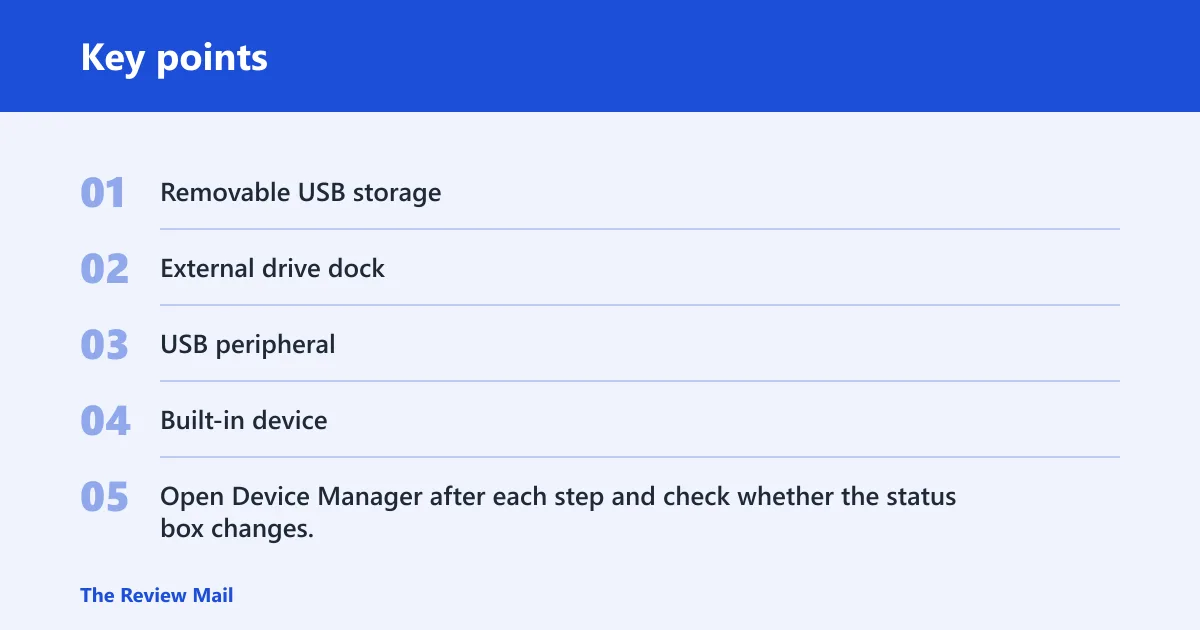
- Removable USB storage: plug it into another USB port on the same computer.
- External drive dock: if it has a power switch, turn it off, wait a few seconds, then turn it back on.
- USB peripheral: disconnect it, then reconnect it to a different port or through a different cable if available.
- Built-in device: restart Windows. If that does not clear the state, shut down fully and start the PC again.
- Open Device Manager after each step and check whether the status box changes.
A common first-timer mistake is to keep pressing an eject control after the device is already in the safe-removal state. Stop using that control and move to a reconnect, a port change, or a restart instead.
Still not working?
If the device still reports Code 47 after a reconnect, port change, and restart, the next step may be a driver-level reset such as removing the device entry in Device Manager and scanning for hardware changes or reinstalling the driver package. Remove the device entry in Device Manager, then scan for hardware changes or reinstall the driver package from the device maker or PC vendor.
- Open Device Manager.
- Right-click the affected device and choose Uninstall device if that option is available.
- At the top of Device Manager, choose Action > Scan for hardware changes.
- If Windows still restores the bad state, install the latest driver for that device type from the vendor’s support page.
Prevention: avoid using Safe Removal or a device’s eject button unless you plan to disconnect it right away. That lowers the chance of leaving the device stuck in removal mode.
Frequently asked questions
How do I fix Windows cannot use this hardware device because it has been prepared for safe removal?
Start with a disconnect and reconnect for removable gear. If you cannot disconnect it, restart Windows instead. Then open Device Manager, check the General tab, and review the Device Status box. If it still shows the error, try another USB port or reinstall the device driver.
Why does Device Manager show code 47 after I eject a USB device?
Because the device has been marked ready for removal while it is still attached. A fresh reconnect or a restart often clears it, since Windows needs a new device enumeration before the entry becomes usable again.
Do I need to restart Windows after safely removing hardware?
Not always. If you are done with the device, you can leave it disconnected. Restarting helps when you want the device back without unplugging it, or when a built-in device stays stuck in the removal state and does not recover after a normal reconnect.
How do I bring back a device that says prepared for safe removal?
Unplug and plug the device back in first. If that does not work, change the USB port, restart Windows for a built-in device, or use a dock power switch if the dock has one. Then check Device Manager again for a normal status entry.
Is code 47 a hardware failure or just a temporary status?
It is usually a temporary status tied to safe removal, not a hardware failure. If the state remains after reconnecting and restarting, then a driver issue becomes more likely.
Does this issue happen only on Windows Server 2008 and Vista?
No. See technet.microsoft.com and technet.microsoft.com, reconnect the device, or restart Windows to bring it back online.