Can’t Find Network Adapter in Device Manager
If you can’t find a network adapter in Device Manager, first check View > Show hidden devices, then look for disabled hardware, and only then treat it as missing. Skipping that order wastes time and can send you into driver reinstalls or Windows repairs you do not need. This guide covers common fixes for hidden, disabled, or missing Wi-Fi or Ethernet adapters on Windows 10 and 11.
What to look for first
Open Device Manager with Win+X > Device Manager, or search for it from Start, then expand Network adapters. If that category is absent, look for an Unknown device entry or a warning icon first; those are different from a hidden adapter. On Windows 10 and Windows 11, the missing item may be a Wi‑Fi card, an Ethernet controller, or both.
Say your laptop still shows no Wi‑Fi button in Settings and no Ethernet adapter in Device Manager after a restart. That is a stronger clue than one missing line in a list, because it points to a driver, service, BIOS/UEFI, or hardware problem rather than a simple view setting.
Likely causes
Most often, the adapter is hidden, disabled, or carrying the wrong driver. Less often, Windows Update, fast startup, or sleep leaves the device in a bad state. If Windows still shows an Unknown device or no Network adapters category at all, the problem may be an absent driver, a firmware toggle, or the controller itself.

Network adapter triage table
| Symptom | What it usually means | Next best action |
|---|---|---|
| Hidden adapter | A ghost or non-present device is still listed but not active | Use View > Show hidden devices, then inspect the adapter state |
| Disabled adapter | The interface exists but is turned off in Device Manager or firmware | Open the device properties and enable it, or check BIOS/UEFI if it never appears |
| Unknown device | Windows sees hardware but lacks the correct driver | Find the Hardware ID and install the matching Wi-Fi or Ethernet driver |
| No Network adapters category | Windows is not loading the device, driver, or controller entry | Check BIOS/UEFI, Windows services, then reinstall the correct driver package |
| Adapter disappears after reboot | Fast startup, sleep recovery, or a bad driver state is interrupting detection | Disable fast startup, then reinstall the driver and rescan hardware |
| Adapter missing after Windows Update | The update likely replaced, rolled back, or disrupted the driver | Roll back or reinstall the OEM driver, then use network reset only if needed |
How do you tell if it is hidden or disabled?
A hidden adapter is usually a faded or ghost entry, while a disabled adapter is still a live device that can usually be re-enabled. If the device is greyed out after View > Show hidden devices, do not assume it is simply off. The greyed entry often means Windows no longer sees it as present.

- Open Device Manager with Win+X > Device Manager.
- Select View > Show hidden devices.
- Expand Network adapters and look for a faded Wi-Fi or Ethernet device.
- Right-click the device and choose Enable device only if that option appears.
- If it remains faded or vanishes after refresh, click Action > Scan for hardware changes.
Hidden or disabled fix steps
- Open Device Manager from Win+X.
- Turn on View > Show hidden devices.
- Expand Network adapters and inspect any greyed-out entry.
- If the adapter is present and disabled, right-click it and choose Enable device.
- If it is hidden but not usable, right-click it, choose Uninstall device, restart the PC once, then return to Action > Scan for hardware changes.
Picture a desktop where Ethernet used to work, then the adapter appears dimmed under Network adapters after a restart. That is a different case from a blank category. The first response is usually to expose hidden devices and let Windows re-detect the hardware, not to jump straight into network reset commands.
What if Device Manager shows an unknown device?
An Unknown device with a warning icon means Windows has detected hardware, but it does not have the correct driver. This is where a hardware ID matters. Use the vendor and device values to match the exact Wi-Fi or Ethernet package instead of guessing from the laptop model alone.
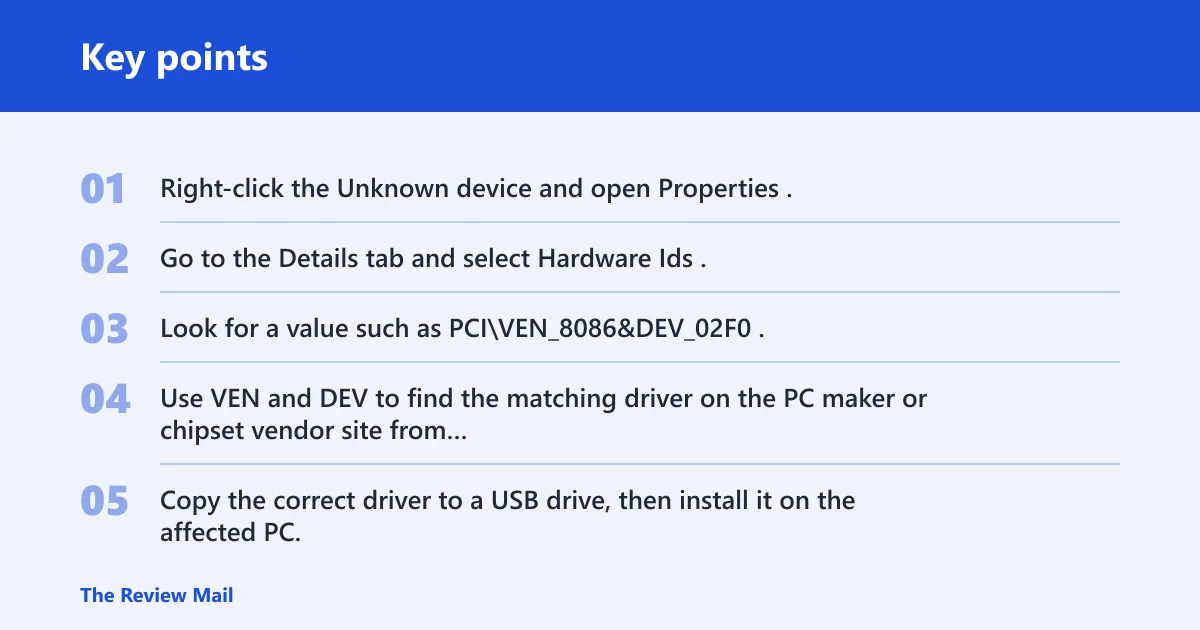
- Right-click the Unknown device and open Properties.
- Go to the Details tab and select Hardware Ids.
- Look for a value such as PCI\VEN_8086&DEV_02F0.
- Use VEN and DEV to find the matching driver on the PC maker or chipset vendor site from another device.
- Copy the correct driver to a USB drive, then install it on the affected PC.
Win+X > Device Manager
Right-click the device > Properties
Driver tab > Update driver
If reinstalling a corrupted driver:
Right-click the device > Uninstall device
Check "Delete the driver software for this device" if offered
Restart the PC
For Windows 10, this path often fixes compatibility problems after a driver swap or a stale update. For Windows 11, it also helps when an update leaves the adapter listed as unknown instead of named correctly. If Windows has no internet access on that PC, the hardware-ID-first lookup is the cleanest offline route.
Why does the adapter disappear after a restart or update?
When an adapter appears, disappears, or returns only after a manual rescan, the cause is often a bad driver state rather than dead hardware. Fast startup, sleep, a rollback from Windows Update, or a bad reboot can leave the device out of view until the driver is refreshed or the stack is repaired.
- Restart the PC once before changing more settings.
- Open Device Manager, expand Network adapters, and use Action > Scan for hardware changes.
- If the adapter is present, open Properties > Driver and choose Roll Back Driver if the update caused the issue.
- If rollback is unavailable, choose Uninstall device, restart, then install the OEM driver package.
- Only after the driver work, try Settings > Network & internet > Advanced network settings > Network reset.
Use Winsock and IP repair later in the flow
Network stack repair can help when Windows sees the adapter but connectivity is broken. It is not the first choice for a missing Device Manager entry. Use it after the driver path, especially if Windows still shows no working Wi‑Fi or Ethernet interface.
- Open an elevated Command Prompt or Windows Terminal.
- Run
netsh winsock reset. - Run
netsh int ip reset. - Run
ipconfig /release, thenipconfig /renew. - Restart the PC.
Should you check BIOS, UEFI, or services?
If Device Manager has no network entry at all, or the adapter never returns after driver work, check firmware settings and the wireless service layer. BIOS/UEFI can disable onboard Wi‑Fi or LAN hardware at the controller level, and Windows may also lose wireless control if WLAN AutoConfig stops.
- Restart and enter BIOS/UEFI using a common key such as F2, Delete, F10, or Esc.
- Look in Advanced or Wireless sections for onboard Wi‑Fi or LAN controller toggles.
- Make sure the relevant controller is enabled, then save and exit.
- In Windows, open
services.msc. - Find WLAN AutoConfig (wlansvc), then restart the service if Wi‑Fi is missing.
What if it still does not appear?
If the adapter never appears in Device Manager, never shows a Hardware ID, and stays absent after BIOS/UEFI checks plus a driver reinstall, the problem has likely moved beyond Windows. At that point, the likely causes are a disabled onboard controller, a loose internal card, or failed hardware. That is when software fixes stop being the best use of time.
- Confirm the adapter is enabled in BIOS/UEFI.
- Install the latest OEM network driver available for Windows 10 or Windows 11.
- Check whether the device appears on another OS boot, if available.
- If nothing changes, contact the PC or motherboard vendor for service options.
Prevention: after a working driver is restored, keep a copy of the OEM Wi‑Fi or Ethernet package on a USB drive. That makes the hardware-ID lookup and offline reinstall much faster if Windows Update breaks the adapter again.
Frequently asked questions
Can t see network adapter in device manager?
Open Device Manager from Win+X, choose View > Show hidden devices, then expand Network adapters. If nothing appears, check for an Unknown device with a warning icon and move to the Hardware ID tab before trying network reset commands.
Can t find ethernet adapter in device manager?
Check Network adapters first, then look for a faded entry or Unknown device. If Ethernet is still absent, open BIOS/UEFI and verify the LAN controller is enabled. If the board has an Intel or Realtek controller, install the matching OEM driver package offline.
Can t find wifi network adapter in device manager?
Start with View > Show hidden devices, then check whether WLAN AutoConfig (wlansvc) is running in services.msc. If the Wi‑Fi adapter is still absent, inspect BIOS/UEFI wireless settings and reinstall the correct Wi‑Fi driver from the PC maker.
What if network adapter is not showing in device manager after update?
Use Properties > Driver > Roll Back Driver if it is available. If not, uninstall the adapter, restart, and install the OEM driver package again. Only after that, try Settings > Network & internet > Network reset.
How do I tell if my network adapter is hidden or disabled?
A hidden adapter often shows as a greyed-out or ghost entry after View > Show hidden devices. A disabled adapter usually still supports Enable device from the right-click menu. If neither appears, the hardware may be missing, disabled in BIOS/UEFI, or carrying the wrong driver.
Can t find network card in device manager?
Look for Unknown device and warning icons before assuming the card is gone. If the category is absent, check BIOS/UEFI, restart WLAN AutoConfig for wireless, and then reinstall the vendor driver. If the card still never appears, treat it as a hardware or firmware problem.