Network Adapters Device Manager
If your network adapters in Device Manager are missing, hidden, greyed out, or disabled, first check View > Show hidden devices and whether the adapter is a virtual or physical device before you change drivers. Picking the wrong path can waste time, break the wrong adapter, or leave Wi‑Fi and Ethernet offline. This guide shows how to tell hidden, disabled, virtual, and truly missing adapters apart, then apply the right fix.
What does the Device Manager status mean?
Device Manager can point you in different directions depending on what you see under Network adapters. A missing entry, a hidden entry, a disabled entry, and an Unknown device are not the same problem. The safest fix depends on which one Windows is actually showing.
Missing adapter
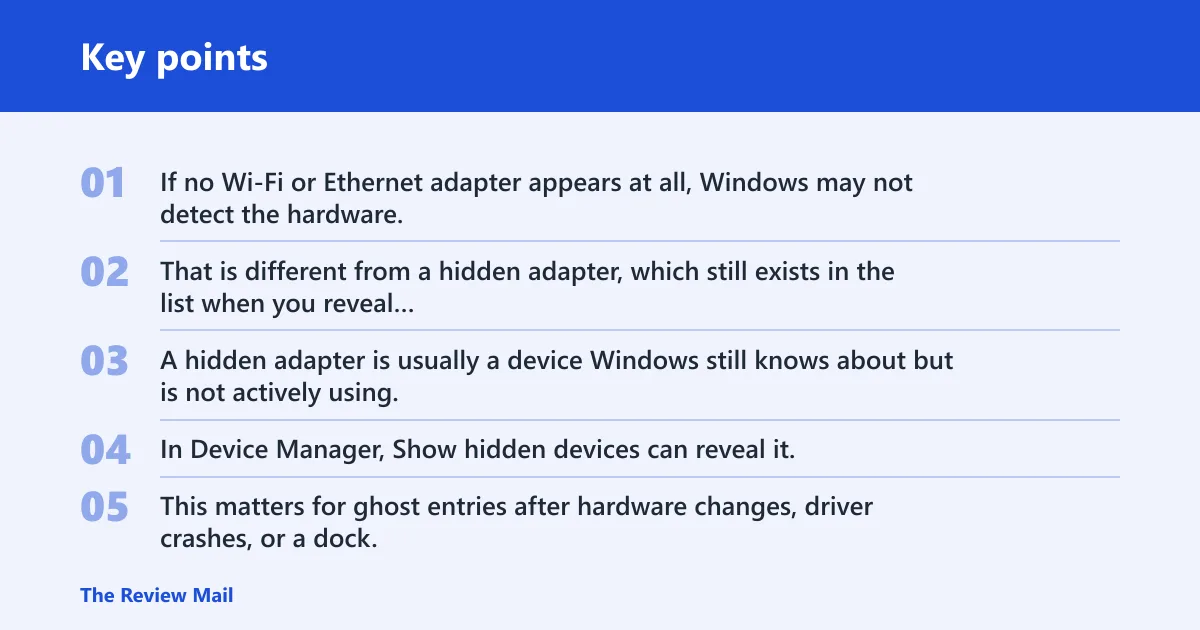
If no Wi‑Fi or Ethernet adapter appears at all, Windows may not detect the hardware, the driver may have failed hard, or the firmware may have disabled the device. That is different from a hidden adapter, which still exists in the list when you reveal non-present devices.
Hidden adapter
A hidden adapter is usually a device Windows still knows about but is not actively using. In Device Manager, Show hidden devices can reveal it. This matters for ghost entries after hardware changes, driver crashes, or a dock, USB dongle, or laptop radio that was present before.
Disabled adapter
A disabled adapter is present but turned off in Device Manager. It is often marked with a down-arrow icon rather than being only greyed out. If it is disabled, do not jump to firmware or reset steps first. Re-enable it and check whether the network returns.
Unknown device
An Unknown device usually does not mean the adapter belongs under Network adapters. It commonly appears under Other devices until Windows has the correct driver. That is a driver identification problem, not proof that the hardware is gone.
Multiple virtual adapters
Many adapters can be normal. Bluetooth, VPN, tunneling, virtual switch, and other software-created adapters may appear alongside Wi‑Fi and Ethernet. Seeing several entries does not automatically mean a fault. The question is whether the physical Wi‑Fi or Ethernet adapter is present, disabled, hidden, or missing.
Network adapters decision table
This table separates the common Device Manager states so you can choose the safest next move. Start with the symptom you actually see. Then follow the least destructive step first.
| Symptom | Likely cause | Safest next action | When to stop and escalate |
|---|---|---|---|
| No adapter appears under Network adapters | Hardware not detected, driver crash, BIOS/UEFI disablement, or missing driver | Restart, open Device Manager, expand Network adapters, then use Scan for hardware changes | If nothing appears after a scan and firmware checks, a common next step is to escalate to BIOS/UEFI and hardware testing. |
| Adapter appears only after Show hidden devices | Hidden or ghost entry after a disconnect, update, or crash | Inspect whether it is disabled, then use Windows Update or reinstall the device through Device Manager if needed | Stop if the adapter returns and works normally; escalate only if it stays hidden or broken |
| Adapter shows a down-arrow or disabled state | Device turned off in Device Manager or by policy | Enable the adapter first; do not reinstall until you know it is actually broken | If enabling fails or the device vanishes again, move to driver repair or firmware checks |
| Unknown device appears under Other devices | Windows lacks the right driver | Install the correct driver, usually through Windows Update first or the manufacturer package next | Escalate if the device still stays unknown after the proper driver package is installed |
| Many VPN, Bluetooth, or virtual switch adapters appear | Normal software-created adapters, plus possible ghost entries | Leave the virtual adapters alone unless one is clearly broken; focus on the physical Wi‑Fi or Ethernet adapter | Escalate only if the physical adapter is missing, disabled, or code errors remain after repair |
Why do I see so many adapters?
You can see many entries because Device Manager lists both physical and software-created networking components. Wi‑Fi and Ethernet are only part of the picture. Bluetooth, VPN, tunneling, and virtual switch adapters often add more lines, and old ghost entries can stay visible after hardware changes.
Wi‑Fi and Ethernet entries
Physical adapters usually show up as wireless, Wi‑Fi, or Ethernet. A laptop may have one of each, while a desktop may have only Ethernet or only a wireless card. More than one physical entry is not unusual if the system has both onboard and add-in networking hardware.
Bluetooth and virtual adapters
Bluetooth networking, Wi‑Fi Direct, VPN clients, and virtual machine tools can create adapters that are software-only. They are real devices to Windows, but not the same as the radio or Ethernet port you depend on for internet access. Do not remove them just because the list looks long.
Ghost entries after hardware changes
Suppose a laptop’s wireless card failed once and was replaced later. Device Manager may still show the old entry when you use Show hidden devices. That is a ghost entry, not proof that the new adapter is failing.
How do you find a missing adapter?
Start in Device Manager, expand Network adapters, and use the built-in tools in order: Show hidden devices, Scan for hardware changes, then driver actions if the device is present but broken. If the adapter still does not appear, the problem may sit below Windows.
Open Device Manager and expand Network adapters
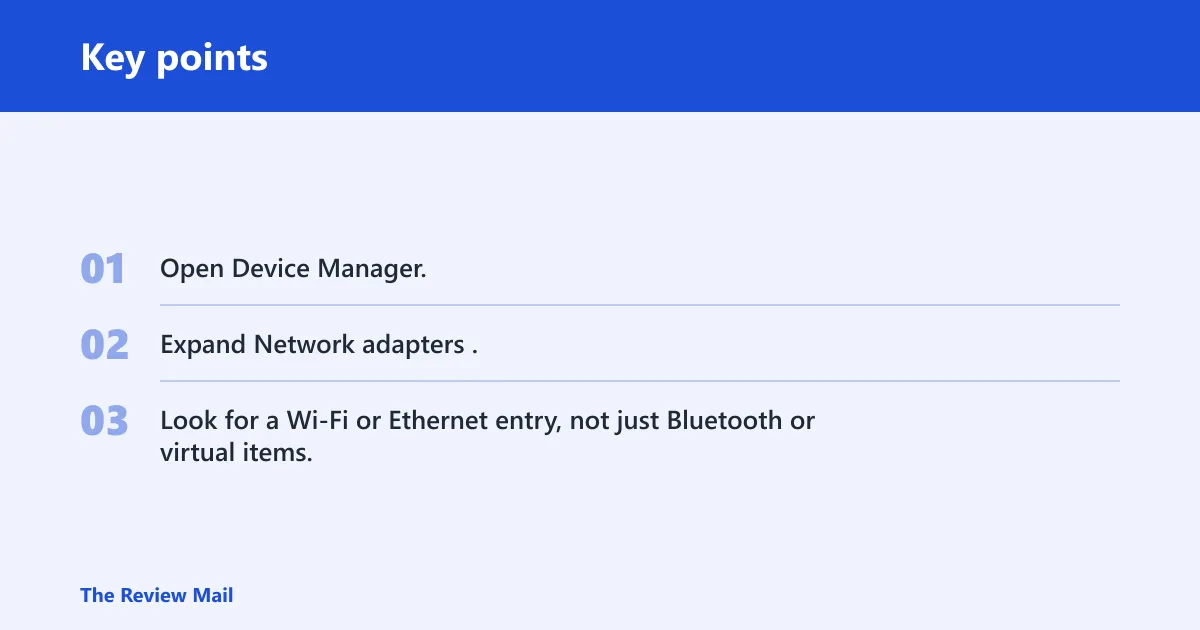
- Open Device Manager.
- Expand Network adapters.
- Look for a Wi‑Fi or Ethernet entry, not just Bluetooth or virtual items.
This is the first checkpoint because it tells you whether Windows sees the hardware at all. Do not assume the most visible adapter is the one that matters.
Use Show hidden devices
Use View > Show hidden devices to reveal entries that are not active right now. This is one of the first checks for the missing-adapter problem on Windows 11 and Windows 10. If the adapter appears after this step, you are dealing with a hidden or ghost entry, not a total hardware absence.
Use Scan for hardware changes
Scan for hardware changes asks Windows to look again for devices that were not detected on the first pass. It is a low-risk step and fits before any uninstall or reset. If the adapter appears after the scan, you can stop and check whether networking now works normally.
Check whether the adapter is disabled
If the adapter is visible but disabled, enable it before anything else. A disabled device can look like a missing one if you only skim the list. If you cannot tell whether it is disabled, look for the down-arrow icon rather than assuming it is just greyed out.
Say your laptop loses Wi‑Fi after a resume from sleep and Device Manager shows no wireless entry. In that case, the safer path is to reveal hidden devices and scan for hardware changes before reinstalling anything. That keeps you from removing a driver that Windows may still be able to recover.
Should you update or reinstall first?
If the adapter is present, start with updates from Windows Update. Microsoft says driver updates for most hardware are automatically downloaded and installed through Windows Update, and that includes drivers for network adapters. If the adapter looks broken or the driver is corrupt, reinstall it through Device Manager. (Microsoft Support)
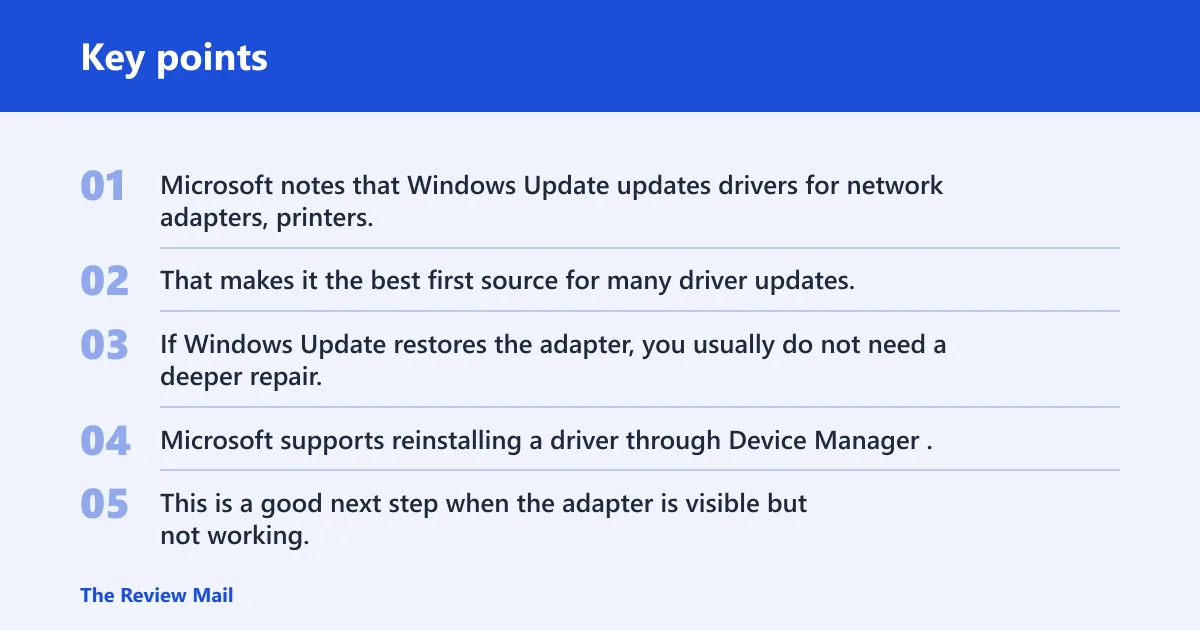
Use Windows Update first when the adapter is present
Microsoft notes that Windows Update updates drivers for network adapters, printers, scanners, and video cards. That makes it the best first source for many driver updates. If Windows Update restores the adapter, you usually do not need a deeper repair.
Reinstall the device when the driver looks broken
Microsoft supports reinstalling a driver through Device Manager. This is a good next step when the adapter is visible but not working, or when you see symptoms such as a bad state after a crash, a missing driver, or a device that keeps erroring out after reboot.
Before you uninstall, note the warning. If you choose an option that deletes the driver software and you do not already have a replacement driver ready, you may remove the easiest local reinstall path. That is fine only if you already have another driver source lined up.
Use manufacturer drivers if Windows Update does not help
If Windows Update does not restore the adapter, install the latest package from the device or PC manufacturer. This is especially useful for wireless adapters, where vendor packages can restore special radio features or a newer chipset driver that Windows has not pulled yet.
Avoid deleting driver software unless you have a replacement
If the adapter is the only way to get online, be careful with uninstall options that remove the driver package too. The safer move is to keep a rollback path ready first. If you can still reach Windows Update, a download from there is usually the least disruptive next step.
When is a reset the right fix?
Use reset steps when the adapter returns but connectivity stays broken, or when Windows networking components look corrupted. A reset is not the first fix for hardware that is completely absent from Device Manager. Choose the narrowest reset that fits the symptom.
Network reset
Network reset is the heavier option. Gadgets Nurture says it removes all network adapters and reinstalls them, and that it also resets Wi‑Fi networks and passwords. Use it when adapters are present but networking is broadly broken, especially after multiple failed repairs.
Winsock reset
Winsock reset is a command-line repair step for the Windows networking stack. It fits cases where the adapter disappeared after stack corruption or where internet access stays broken even though the adapter is back. It does not fix missing hardware in firmware or a disabled onboard radio.
What each reset removes
Network reset can clear saved Wi‑Fi details, remove and reinstall adapters, and put network settings back near default. Winsock reset is narrower. It changes the networking catalog rather than the whole adapter set. That difference matters when you are trying to avoid unnecessary disruption.
What to try before each reset
Before network reset, try Windows Update, Device Manager update or reinstall, and a scan for hardware changes. Before Winsock reset, make sure the adapter exists and that the problem is more than one corrupt network component. If the adapter is still missing from Device Manager, move to BIOS/UEFI checks instead.
What if Windows still cannot see it?
If Windows still cannot detect the adapter, check firmware and hardware next. Onboard LAN or wireless can be disabled in BIOS/UEFI, and Windows will not show what the firmware has turned off. If the adapter never appears after those checks, the problem may be hardware-level.
Check BIOS/UEFI for onboard disablement
Driver Easy recommends checking whether the Wi‑Fi adapter is enabled in BIOS/UEFI. That matters when a built-in wireless or Ethernet device is missing from Windows entirely. A firmware switch can block detection before Windows ever has a chance to list the hardware.
Separate wireless from Ethernet troubleshooting
Wireless adapters can disappear after a driver crash or communication breakdown, while Ethernet can fail for different reasons. Do not use a Wi‑Fi fix path for an Ethernet-only problem, or vice versa. If one works and the other does not, the hardware and driver paths are not the same.
Check the wireless service, but know its limit
WLAN AutoConfig, or wlansvc, matters when Wi‑Fi is present but not functioning. The same source recommends checking that service, and that is sensible when wireless refuses to connect. It does not make missing hardware appear in Device Manager, so do not treat it as a fix for a vanished adapter.
Picture a desktop with onboard Ethernet and a USB Wi‑Fi adapter. If Ethernet still appears but the USB wireless adapter is missing, the problem is local to the wireless path. The fix is not the same as for a full network outage.
Frequently asked questions
How many network adapters should I have in Device Manager?
There is no fixed number of network adapters a device should have in Device Manager. A normal system may show Wi‑Fi, Ethernet, Bluetooth, VPN, and virtual adapters at the same time. What matters is whether the physical adapter you need is present and working. Many entries alone are not a fault.
Why do I have so many network adapters in Device Manager?
You may have several because Windows lists physical adapters and software-created ones together. VPN clients, Bluetooth networking, virtual machine software, and old ghost entries can all add lines. Focus on whether the physical Wi‑Fi or Ethernet adapter is missing, hidden, disabled, or erroring.
Why is my network adapter missing from Device Manager?
The adapter may be hidden, disabled, blocked by BIOS/UEFI, or affected by a driver crash. First use Show hidden devices and Scan for hardware changes. If Windows still cannot see it, check firmware settings and then consider hardware failure or a missing driver package.
What should I check if the wireless adapter is missing in Windows 11/10?
Check Device Manager for a hidden or disabled entry, then confirm WLAN AutoConfig is running once the adapter is visible again. If the wireless adapter still does not appear, check BIOS/UEFI wireless settings and use Windows Update or the manufacturer driver package next.