Display Adapter Not Showing in Device Manager
If your display adapter is not showing in Device Manager, first check if Windows lost the driver, lost the GPU itself, or is hiding it behind Microsoft Basic Display Adapter. Pick the wrong branch, and you can end up with low resolution, no hardware acceleration, and nowhere to go for updates or clean installs. This guide walks through the exact checks for Intel, NVIDIA, and AMD systems on Windows 10 and 11.
What the missing entry means
Start by reading the symptom correctly. If Display adapters is missing entirely, Windows may not be detecting the graphics hardware at all. If the category is present but collapsed, the GPU may still be there. If you see Microsoft Basic Display Adapter or Standard VGA adapter, Windows has fallen back to a generic video driver. (Intel)
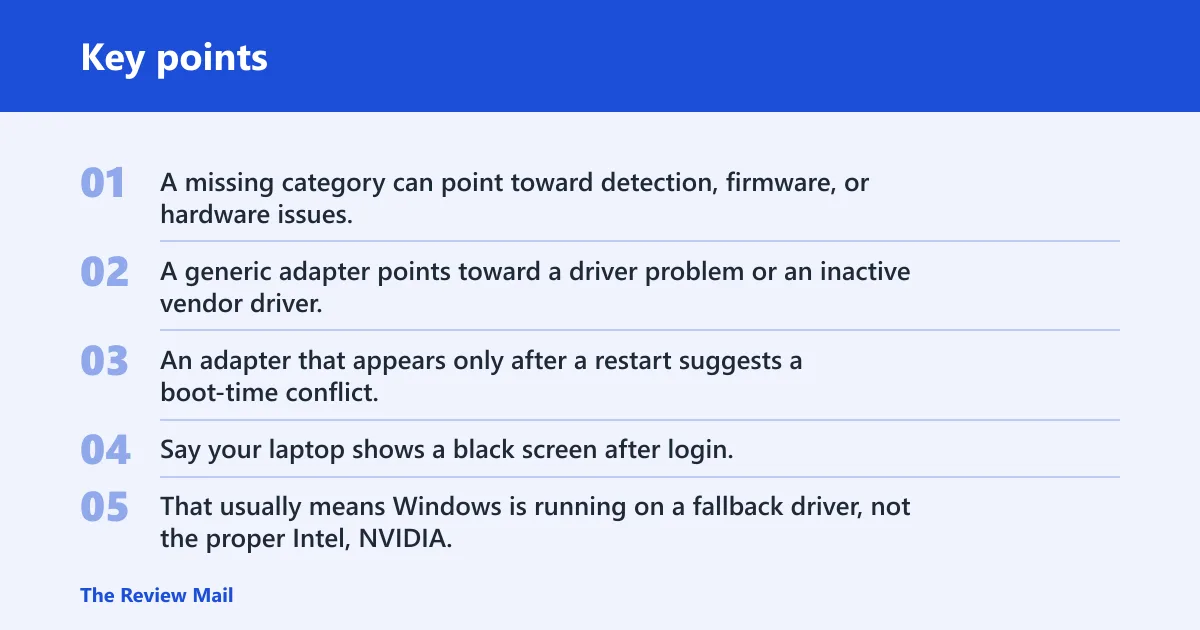
That difference matters. A missing category can point toward detection, firmware, or hardware issues. A generic adapter points toward a driver problem or an inactive vendor driver. An adapter that appears only after a restart suggests a boot-time conflict, not a dead card.
| Symptom in Device Manager | Most likely cause | Next action |
|---|---|---|
| Category missing | Windows is not seeing the GPU, or BIOS/UEFI is hiding it | Use Scan for hardware changes, then check BIOS/UEFI and System Information |
| Microsoft Basic Display Adapter shown | Windows loaded a generic fallback driver | Install the exact Intel, NVIDIA, or AMD driver for that model |
| Adapter appears after reboot only | Startup conflict, update rollback need, or unstable driver load | Check Windows Update history and clean up the driver in Safe Mode |
| Driver reinstall fails in normal mode but works in Safe Mode | Old driver remnants or a service conflict in normal boot | Remove the driver in Safe Mode, then reinstall the vendor package |
Say your laptop shows a black screen after login, and Device Manager only lists Microsoft Basic Display Adapter. That usually means Windows is running on a fallback driver, not the proper Intel, NVIDIA, or AMD package. The fix is different from a case where the category is missing entirely.
Can Scan for hardware changes find it?
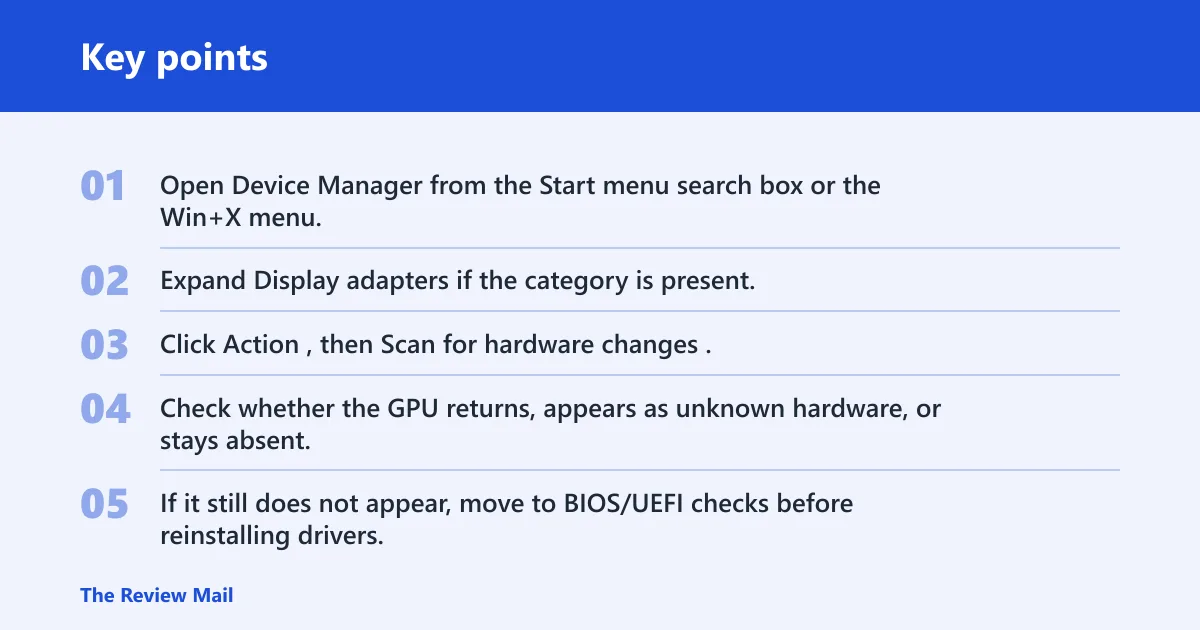
Yes, and it is the safest first step. Open Device Manager, go to Display adapters if it exists, and choose Scan for hardware changes. Microsoft Q&A also suggests checking that section and confirming if Windows adds a hidden or unknown device after the rescan.
Do not jump straight to removal tools yet. If Windows can re-detect the GPU on its own, you avoid a reinstall that may not be needed. If nothing changes, note whether the category stays missing, a basic adapter remains, or a new warning icon appears.
- Open Device Manager from the Start menu search box or the Win+X menu.
- Expand Display adapters if the category is present.
- Click Action, then Scan for hardware changes.
- Check whether the GPU returns, appears as unknown hardware, or stays absent.
- If it still does not appear, move to BIOS/UEFI checks before reinstalling drivers.
A common first-time mistake is uninstalling a graphics driver before confirming if Windows can see the device at all. On a desktop with a discrete card, that can turn a manageable driver issue into a longer recovery job. A rescan is lower risk.
What if microsoft Basic Display adapter appears?
Microsoft Basic Display Adapter means Windows loaded a pre-installed generic driver. Intel identifies that state as generic video driver use, which usually means the correct vendor driver is not installed, is inactive, or cannot bind to the hardware. The next step is the exact Intel, NVIDIA, or AMD package for the model in question.
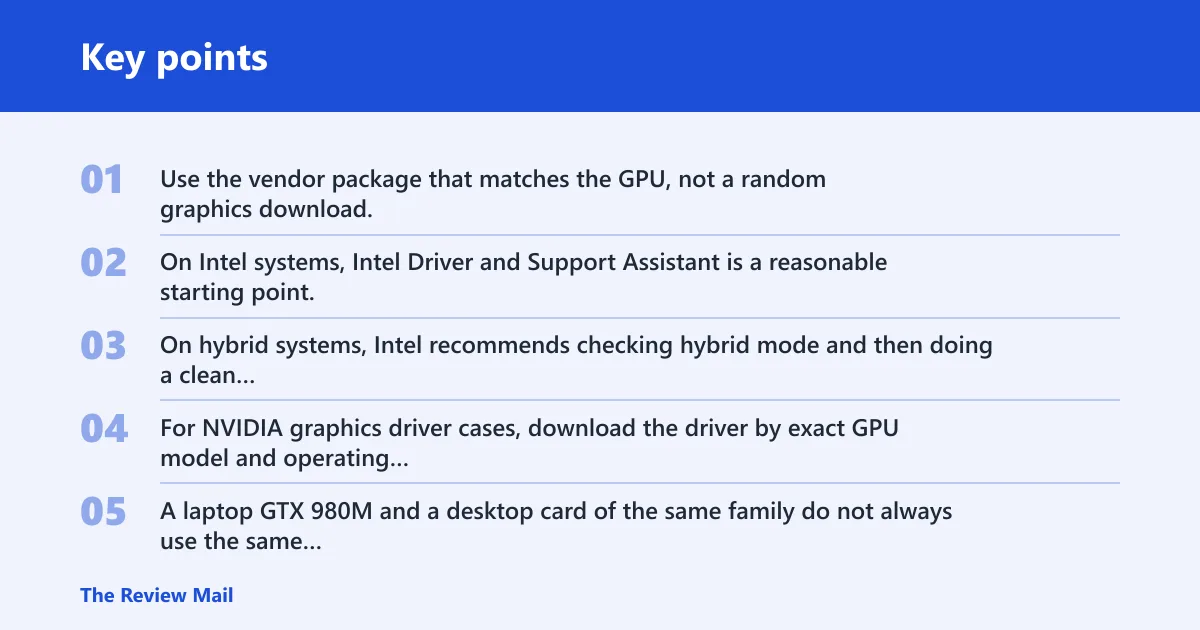
Use the vendor package that matches the GPU, not a random graphics download. On Intel systems, Intel Driver and Support Assistant is a reasonable starting point, and Intel also notes that a missing adapter can mean integrated graphics is disabled in BIOS. On hybrid systems, Intel recommends checking hybrid mode and then doing a clean installation after that setting is enabled.
For NVIDIA graphics driver cases, download the driver by exact GPU model and operating system. A laptop GTX 980M and a desktop card of the same family do not always use the same package path, and OEM systems can require the manufacturer’s build. If a normal install fails, Safe Mode cleanup is the more careful next move.
AMD graphics driver issues often need model-specific handling, especially on older hardware. Microsoft Q&A includes a Windows 10 case with an AMD Radeon HD 7500M and another legacy AMD graphics model, which is a reminder that older GPUs may need OEM support rather than the newest generic download.
Why does it return after reboot?
If the adapter comes back only after a reboot, the system may be dealing with a startup conflict, driver rollback problem, or a Windows update that changed graphics behavior. Check Windows Update history first if the problem started after a recent driver or OS update.
Then test if the adapter disappears only in normal boot. If it is present in one boot state and absent in another, that points to a load-order or service issue rather than an instantly failing card. That is where Safe Mode cleanup becomes useful.
Suppose a desktop shows the GPU after the first restart but loses it again after the next shutdown. That pattern usually points to a driver or update conflict, not a permanently missing card. Rolling back the recent update can be a lower-risk move than replacing every graphics package on the system.
Safe Mode driver cleanup
Use Safe Mode when the normal-mode reinstall keeps failing or the machine is unstable during graphics driver changes. Microsoft Q&A recommends Safe Mode for reinstalling a graphics driver, and that advice fits the cases where remnants of an old package block the new one. Display Driver Uninstaller, or DDU, is a common cleanup tool for that job.
Boot into Safe Mode before removal. Then uninstall the graphics driver through Device Manager, or use DDU to remove leftover components that normal uninstalls can miss. After cleanup, reinstall the correct Intel, NVIDIA, or AMD driver for the exact hardware model.
- Disconnect from the internet if you want to prevent Windows from auto-installing a generic driver mid-process.
- Boot into Safe Mode.
- Remove the existing graphics driver with Device Manager or DDU.
- Restart normally.
- Install the matching vendor driver package.
- Check Device Manager again for the vendor name, not Microsoft Basic Display Adapter.
If normal boot failed but Safe Mode allowed the cleanup, that is a useful clue. It often means the graphics stack is still there, but a corrupted or conflicting driver layer is stopping it from loading cleanly.
Can BIOS or UEFI hide the GPU?
Yes. BIOS/UEFI settings can hide integrated graphics or change which adapter Windows sees first. Intel says a missing graphics adapter may mean integrated graphics is disabled in BIOS, and Intel also recommends enabling integrated graphics if the adapter still does not appear after driver installation. On hybrid systems, the hybrid graphics setting can matter as much as the driver.
Look for settings named integrated graphics, discrete graphics, primary display, adapter enable, or hybrid mode. Desktop systems may need the discrete card enabled. Laptops may need the integrated GPU left on so the vendor driver can bind correctly. If the setting is off, Windows may never list the adapter in Device Manager.
Check detection outside Device Manager too. Use System Information if available, and look in BIOS/UEFI for if the GPU is listed there. If the card is absent in firmware screens as well, the problem is below Windows and above a normal driver reinstall.
How do I get my graphics card to appear in Device Manager again?
Work from the least risky fix to the most invasive. First run Scan for hardware changes. If that fails, check whether Device Manager is showing Microsoft Basic Display Adapter or nothing at all. Then decide if you are dealing with a missing device, a fallback driver, or a boot-time conflict.
For Intel systems, use Intel Driver and Support Assistant or the OEM package, and check hybrid mode or disabled integrated graphics in BIOS. For NVIDIA systems, match the exact GPU model and use Safe Mode cleanup if normal installation keeps failing. For AMD systems, use the vendor or OEM package, especially for older or legacy hardware.
Use this order when the goal is a minimal-risk recovery:
- Rescan in Device Manager.
- Check whether the adapter is missing, generic, or hidden behind another boot state.
- Review Windows Update history for a recent graphics-related change.
- Check BIOS/UEFI settings for integrated, discrete, or hybrid graphics.
- Clean the driver in Safe Mode only if the normal reinstall fails.
Frequently asked questions
Why is my display adapter not showing in Device Manager?
Most cases fall into one of three buckets: Windows lost the driver, Windows is showing a generic fallback driver, or the GPU is not being detected at all. Start with Device Manager, then decide if you are dealing with a missing category, Microsoft Basic Display Adapter, or a BIOS/UEFI problem.
How do I fix display adapter not showing in Device Manager on Windows 11?
On Windows 11, start with a rescan in Device Manager, then check if the GPU appears as Microsoft Basic Display Adapter or not at all. If it is missing, inspect BIOS/UEFI and System Information before reinstalling drivers. If it is generic, install the exact Intel, NVIDIA, or AMD package.
How do I fix display adapter not showing in Device Manager on Windows 10?
Intel’s guidance applies to the Windows 10 family, and the same branch logic still works there. Check Device Manager, run Scan for hardware changes, and confirm if Windows has fallen back to a basic adapter. If the device remains absent, look at BIOS/UEFI and hybrid graphics settings next.
Why did my NVIDIA graphics card disappear from Device Manager?
An NVIDIA card can disappear after a bad driver update, a startup conflict, or a firmware setting that changes detection. If it returns only in Safe Mode or after reboot, that points to a software problem. If it never appears, verify BIOS/UEFI and the card’s physical detection before reinstalling.
Can BIOS settings make the display adapter disappear from Device Manager?
Yes. BIOS/UEFI can disable integrated graphics, hide discrete graphics, or change hybrid mode behavior so Windows never sees the adapter properly. Intel specifically notes that a missing graphics adapter may mean integrated graphics is disabled in BIOS. Check those settings before assuming the card has failed.
Should I reinstall the graphics driver if the display adapter is missing?
Yes, but only after you check if Windows can see the hardware at all. If Device Manager shows Microsoft Basic Display Adapter, reinstall the exact vendor driver. If the category is missing entirely, rescan first and then check BIOS/UEFI, because a driver reinstall cannot restore hardware that Windows does not detect.
Does Safe Mode help when the display adapter is not showing?
Safe Mode helps when a normal-mode reinstall fails or the system is unstable during driver cleanup. The same source recommends it for reinstalling graphics drivers, and tools like DDU are commonly used there. It is not the first step for every case, but it is useful when normal boot keeps blocking the fix.
What if Device Manager still does not detect my graphics card after reinstalling drivers?
Move outside driver work. Check BIOS/UEFI, verify if the GPU appears in System Information, and review Windows Update history for a recent graphics-related change. If the card is absent in firmware too, the issue is likely hardware, motherboard, or OEM lockout rather than a Windows-only driver problem.