Code Windows 11 Free: Which Download Path Works?
Windows 11 and Visual Studio Code are separate downloads with separate rules: Windows 11 may be free as an approved upgrade on an eligible licensed PC, while Visual Studio Code is free from Microsoft. Miss that split, and you can pay for a license you did not need, or download the wrong app from the wrong site. This guide maps each case to the right free path, including the correct Visual Studio Code download for your PC. (Microsoft Learn)
Is Windows 11 free?
Yes, but only in the Microsoft-approved sense: if you already have a valid Windows 10 license and the PC is eligible, the Windows 11 upgrade itself costs nothing. A no-cost install is different from activation. You can install Windows 11 without paying, but it may remain unactivated until a valid license or digital entitlement is applied.
What “free” means here
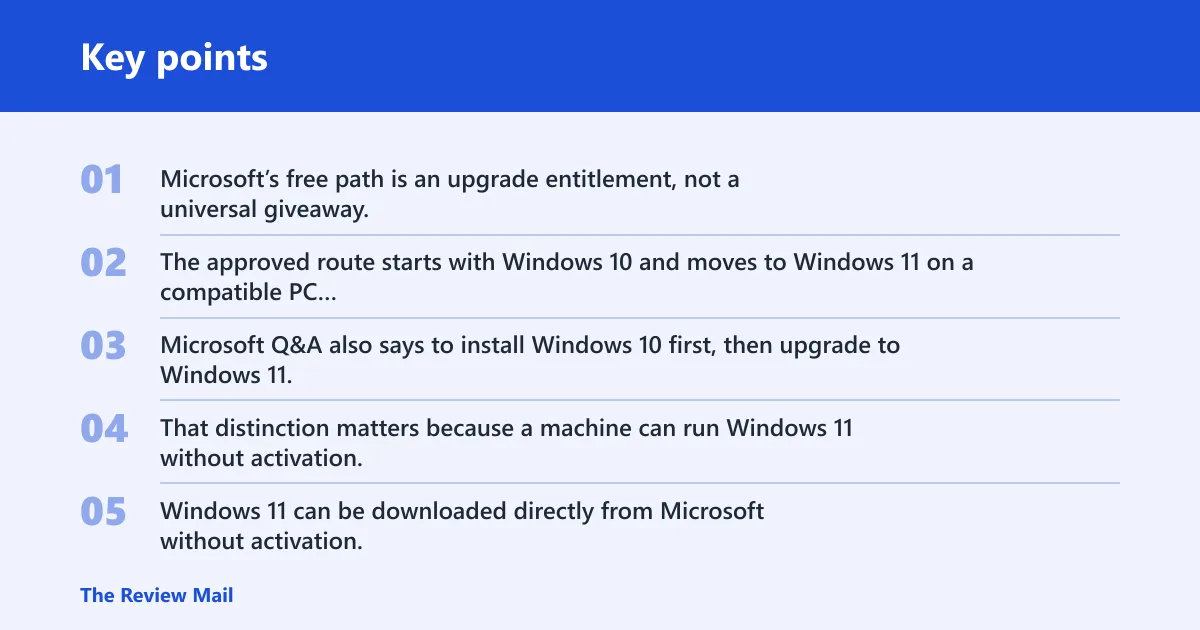
Microsoft’s free path is an upgrade entitlement, not a universal giveaway. The approved route starts with Windows 10 and moves to Windows 11 on a compatible PC through Windows Update. Microsoft Q&A also says to install Windows 10 first, then upgrade to Windows 11, and the upgrade path sits in Settings > Update & Security > Windows Update.
That distinction matters because a machine can run Windows 11 without activation, but that is not the same as having a valid free license. Windows 11 can be downloaded directly from Microsoft without activation, and unactivated Windows shows a permanent watermark. Personalization choices are limited until activation happens.
When activation does and does not carry over
If Windows 10 is already activated, the activation can carry over in the approved upgrade path. Same editions transfer, such as Windows 10 Home to Windows 11 Home. For Pro systems, Windows 11 can stay activated after a Windows 10 Pro upgrade in the normal digital-entitlement flow.
A common first-timer mistake is treating any Windows 10 install as enough. It is not. The license has to be valid, and the PC still has to pass Windows 11 requirements. Another mistake is assuming a Windows 7 or Windows 8 key will still work; those keys no longer work for Windows 11 activation.
When you still need to check hardware eligibility
Hardware compatibility still controls whether the free upgrade path is available. The easiest check is the Windows Update route on an eligible Windows 10 PC. If the upgrade does not appear, that may mean the device is not yet eligible, compatibility safeguards are delaying rollout, or the current Windows 10 installation does not meet the activation and edition rules for a clean carryover.
Suppose a PC has an activated Windows 10 Home license and is otherwise eligible. That user should expect the Windows 11 Home upgrade path, not Pro. If the same PC had Windows 10 Pro instead, the upgrade target should stay in Pro unless a separate license change is made.
Is VS Code free on Windows 11?
Yes. Visual Studio Code is a free AI code editor, and Microsoft publishes it for Windows, macOS, and Linux. On Windows 11, the download page still matters because it offers different installer types and architectures, but the editor itself is free to download and use.
Why the download page targets Windows 10 and 11
The VS Code download page is built for current Windows systems, and the Windows build is meant for 64-bit PCs. It is also aimed at both Windows 10 and Windows 11 users. That means the same download page is usually the right starting point for either OS, unless you want the browser-based version instead.
Browser-based vscode.dev versus a local install
If you do not want a local install, use vscode.dev in the browser. It is the browser-based VS Code experience and does not need a local app on the PC. That can be enough for quick edits, light work, or checking files on a locked-down machine.
If you need extensions, offline access, or tighter integration with local folders and tools, install the desktop version instead. The browser option is the simplest path. The desktop option gives you the full local app.
Windows 11 decision table
| Scenario | Is Windows 11 free? | Does activation carry over? | Allowed edition | Exact next step |
|---|---|---|---|---|
| Activated Windows 10 | Yes, if the PC is eligible | Yes, for the same edition | Home to Home, Pro to Pro | Check Settings > Update & Security > Windows Update, then upgrade through Windows Update |
| Unactivated Windows 10 | No free activation path from that state alone | No valid carryover is guaranteed | Only the edition tied to a valid license, if you obtain one | Activate Windows 10 first with a valid license, then upgrade to Windows 11 |
| OEM preinstalled Windows | Yes, on the original eligible device | Yes, on that device | The edition that shipped with the device | Upgrade on the original PC; keep the original device for activation purposes |
| Retail digital license transfer | Yes, after transfer to the new PC | Yes, after reactivation on the new PC | The retail edition you own | Move the retail license to the new PC, reactivate, then upgrade if the hardware is eligible |
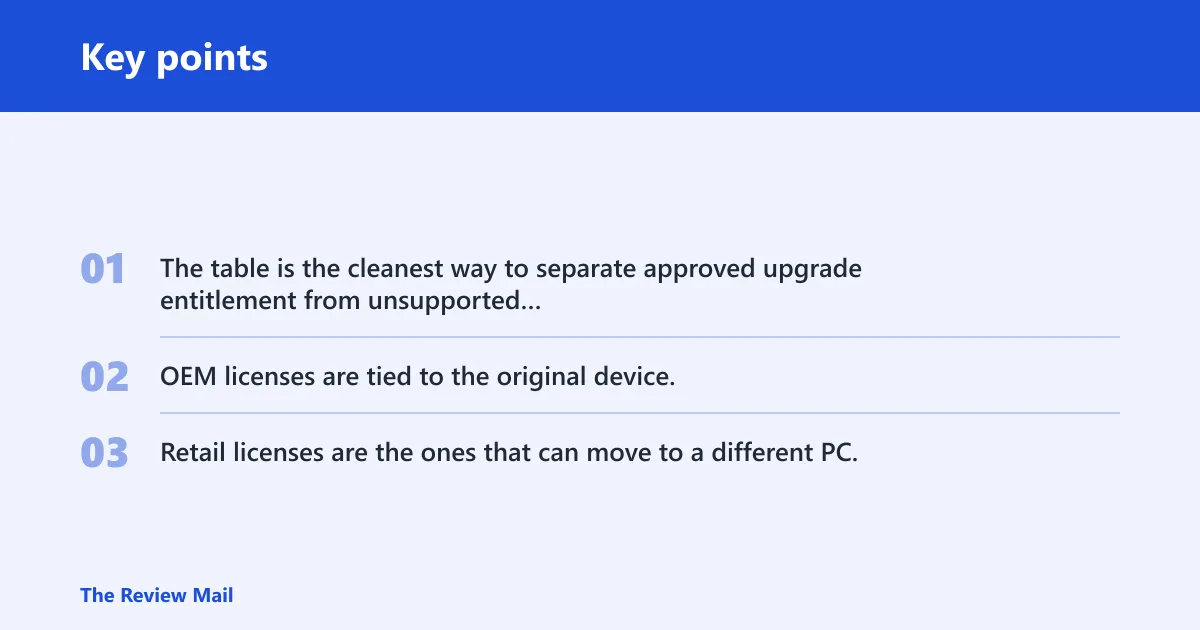
The table is the cleanest way to separate approved upgrade entitlement from unsupported activation claims. OEM licenses are tied to the original device, so a laptop sold with Windows 10 Home does not become a transferable retail license just because it is being reused. Retail licenses are the ones that can move to a different PC.
Which VS Code download should I choose?
For most Windows 11 PCs, start with the User Installer or System Installer in the x64 build. The right choice depends on who should get the app and whether you want it installed for one account or for all accounts on the machine. If you need a portable copy or a command-line package, those options exist too.
User installer versus System installer
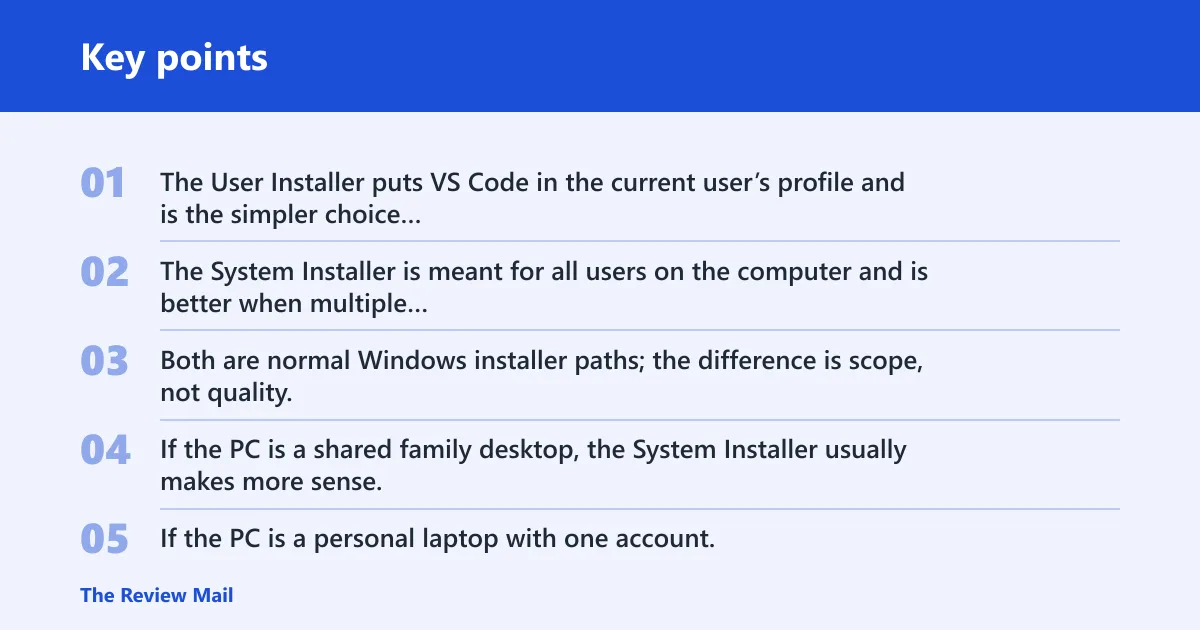
The User Installer puts VS Code in the current user’s profile and is the simpler choice for a single account. The System Installer is meant for all users on the computer and is better when multiple people sign in. Both are normal Windows installer paths; the difference is scope, not quality.
If the PC is a shared family desktop, the System Installer usually makes more sense. If the PC is a personal laptop with one account, the User Installer is often the lighter choice. That is the practical split most Windows users need.
ZIP package and CLI package options
VS Code also offers a ZIP package and a CLI package. The ZIP package is the portable-style download, which is useful if you do not want a standard installer footprint. The CLI package is for users who want command-line setup or deployment workflows.
These options matter for power users and administrators. For most people, the installer is easier. For scripted installs or portable use, the ZIP or CLI package may fit better.
What the 64-bit Windows label means
The download page for Windows is labeled for 64-bit systems. On that page, 64-bit means the build is meant for modern 64-bit Windows installs, which includes the normal Windows 10 and Windows 11 desktop market. That is why the page centers on x64 and Arm64 rather than older 32-bit Windows builds.
Say your PC is a standard Intel or AMD laptop running Windows 11 Home. The right starting point is usually x64, then choose User Installer unless you need a machine-wide install. If it is a Surface or another Arm-based device, choose the Arm64 build instead.
Do you need x64 or Arm64?
Many Windows 11 PCs use x64, while Arm64 is the appropriate choice on devices built around an Arm processor. The architecture choice affects which installer you download, so it is worth checking before you click. On the VS Code page, x64 is the default Windows choice, while Arm64 is the alternative for Arm-based Windows PCs.
Default x64 choice for most PCs
Pick x64 if your Windows 11 PC uses Intel or AMD hardware, which is the common case. VS Code offers x64 for the User Installer, System Installer, ZIP package, and CLI package. That broad support makes x64 the safest default for most Windows users.
When Arm64 is the right pick
Choose Arm64 only if your Windows 11 device runs on Arm hardware. VS Code offers Arm64 for the installer and CLI builds. That gives Arm-based laptops and tablets a native download rather than relying on the x64 path.
Which build types support each architecture?
- x64: User Installer, System Installer, ZIP package, and CLI package.
- Arm64: Installer and CLI builds.
That split makes the choice straightforward. If your Windows 11 PC is standard x86-64 hardware, x64 is the normal answer. If the device is Arm-based, use Arm64 so you get the matching build.
How to download visual studio code for Windows 11
Go to Microsoft’s VS Code download page, choose the Windows build, and then pick the architecture and package type that matches your PC. For most Windows 11 users, that means x64 plus the User Installer. If you do not want a local install, open vscode.dev in the browser instead.
- Open the Microsoft VS Code download page.
- Check whether your PC is x64 or Arm64.
- Choose User Installer for one account or System Installer for all users.
- Select ZIP if you want a portable package, or CLI if you need command-line deployment.
- Run the installer, or use vscode.dev if you want the browser version only.
The cleanest workflow is simple. Match the architecture first, then choose the installer type. Do not mix Windows activation questions with the VS Code download choice; they are separate decisions.
Does VS code run on Windows 10 and 11?
Yes. VS Code is available for both Windows 10 and Windows 11, and the Windows download page is aimed at those operating systems. The important difference is not the OS name but the machine architecture and how you want the app installed. Windows 10 and 11 users can follow the same download page.
What changes between Windows 10 and Windows 11 users
The download choices stay the same, but the surrounding system rules may differ. Windows 11 may be the target operating system, yet the app still supports Windows 10. That means you do not need a Windows 11-only PC to use VS Code, and you do not need to pay for a Windows 11 license just to get the editor.
When a browser session is enough
If you only need quick edits, vscode.dev is often enough. It runs in the browser, so there is no local installer, no edition choice, and no architecture decision. Use the desktop app only when your workflow needs a local installation.
Frequently asked questions
Which VS Code download should I choose for Windows 11?
For most Windows 11 PCs, choose x64 and then pick the User Installer. Use the System Installer if multiple accounts on the same PC need the app. If you want a portable package, choose ZIP; if you want deployment or command-line setup, choose CLI.
Do I need x64 or Arm64 for Windows 11?
Most Windows 11 PCs need x64. Choose Arm64 only if the device uses an Arm processor. VS Code supports x64 for User Installer, System Installer, ZIP, and CLI builds, while Arm64 is available for installer and CLI builds.
What is the difference between User Installer and System Installer?
The User Installer installs VS Code for the current Windows account. The System Installer makes it available to all users on the PC. If the machine is shared, System Installer is usually the better fit; if it is a personal PC, User Installer is often simpler.
Can I use VS Code in a browser instead of installing it?
Yes. vscode.dev is the browser-based version of VS Code, and it does not require a local install. That is useful when you want quick access without changing the PC. Use the desktop app only if you need offline use or a fuller local setup.
Will Windows 11 be free for Windows 10 users?
It can be free if the Windows 10 license is valid and the PC is eligible. The approved upgrade path is through Windows Update, and same editions transfer, such as Home to Home and Pro to Pro. Before expecting the upgrade, check that Windows is activated and that the PC meets Windows 11 requirements.
Is Windows 11 free for Windows 10 users?
Yes, for eligible PCs with a valid Windows 10 license. The upgrade itself costs nothing in that case. If the PC is not eligible, or the license is not valid, then Windows 11 is not free in the Microsoft-approved sense.