Windows 11 Can T Connect to This Network Wifi
If Windows 11 can’t connect to this network Wi‑Fi, start by matching the symptom: one network, every network, or a password-accepted failure, then fix the cause in that order. If you’re unable to access email, browse the web, or stream music, it’s likely you’re not connected to your network and can’t access the Internet. Skip the wrong steps and you waste time while the PC stays offline. This guide shows the quickest checks, the reset steps, and the network settings that usually fix each case.
Which Windows 11 Wi‑Fi failure do you have?
The same message can point to different faults. If only one SSID fails, think compatibility or router-side settings first. If every SSID fails, check the adapter, the wireless radio, and the network stack. If Windows accepts the password and then drops the connection, look for a saved-profile issue, security mismatch, or a band mismatch.
| Symptom | Likely cause | First fix | Second fix | Escalation |
|---|---|---|---|---|
| One SSID only | Router-side restriction or compatibility issue | Reconnect to the network after checking the password | Check router settings and the adapter’s supported band | Try a different band or test with another device |
| All SSIDs fail | Adapter state, driver problem, airplane mode, or stack issue | Turn Airplane mode off, then disable and re-enable the adapter | Run the troubleshooter and reset TCP/IP | Network reset or driver reinstall |
| Password accepted, then fails | Saved profile issue, security mismatch, or router rejection | Reconnect and type the password again | Check router security settings | Try 2.4 GHz if 5 GHz or 6 GHz fails |
| Secured network fails | Security type mismatch or stale credentials | Reconnect with the correct password | Recreate the profile with the correct password | Check router security mode and update the adapter driver |
| Works on other devices | Laptop-side profile, driver, or adapter problem | Run the troubleshooter | Update or roll back the driver | Network reset |
| Works on other bands | Band support gap or router mode mismatch | Join the working band first | Match the laptop to the supported band and wireless mode | Change router band settings or test another adapter |
| Drops after connecting | Router-side restriction, weak compatibility, or driver instability | Reconnect and test again | Check router settings and adapter driver | Reset the network stack |
| Fails after a driver update | Bad driver revision | Roll back the driver | Uninstall and reinstall the adapter | Use Network reset if the adapter still misbehaves |
📊 Microsoft recommends that Windows 11 users start with the automated Network and Internet troubleshooter in the Get Help app. Source: Microsoft.
Likely causes, ranked
The most common path is simple: a driver change, an adapter state issue, or a router setting that blocks only one network. Less commonly, the wireless stack is stuck or the adapter is disabled at the Windows level. If you are using older Windows versions or a mobile device, skip to the general troubleshooting steps.
One SSID only, or one band only
If one network fails while others work, the cause is often compatibility rather than a broken PC. A laptop that joins 2.4 GHz but not 5 GHz points to a band or mode mismatch, not a blanket Wi‑Fi failure.
All networks fail after a change
If every SSID fails after a driver update, Windows may be holding a bad adapter state. That makes the Wi‑Fi driver, the TCP/IP stack, or the wireless radio the first place to check. Use the built-in Network and Internet troubleshooter in the Get Help app first on Windows 11, then continue with adapter and stack steps if needed.
The router rejects the laptop
Router-side limits can block only one device. A security setting, access restriction, or client limit can stop a Windows 11 laptop even when a phone connects. Sometimes the issue is not the password itself but the router’s wireless settings.
Can Windows 11 join other Wi‑Fi networks?
If it joins one network but not your home SSID, focus on the router and the saved profile before touching deeper Windows settings. If 2.4 GHz works but 5 GHz does not, or 6 GHz fails while 2.4 GHz connects, the laptop may not support that band or the router mode may be too new for the adapter. If the password is accepted and the connection drops, suspect a security mismatch or a stale profile first.
Reconnect to the saved network
Open the Wi‑Fi list and connect again with the current password. If the connection works on a second attempt, the issue may have been a temporary profile or authentication problem.
- Open Settings > Network & internet > Wi‑Fi.
- Select the failing SSID.
- Choose Connect.
- Enter the password again if prompted.
- If the network is hidden, type the network name exactly as it appears on the router and then enter the password.
Suppose a laptop joins a café hotspot but fails on a home SSID named Office-5G. Re-entering the password can fix a temporary authentication problem, but it will not override a router setting that blocks the device.
Check the adapter and driver
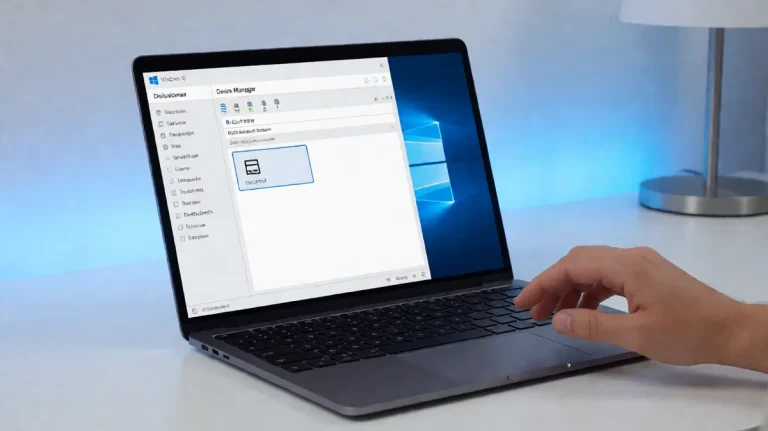
When every SSID fails, or the problem started after a driver update, the Wi‑Fi adapter itself is a prime suspect. Open Device Manager, confirm the adapter is present, and use a disable/enable cycle before more invasive steps. You can also update or roll back the driver if the newest version started the trouble.
- Right-click Start and open Device Manager.
- Expand Network adapters.
- Right-click the Wi‑Fi adapter and choose Disable device, then Enable device.
- If that fails, open Properties > Driver and choose Roll Back Driver if available.
- If the driver is outdated, choose Update driver.
- If the adapter still misbehaves, choose Uninstall device, then restart so Windows reinstalls it.
A disabled adapter, a bad rollback point, or a corrupted install can all produce the same symptom. If the adapter disappears after uninstalling, use Action > Scan for hardware changes in Device Manager after restart.
Reset the network stack
Use stack resets when the issue spans several networks or survives a driver refresh. On Windows 11, start with the automated Network and Internet troubleshooter in the Get Help app because it can detect common problems without changing settings manually. If that does not fix it, reset TCP/IP, clear DNS, and restart before testing again.
- Open the Get Help app and run the Network and Internet troubleshooter.
- Open Windows Terminal or Command Prompt as administrator.
- Run
netsh winsock reset. - Run
netsh int ip reset. - Run
ipconfig /flushdns. - Restart the PC.
netsh winsock reset
netsh int ip reset
ipconfig /flushdns
Those commands do different jobs. Winsock resets socket catalog behavior, TCP/IP reset rebuilds IP stack settings, and DNS flush clears cached name lookups that can keep a broken route in place.
Router checks to try next
If only one network fails and other devices work, the router becomes the next suspect. Power-cycle the modem and router in order, then wait long enough for both devices to fully restart before testing again. That brief outage disconnects all users while the equipment restarts.
- Turn off the modem and router.
- Wait for both devices to fully power down.
- Turn on the modem first, then the router.
- Check the router for access restrictions, security settings, client limits, and band settings.
- Make sure the laptop is connecting to a band and wireless mode it supports.
Picture a laptop that joins the neighbor’s 2.4 GHz network but not a home 5 GHz network. That points to router band settings or adapter compatibility, not a general Windows failure.
When to use Network reset
Use Network reset after adapter steps and stack resets fail, especially when Windows still will not join any Wi‑Fi network. It removes and reinstalls network adapters and returns network components to a clean state, so it is a later-step fix rather than a first move. Try one known-good network immediately after the reset.
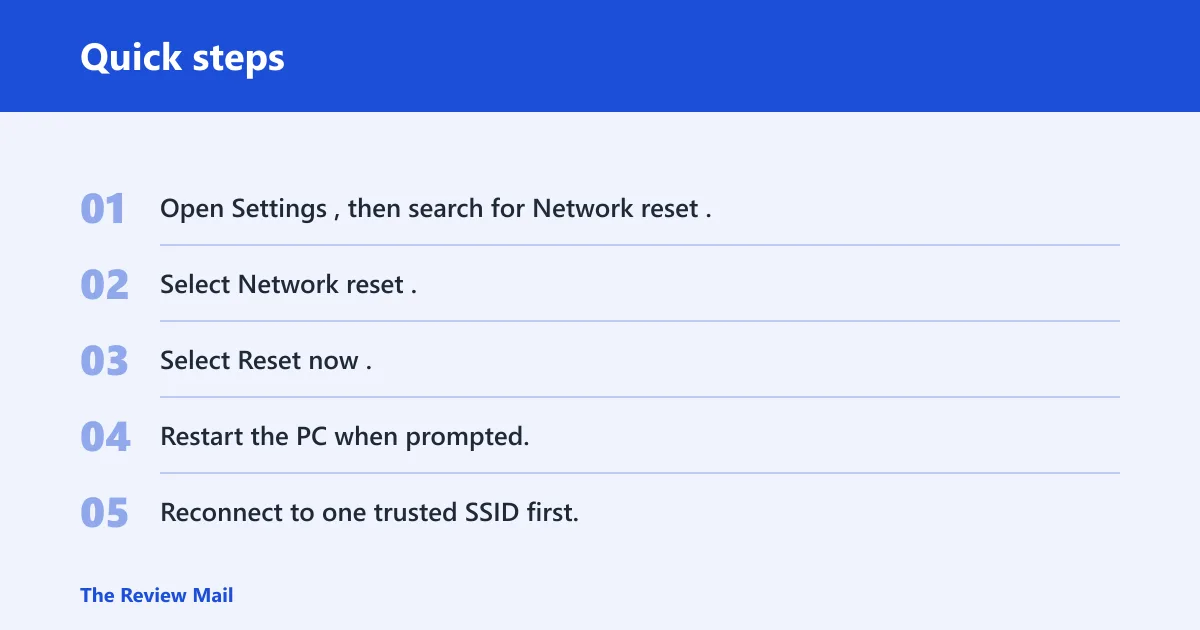
- Open Settings, then search for Network reset.
- Select Network reset.
- Select Reset now.
- Restart the PC when prompted.
- Reconnect to one trusted SSID first.
If you reach this step after a failed driver update, a clean reinstall usually has a better chance than repeated toggles. If the laptop still fails on one SSID only after Network reset, the fault is likely router-side or account-side, not Windows-side.
Prevention
Keep the Wi‑Fi driver stable once the connection is working, and avoid changing router security mode unless you need to. A router set to mixed security is often easier for mixed devices than a stricter mode, especially when older adapters are in the mix.
Frequently asked questions
What should I check first when Windows 11 won’t join Wi‑Fi?
Check whether one SSID fails or every SSID fails. If only one network fails, reconnect to it and then check the router. If every network fails, turn Airplane mode off, then run the Network and Internet troubleshooter in the Get Help app before resetting anything else.
Can a driver rollback fix a Windows 11 Wi‑Fi connection problem?
Yes, if the problem started after a driver update. Open Device Manager > Network adapters > Wi‑Fi adapter > Properties > Driver, then use Roll Back Driver if the button is available. If it is not, uninstall the adapter and let Windows reinstall it on restart.
Does disabling IPv6 fix Windows 11 Wi‑Fi connection failures?
That setting exists in Windows, but it is not a first-line fix for this problem. Focus on the troubleshooter, adapter, stack, and router checks above before changing protocol settings.
Should I reset TCP/IP or use network reset for this error?
Start with netsh winsock reset and netsh int ip reset if several networks fail or the adapter seems stuck. Use Network reset only after that, because it is broader and more disruptive.
Why does Windows 11 connect to other Wi‑Fi networks but not mine?
That pattern usually points to a router-side setting, not a broken laptop. Check access restrictions, security settings, client limits, and whether the network is on a band the adapter supports. If the same laptop joins other SSIDs, the home router is the best place to inspect next.
Why does Windows 11 say it can’t connect to this network?
The message usually means the laptop failed during association, authentication, or the handoff after a password was entered. The fastest way forward is to match the symptom first: one network only, every network, or a password-accepted failure. Then use the fix that matches that pattern instead of changing random settings.