Windows Activation Error 0x8004e026
Windows activation error 0x8004e026 is often a secondary or misreported failure; the code shown may be a secondary or misreported activation failure rather than the underlying licensing problem. Do not keep retrying until you confirm whether the device needs retail, volume, KMS, or subscription activation. Repeated blind retries waste time, hide the real license state, and create extra admin work. Check the activation path and license type first, then choose the fix.
What 0x8004e026 usually means
The displayed code may not be the root problem. In Windows 10 and Windows 11 activation flows, the code shown can change after troubleshooting, so a visible 0x8004e026 message can sit on top of a different licensing failure. That is why the first pass should identify the activation channel before you replace keys or rebuild the device.
Open Settings > System > Activation and read the full status line, not only the short code. On Windows 11, use winver to confirm the version and build, which helps when a device was repaired, reimaged, or moved between releases.
Windows activation verifies that Windows is genuine and not used on too many devices. If the message changes after one troubleshooting pass, treat that as a clue, not noise.
Likely causes, from most common to less common
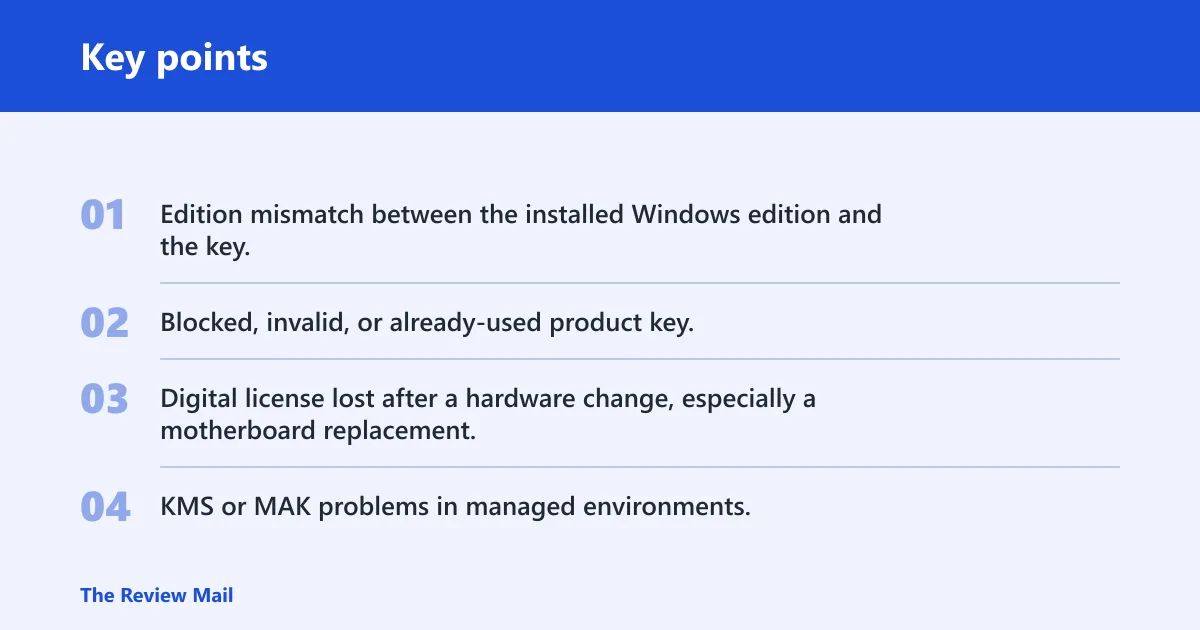
- Edition mismatch between the installed Windows edition and the key.
- Blocked, invalid, or already-used product key.
- Digital license lost after a hardware change, especially a motherboard replacement.
- KMS or MAK problems in managed environments.
Say your PC boots normally but Activation says Windows is not activated after a repair. The repair may have changed the license path, not the code itself. The fix is to identify whether the device expects a retail key, an OEM key, a digital license, or a volume license.
📊 Microsoft’s SaRA tool targets known activation codes including 0xC004F074 and 0x8007232B. Source: Troubleshoot Windows activation error codes.
Does your Windows edition match the key?
The installed edition must match the key. A Home key will not activate Pro, and a Pro key will not fix a Home installation. Edition mismatch can block activation, and it is one of the fastest mistakes to rule out before anything else.
Check the edition in Settings > System > About or Settings > System > Activation. Use winver only to confirm the version and build, not as the main edition check.
- Open Settings > System > About and note the edition, such as Home, Pro, Education, or Enterprise.
- Open Settings > System > Activation and compare the listed edition against the key you plan to use.
- If the edition is wrong, install the correct edition or use a key that matches the installed edition.
- After the match is confirmed, retry activation from Settings > System > Activation.
A common first-timer mistake is entering a Pro key on a Home device because the PC “looks” like a business machine. The installer can accept the key format and still fail later because the edition is wrong.
Is the product key valid and for this device?
A product key is commonly 25 characters long and should be entered exactly as issued. Keys can be invalid, blocked, already used on another device, or assigned to the wrong edition. On some PCs, the correct key is stored in firmware and never appears on a sticker.
For OEM machines with embedded licensing, Windows can expose the stored key through WMI. The command below reads the OA3xOriginalProductKey property, which is used for preloaded systems with a firmware-stored OEM key.
wmic path softwarelicensingservice get OA3xOriginalProductKey
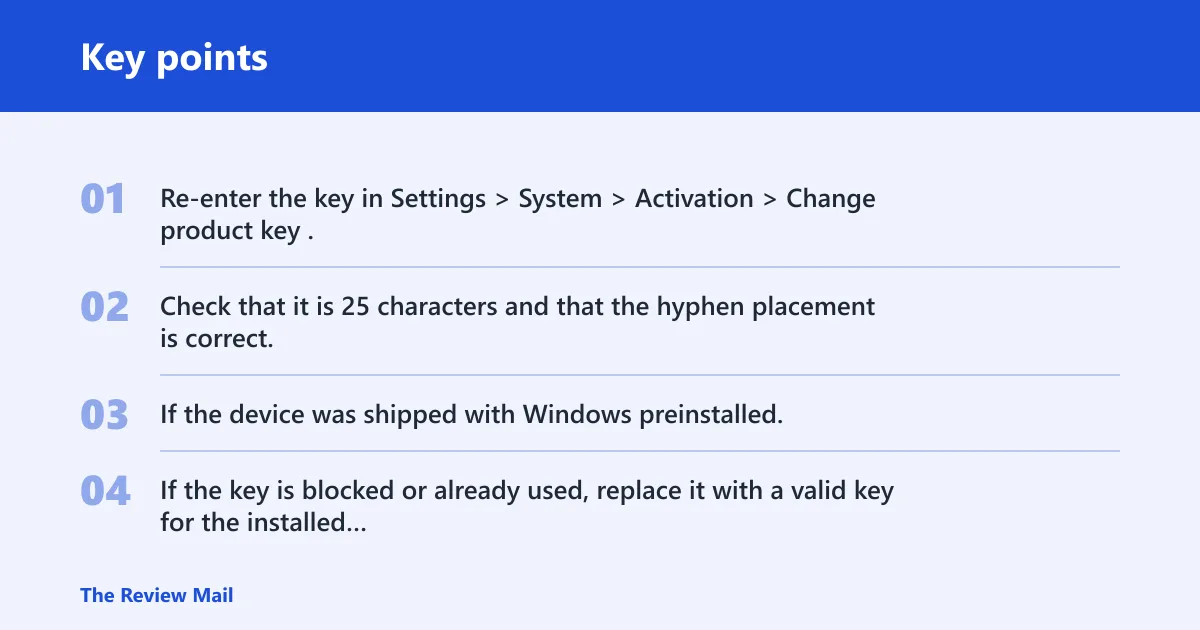
- Re-enter the key in Settings > System > Activation > Change product key.
- Check that it is 25 characters and that the hyphen placement is correct.
- If the device was shipped with Windows preinstalled, run the OA3xOriginalProductKey command in an elevated Command Prompt.
- If the key is blocked or already used, replace it with a valid key for the installed edition.
If the command returns a key, compare it with the edition on the machine before making changes. If it returns nothing, the PC may not have an embedded OEM key, which points you back to retail, digital license, or volume activation.
Did a hardware change break activation?
A motherboard replacement is a major hardware change to check first. Windows can fail to find the matching license after a board swap, even when the same SSD and same user account are still in place. Hardware changes can break the activation match and send the device to reactivation steps.
If the device uses a digital license linked to a Microsoft account, sign in with the same account that was tied to the license. Then run the Activation troubleshooter from the Activation page.
- Open Settings > System > Activation.
- Select Troubleshoot under Activation status.
- If the device asks which hardware changed, choose the option for the current device.
- Sign in with the Microsoft account linked to the digital license, if prompted.
- Retry activation after the troubleshooter finishes.
Suppose a desktop was rebuilt with a new motherboard, but the same SSD and Windows install remain. In that case, the license lookup may fail until the user signs in with the correct Microsoft account and runs the troubleshooter on the new hardware profile.
Is this a KMS or MAK problem?
If the device belongs to a company, school, or managed lab, check volume activation first. KMS may use server discovery and DNS to locate the activation host. MAK uses a fixed activation count, so it can fail when the limit is exhausted or the key is blocked.
Microsoft’s error tables include 0x8007232B for KMS DNS-name failures, 0xC004C020 for MAK activation-limit exhaustion, and 0xC004C003 for a blocked product key. Those codes help separate enterprise licensing problems from retail or OEM failures. (Microsoft Learn)
- Check whether the device is joined to a domain or managed activation setup.
- Run slmgr /xpr in an elevated Command Prompt to check whether Windows reports time-limited or permanent activation status.
- If you use KMS, confirm the correct server is reachable and that DNS discovery is working.
- If you use MAK, confirm the key has not hit its activation limit and has not been blocked.
- If the device is not part of a volume-license setup, stop using KMS or MAK steps and return to retail, OEM, or digital-license checks.
Activation triage table
| Symptom | License type | Likely cause | Verification command/path | Next action |
|---|---|---|---|---|
| Activation fails after entering a 25-character key | Retail key | Edition mismatch, blocked key, or wrong key for the device | Settings > System > About; Settings > System > Activation | Match the key to the installed edition, then retry or replace the key |
| Device was preloaded and no sticker key is available | OEM embedded key | Firmware-stored key not being read, or edition mismatch | wmic path softwarelicensingservice get OA3xOriginalProductKey | Use the embedded key only if it matches the installed edition |
| Activation stopped after a motherboard replacement | Digital license | Hardware change broke the license match | Settings > System > Activation > Troubleshoot | Sign in with the linked Microsoft account and run the troubleshooter |
| Managed PC cannot find the activation host | KMS | DNS discovery failure or unreachable KMS server | slmgr /xpr; enterprise DNS and server checks | Fix server reachability and DNS, then retry activation |
| Volume key activates on some systems but not this one | MAK | Activation limit reached or key blocked | Settings > System > Activation; admin licensing records | Request a new MAK or ask the licensing admin to review the count |
Prevention is simple in managed environments: record the edition, the channel, and the hardware change before you wipe or rebuild the device. That makes later reactivation much faster.
Can the activation troubleshooter fix this error automatically?
Yes, for simple activation errors it often can, and the built-in troubleshooter is the first step to try. On Windows 11, the troubleshooter runs in the Get Help app from the Activation page. It is the right first step when the code looks generic or changes after a retry.
- Open Settings > System > Activation.
- Select Troubleshoot.
- Follow the prompts in Get Help if Windows 11 launches it.
- If the troubleshooter offers a hardware-change reactivation path, complete that flow.
- Check whether the displayed code changed after the run.
If the same code remains and the edition, license type, and hardware path still do not line up, the troubleshooter has done its job. The next step is not more retries; it is better license verification.
Frequently asked questions
What does Windows activation error 0x8004e026 mean?
It usually means the activation attempt failed, but it may not be the root licensing error. The first check is Settings > System > Activation, followed by edition matching and license-type identification. If the message changes after troubleshooting, treat the new code as the better clue.
Is 0x8004e026 a real Windows activation error code?
It can appear in activation flows, but it may point to a secondary or misreported failure rather than the underlying licensing issue. That makes it a strong candidate for a misreported or secondary failure, not a primary activation code to chase blindly.
How do I tell if my product key matches my Windows edition?
Check the installed edition in Settings > System > About or Activation, then compare it to the key’s intended edition. Home, Pro, Education, and Enterprise keys are not interchangeable. If the edition is wrong, change the edition or use a matching key before retrying activation.
What should I check after a motherboard change causes activation failure?
Open Settings > System > Activation > Troubleshoot and sign in with the same Microsoft account linked to the digital license. If the PC was rebuilt, the motherboard replacement may have broken the hardware match. Microsoft documents hardware-change activation errors such as 0xC004F211 and 0xC004F213.
How do I find the correct product key already embedded in my PC?
Use an elevated Command Prompt and run wmic path softwarelicensingservice get OA3xOriginalProductKey. That reads the firmware-stored OEM key on preloaded machines. If the command returns a key, confirm it matches the installed Windows edition before entering it anywhere in Activation settings.
When should I contact Microsoft support instead of retrying activation?
Contact support when the code is not documented, the key is blocked, the device is on the wrong edition path, or the license cannot be validated after a hardware change. Also stop retrying when KMS or MAK checks fail in a managed environment, since repeated attempts will not fix DNS, server, or activation-limit problems.