Fltmgr.sys BSOD: Causes and Fixes Explained Clearly
The error means Windows crashed while File System Filter Manager was involved. A fltmgr.sys blue screen usually points to storage, RAM, or a third-party filter-driver problem; the fastest first check is Safe Mode, because it separates Windows core files from add-on drivers and apps. If the crash still repeats there, move straight to disk and memory checks instead of guessing. Read the stop code, match the crash timing, and test the most likely layer first.
What fltmgr.sys means
FLTMGR.SYS is Microsoft’s File System Filter Manager driver. It handles file system filter callbacks tied to storage and file operations, and Windows does not normally let you remove it. When it appears in a crash dump, that name is often the blamed module, not proof that the file itself is the root cause. (Microsoft Learn)
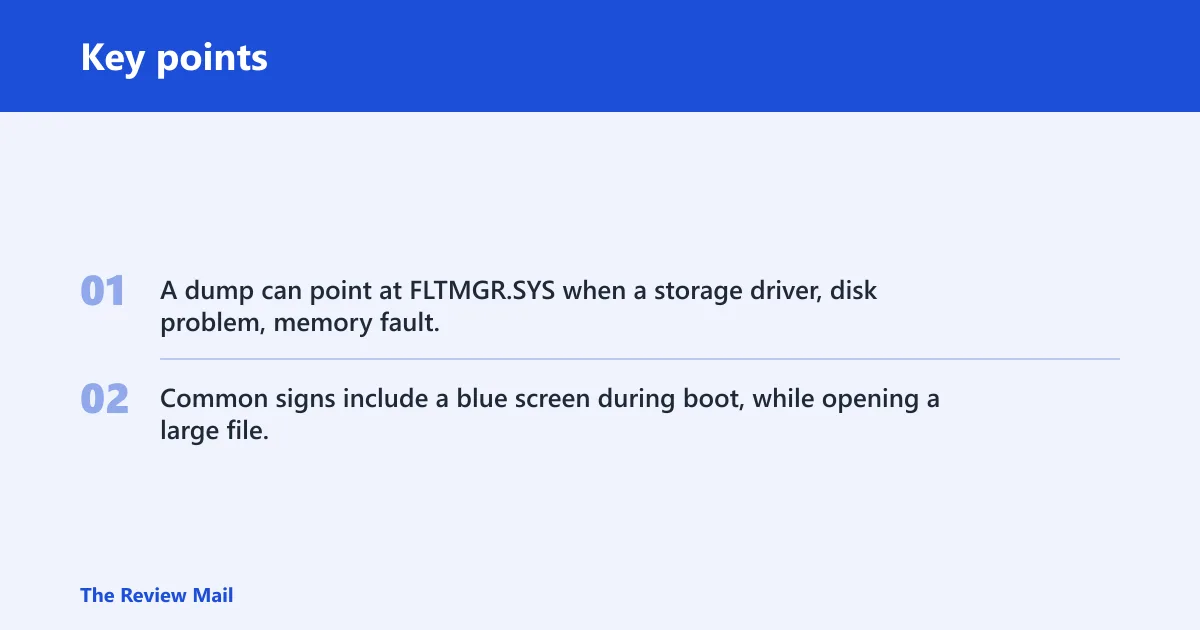
That distinction matters. A dump can point at FLTMGR.SYS when a storage driver, disk problem, memory fault, or another filter driver corrupted the path that led into it.
Common signs include a blue screen during boot, while opening a large file, after installing a backup or security utility, or with no visible trigger at all.
Likely causes, in order to check
Start with Windows file corruption or a damaged system image, then move to storage-path problems, RAM faults, and third-party filter drivers. That order fits the usual repair path because it separates software repair from hardware checks before you reinstall Windows or replace parts.
- Windows files or image corruption. Use SFC and DISM first when the crash began after updates, a failed shutdown, or a bad system repair.
- Storage-path errors. Check the file system, the SSD or HDD, and the storage controller if crashes happen during boot, file copy, login, or other heavy disk access.
- RAM faults. Test memory if the stop code changes, the machine crashes at idle, or a reinstall does not help.
- Third-party filter drivers. Security software, backup tools, encryption tools, and storage utilities can sit in the file path and trip the filter manager.
Troubleshooting matrix
This matrix helps you choose the next test instead of trying random fixes. Match the crash pattern to the most likely layer, then run one focused check.
| Crash pattern | Likely layer | Best next test | What the result means |
|---|---|---|---|
| Idle crashes | Background driver, storage, or memory | Boot to Safe Mode and leave the PC idle | If Safe Mode stays up, a third-party driver or app is more likely than core Windows files |
| App-triggered crashes | Storage path or filter driver | Uninstall the most recent storage, security, or backup utility | If the crash stops, that app or its driver was likely in the path |
| Boot-loop crashes | Storage, system files, or memory | Run CHKDSK from recovery or install media | Repeated file-system errors point toward the disk or controller path |
| Safe Mode crashes | Windows core files, storage, or hardware | Run SFC, then DISM, then a memory test | If Safe Mode also fails, the fault is less likely to be a normal app driver |
| Post-reinstall crashes | Hardware or low-level driver | Run memory diagnostics and check storage health | If a clean install does not change the symptom, the current Windows install is not the main problem |
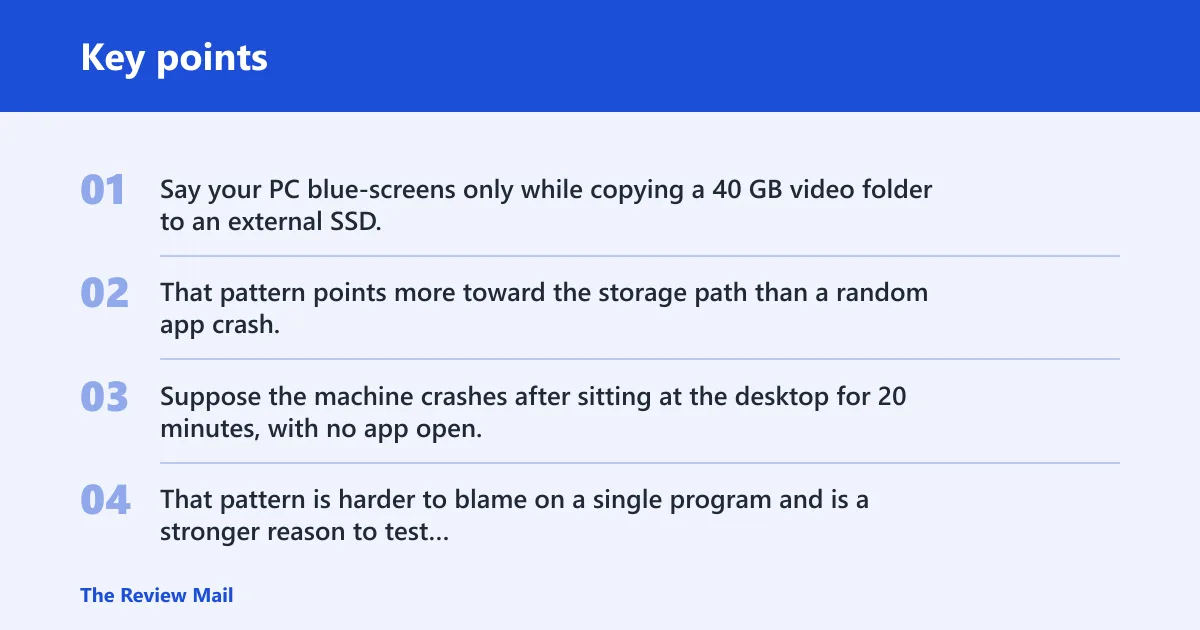
Say your PC blue-screens only while copying a 40 GB video folder to an external SSD. That pattern points more toward the storage path than a random app crash, so CHKDSK and drive-health checks make more sense than uninstalling unrelated software.
Suppose the machine crashes after sitting at the desktop for 20 minutes, with no app open. That pattern is harder to blame on a single program and is a stronger reason to test Safe Mode, RAM, and the storage path in that order.
How to fix Windows file and driver issues
Use this section when Windows still boots and you want to clear out common system corruption before deeper hardware checks. Start by restarting the PC and checking whether the crash repeats. If it does, move to the commands below. The exact commands matter.
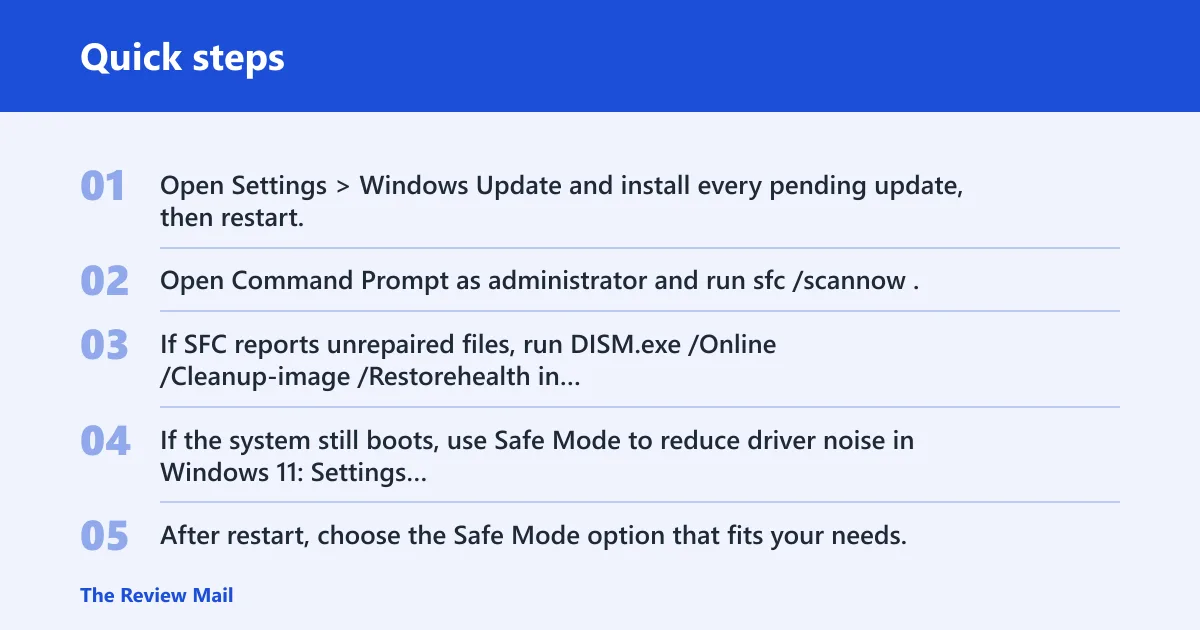
- Open Settings > Windows Update and install every pending update, then restart.
- Open Command Prompt as administrator and run
sfc /scannow. - If SFC reports unrepaired files, run DISM.exe /Online /Cleanup-image /Restorehealth in the same elevated window, then run
sfc /scannowagain. - If the system still boots, use Safe Mode to reduce driver noise in Windows 11: Settings > System > Recovery > Advanced startup > Restart now > Troubleshoot > Advanced options > Startup Settings.
- After restart, choose the Safe Mode option that fits your needs, then remove recent security, backup, or storage tools from Settings > Apps > Installed apps.
sfc /scannow
DISM.exe /Online /Cleanup-image /Restorehealth
Some crash reports in this family are linked with driver or system-service failures, and others point to kernel-level problems. The important part is that the stop code does not identify the root cause by itself, so the next step still needs to match the crash pattern.
How to check disk and storage errors
Run disk checks when the crash appears during boot, file copy, login, or anything that touches the drive heavily. Use the file-system and physical-disk scan together so you are not stopping at one half of the problem.
- Open Command Prompt as administrator.
- Run
chkdskC: /f /r. - If Windows asks to schedule the scan, type Y, press Enter, then restart.
- After the scan, check storage health with your drive vendor’s tool if available, and review SMART warnings.
- Update storage-firmware and storage-controller drivers from the PC or motherboard vendor when newer versions are posted for your model.
- If the hardware layout allows it, try another SATA cable, another port, or another M.2 slot.
chkdsk C: /f /r
A structured storage check is useful because it covers the file system, then the drive, then the controller path.
Can bad RAM or an SSD cause fltmgr.sys crashes?
Yes. Bad RAM or a failing SSD can both produce fltmgr.sys crashes, especially when the issue survives a reinstall or keeps changing shape. The useful clue is not the module name. It is whether the fault follows memory activity, file activity, or both.
- Run Windows Memory Diagnostic by opening mdsched.exe, then choose to restart and check for problems.
- If the quick test is clean but the crash continues, use a more thorough memory test tool from bootable media and let it complete multiple passes.
- If there are multiple memory sticks, test one stick at a time in the same slot.
- If the crash pattern changes when one stick is removed, that stick or its slot is a stronger suspect.
- If memory passes but the system still crashes, return to the SSD, cable, port, or controller path.
The same logic applies to stop codes that can appear in reports for this family. Those labels are clues, not final proof, so the next test still needs to match the crash pattern.
What if it still crashes after reinstall?
If a formatted reinstall does not change the crash, the problem is less likely to be the current Windows installation. That is the point where storage checks, memory checks, and low-level driver checks move up the list.
- Run System Restore if the crashes began right after an update, driver install, or utility install.
- Check whether the same stop code appears in the minidump after reinstall, not just the blue screen text.
- Repeat the memory test and the storage test before changing more software.
- If the machine still crashes in Safe Mode, focus on the storage, memory, or storage controller path rather than user apps.
- Use a clean reinstall only after file repairs, storage checks, and memory tests fail.
Prevention is limited here, but one practical step helps: keep storage and security utilities current, and avoid stacking multiple tools that filter file activity at the same time.
Frequently asked questions
What does fltmgr.sys BSOD mean?
It means Windows crashed while a file-system filter path was involved, but the file name alone does not prove FLTMGR.SYS caused the fault. The next step is to match the crash timing, stop code, and Safe Mode behavior to decide whether the problem looks more like Windows files, storage, RAM, or a third-party driver.
Is fltmgr.sys a virus or a Windows file?
FLTMGR.SYS is a Windows system driver, not a virus by default. Microsoft identifies it as the file system filter manager driver for Windows. If security software reports it as involved in a crash, that still does not mean the file itself is malicious; check the signature, minidump, and surrounding drivers first.
What stop code usually appears with fltmgr.sys?
Several stop codes can show up in reports that mention FLTMGR.SYS. The stop code is a clue, but it does not by itself identify whether the cause is a storage driver, memory fault, disk problem, or another filter driver.
How do I fix fltmgr.sys BSOD on Windows 11?
Start with Settings > Windows Update, then run sfc /scannow and DISM.exe /Online /Cleanup-image /Restorehealth. If Windows still boots, go to Settings > System > Recovery > Advanced startup and use Safe Mode to remove recent storage, security, or backup utilities.
How do I tell if fltmgr.sys is a driver problem or hardware failure?
If Safe Mode is stable and the crash tracks a recent app, security tool, or storage utility, a driver is more likely. If the crash happens at idle, in boot loops, or after a reinstall, move toward memory and storage checks. When the same fault survives all of that, hardware moves to the top of the list.