What Does Netsh Winsock Reset Do?
netsh winsock reset repairs Windows’ Winsock catalog, which controls how apps reach the network. Use it after VPN, proxy, or malware changes corrupt socket settings and apps can no longer open network sessions. If you pick the wrong fix, you can waste time, keep the outage alive, or break settings that still work. This guide shows what it resets, when to use it, when TCP/IP or DNS resets fit better, and what to do after restarting.
How the winsock catalog and LSP chain shape network access
netsh winsock reset restores the Windows Winsock catalog to its default state. That catalog is the Windows socket settings database programs use for network access, and bad software or malware can alter it. The reset can also rebuild third-party Layered Service Provider entries that sit in the networking path.
That matters because app-level network failures often begin above the router and below the browser. If the socket layer is damaged, the computer may still show Wi‑Fi as connected while websites, mail apps, or launchers fail to open any network session.
What the reset returns to default
The command removes custom Winsock entries and puts the catalog back into a clean state. In plain terms, it clears broken socket settings Windows uses to hand traffic between applications and the network stack.
That is why it can help after removing malware or after other software changes the networking path. It is not a repair for every internet failure, and it does not replace driver checks, router checks, or DNS fixes.
How Layered Service Provider entries fit
Third-party networking components can insert themselves into the Winsock path through a Layered Service Provider chain. Security tools, VPN clients, proxy tools, and similar software may add those layers. If one entry breaks, the whole path can fail.
netsh winsock reset can rebuild that chain. That is one reason the command is often suggested after malware cleanup or after removing network software that left behind bad hooks.
When should you use it?
Use netsh winsock reset when symptoms point to corrupted socket settings, not when the problem is clearly hardware, weak signal, or a dead router. It is a good fit when apps cannot connect at all, when websites will not open despite a stable Wi‑Fi connection, or when DNS search problems persist after software changes.
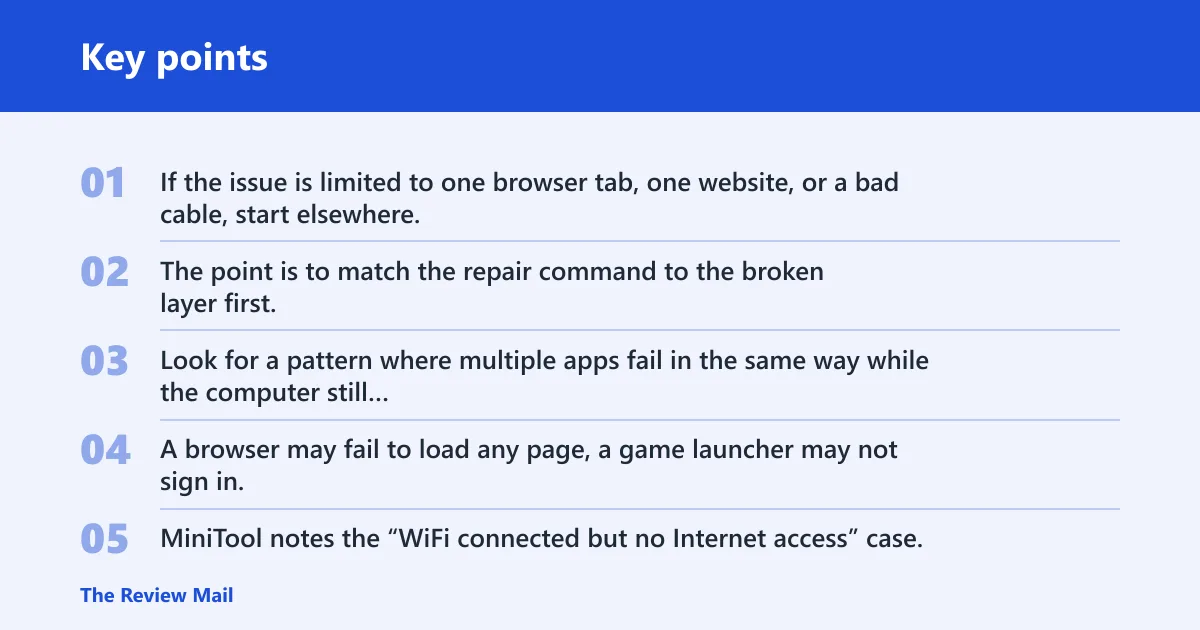
If the issue is limited to one browser tab, one website, or a bad cable, start elsewhere. The point is to match the repair command to the broken layer first.
Symptoms that point to Winsock corruption
Look for a pattern where multiple apps fail in the same way while the computer still shows network access. A browser may fail to load any page, a game launcher may not sign in, or email may stop syncing even though Wi‑Fi remains connected.
MiniTool notes the “WiFi connected but no Internet access” case, and that is a classic clue when the socket layer may be damaged. The command can also help when applications cannot connect to the internet.
When malware or bad software is the likely cause
Netsh winsock reset can be useful after removing malware. Bad software can alter the Winsock catalog or leave broken network filters behind. VPN clients, firewalls, web filters, and proxy tools can also leave changes that interrupt normal app traffic.
That does not mean malware is the only cause. A failed uninstall, a broken security suite integration, or a corrupted network add-on can produce the same symptoms.
When it is the wrong first fix
If the issue looks like IP assignment trouble, DHCP failure, or a DNS-only problem, another command may fit better. Resetting Winsock first can work, but it can also hide the real layer that needs attention.
Say your laptop gets an IP address, joins the office Wi‑Fi, and then says certain apps have no connection. That pattern points more toward Winsock or a third-party network layer than toward the router itself.
How to run the command
You must run the command in an elevated command prompt, which means Command Prompt as administrator. It also works from PowerShell or Windows Terminal when those shells are opened with administrator rights. The exact command is netsh winsock reset.
Windows should then display a success message that says the Winsock catalog was successfully reset. You must restart the computer to complete the reset.
Open an elevated shell
- Open Start.
- Search for Command Prompt, PowerShell, or Windows Terminal.
- Right-click the result and choose Run as administrator.
- Approve the administrator prompt if Windows asks for a password or confirmation.
Run the reset
- Type
netsh winsock reset. - Press Enter.
- Read the message Windows returns.
- Restart immediately after the command completes.
Restart to apply the change
The restart is not optional. The reset does not fully take effect until Windows reloads networking services, so use the normal Restart option or run shutdown /r /t 0 from an elevated shell to reboot right away.
Picture a desktop that still shows the same “no internet” warning after the command. That is expected until the restart finishes. If you skip the reboot, you have not completed the repair.
Winsock reset decision table
This table maps common symptoms to the right repair command first. Use it to avoid resetting the wrong layer before you know where the failure sits.
| Symptom | Likely broken layer | Best command | Admin required? | Restart needed? |
|---|---|---|---|---|
| Wi‑Fi shows connected, but no websites load | Winsock catalog or third-party network layer | netsh winsock reset | Yes | Yes |
| Apps cannot connect, but the network icon looks normal | Winsock catalog | netsh winsock reset | Yes | Yes |
| PC gets no valid IP address, or DHCP seems broken | TCP/IP stack or IP configuration | netsh int ip reset | Yes | Yes |
| One site fails to resolve, but others load | DNS resolver cache | ipconfig /flushdns | Yes | No, though a retry can help |
| Browsers fail after VPN or proxy removal | Winsock catalog or LSP chain | netsh winsock reset | Yes | Yes |
| Reset ran, but nothing changed after reboot | Driver, firewall, VPN, or managed policy | Check adapter drivers and security software next | Maybe | Depends on the fix |
What does netsh int ip reset do?
netsh int ip reset resets the TCP/IP stack, which is a different layer from Winsock. Use it when IP configuration, routing, or DHCP is broken, not when the symptom looks like app-to-network socket corruption. It also requires administrator privileges and a restart.
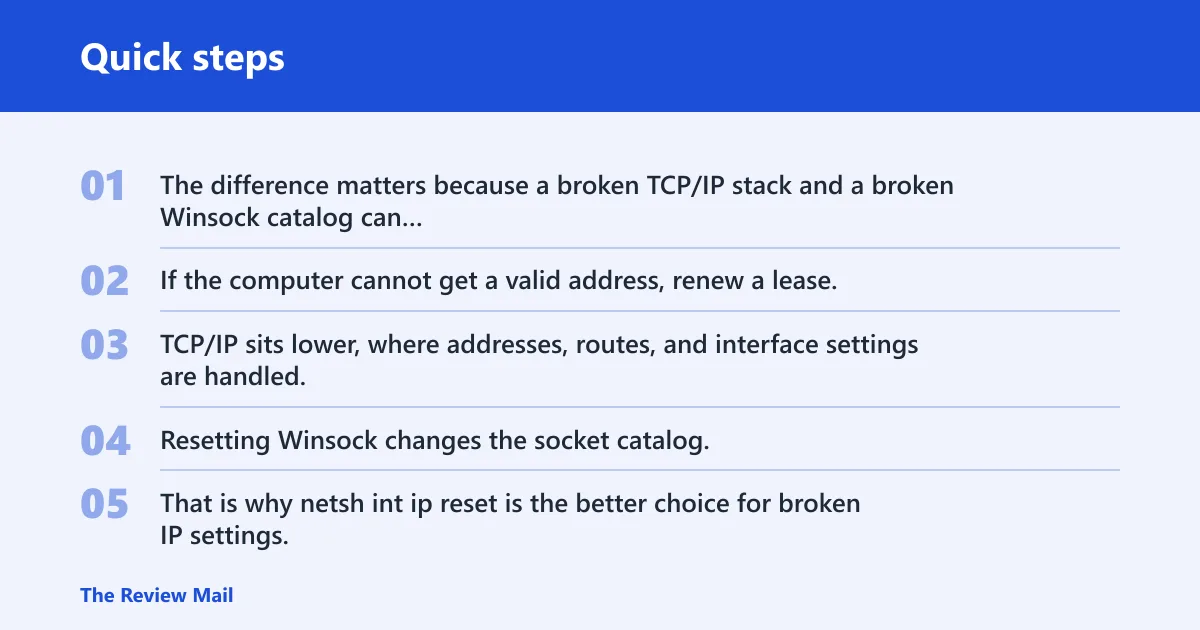
The difference matters because a broken TCP/IP stack and a broken Winsock catalog can produce similar “no internet” complaints. If the computer cannot get a valid address, renew a lease, or talk correctly on the network after a reset, TCP/IP is often the better target.
How it differs from Winsock reset
Winsock sits closer to applications. TCP/IP sits lower, where addresses, routes, and interface settings are handled. Resetting Winsock changes the socket catalog; resetting TCP/IP rebuilds networking configuration at the protocol layer.
That is why netsh int ip reset is the better choice for broken IP settings, while netsh winsock reset is the better choice for app connection failures that point to the socket layer.
When TCP/IP or DHCP problems fit this command
Use it when the adapter cannot get a valid address from DHCP, when the default gateway is missing, or when IP settings seem stuck after a network change. MiniTool also notes that it can help when resetting TCP/IP did not fix connectivity, which usually means the stack itself needs another pass.
If the machine still cannot reach the network after this reset, the next check is often the adapter driver or a policy-controlled network setting.
What does ipconfig /flushdns fix?
ipconfig /flushdns clears the DNS resolver cache. Use it when browsing fails because names are not resolving correctly, such as one site loading by IP address but not by name. It is a DNS fix, not a Winsock reset, and it usually does not require a reboot.
This command can also help after a Winsock reset because DNS cache problems and socket-layer problems can appear together. If the network path is repaired but the computer still holds stale name lookups, flushing DNS is the quicker follow-up.
When DNS cache problems block browsing
DNS failures usually look different from Winsock failures. The browser may reach some sites and fail on others, or a newly changed website may not open while older addresses still do. In that case, clear the resolver cache first or after the Winsock repair.
F4 also notes that netsh winsock reset can help with DNS search problems, but that does not mean DNS and Winsock are the same layer. It means socket corruption can break name lookups indirectly.
What if the reset does not work?
If the reset does not fix the problem, check for command errors, then move outward to VPN, firewall, security software, and network drivers. If Windows is managed by your employer or joined to a domain, policy may restore settings or block changes after reboot.
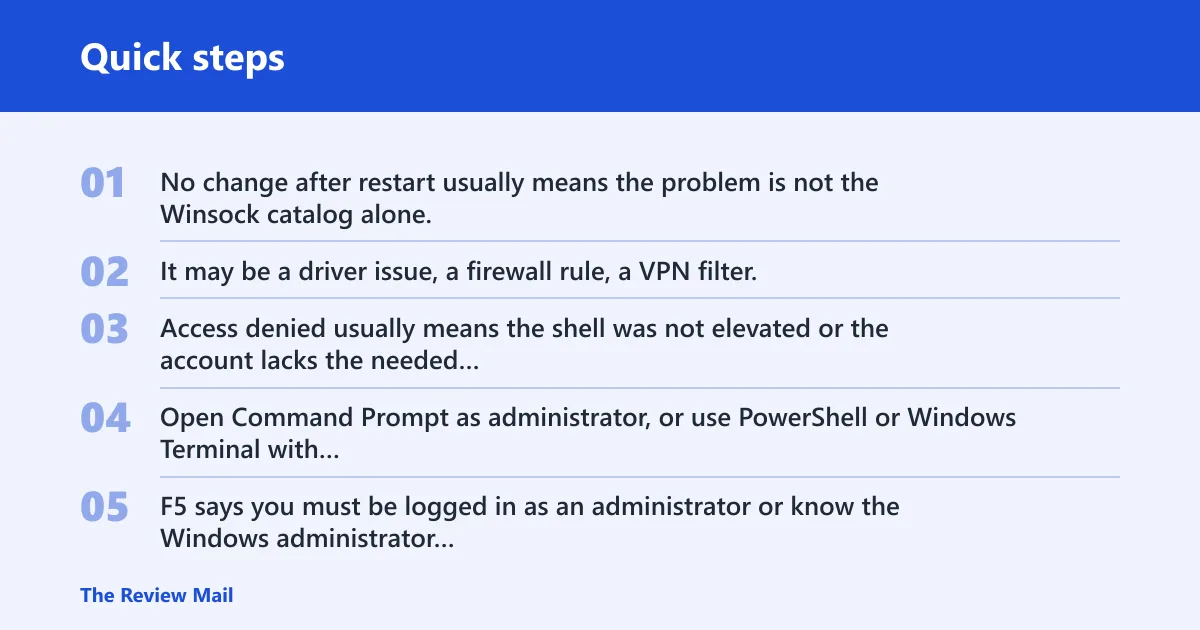
No change after restart usually means the problem is not the Winsock catalog alone. It may be a driver issue, a firewall rule, a VPN filter, or an account policy that keeps reapplying the bad setting.
Access denied or command not recognized
Access denied usually means the shell was not elevated or the account lacks the needed rights. Open Command Prompt as administrator, or use PowerShell or Windows Terminal with elevation. F5 says you must be logged in as an administrator or know the Windows administrator password.
Command not recognized usually means the command was typed incorrectly or the shell environment is not standard. Re-enter netsh winsock reset exactly, with spaces, and run it from an elevated Windows shell.
VPN, firewall, security software, and adapters
VPN clients, firewall suites, and endpoint security tools can reinsert filters or block traffic even after the Winsock catalog is repaired. If the reset appears to work but networking still fails, check whether those tools were recently installed, updated, or partially removed.
Also inspect the network adapter and its drivers. A reset cannot replace missing or broken drivers, and it cannot fix a disabled adapter or bad hardware. If the driver is missing or the adapter is unstable, fix that layer next.
Managed or domain-joined PCs
On managed PCs, the issue may be outside your control. Group policy, device management, or security baselines can change network behavior after a reboot. If the machine belongs to an organization, contact IT before making repeated changes.
A common first-timer mistake is to run all three commands back to back without checking the symptom first. That can make troubleshooting harder, especially on a locked-down laptop where policy restores the original problem.
Frequently asked questions
What does netsh winsock reset do in cmd?
It resets the Windows Winsock catalog from an elevated Command Prompt. That catalog stores the socket settings used by apps to reach the network, so the command is used when those settings are corrupted or misconfigured. Windows then requires a restart to finish the change.
Does netsh winsock reset need admin?
Yes. The command must run in an elevated command prompt, and that means administrator rights. You can use Command Prompt, PowerShell, or Windows Terminal, as long as the shell is opened with administrator privileges.
What does netsh winsock reset catalog do?
It resets the Winsock catalog, which Windows uses to store app-to-network interaction settings. In practical terms, that returns the socket layer to default and can rebuild broken third-party entries in the Layered Service Provider chain.
Why do I need to restart after netsh winsock reset?
Because Windows does not apply the Winsock change fully until it restarts networking services. The success message should say the catalog was successfully reset and that you must restart the computer to complete the reset. Without that reboot, the repair is unfinished.
What should I try if netsh winsock reset doesn’t work?
Check whether the shell was elevated, then try netsh int ip reset for IP or DHCP issues and ipconfig /flushdns for DNS cache problems. If the failure remains, inspect VPN, firewall, security software, and network adapter drivers, then ask IT for help on managed PCs.