
Commande Netsh Winsock Reset
Use netsh winsock reset when Windows socket settings look broken after VPN, DNS, proxy, or security-software changes; it is a targeted fix, not a general internet repair. Run it without a symptom match and you can lose time while the real fault stays in the adapter, DNS, or router. This guide shows exactly when to use the command, when to skip it, and what to try next.
How a winsock reset repairs broken socket connections
netsh winsock reset resets the Winsock catalog to its default settings. The Winsock catalog is the Windows networking database that stores connection settings used by apps, and malware or software changes can damage those settings. How-To Geek describes Winsock as the API between applications and the underlying communication protocols.
What the reset actually touches
The command rebuilds the socket-layer entries that apps use to reach the network, including problems tied to Layered Service Provider components. If an LSP is corrupted, connection requests can fail even when Wi-Fi looks connected and the router is fine.
This is why the command can help after a VPN client, endpoint security suite, or network filter driver leaves broken socket hooks behind. It restores the catalog to factory settings, not the whole network stack.
What it does not do
It does not repair every internet problem. It does not fix a bad ISP line, a dead router, a broken Wi-Fi adapter driver, or a DHCP lease problem by itself. It does not delete files or Wi-Fi passwords, though VPN or security software may need to be set up again afterward.
When should you use it?
Use netsh winsock reset when the failure pattern points to socket-layer corruption: VPN clients that will not connect, one app that cannot reach the network while others still work, or connection failures after security software, proxy changes, or malware cleanup. If the failure looks broader, start with the layer that matches the symptom.
Signs that point to Winsock
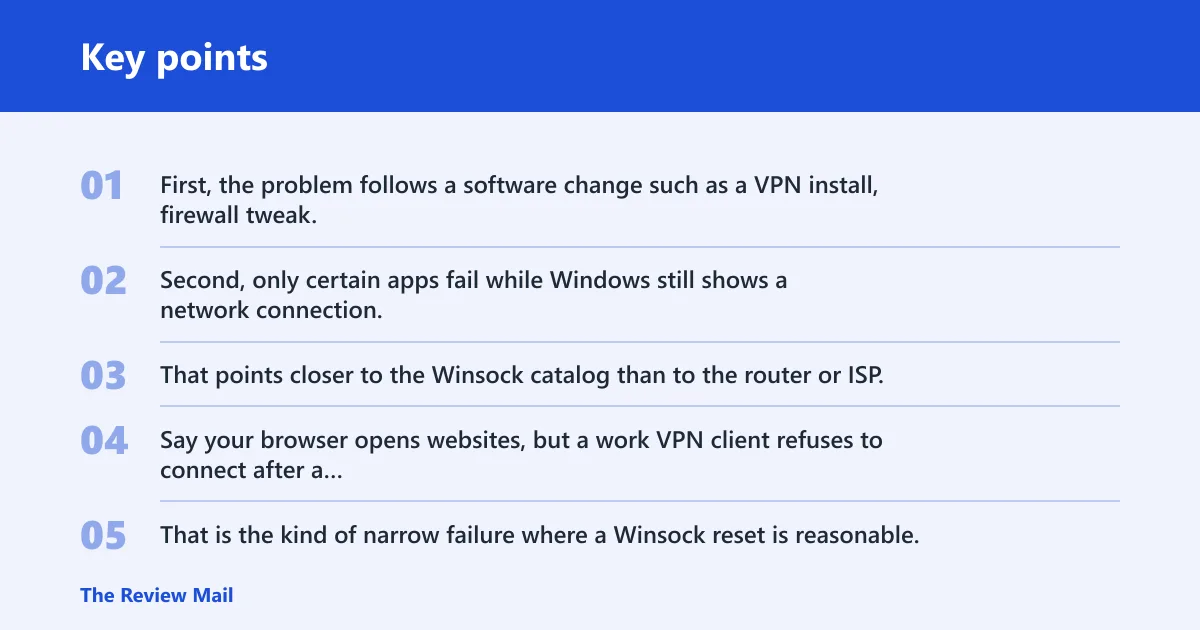
Two patterns matter most. First, the problem follows a software change such as a VPN install, firewall tweak, or network filter update. Second, only certain apps fail while Windows still shows a network connection. That points closer to the Winsock catalog than to the router or ISP.
Say your browser opens websites, but a work VPN client refuses to connect after a security suite update. That is the kind of narrow failure where a Winsock reset is reasonable. A different symptom, such as no devices in the house reaching the internet, points away from Winsock and toward the router or provider.
When to skip it first
Skip Winsock reset as the first move if the symptom is clearly DNS-only, DHCP-only, or whole-home. If every device is offline, the router, modem, or ISP belongs at the top of the list. If Windows says it is connected but cannot get an address, TCP/IP or DHCP repair is usually a better first step.
Should You Run netsh winsock reset?
Use this table to match the symptom to the most likely layer. Start with the layer that fits the failure first, because a broad reset can add time and side effects without fixing the real fault.
| Symptom | Likely layer | Best first command | Restart needed | When to escalate |
|---|---|---|---|---|
| VPN connects, then drops or refuses to authenticate after a client update | Winsock or LSP | netsh winsock reset | Yes | Reinstall the VPN client if the reset does not restore the tunnel |
| Websites fail to load, but the network icon still shows a connection | DNS resolver or proxy | ipconfig /flushdns | No | Check proxy settings and then try Winsock reset if app traffic still fails |
| One desktop app cannot sign in, while browsers work normally | Winsock or app filter | netsh winsock reset | Yes | Reinstall the app or its security plugin if the failure remains |
| Wi-Fi is connected, but Windows says there is no internet | Router, DNS, or DHCP | ipconfig /flushdns | No | Restart the router, then use netsh int ip reset if the lease or address still looks wrong |
| IP address changes fail, or the adapter keeps getting an APIPA-style fallback address | TCP/IP or DHCP | netsh int ip reset | Yes | Check the adapter driver and DHCP server if the address still does not renew |
| Traffic fails only when a firewall or security suite is enabled | Security filter | Review the firewall rule first | Maybe | Temporarily disable the filter only for testing, then reassess Winsock if the software left hooks behind |
| Problems started right after malware cleanup | Winsock or LSP | netsh winsock reset | Yes | Run an offline or full malware scan if the reset does not clean up the breakage |
| Every device in the home has the same outage | Router or ISP | Restart the modem and router | Maybe | Escalate to the ISP before changing Windows networking settings |
How to run the command in Windows 11
Open an elevated terminal, run the command, and restart. MiniTool says to open Command Prompt as administrator first, and How-To Geek notes that Windows 11 users can also use Windows Terminal. The same source gives the exact command string as netsh winsock reset, and says a restart is required after it completes.
- Open Command Prompt as administrator, or open Windows Terminal as administrator on Windows 11.
- Type
netsh winsock resetand press Enter. - Wait for the success message.
- Restart the PC. How-To Geek recommends shutdown /r /t 0 if you want an immediate restart.
Why administrator access matters
The command changes system networking settings, so a standard prompt may fail with an access error. Run it from an elevated Command Prompt, PowerShell, or Windows Terminal. The shell matters less than the admin privilege.
What to expect after the reset
The command usually returns a message telling you to restart. That restart is not optional. The reset takes effect only after Windows reloads the networking stack.
What to do after the reset
After the restart, check whether browser access, email, VPN, and the affected app now connect. If the fault came from Winsock corruption, the issue often clears at that point. If not, move to the next layer instead of repeating the same command.
Recheck software that hooks networking
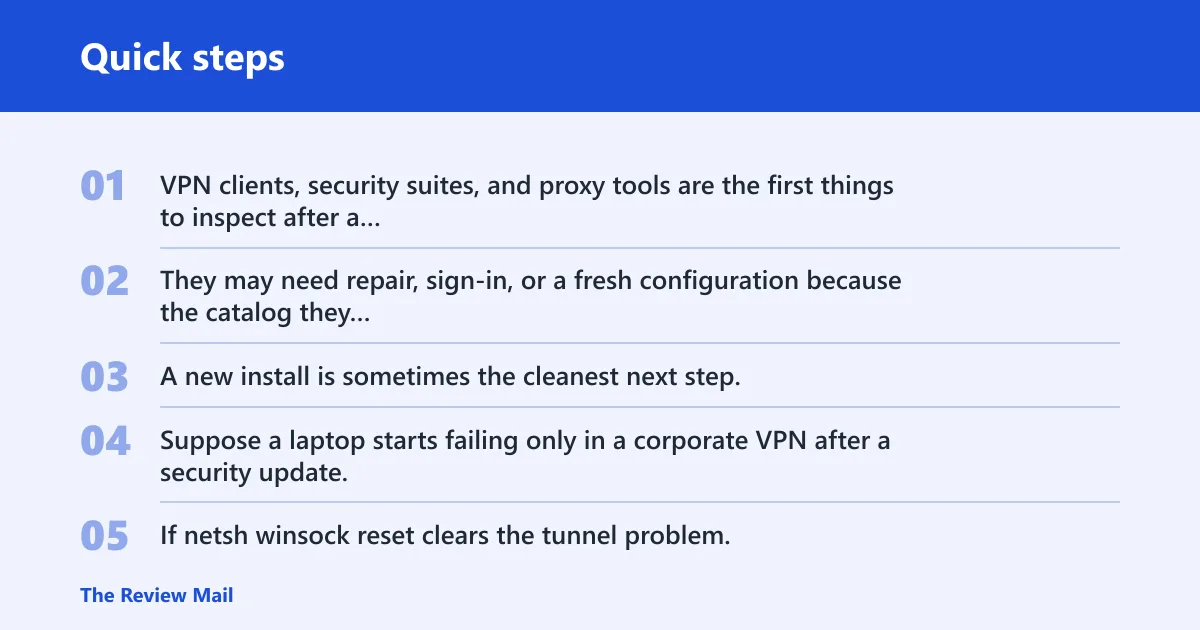
VPN clients, security suites, and proxy tools are the first things to inspect after a successful reset. They may need repair, sign-in, or a fresh configuration because the catalog they depended on was rebuilt. A new install is sometimes the cleanest next step.
Suppose a laptop starts failing only in a corporate VPN after a security update, but normal browsing still works. If netsh winsock reset clears the tunnel problem, the next task is to reopen the VPN client and confirm its sign-in, split-tunnel rules, and certificate prompts before blaming the router.
Check the rest of the path
If the reset does not help, look at proxy settings, DNS, firewall rules, adapter drivers, and the router. A browser can still fail because of a poisoned DNS cache, while the rest of Windows appears fine. Another app may fail because a firewall rule blocks its port, not because Winsock is broken.
Winsock reset vs IP reset
netsh winsock reset and netsh int ip reset fix different layers. Winsock resets the socket catalog used by apps and can clear corruption from LSP components. netsh int ip reset resets TCP/IP stack settings, so it is the better next command when IP configuration, DHCP, or address assignment problems persist. (Microsoft Learn)
When TCP/IP is the better target
If Windows gets no valid IP address, if the adapter keeps renewing badly, or if the connection fails at the address-assignment stage, Winsock may be the wrong layer. Use netsh int ip reset when the issue looks like routing or configuration at the protocol stack level rather than at the app socket layer.
When DNS cache is the better target
If the network works by address but not by name, ipconfig /flushdns is often the better first step. That command clears the DNS resolver cache, which helps when website loading or name resolution is the visible problem. It is lighter than a Winsock reset and more specific to the symptom.
Common errors and limits
The command has limits. If Windows says access is denied, the terminal was not opened as administrator. If it says the command is not recognized, the prompt or path is wrong. If the command runs successfully and the internet still fails, the fault is probably outside Winsock.
What the failure case usually means
When the reset succeeds but connectivity does not return, check the router, modem, driver, DNS, or firewall next. That result often means the catalog was not the source of the breakage. It can also mean the reset fixed one layer while another layer still blocks traffic.
The same source notes that the command can help after malware corruption affects connectivity. That is a clue, not a guarantee. If malware altered the networking path, the cleanup may require a reset plus a second pass through security software and network settings.
Common first-timer mistakes
A common first-timer mistake is running the command, closing the window, and skipping the restart. Another is using it for a whole-home outage where the real fault is the router or ISP. A third is assuming any app failure means Winsock, when DNS or proxy settings are often the better fit.
Frequently asked questions
What is netsh winsock reset?
netsh winsock reset is a Windows command that restores the Winsock catalog to default settings. It is used when socket-layer settings appear corrupted, often after VPN, security, proxy, or malware changes. It is a repair step, not a full internet reset.
What does netsh winsock reset do?
It rebuilds the Windows Winsock catalog, which controls how applications talk to network protocols. That can fix corruption caused by software changes or malware. The command requires administrator privileges and a restart, because the updated catalog does not fully apply until Windows reloads networking.
Does netsh winsock reset delete anything?
No, it does not delete files or Wi-Fi passwords. It changes networking catalog settings, not your personal data. Some VPN or security tools may need to be reconfigured afterward, because they depend on the socket path that the reset rebuilds.
Do I need to restart after netsh winsock reset?
Yes. The reset requires a restart to take effect, and the success message tells you to reboot. You can restart through the Start menu or use shutdown /r /t 0 for an immediate restart after the command finishes.
What if netsh winsock reset does not fix my internet?
Move to the next likely layer instead of repeating the command. Check DNS with ipconfig /flushdns, then TCP/IP or DHCP with netsh int ip reset. If the outage affects every device, restart the router and check the ISP. If only one app fails, look at its firewall, proxy, or driver settings.
What is the difference between netsh winsock reset and netsh int ip reset?
netsh winsock reset rebuilds the socket catalog used by applications, while netsh int ip reset resets TCP/IP stack settings. Use Winsock reset for app-level connection corruption and LSP problems. Use IP reset when the issue looks like DHCP, address assignment, or protocol configuration trouble.