How to Stop Internet Blocking by Firewall
Find the exact firewall rule blocking the app, service, browser, VPN, or connection, test that rule alone, then edit or remove only that rule instead of turning the firewall off. Changing the wrong setting can leave you offline or exposed. Windows Firewall is stopping traffic somewhere, so identify the rule before you change anything else. This guide uses the Windows 10 and Windows 11 paths in Windows Security and wf.msc, and it reflects what changes after a reset: custom exceptions and rules are cleared, then you re-add only the ones you still need.
What you’ll need
- Windows Security access on the affected PC.
- Administrator permission if Change settings is locked. Windows Firewall editing needs admin rights.
- The app name, and the full .exe path if the program is missing from the list.
- A note of whether the failure affects Private, Public, or both profiles.
- The exact symptom: one app, a browser, a VPN, a game launcher, or all internet traffic.
Firewall fix checklist
| Symptom | Likely cause | Safest next step | Rollback |
|---|---|---|---|
| Browser blocked | Blocked app or outbound rule | Check Allow an app through firewall first, then inspect outbound rules | Clear the new allow rule or restore the previous setting |
| One app blocked | Missing exception or wrong profile | Allow the app for the correct profile and test again | Untick the app entry or remove the custom rule |
| All internet blocked after a rule change | Bad custom rule | Disable only the suspect rule, then roll it back or reset defaults | Re-enable the rule or use Restore firewalls to default |
| VPN blocked | Outbound rule or another security product | Inspect outbound rules and any third-party firewall | Remove the VPN rule or restore the prior profile |
| Settings greyed out | No admin rights or managed policy | Sign in with an administrator account or ask the device owner to change it | Undo only after admin access is available |
How do you allow an app through firewall?
Open Windows Security, go to Firewall & network protection, then open Allow an app through firewall. Click Change settings before editing the list. Check the app for the profile it actually needs, then test the app again before changing anything else. Microsoft documents this flow in Allow an app through Windows Firewall and the Windows Security Firewall & network protection overview.
- Open Settings > Privacy & security > Windows Security > Open Windows Security.
- Select Firewall & network protection.
- Open Allow an app through firewall.
- Select Change settings.
- Check Private for trusted home or office networks, and check Public only if the app truly needs it there.
- Run the app again and confirm the connection works.
When should you use Private vs Public?
Use Private for trusted home or office networks. Use Public only when the app needs to work on untrusted networks. Keep the scope narrow for file sharing, printers, and local discovery apps, because broad Public access gives the app more reach than it usually needs. Microsoft’s firewall profile guidance explains why Public is the stricter profile and why the profile choice matters when rules are evaluated.
Keep the permission as narrow as possible
Picture a printer app that needs to find a device on the same home network. Private is the right choice. If a travel laptop joins hotel Wi-Fi, Public is the safer profile, and many sharing apps should stay blocked there. Allowing both boxes is convenient, but it is broader than necessary in many cases.
How do you fix a missing app or custom rule?
If the app is missing from the list, add the .exe manually. If simple permissions do not work, move to wf.msc and create an inbound or outbound rule. Outbound rules matter when internet access is being blocked by policy, especially for browsers, launchers, VPNs, and update tools. Microsoft’s Windows Defender Firewall with Advanced Security documentation covers wf.msc, and the Restore Windows Firewall to default settings page explains the reset behavior.
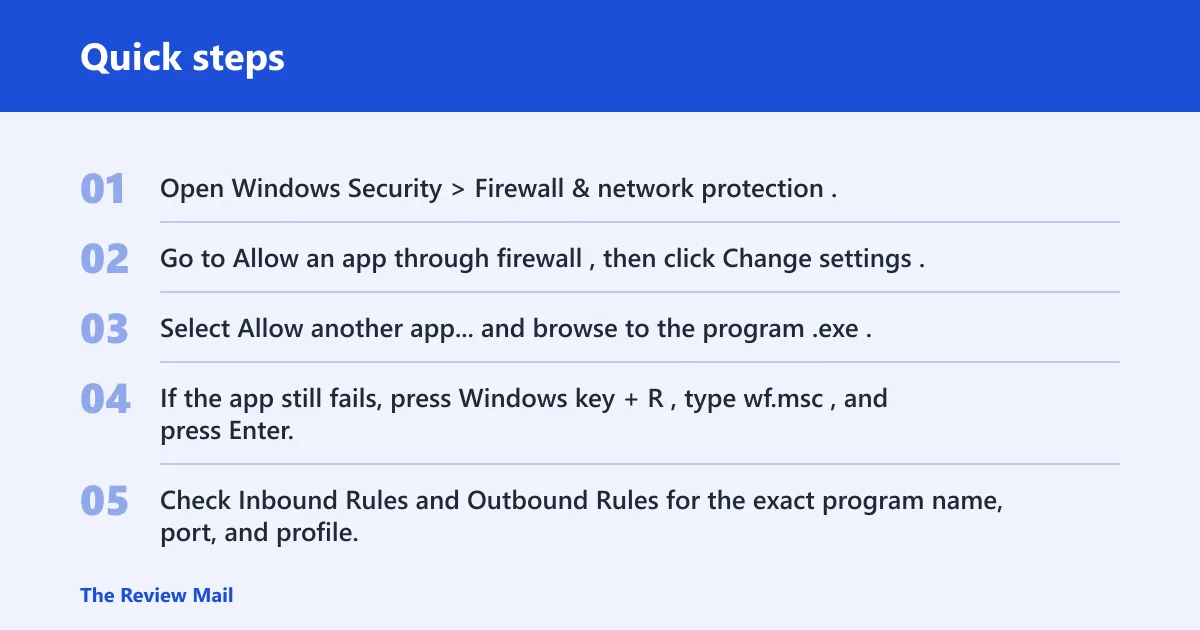
- Open Windows Security > Firewall & network protection.
- Go to Allow an app through firewall, then click Change settings.
- Select Allow another app… and browse to the program .exe.
- If the app still fails, press Windows key + R, type
wf.msc, and press Enter. - Check Inbound Rules and Outbound Rules for the exact program name, port, and profile.
- Change only one rule, then test again.
How to identify the exact blocking rule in wf.msc
When the cause is not obvious, use wf.msc to isolate the exact rule instead of guessing. The safest approach is to sort and filter the list, then test one candidate at a time. For a quick reference, look for the program path or service name, whether the rule applies to Private, Public, or both, whether it is Inbound or Outbound, whether the Action is Block or Allow, whether the rule is Enabled, and whether it was changed recently.
- Open
wf.msc. - Check both Inbound Rules and Outbound Rules.
- Sort by Group, Name, or the rule columns visible in your console, then scan for the app, service, browser, VPN, or updater name.
- Filter by Program or open each likely entry to confirm the exact .exe path.
- Check the Profile column for Private, Public, or both.
- Check Direction and Action so you know whether the rule denies inbound traffic or outbound traffic.
- Check whether the rule is Enabled; a disabled rule is not actively blocking traffic.
- Look for the most recently edited or newly created rule if the problem started right after a change.
- For a safe test, disable only one suspect rule, test the app or connection, then re-enable that same rule immediately if it was not the cause.
- If the app starts working when the rule is disabled, you found the blocker; now edit that single rule instead of changing the whole firewall.
Test one rule at a time
A common mistake is disabling multiple firewall rules at the same time, then not knowing which rule was actually preventing the website from loading. Disable only the suspect rule briefly, test the app, and then restore or edit that same rule. If the connection returns, the cause is found. If not, put the rule back and move to the next likely entry. This is also the cleanest way to avoid false positives from third-party suites or VPN clients that add their own filtering layer on top of Windows Firewall.
What if Change settings is greyed out in Windows Firewall?
Greyed-out settings often mean the current account lacks administrator rights or the device is managed by a policy. Change settings must be available before editing the allowed-app list. If it stays locked, sign in with an administrator account or ask the device owner to make the change. If you need the permission flow for a managed machine, see our Windows Security admin-permission guidance.
- Confirm you are signed in with an administrator account.
- Open Windows Security > Firewall & network protection again.
- Try Allow an app through firewall and Change settings once more.
- If the button remains locked, stop there and switch to the correct admin account.
How do you stop another antivirus firewall from blocking internet?
If Windows Firewall rules look correct, check any third-party antivirus or firewall. Another security product can still block the same app, even after the Windows exception is in place. Use that product’s own firewall or network protection screen, then add the same app or rule there. VPN clients are another common false positive: they may change routing, inject filter drivers, or add a local security profile that looks like a Windows firewall block even when it is not.
- Open the antivirus or firewall app installed on the PC.
- Find its Firewall, Network protection, or App control section.
- Look for the affected .exe or service name.
- Allow only the required profile or port, then test again.
- If the product has a temporary block entry, remove that entry instead of disabling the whole product.
How do you reset Windows Firewall to defaults?
Use this when multiple rules are broken, messy, or hard to untangle. Restore firewalls to default clears custom firewall changes and returns Windows Defender Firewall to its default state. It is a stronger step than editing one rule, so save it for cases where the rule set no longer makes sense. Microsoft’s reset page confirms that custom inbound and outbound rules are removed or returned to the default configuration, so expect to re-create any app exceptions you still need.
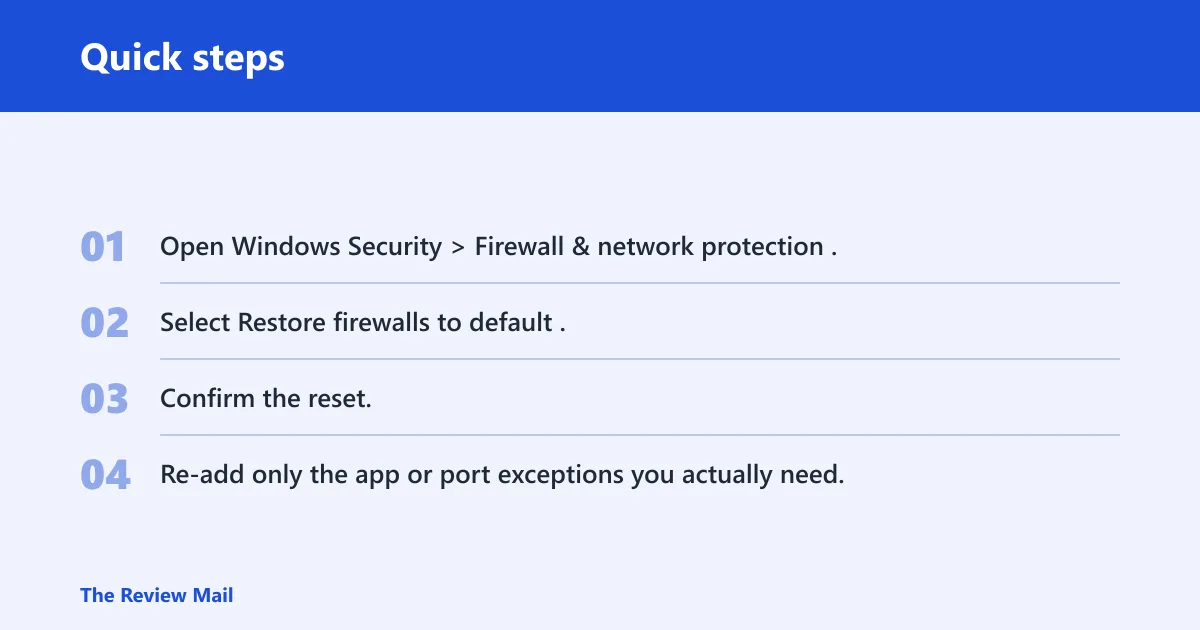
- Open Windows Security > Firewall & network protection.
- Select Restore firewalls to default.
- Confirm the reset.
- Re-add only the app or port exceptions you actually need.
When a reset is the right rollback
Use the reset after several rules were changed and the block no longer traces back to one clear entry. That is the cleanest rollback when the firewall policy is hard to separate. After the reset, add only the smallest exception that restores the app, then test again.
Common mistakes
- Allowing an app on Public when it only needs Private.
- Editing the wrong rule because the app has both inbound and outbound entries.
- Forgetting that another antivirus or firewall product can still block traffic.
- Resetting the firewall before noting which rule caused the issue.
- Changing more than one rule, then skipping the rollback test.
Frequently asked questions
Why is Windows Defender Firewall blocking my app?
Windows Defender Firewall can block an app when its exception is missing, the wrong profile is checked, or a custom outbound rule denies traffic. Third-party security software can also interfere. Start with Firewall & network protection, then inspect the app’s allowed entries and rule path.
What if Change settings is greyed out in Windows Firewall: that usually means the account?
That usually means the account is not an administrator account, or the device is managed by policy. Sign in with admin rights, then reopen Allow an app through firewall. If the button stays locked, the device owner or IT policy needs to make the change.
Should I allow apps on Public networks?
Only when the app truly needs it on untrusted networks. For most home or office tools, Private is enough. Public access should stay narrow, especially for shared folders, printers, and discovery apps, because that profile is meant for less trusted networks.