
Windows Bsod Bad System Config Info
Match the recovery path to the boot stage: Safe Mode if Windows loads, WinRE if recovery opens, and offline repair if the PC stalls at the logo screen. Using the wrong route wastes time. This guide shows which fix fits each stage.
Quick answer
BAD_SYSTEM_CONFIG_INFO is a blue screen that can trap a PC in restart loops. It often appears before the desktop loads, so the normal Settings screen may never open. The fastest first try is to enter WinRE and run Startup Repair, or open Command Prompt from there.
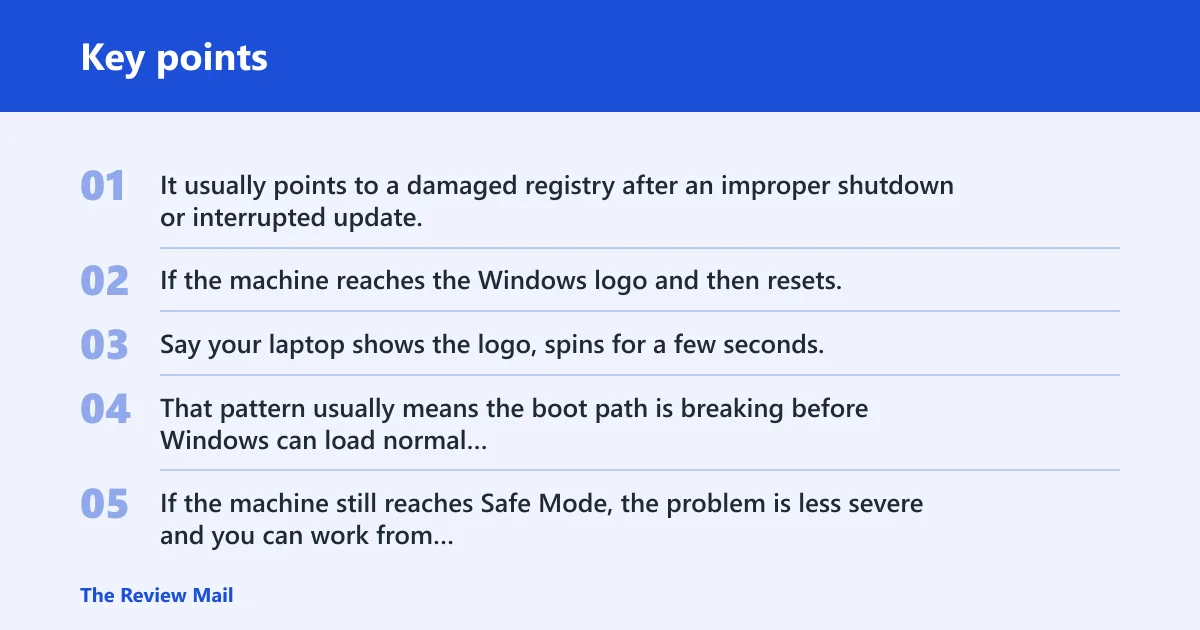
This stop code is listed as 0x00000074. It usually points to a damaged registry after an improper shutdown or interrupted update, or to damaged Boot Configuration Data needed for startup. If the machine reaches the Windows logo and then resets, treat it as a boot-state problem first, not a desktop problem.
Say your laptop shows the logo, spins for a few seconds, and then drops back into the blue screen without ever reaching the sign-in page. That pattern usually means the boot path is breaking before Windows can load normal services. If the machine still reaches Safe Mode, the problem is less severe and you can work from inside Windows.
Likely causes, ranked
Most often, this stop code comes from configuration damage rather than failing hardware. The first suspects are registry hives and boot data. Disk trouble and memory faults move higher on the list when repair commands keep failing or the drive reports errors.
Corrupted registry hives or bad edits
The registry hive set named SYSTEM, SOFTWARE, SAM, SECURITY, and DEFAULT can be damaged after an interrupted update, a bad shutdown, or a failed edit. Newer Windows builds can also leave RegBack files at 0 bytes on Windows 10 1803+, so a backup folder may exist without usable content.
- Open WinRE with Troubleshoot > Advanced options > Command Prompt.
- Find the Windows volume letter before any offline command. In Command Prompt, run diskpart, then list vol, and note the volume that contains the Windows folder.
- Back up the live hives first, then copy the backups into a safe folder:
COPY C:\Windows\System32\Config\SYSTEM   C:\Windows\System32\Config\SYSTEM.bak
COPY C:\Windows\System32\Config\SOFTWARE  C:\Windows\System32\Config\SOFTWARE.bak
COPY C:\Windows\System32\Config\SAM       C:\Windows\System32\Config\SAM.bak
COPY C:\Windows\System32\Config\SECURITY   C:\Windows\System32\Config\SECURITY.bak
COPY C:\Windows\System32\Config\DEFAULT   C:\Windows\System32\Config\DEFAULT.bak
- If RegBack has real files, back up the live hives first, then copy the backups into the active registry path:
COPY C:\Windows\System32\Config\RegBack\SYSTEM   C:\Windows\System32\Config\
COPY C:\Windows\System32\Config\RegBack\SOFTWARE C:\Windows\System32\Config\
COPY C:\Windows\System32\Config\RegBack\SAM      C:\Windows\System32\Config\
COPY C:\Windows\System32\Config\RegBack\SECURITY  C:\Windows\System32\Config\
COPY C:\Windows\System32\Config\RegBack\DEFAULT   C:\Windows\System32\Config\
- If the RegBack files are 0 bytes, skip this step and move to BCD repair or System Restore.
Damaged BCD or boot files
Damaged Boot Configuration Data can stop startup before Windows can reach the sign-in screen. This is one of the most common boot-side causes, and it is the right place to start when the PC loops at the logo screen or says there is a BCD error. Windows 11 and Windows 10 can both encounter this path.
- From WinRE, open Command Prompt.
- Run boot repair in this order:
bootrec /rebuildbcd
bootrec /fixboot
- If bootrec /fixboot returns Access is denied on UEFI, use the EFI fallback:
bcdboot C:\Windows /s S: /f UEFI
- Replace C: and S: with the correct Windows and EFI volumes from diskpart if your layout differs.
Disk errors, bad sectors, or failing RAM
Faulty storage can break registry data and boot files, and the error is also linked to a failing disk with bad sectors affecting registry data. Hardware is more likely when the drive makes unusual sounds, Windows reports disk warnings, or repair commands fail repeatedly in different ways. If software repair keeps bouncing, check storage before reinstalling.
- From WinRE Command Prompt, run:
chkdsk C: /r
- Use the correct Windows volume letter from diskpart if Windows is not on C: in recovery.
- If Windows still fails after disk repair, run Windows Memory Diagnostic from another boot path, or use memtest86 if you need a longer memory check.
Which fix to use first?
| Symptom | Likely cause | Safest first command | Escalation step |
|---|---|---|---|
| Loop at the logo screen | BCD damage or registry corruption | bootrec /rebuildbcd | bootrec /fixboot, then bcdboot C:\Windows /s S: /f UEFI if UEFI denies access |
| WinRE only; normal boot never starts | Boot files or registry hives are damaged | Startup Repair from Troubleshoot > Advanced options | Open Command Prompt and try BCD repair or System Restore |
| Safe Mode works | Third-party driver or update problem | Device Manager rollback or uninstall of the newest driver | Use System Restore if the bad update is not obvious |
| RegBack folder exists but files are 0 bytes | Newer Windows backup limitation | System Restore | Offline SFC, then DISM, then boot repair |
| BCD error appears during startup | Boot Configuration Data is damaged | bootrec /rebuildbcd | bootrec /fixboot or bcdboot on UEFI |
| Disk warning signs or odd noises | Bad sectors or drive failure | chkdsk C: /r | Back up data and test the drive with vendor tools |
Can you repair the registry and BCD?
Yes, if you can reach WinRE. Start from Troubleshoot > Advanced options > Command Prompt, confirm the correct Windows volume first, and only then touch offline files. Use RegBack only when the backup files contain real data, because zero-byte folders on Windows 10 1803+ will not restore anything useful.
- Open WinRE. If the PC will not boot far enough, use a Windows USB and choose Repair your computer instead of installing.
- In Command Prompt, find the Windows partition letter with diskpart and list vol.
- If RegBack contains usable files, copy them into
C:\Windows\System32\Config\using the exact hive names shown earlier. - If startup still fails, repair BCD:
bootrec /rebuildbcd
bootrec /fixboot
- If fixboot fails on UEFI, use:
bcdboot C:\Windows /s S: /f UEFI
Should you run SFC, DISM, or CHKDSK first?
Choose by symptom. Use offline SFC first when Windows files look damaged but the disk seems healthy. Use DISM when SFC cannot repair everything or when the component store needs a cleaner source. Use CHKDSK /r first when storage warnings, bad sectors, or file-system errors point to the drive.
- From WinRE Command Prompt, confirm the Windows volume letter.
- Run offline SFC against the correct Windows folder:
sfc /scannow /offbootdir=C:\ /offwindir=C:\Windows
- If SFC reports unrepaired files, run DISM RestoreHealth next:
dism /Image:C:\ /Cleanup-Image /RestoreHealth
- If disk warnings, startup file errors, or repeated repair failures point to storage trouble, run:
chkdsk C: /r
Suppose WinRE maps your Windows install to D: instead of C:. In that case, using the wrong drive letter makes SFC and DISM scan the recovery environment instead of the installed system, and the repair appears to fail even when the command syntax is valid.
DISM and source media
DISM can repair the offline image when SFC is not enough. The exact install source varies: some media uses install.wim, some uses install.esd, and the image index can differ by edition. Use the source that matches your installation media, or mount a Windows ISO and point DISM at that source if the repair store needs it.
What if Windows reaches Safe Mode or system restore?
If Safe Mode loads, the problem is often tied to a recent driver, service, or update rather than a broken disk. Safe Mode loads only essential keys and default driver settings, so it is a good way to remove the newest change. System Restore is the next option when a restore point exists; it preserves personal files but rolls back drivers, programs, and updates.
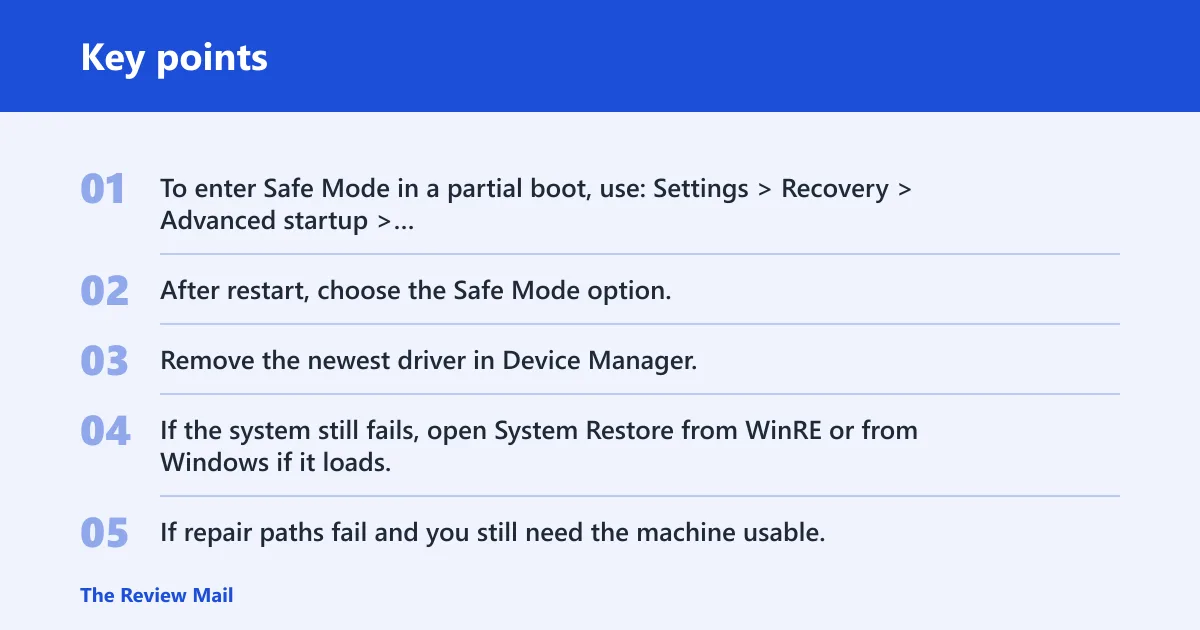
- To enter Safe Mode in a partial boot, use:
Settings > Recovery > Advanced startup > Restart now > Troubleshoot > Advanced options > Startup Settings
- After restart, choose the Safe Mode option.
- Remove the newest driver in Device Manager, or use Roll Back Driver if that button is available.
- If the system still fails, open System Restore from WinRE or from Windows if it loads, then pick a restore point from before the failure.
- If repair paths fail and you still need the machine usable, use Reset this PC with Keep my files as the last repair step before reinstalling.
A common first-timer mistake is to jump straight to Reset this PC when Safe Mode still works. That can erase the easiest recovery path. Start with the newest driver or update, then move to System Restore, and keep Reset this PC for the end of the ladder.
Still not working?
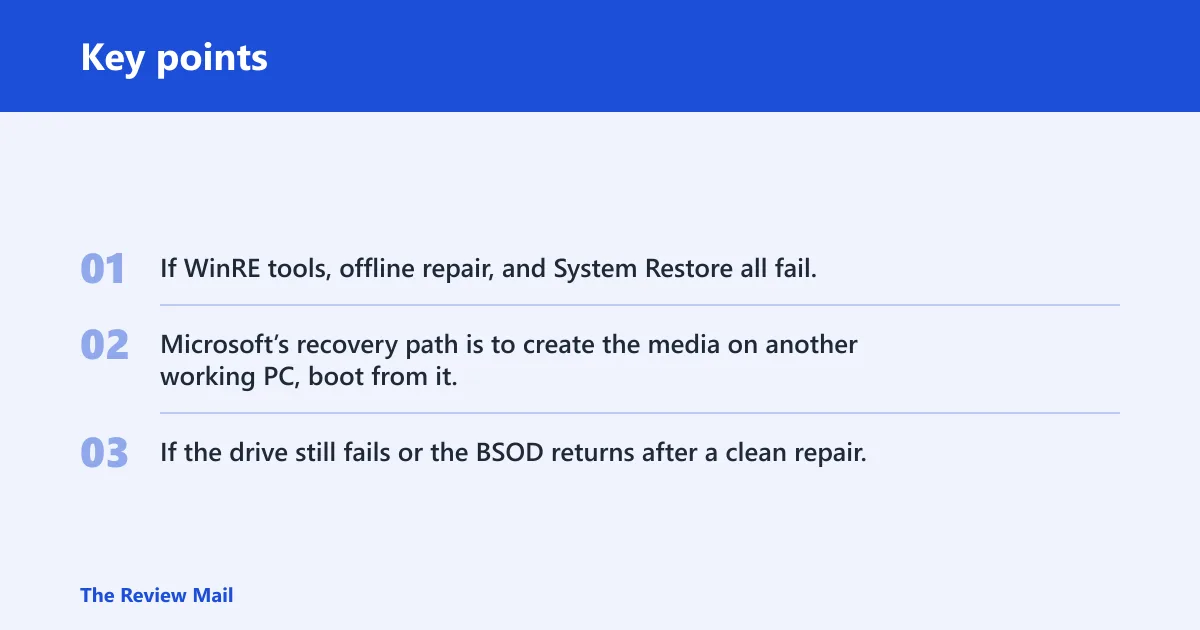
If WinRE tools, offline repair, and System Restore all fail, the next step is a bootable Windows USB. Microsoft’s recovery path is to create the media on another working PC, boot from it, choose Repair your computer, and then try each available recovery option from that environment. If the drive still fails or the BSOD returns after a clean repair, suspect hardware and back up data before replacing the disk or testing memory.
Frequently asked questions
How do I fix BSOD bad system config info on Windows 10?
Start with WinRE: Troubleshoot > Advanced options > Startup Repair, then Command Prompt if that fails. If Safe Mode opens, remove the newest driver or update first. If the PC never reaches Windows, use offline SFC, BCD repair, and then CHKDSK /r when storage problems are suspected.
Why does my PC keep restarting with bad system config info?
Restart loops usually mean startup data is breaking before Windows can finish loading. The most common causes are damaged registry hives, damaged BCD, or file-system trouble on the system drive. If the loop starts after an update or power loss, treat configuration damage as the first suspect.
Can bad system config info be fixed without reinstalling Windows?
Often yes. Many cases are recoverable with Startup Repair, System Restore, offline SFC, DISM RestoreHealth, BCD repair, or a RegBack restore if usable backups exist. Reset This PC with Keep my files is the last repair step before a full reinstall.
How do I repair BCD for bad system config info?
Open WinRE Command Prompt and run bootrec /rebuildbcd, then bootrec /fixboot. If fixboot returns Access is denied on UEFI, use bcdboot C:\Windows /s S: /f UEFI after confirming the correct Windows and EFI drive letters with diskpart.
Can a bad registry cause bad system config info?
Yes. Damaged registry hives are a common cause, especially after an improper shutdown or an interrupted update. The hive set to check is SYSTEM, SOFTWARE, SAM, SECURITY, and DEFAULT. If RegBack files are all 0 bytes on Windows 10 1803+, skip that restore path and use System Restore or offline repair instead.