How to Fix Wifi Limited Connection
Fix Wi‑Fi limited connection on Windows by matching the symptom: if one device works, restart the router and modem by pulling power from both for at least 30 seconds; if every device fails, check the ISP; if Windows alone shows “No internet,” reset the adapter, IP stack, or DNS. Picking the wrong fix burns time and can leave you with a live signal and no working connection. This guide gives a fast symptom-to-cause decision tree for Windows 10 and 11 so you can choose the most likely repair in under five minutes. (Microsoft Support)
What Wi‑Fi limited connection means
Limited Wi‑Fi connection means your PC joined the router, but it did not get usable internet access. In Windows, that often appears as an exclamation point on the Wi‑Fi icon or a “No internet” status. It is different from slow Wi‑Fi. Slow Wi‑Fi still reaches the internet; limited connection usually points to DHCP, adapter, DNS, or router-side failure.
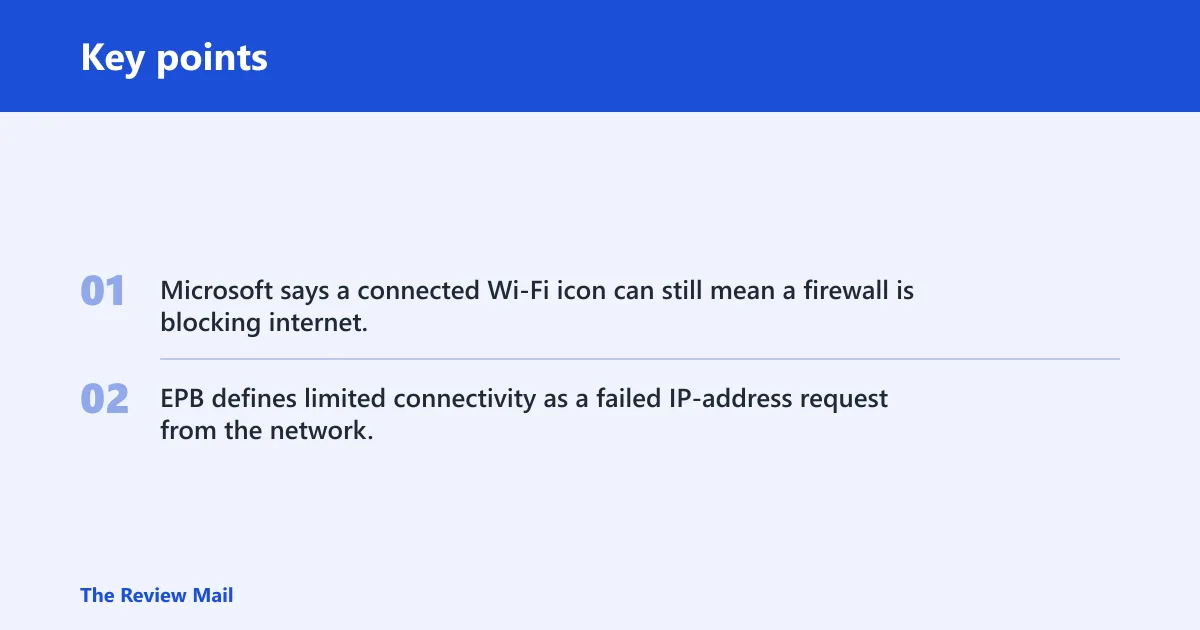
Microsoft says a connected Wi‑Fi icon can still mean a firewall is blocking internet, so the icon alone is not proof of a healthy link. EPB defines limited connectivity as a failed IP-address request from the network. That is why the fix order matters.
What you’ll need
- Admin access on the Windows PC
- Access to the router and modem power plugs
- A second device, such as a phone or tablet, for comparison
- Optional: an Ethernet cable for a direct router test
- About five minutes without a long download or call in progress
Limited connection triage table
| Symptom | Likely cause | First fix | Escalation step |
|---|---|---|---|
| One device only shows limited connection | Wi‑Fi adapter, DHCP lease, or saved profile on that PC | Run the Windows Network troubleshooter | Disable and re-enable the adapter, then renew the IP |
| All devices affected | Router, modem, or ISP handshake failure | Unplug modem and router for at least 30 seconds | Test the modem with Ethernet or contact the ISP |
| Wi‑Fi connected but no internet | DNS, firewall, or IP assignment problem | Flush DNS and renew the address | Reset TCP/IP and restart the PC |
| Limited connection after sleep | Adapter power management turned it off or dropped the lease | Toggle Wi‑Fi off and on, then renew the IP | Check Device Manager power settings |
| Limited connection after password change | Saved profile no longer matches the current credentials | Forget the network and reconnect with the new password | Remove the saved profile and rejoin with the new password |
| Limited connection with IP address issues | DHCP did not assign an address | Check for 169.254.x.x and release/renew the lease | Restart router and modem, then test another device |
How do you tell if it is the router or your PC?
Start with another device on the same network. If your phone, tablet, or second laptop works, the router and internet line are probably fine and the fault sits on the Windows PC. If every device fails, the router, modem, or ISP link is the likely problem. Netguide recommends this split before you change settings on one machine.
Check for a bad IP address
- Open Settings > Network & internet > Wi‑Fi > Hardware properties or Settings > Network & internet > Status and note the IPv4 address.
- Look for 169.254.x.x; that APIPA range usually means Windows did not get a lease from DHCP.
- Open Command Prompt and run
ipconfig /allif the Settings view is unclear.
Suppose a laptop shows Wi‑Fi as connected, but the IPv4 address is 169.254.18.72. That points to a failed lease request, not a weak signal. The fastest fix is to renew the address; if that fails, the router may not be handing out leases.
How do I fix wifi limited connection on Windows?
Use this ladder in order. Microsoft recommends the Network troubleshooter first on Windows 11, and the same tool is built into Windows 10. If that does not clear it, move through the adapter, IP, and DNS steps before you touch router settings. Stop when the connection returns.

- Turn off Airplane mode and confirm Wi‑Fi is on in Settings > Network & internet. The status should read Connected under the network name.
- Run Settings > System > Troubleshoot > Other troubleshooters > Internet Connections > Run on Windows 11, or Settings > Update & Security > Troubleshoot > Additional troubleshooters on Windows 10.
- Forget the network in Settings > Network & internet > Wi‑Fi > Manage known networks, then reconnect and type the password again.
- Open Device Manager > Network adapters, disable the Wi‑Fi adapter, then enable it again.
- Open Command Prompt as administrator and run the IP repair commands below.
- Restart the PC after the commands finish, then test a web page.
ipconfig /release
ipconfig /flushdns
ipconfig /renew
netsh winsock reset
netsh int ip reset
The first three commands clear the current lease, clear cached name lookups, and ask DHCP for a fresh address. The last two rebuild the Winsock and TCP/IP stack. A successful run often ends with a message indicating the operation completed and a restart is required.
Does resetting TCP/IP help?
Yes, when Windows has a bad lease, a broken stack, or stale network state. Resetting TCP/IP is one of the better next steps if Wi‑Fi connects but internet access never appears. It is less helpful if the modem is offline, if the ISP is out, or if the router is not handing out addresses at all.
What each command changes
ipconfig /releasedrops the current DHCP address.ipconfig /renewasks for a new address from the router.ipconfig /flushdnsclears stale DNS cache entries.netsh winsock resetresets socket catalog settings.netsh int ip resetrebuilds TCP/IP configuration.
When to stop and escalate
If the PC still gets 169.254.x.x after a renew, the router may not be offering DHCP correctly. If other devices also fail, unplug the modem and router power cables for at least 30 seconds, wait for the status lights to stabilize, and test again. Microsoft gives that 30-second power cycle as the basic router restart step.
Why does Wi‑Fi say limited connection after sleep or a password change?
Sleep can let Windows or the wireless adapter drop the lease. A password change can leave the saved profile out of sync until you reconnect. Both cases can look like a working signal with no internet. The fix is usually quick: wake the PC, turn Wi‑Fi off and on, then forget and rejoin the network if the password changed.
Check adapter power settings
- Open Device Manager > Network adapters.
- Right-click the Wi‑Fi adapter, choose Properties, then open Power Management.
- Uncheck Allow the computer to turn off this device to save power.
- Save the change, then reconnect to Wi‑Fi.
A common first-timer mistake is changing the router password on a phone and assuming every saved device updates itself. It does not. Rejoin the Wi‑Fi network on the Windows PC after the change, or the connection can stay limited until the saved credentials are refreshed.
Check bands and channels
If the connection stays limited only in one part of the house, switch bands in the router settings. Hathway notes that 2.4GHz has 11 channels, with 3 non-overlapping channels, while the 5GHz band has 23 non-overlapping Wi‑Fi channels. Moving from 2.4GHz to 5GHz, or the other way around, can help if channel congestion or band steering is part of the issue.
Common mistakes
Do not start by changing DNS if Windows never got an IP address. That treats a symptom, not the cause. Do not bury DNS settings inside a random Wi‑Fi menu; on typical Windows installs, custom DNS belongs on the adapter’s IP settings, not in the place where you join the network.
Do not assume the router is fine because the Wi‑Fi icon has bars. A connected icon can still sit behind a firewall or a bad lease. Do not treat enterprise captive portals like home Wi‑Fi, either. School and work networks can require sign-in pages, 802.1X authentication, or managed DNS, which need their own support path.
Prevention: After a stable fix, keep the Wi‑Fi adapter power-saving setting off on laptops that often sleep and wake. That reduces repeat drops after standby.
Frequently asked questions
Why is my WiFi showing limited connection?
It usually means the PC joined the access point but did not get a valid IP address or internet route. A bad DHCP lease, adapter problem, DNS failure, or router issue can cause it. If the address starts with 169.254, Windows likely failed to get a lease from the network.
What does limited WiFi connection mean?
It means Wi‑Fi is connected to the router, but the connection is not usable for internet traffic. In Windows, you may see an exclamation point or a no-internet label. The useful test is not the icon; it is whether another device on the same network can reach the internet.
How do I reset TCP/IP to fix limited WiFi?
Open Command Prompt as administrator and run netsh winsock reset and netsh int ip reset, then restart the PC. If the problem is a bad lease, add ipconfig /release, ipconfig /flushdns, and ipconfig /renew before the reboot. That sequence clears the stack and asks for a fresh address.
Should I forget the Wi‑Fi network and reconnect?
Yes, if the password changed, the profile is stale, or the connection works on other devices but not this PC. Microsoft places the option in Settings > Network & internet > Wi‑Fi. Use it before more invasive repair steps, because it can clear bad saved credentials without touching the router.
Does airplane mode affect limited WiFi on Windows 11?
Yes. If Airplane mode is on, Wi‑Fi can stay disabled even though the network name still appears. Turn Airplane mode off in Settings > Network & internet, confirm Wi‑Fi is enabled, and check that the status below the network name says Connected. If not, the adapter may still need a reset.