Firewall Blocking Internet Connection
If a firewall blocks internet access, first test one browser and one other app: if only one app fails, allow it in the firewall; if every app fails, reset the firewall or check policy rules. Leaving the wrong fix in place can keep you offline or expose the wrong app to traffic. This guide shows how to separate whole-network failure from app-specific blocking on Windows and decide whether to change a local rule, allow an app, or look for a managed-policy block.
Firewall blocks and Windows guide
A firewall filters incoming and outgoing traffic, so it can stop valid connections when a rule is too strict. Windows Defender Firewall is built into Microsoft Windows, and Windows Security can turn it on or off in Windows 11 and Windows 10. It can filter inbound and outbound traffic, which matters when a browser opens but cannot reach a site.
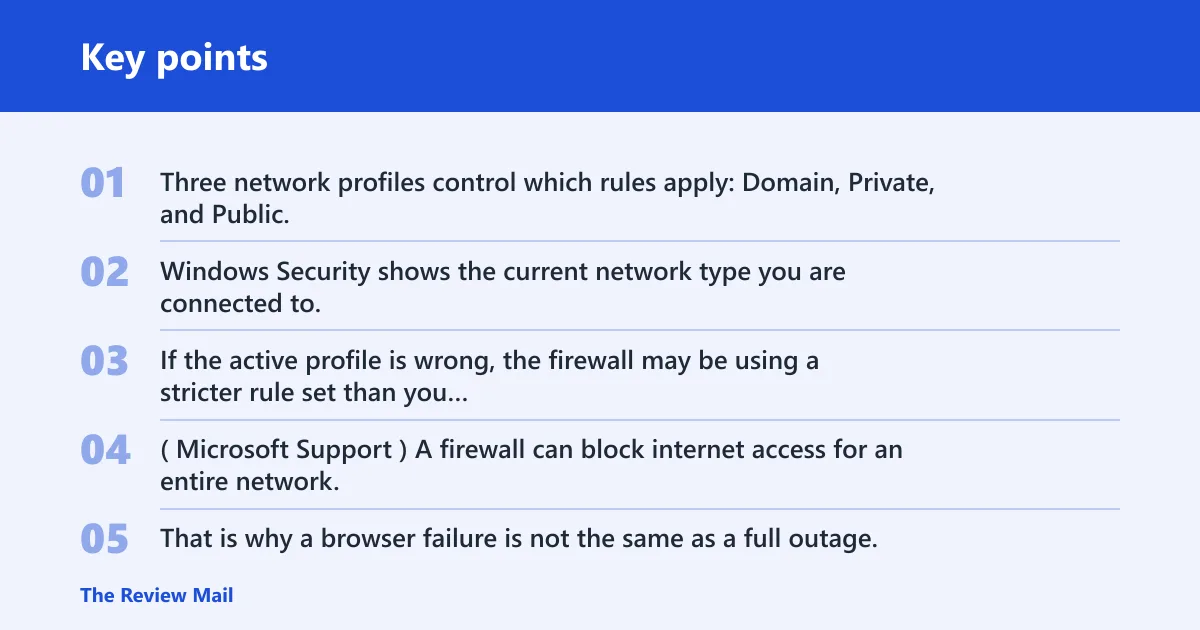
Three network profiles control which rules apply: Domain, Private, and Public. Windows Security shows the current network type you are connected to. If the active profile is wrong, the firewall may be using a stricter rule set than you expect. (Microsoft Support)
What a firewall blocks
A firewall can block internet access for an entire network, a single app, or a specific port. That is why a browser failure is not the same as a full outage. A too-strict rule can block traffic that should be allowed, and on Windows that can happen through inbound rules, outbound rules, or profile-based rules.
Outbound rules matter a lot here. When a browser opens but pages never load, the firewall may be blocking the app’s outgoing traffic rather than the entire network connection.
Why strict rules can break internet access
Blocking all incoming connections can override allowed apps. Microsoft recommends allowing an app through the firewall instead of turning it off, because that keeps protection in place while fixing one program. If rule changes are unclear, restoring firewalls to default resets settings back to the original state.
Suppose a laptop joins a coffee shop Wi-Fi network and the browser opens, but every tab stalls. If the network profile is set to Public, a stricter rule set may be active than on a Private home network. The fix may be the profile, not the browser.
📊 Firewall settings in Windows Security apply to Windows 11 and Windows 10. Source: Microsoft.
Is the firewall blocking your connection?
Start by separating whole-network failure from app-specific blocking. If every app loses internet access, the firewall may be one cause, but DNS, VPN, proxy, or router issues can also be involved. If only one app fails while other apps still work, focus first on that program’s allow rule and outbound permissions.
All internet stops working
When every app is offline, the firewall may be blocking traffic across the current profile, but it may also be a DNS, adapter, proxy, VPN, or router issue. The fastest check is to switch the firewall off for a moment and test again. If that does not change anything, the firewall is less likely to be the cause.
One browser or app fails
If only one app fails, check whether it is listed in an allow rule. A browser can be blocked even while the rest of the PC works. Advanced settings can create inbound and outbound rules, so a deny rule on outbound traffic can stop a browser from reaching the internet even though the connection itself is alive.
Works when the firewall is off
If internet access returns with the firewall off, the firewall is probably the blocker. Turn it back on after the test, then narrow the fix to the app, the profile, or the specific rule set. That is safer than leaving protection disabled.
Windows firewall diagnosis table
Use this decision table to match the symptom to the fastest check and the most likely fix.
| Symptom pattern | Likely cause | Fastest verification step | Best fix |
|---|---|---|---|
| All internet blocked | Firewall rule, proxy, DNS, VPN, adapter, or policy issue | Turn the firewall off briefly and test one browser | Re-enable protection, then reset firewall defaults or check policy and network settings |
| One browser blocked | App-specific allow rule missing or outbound rule is denying traffic | Test a second browser and check whether only one app fails | Allow the app through the firewall and inspect outbound rules |
| Works with firewall off | Windows Defender Firewall rule set is blocking traffic | Repeat the same site or app test with the firewall on and off | Restore protection, then add a narrow allow rule instead of disabling the firewall |
| Managed device or policy blocked | Group policy or endpoint management is overriding local changes | Check whether local changes save and whether firewall controls are greyed out | Ask the organization to change the policy; local edits may not persist |
Check your network profile
The active profile matters because Windows documents three profiles: Domain, Private, and Public. Different rules can apply to each one. A mismatch can make a home network behave like a public hotspot, which often means tighter rules and more blocked traffic.
How to confirm the active profile
- Open Windows Security.
- Open Firewall & network protection.
- Read the current network type shown there.
- Match that profile to the network you are actually using.
- If the profile looks wrong, check the network connection details before changing firewall rules.
If a device is on a company domain, the Domain profile may apply even if the connection feels like a normal home Wi-Fi link. On a personal laptop, Public can appear after a reset or network change, which can tighten the rules enough to block traffic that worked before.
Allow an app through firewall
Allowing an app through the firewall is the safer fix when only one program is blocked. Microsoft recommends this approach over switching the firewall off completely. It is more precise because it opens one app or port instead of removing protection for everything.
When to allow an app instead of turning protection off
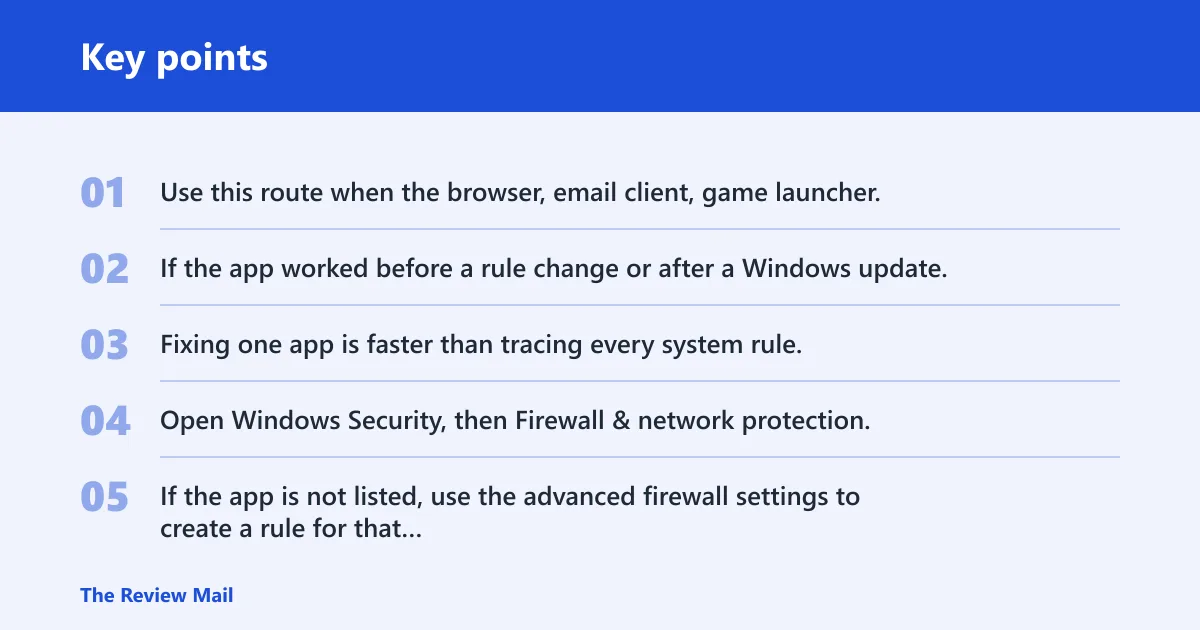
Use this route when the browser, email client, game launcher, or update tool fails but other apps still connect. If the app worked before a rule change or after a Windows update, an allow entry is the first place to check. Fixing one app is faster than tracing every system rule.
How to add a program exception
Open Windows Security, then Firewall & network protection, then allow an app through the firewall. If the app is not listed, use the advanced firewall settings to create a rule for that program. Advanced settings can create inbound and outbound rules, so check both sides if the app still cannot connect.
A common first-timer mistake is allowing the app on a Private profile only while the PC is actually on Public. The rule exists, but the active profile never matches it.
Why outbound rules may still matter
Inbound rules control traffic coming in; outbound rules control traffic leaving the PC. Browsers usually need outbound access to reach websites. If inbound access looks fine but the page still fails to load, inspect outbound rules for a deny entry tied to that browser or security tool.
Turn off firewall safely for testing
Turn the firewall off only as a test. The Windows Security app can turn the firewall on or off, and that quick toggle helps confirm whether the firewall is the blocker. Turn it back on right after the check. Leaving it off increases vulnerability.
Temporary test only
- Open Windows Security.
- Go to Firewall & network protection.
- Turn the firewall off for the active profile only.
- Test one browser or the failing app.
- Turn the firewall back on immediately.
If the app works with the firewall off, the firewall is involved. If the app still fails, the issue is more likely proxy, DNS, adapter, VPN, router, or policy related. That result changes the next step.
What a failed test means
If turning the firewall off does not restore access, do not keep chasing local firewall rules first. Check the Windows Internet Connections troubleshooter, then look at proxy and DNS settings. Microsoft’s Q&A guidance for this situation also points to disconnecting VPN software, uninstalling third-party firewall software, and checking the Windows Defender Firewall service.
Reset firewall and check logs
Firewall logs record blocked connections and help show what was denied. If you cannot tell which rule is causing the problem, logs are often more useful than guessing. They are especially useful when false positives block a site or app without an obvious error message.
Use firewall logs to find blocked traffic
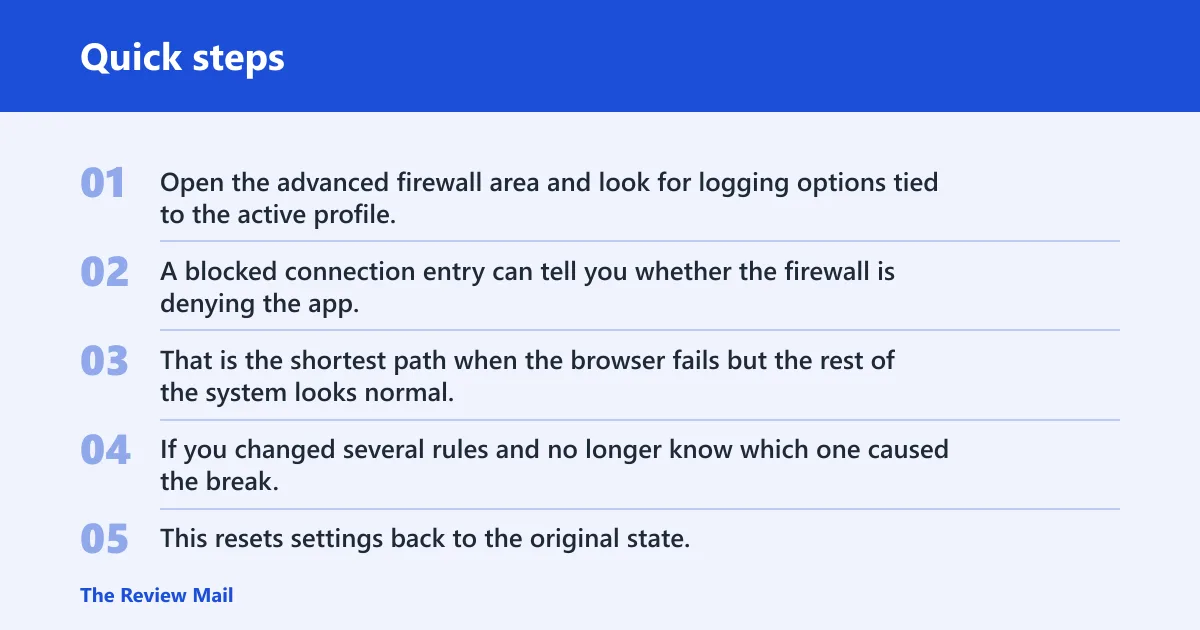
Open the advanced firewall area and look for logging options tied to the active profile. A blocked connection entry can tell you whether the firewall is denying the app, the port, or the destination. That is the shortest path when the browser fails but the rest of the system looks normal.
Restore defaults when rule changes are unclear
If you changed several rules and no longer know which one caused the break, restoring firewalls to default is often faster than untangling each rule. This resets settings back to the original state. It is the better choice when the rule set has become hard to audit or when a Windows update changed the behavior.
FixTechUSA notes that Windows 11 firewall blocking internet can happen after a Windows update, and one command-line reset discussed there is netsh advfirewall reset. That is not the first move, but it is useful when a clean restart of firewall settings is safer than more rule hunting.
When to stop chasing local rules
Stop treating the firewall as the only suspect when the firewall-off test fails, the logs do not show a clear deny, or the device is managed by an organization. If local changes do not stick, policy is probably overriding them. Third-party antivirus or VPN software can also block the same path and make the firewall look guilty.
Router firewall rules can also block traffic beyond the PC, so check the router separately if multiple devices lose the same service at once. A Windows change will not fix a router-level block.
Frequently asked questions
Why is firewall blocking internet access?
A firewall blocks internet access when its rules are too strict, when the wrong profile is active, or when a deny rule targets the app or port you need. On Windows, outbound filtering matters just as much as inbound filtering. If every app fails, test the firewall briefly and then check proxy, DNS, VPN, and policy.
Why firewall block internet access
Windows Firewall can block traffic because it filters network connections by rule, and strict rules can stop legitimate traffic. The block may be profile-based, app-specific, or caused by an outbound deny rule. If turning the firewall off does not help, look at DNS, adapter settings, proxy, VPN, and managed policy instead.
Why is my firewall blocking wifi?
Usually the firewall is not blocking Wi-Fi itself; it is blocking traffic on that network profile. A Public profile may apply stricter rules than Private, and a wrong profile can make Wi-Fi look broken. Check the current network type in Windows Security before changing rules, because the fix may be a profile mismatch.
How do I tell if Windows Defender Firewall is blocking internet?
The clearest test is to switch the firewall off briefly and try the same site or app again. If it works with the firewall off and fails with it on, the firewall is likely blocking traffic. You can also review firewall logs for blocked connections and check whether the active profile matches the network.
How do I unblock an app in firewall without turning it off?
Open Windows Security, go to Firewall & network protection, and allow the app through the firewall. If the app is still blocked, open advanced settings and check outbound rules, not just inbound ones. That keeps protection on while letting one program connect, which is the preferred fix for app-only failures.