DHCP Enabled Windows 11: How to Turn It on and Fix It
In Windows 11, DHCP is enabled by setting the adapter to obtain an IP address and DNS server automatically; if that is already on, the fault is usually the router, an expired lease, or a managed network policy. Leaving it wrong can strand you on a static IP, block Wi-Fi or Ethernet, and produce “No internet” errors. This guide shows where to check Windows 11 settings first, then how to tell whether the issue belongs to your router, lease, or network administrator.
What DHCP means in Windows 11
DHCP is the client/server protocol Windows uses by default to get network settings without manual entry. It automatically assigns an IP address and related configuration, including subnet mask, default gateway, DNS servers, and DNS domain name. Windows client operating systems include the DHCP client as part of TCP/IP. (Microsoft Learn)
What changes when an adapter is set to manual addressing
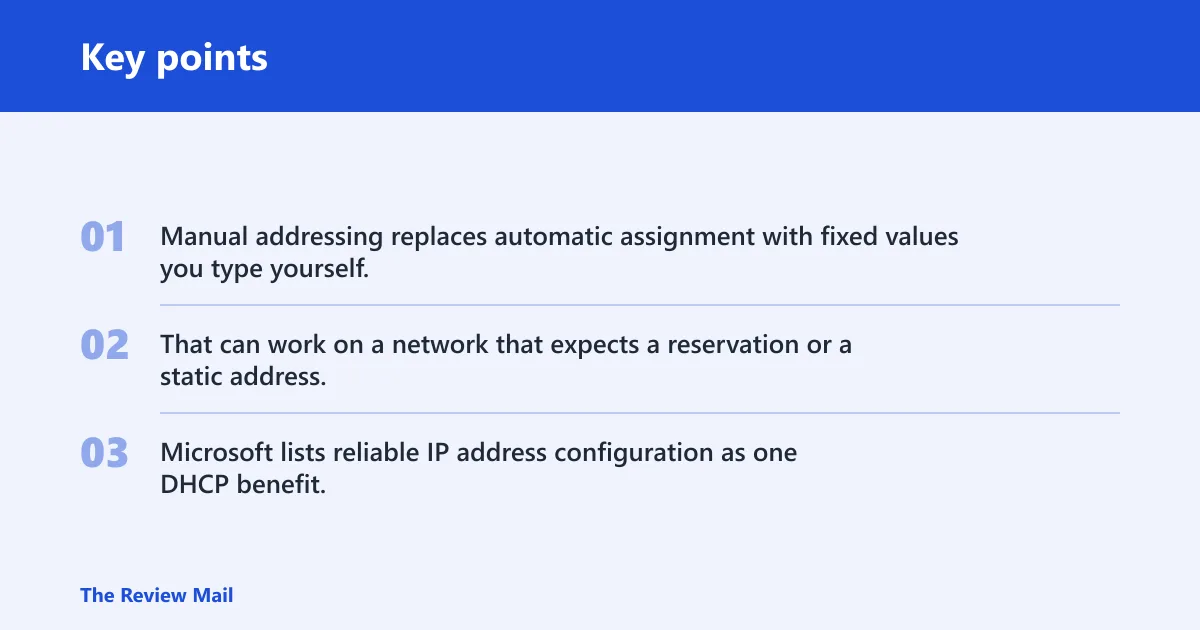
Manual addressing replaces automatic assignment with fixed values you type yourself. That can work on a network that expects a reservation or a static address, but it can also cause a mismatch if the gateway, subnet, or DNS values do not match the router or the site policy. Microsoft lists reliable IP address configuration as one DHCP benefit, and it reduces manual configuration errors and address conflicts.
Is DHCP disabled on your PC?
The fastest check is ipconfig /all. If DHCP Enabled says Yes, Windows is asking for an address automatically; if it says No, the adapter is likely set to manual addressing. If DHCP is already on and you still have no internet, the problem may be a bad lease, router failure, or a managed network rule.
Check ipconfig /all for DHCP Enabled
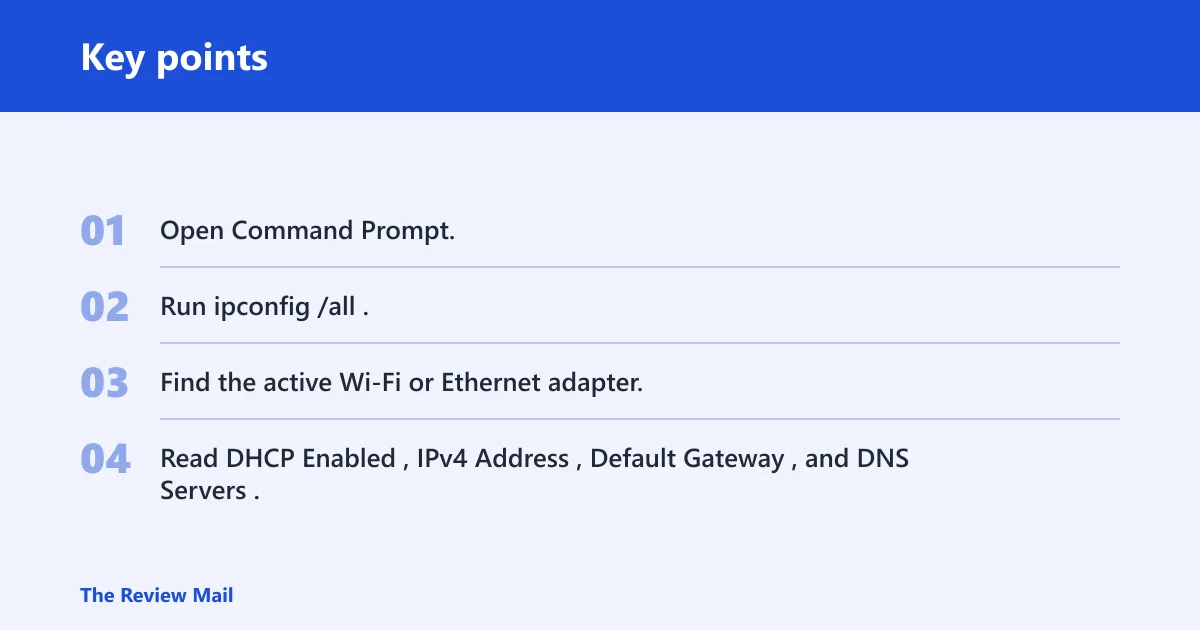
- Open Command Prompt.
- Run
ipconfig /all. - Find the active Wi-Fi or Ethernet adapter.
- Read DHCP Enabled, IPv4 Address, Default Gateway, and DNS Servers.
If the adapter shows a normal IPv4 address and a default gateway, DHCP is probably working even if the browser still fails. If the address looks self-assigned or the gateway is missing, the issue is usually not just a Windows toggle.
Use Settings to confirm whether the adapter is manual
Open Settings, then Network & internet, then the active connection. Look for IP assignment. If the edit screen shows Manual, Windows is not using DHCP for that adapter. Wi-Fi and Ethernet have separate paths, so check the connection that actually carries traffic.
Read the sign of a lease or gateway problem
A missing default gateway points away from a simple local toggle. A stale lease can also leave the adapter with an address that looks valid but cannot reach the network. If the adapter is already on automatic and the gateway is present, focus on the lease, the router, or the network administrator.
Enable DHCP in Windows 11 Settings
Windows 11 lets you change IP assignment in the Settings app. Open Network & internet, choose Wi-Fi or Ethernet, select the active network, then open the IP assignment edit location. Set it to Automatic (DHCP), and set DNS to automatic as well.
Open Network & internet for Wi-Fi
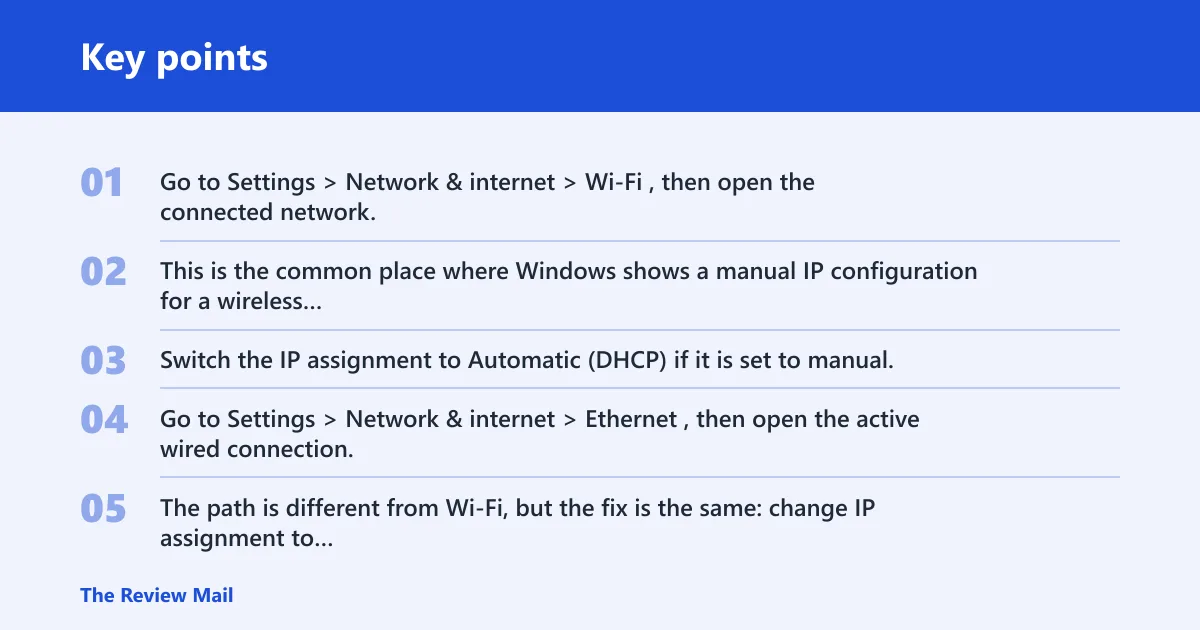
Go to Settings > Network & internet > Wi-Fi, then open the connected network. This is the common place where Windows shows a manual IP configuration for a wireless connection. Switch the IP assignment to Automatic (DHCP) if it is set to manual.
Open Network & internet for Ethernet
Go to Settings > Network & internet > Ethernet, then open the active wired connection. The path is different from Wi-Fi, but the fix is the same: change IP assignment to automatic and make sure DNS is also automatic. Ethernet adapters can carry the same mistake.
Change IP assignment to Automatic (DHCP)
On the edit screen, choose Automatic (DHCP). That returns the adapter to automatic IPv4 addressing instead of fixed values. If Windows had been using a manual subnet mask, gateway, or DNS entry, those settings will be replaced by the router’s DHCP response.
Set DNS to automatic too
Do not stop at the IP address. Windows can use automatic IP assignment while still keeping manual DNS settings, which can leave the network connected but unable to resolve names. Set the DNS server address to automatic so the adapter gets both the address and the name-resolution settings together.
Switch IPv4 to automatic
The Control Panel route is useful when the Settings app does not expose the option cleanly. Open ncpa.cpl, open the adapter properties, then open Internet Protocol Version 4 (TCP/IPv4). There you can choose automatic addressing for both IP and DNS.
Open ncpa.cpl
Press Win+R, type ncpa.cpl, and press Enter. That opens the Network Connections window. Right-click the active adapter, then open Properties. This path works for both Wi-Fi and Ethernet and reaches the TCP/IPv4 settings directly.
Choose Obtain an IP address automatically
In the Internet Protocol Version 4 (TCP/IPv4) dialog, select Obtain an IP address automatically. That turns off manual IPv4 addressing and tells Windows to request an address from the DHCP server on the network.
Choose Obtain DNS server address automatically
Select Obtain DNS server address automatically as well. DHCP leases can include Router, DNS Servers, and DNS Domain Name options, so DNS should usually move with the IP assignment. If DNS stays manual, the connection can still fail even after the address itself is fixed.
DHCP decision table
| Symptom in Windows 11 | What ipconfig /all or Settings should show | The next fix to try |
|---|---|---|
| Wi-Fi says DHCP is not enabled | Settings shows Manual under IP assignment, or ipconfig /all shows DHCP Enabled: No | Set Wi-Fi to Automatic (DHCP) and automatic DNS |
| Ethernet connects but has no internet | Ethernet adapter shows a manual IPv4 address or a missing default gateway | Open ncpa.cpl and switch TCP/IPv4 to automatic IP and DNS |
| Static IP was configured on purpose | ipconfig /all shows DHCP Enabled: No and fixed IPv4, gateway, and DNS values | Change the adapter back to automatic only if the network expects DHCP |
| DHCP Client service is stopped | Settings may already show Automatic, but the address does not renew and ipconfig shows no new lease | Start the DHCP Client service in services.msc and keep startup type Automatic |
| Router lease failure | DHCP Enabled: Yes, but the address is missing, old, or the default gateway is blank | Restart the router and PC, then renew the lease |
Why Windows 11 still says DHCP is not enabled
Windows 11 can still report a DHCP problem after the adapter is set to automatic. The usual causes are a stopped DHCP Client service, a manual IP that was not fully removed, a failed lease renewal, or a managed network that overrides local settings. If Wi-Fi and Ethernet behave differently, check each adapter separately.
DHCP Client service is stopped
Open services.msc, find DHCP Client, and make sure the startup type is Automatic. If the service is stopped, start it and then retest the connection. Without that service, Windows may not request or renew a lease correctly.
The adapter kept a manual IP
Some systems keep manual IPv4 values in the adapter properties even after a quick settings change. If ipconfig /all still shows DHCP Enabled: No, go back to TCP/IPv4 and confirm both IP and DNS are set to automatic. The DNS setting matters as much as the address.
The lease did not renew
Suppose a laptop had a working address on one network, then moved to a different office or guest network. If the lease is stale, Windows may keep the old address until the DHCP server answers again. Restarting the router and PC can force a fresh lease, but a bad server can still block renewal.
A managed network is overriding local settings
On school, work, or guest networks, local changes may be ignored. A network administrator may require a reservation, a specific VLAN, or a policy that hands out only approved addresses. In that case, automatic settings in Windows are correct, and the fix belongs with the network admin, not the adapter dialog.
What if the change does not fix it?
If automatic IP and DNS are already set and the connection still fails, move to service, lease, and policy checks. Restart the DHCP Client service, restart the router and PC, update or reinstall the network adapter driver, and confirm whether the network is controlled by a school, work, or guest policy.
Restart the DHCP Client service
Open services.msc, right-click DHCP Client, and choose Restart. Then verify that the startup type remains Automatic. This is a Windows-side fix, and it should be tried before assuming the router is at fault.
Restart the router and PC
Power-cycle the router first, then restart the PC. That clears many lease problems and forces a new DHCP exchange. If the network uses separate Wi-Fi and Ethernet pools, make sure you are testing the adapter that is actually in use.
Update or reinstall the network adapter driver
A damaged or outdated driver can stop the adapter from taking a lease correctly. Open Device Manager, update the Wi-Fi or Ethernet driver, or remove and reinstall it if update fails. This is especially useful when one adapter works and another one does not.
Check for school, work, or guest network rules
If the device joins a managed network, local DHCP settings may be blocked or rewritten. That can make Windows look misconfigured even when the adapter is set to automatic. Ask whether the network requires a reservation, portal sign-in, or admin approval before the lease is issued.
Frequently asked questions
How do I know if dhcp is enabled on my Windows 11 PC?
Run ipconfig /all and check DHCP Enabled for the active adapter. Yes means Windows is using DHCP. No means the adapter is set to manual addressing. You can also confirm the setting in Settings > Network & internet under IP assignment.
Why does Windows 11 say DHCP is not enabled for Wi-Fi?
Wi-Fi often keeps a manual IP setting from a past network or a static setup. It can also happen if the DHCP Client service is stopped, the lease is stale, or a managed network is overriding local settings. Check the Wi-Fi adapter separately from Ethernet, because each can be configured differently.
How do I switch Windows 11 from static IP to DHCP?
Change the adapter from manual to automatic in either Settings or TCP/IPv4. In Settings, open the active connection and set IP assignment to Automatic (DHCP). In Control Panel, choose Obtain an IP address automatically and automatic DNS.
How do I check DHCP with ipconfig /all?
Open Command Prompt and run ipconfig /all. Look for DHCP Enabled, IPv4 Address, Default Gateway, and DNS Servers on the active adapter. If DHCP says No, or the gateway is missing, the problem is usually not just a simple settings toggle.