Unable to Connect to Vpn Windows 11
Start with three checks: confirm the VPN profile and credentials, reset Windows networking with netsh winsock reset and netsh int ip reset, then inspect routing or split-tunnel rules after a “connected” status. If you skip one layer, Windows 11 can keep failing on the same error or connect without passing traffic. This guide walks through each failure point for app-based VPNs, built-in Windows VPN profiles, and post-update connection breaks.
Windows 11 VPN failure triage
Use the symptom first. A failed sign-in points to profile or authentication trouble. A successful connection with no browsing points to DNS, proxy, firewall, or tunnel routing. If the behavior changes by adapter, update, or VPN type, the fault usually sits in Windows networking or the app layer, not the remote server alone.
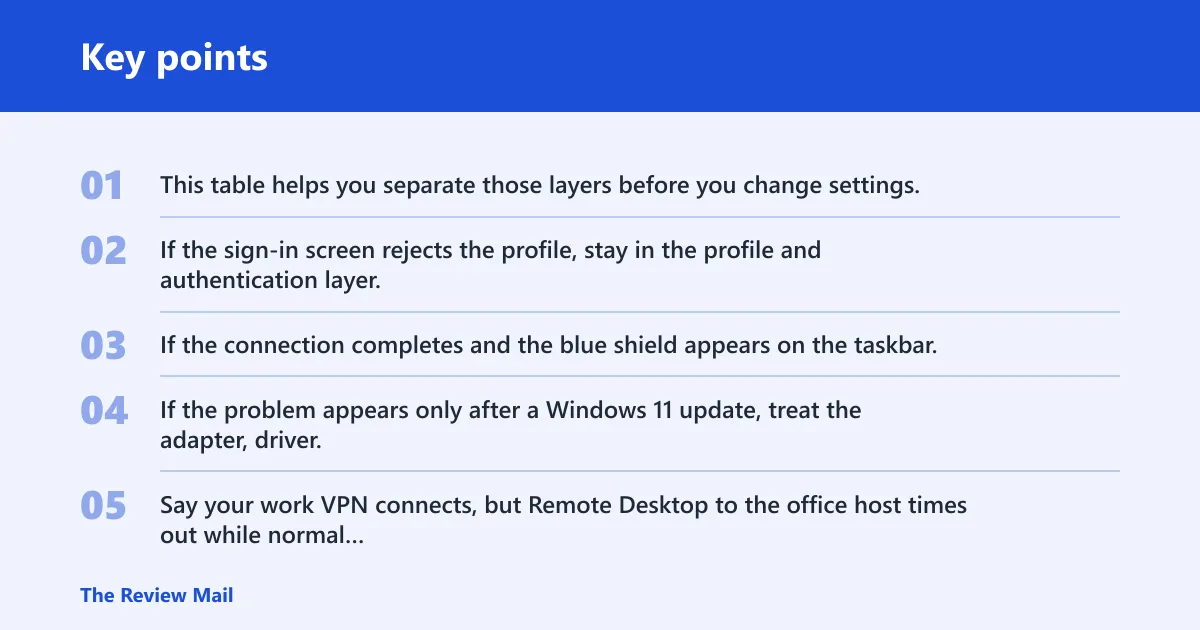
This table helps you separate those layers before you change settings.
| Symptom | Likely layer | Fastest check | Next action |
|---|---|---|---|
| Cannot authenticate | Profile or sign-in | Check saved credentials and sign-in type | Re-enter the password, certificate, or one-time code; confirm the VPN type matches the provider |
| Connects but no internet | Routing or local network | Open a site after connect | Flush DNS, check proxy, then review IPv6 and firewall settings |
| Works on Wi-Fi but not Ethernet | Adapter or local stack | Switch networks once | Run the troubleshooter, then check the Ethernet adapter driver |
| Fails after update | Driver, service, or app | Try another VPN server and reboot | Update the VPN app, then remove and reinstall the adapter if the failure stays |
| Only one VPN type fails | Protocol mismatch | Compare the VPN type in the profile | Match the provider’s required type; a mismatch breaks the connection |
| App says connected but Remote Desktop fails | Routing or split tunnel | Check whether only web traffic works | Review split-tunnel rules, DNS, and gateway routes |
| Consumer VPN app works, work VPN fails | Profile or enterprise policy | Compare the two connection methods | Use the work profile exactly as issued; avoid changing server or sign-in type |
| OpenVPN used to work, now it will not connect | App, server, or Windows update | Try a different server in the app | Update the VPN app, then reinstall the adapter if the failure stays |
| Blue shield appears, but traffic stalls | Tunnel routing | Look for local DNS or proxy breakage | Flush DNS, clear proxy settings, then test IPv6 |
| VPN toggle connects from quick settings but nothing loads | Windows network settings | Open the full VPN profile in Settings | Check the profile fields, then move to DNS and routing |
How to read the symptom patterns
Start with the first thing that fails. If the sign-in screen rejects the profile, stay in the profile and authentication layer. If the connection completes and the blue shield appears on the taskbar, move to local network settings and routing. If the problem appears only after a Windows 11 update, treat the adapter, driver, or VPN app as the next layer.
Say your work VPN connects, but Remote Desktop to the office host times out while normal websites load. That often points to split-tunnel rules, DNS, or a gateway route that does not carry the remote desktop subnet. Changing the password would not help there.
Fastest checks by failure layer
The quickest path is usually the least disruptive one. For profile failures, verify the connection name, server address, VPN type, and sign-in info. For local network failures, run Windows diagnostics before touching adapter settings. For routing failures after a successful connection, inspect DNS, proxy, IPv6, and firewall settings one at a time.
When to stop and use the VPN app instead of Windows settings
If the provider gives you a dedicated Windows app, use it when the app controls server choice, kill switch behavior, or leak protection. That is especially useful for consumer VPN services with rotating servers or special routing. Use Windows built-in VPN settings when your work profile or manual connection was issued that way.
📊 Microsoft notes Windows 11 SE does not support this feature. Source: Microsoft.
Why is my VPN not connecting?
When a VPN will not connect at all, start with the profile fields, the sign-in method, and the VPN type. A bad server address, the wrong connection name, or a mismatched protocol can stop Windows 11 before it reaches the remote gateway. The fix is usually in the profile, not in the browser or firewall.
Check the profile fields first
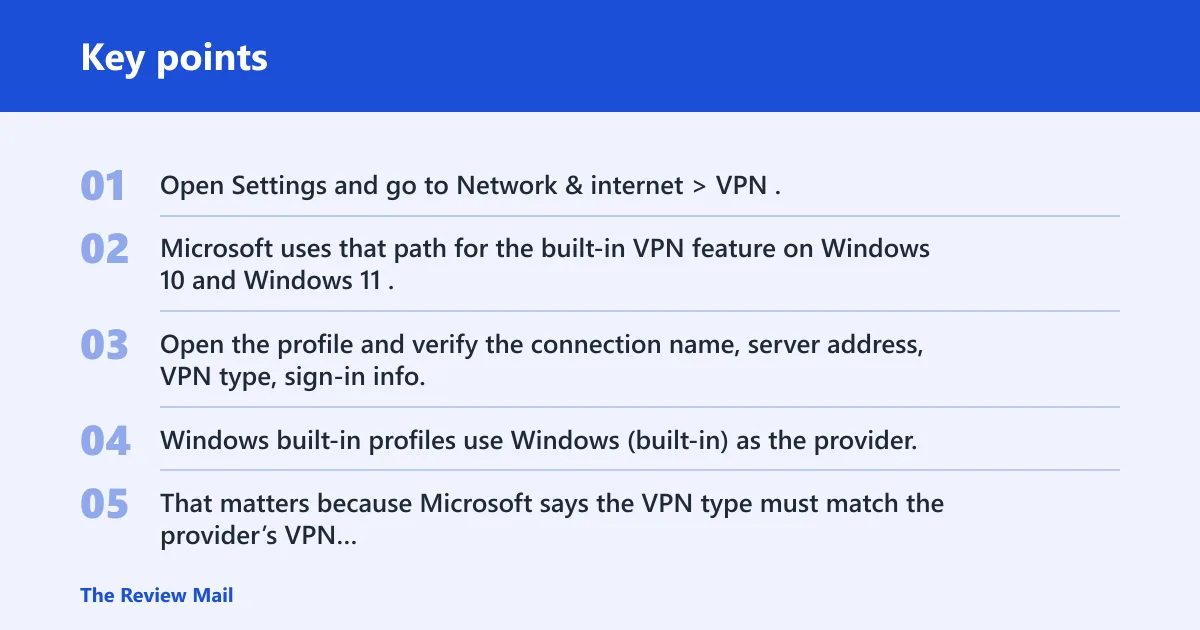
Open Settings and go to Network & internet > VPN. Microsoft uses that path for the built-in VPN feature on Windows 10 and Windows 11. Open the profile and verify the connection name, server address, VPN type, sign-in info, and any saved credentials.
Windows built-in profiles use Windows (built-in) as the provider. That matters because Microsoft says the VPN type must match the provider’s VPN connection type. A profile built for one protocol will not reliably connect if the provider expects another. (Microsoft Support)
Confirm sign-in type and saved credentials
Check whether the profile expects password, certificate, smart card, or another sign-in method. If the sign-in type is wrong, Windows may prompt repeatedly or fail without a useful clue. Delete stale saved credentials if the account password or token changed.
A common first-time mistake is retyping the password while leaving the sign-in type wrong. The profile still fails, and the user keeps changing the wrong field.
Match the VPN type to the provider
Protocol mismatches are common with manual profiles and with OpenVPN-style app connections. A provider may support several connection types, but each profile must be built for the one the service expects. If one type fails and another succeeds, that is a strong hint that the issue is protocol-specific rather than general connectivity.
How do I create or repair a VPN profile?
Create or repair the profile from Windows first when the server, name, or sign-in details are uncertain. Use Network & internet > VPN, then Add VPN connection. Fill in the connection name, server address, VPN type, and sign-in info exactly as the provider or IT team supplied them.
Open Network & internet > VPN
Microsoft says to open VPN settings through Network & internet > VPN. On Windows 11, the same area also gives you Connect and advanced options for each profile. The taskbar quick settings panel can also access VPN connections, which is useful for quick reconnects once the profile is known to be correct.
Use Add VPN connection
- Open Settings.
- Go to Network & internet > VPN.
- Select Add VPN connection.
- Choose the provider. For a manual Windows profile, pick Windows (built-in).
- Enter the server name or address, VPN type, sign-in method, and credentials.
- Save the profile and connect from the same page or from quick settings.
If the provider gives you a specific server name, use that exact value. If you are on a managed work VPN, avoid inventing alternate names or guessed server addresses. Rebuild the profile only when the original fields are wrong or missing.
Fix server address, name, and sign-in details
Re-check spelling, punctuation, and separators in the server address. Compare the connection name against the actual profile so you do not edit the wrong entry. Confirm whether the profile expects saved credentials or a prompt at connection time.
Suppose a consumer app connects to one server but a manual work profile fails on the same laptop. That difference often means the profile data is wrong, not the network. The app may be hiding the issue by choosing its own server list and sign-in flow.
When to remove and rebuild the profile
If the fields look right but the profile still fails, remove it and create a fresh one. That is cleaner than stacking corrections on top of a damaged profile. Use this step after you confirm the provider details and before you move into driver or firewall changes.
Why does VPN connect but the internet stops working on Windows 11?
If the VPN shows connected but browsing, Remote Desktop, or internal apps fail, the tunnel is up but traffic is not routing correctly. That usually means DNS, proxy, IPv6, firewall, or split-tunnel behavior is interfering after the connection succeeds. Fix the local path before blaming the remote server.
Test DNS first
Flush the local DNS cache with ipconfig /flushdns. If that does not help, try manual DNS addresses such as 8.8.8.8 and 8.8.4.4 on the active adapter or inside the VPN profile if the provider allows it. Bad DNS can make the VPN look connected while every name lookup stalls.
Google DNS is a common test pair, not a universal fix. Use it to isolate whether the failure is name resolution or tunnel routing.
Check proxy settings through inetcpl.cpl
Open inetcpl.cpl and inspect the LAN proxy toggle. A stale proxy can block browsing even though the VPN tunnel is active. Turn the proxy off for the test, then retry the same site or internal app before changing anything else.
Review IPv6 and firewall settings
IPv6 can interfere with VPN connectivity on some adapters and providers. In the adapter properties, disable IPv6 only as a test, then reconnect and check whether browsing or remote access returns. If it does, the issue is in the interaction between the adapter, the tunnel, and the IPv6 path.
Windows Defender Firewall can also block VPN traffic or the traffic that follows the connection. Test with the firewall off only long enough to isolate the fault, then restore it and build a rule-based fix if needed.
Look for split tunnel and routing issues
When the tunnel connects but remote subnets remain unreachable, the route table or split-tunnel policy may be wrong. That is common with work VPNs that should carry only certain addresses. It is also common when the app’s leak protection forces traffic into a path that no longer matches the profile.
VPN adapter and driver fixes
Move to adapter and driver checks after the profile, DNS, proxy, and firewall layers have been ruled out. Windows built-in diagnostics can point you to a broken interface before you uninstall anything. If the fault tracks with a specific adapter or with an update, the driver becomes a stronger suspect.
Run the Windows network troubleshooter
Use the Windows built-in network troubleshooter before deeper changes. It helps isolate general connectivity issues and can reveal whether the system sees a broken network path. That step is less disruptive than reinstalling the adapter first.
Check Device Manager for the network adapter
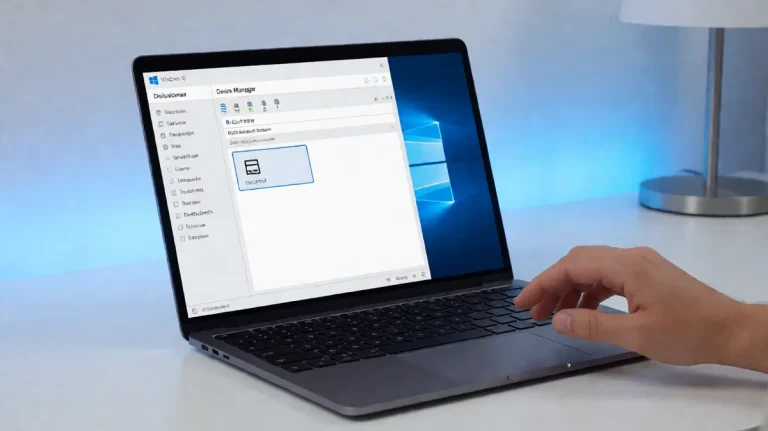
Open Device Manager and expand Network adapters. Look for the physical adapter and any VPN-related virtual adapter entries. If the device shows an error or disappeared after an update, that is a useful clue, especially when Wi-Fi works but Ethernet fails or the reverse happens.
Uninstall and reinstall the driver
- In Device Manager, open Network adapters.
- Right-click the affected adapter.
- Select Uninstall device.
- Restart Windows 11 so it can reinstall the driver.
- If the problem remains, repeat and use the delete driver software option when available.
Use the delete-driver-software option when the current driver package may be corrupt or outdated. That is especially relevant after a Windows 11 update or after switching between vendor apps and the built-in VPN stack.
VPN app and update issues
Use the vendor app when the service controls server selection, update cadence, or kill switch settings. That layer can fail even when Windows networking is fine. It can also appear to fail because the app is blocking traffic by design after it thinks the tunnel dropped.
Tell Windows settings problems from VPN app problems
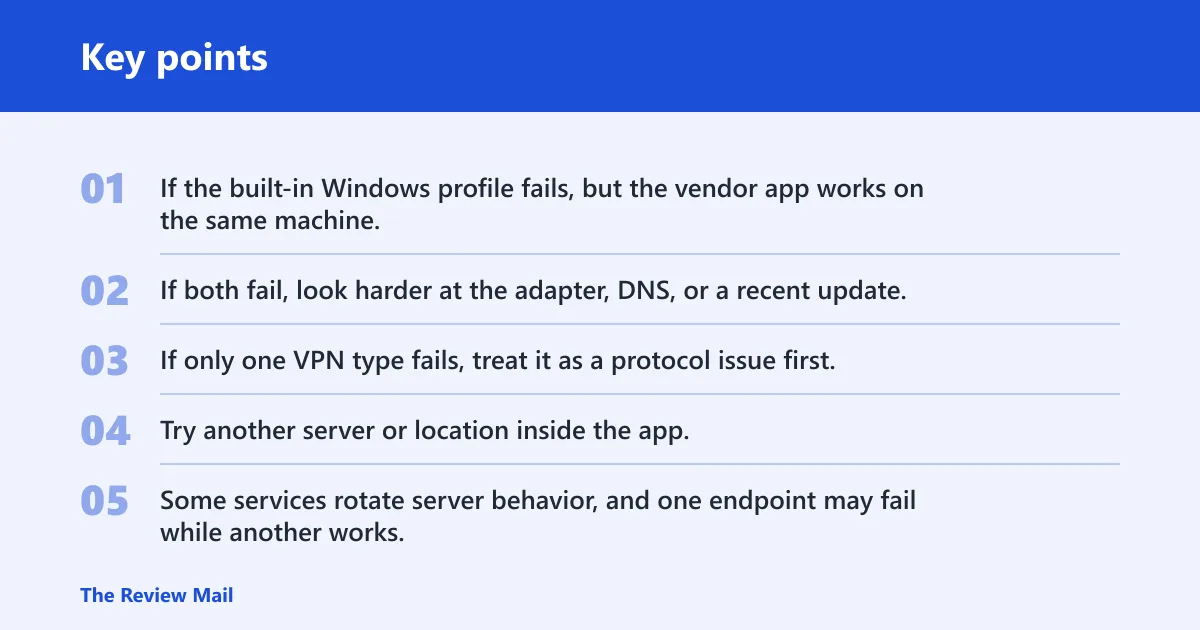
If the built-in Windows profile fails, but the vendor app works on the same machine, the problem likely sits in the manual profile or Windows settings. If both fail, look harder at the adapter, DNS, or a recent update. If only one VPN type fails, treat it as a protocol issue first.
Check server selection and app update status
Try another server or location inside the app. Some services rotate server behavior, and one endpoint may fail while another works. Also check whether the app needs an update, because a stale client can break after a server-side change or a Windows update.
Proton VPN says its Windows app has native ARM support, offers up to 10 devices at the same time on paid plans, lists over 20,000 servers in over 140 countries, and includes a kill switch as a free feature. Those app controls can change behavior after a Windows update, especially if the kill switch stays on after a failed reconnect.
Review kill switch and leak protection features
Kill switch and leak protection are useful, but they can block browsing if the app believes the tunnel is unstable. Check those settings when the app says connected but nothing loads. If the app has a switch for split tunneling, test with it disabled once, then re-enable only if the provider expects it.
What to do after a Windows 11 update
If the VPN broke right after an update, do not change every setting at once. Check the app version, the adapter driver, and the profile type in that order. Windows updates often expose a driver or protocol mismatch that was already there but hidden.
Microsoft notes that Windows 11 SE does not support this feature. Microsoft also says support for Windows 10 ended on October 14, 2025, which matters if you are comparing behavior across older devices and newer ones.
Frequently asked questions
How do I know whether the problem is my VPN app or Windows network settings?
If the app’s own server list, update status, or kill switch controls change the result, the app is the more likely layer. If the built-in Windows VPN profile fails in the same way, look at Windows settings, DNS, proxy, adapter drivers, and firewall rules. Separate the two paths before you repair anything.
How do I troubleshoot if the OpenVPN is not connecting?
Check the OpenVPN profile, server address, and credentials first, then compare the protocol and port with the provider’s instructions. If one OpenVPN server fails and another works, the issue may be server-side or app-side. If every OpenVPN profile fails, inspect firewall, adapter, and update changes next.
What should I check if my Windows 11 VPN fails after an update?
Check the VPN app version, the network adapter driver in Device Manager, and whether the profile still uses the right VPN type. Then test DNS, proxy, and firewall only one at a time. An update can expose a stale driver or a protocol mismatch that was already present.
Should I disable IPv6 or firewall to fix VPN problems?
Use both only as short tests. IPv6 can interfere with some VPN connections, and Windows Defender Firewall can block traffic after connect, but neither should stay disabled as a permanent workaround unless your provider or IT team tells you to. Re-enable each one after you isolate the fault.
How do I create a VPN profile in Windows 11?
Open Settings, go to Network & internet > VPN, and select Add VPN connection. Use Windows (built-in) for manual profiles, then enter the connection name, server address, VPN type, and sign-in info. Save it, then connect from the VPN page or the taskbar quick settings.