Windows 11 Failed to Load User Profile
If Windows 11 says it failed to load your user profile, back up files first, then test a second account. One broken account usually means profile corruption. If every account fails, look for a wider Windows or disk problem. Ignoring it can leave you locked out and make file recovery harder. This guide shows how to protect data, tell profile-only failure from system-wide failure, and choose the least destructive fix first.
What the error means
The User Profile Service is the Windows sign-in component that loads your account data. If it cannot open the profile, Windows may block normal sign-in or drop you into a temporary profile, where settings and desktop changes do not stick. Microsoft documents temporary user profiles as a sign that Windows could not load the real profile and instead loaded a temporary one, so treat that as a recovery warning, not a fix. Start with file recovery, then move from the least destructive fix to the most invasive. (Microsoft Learn)
Common message variants
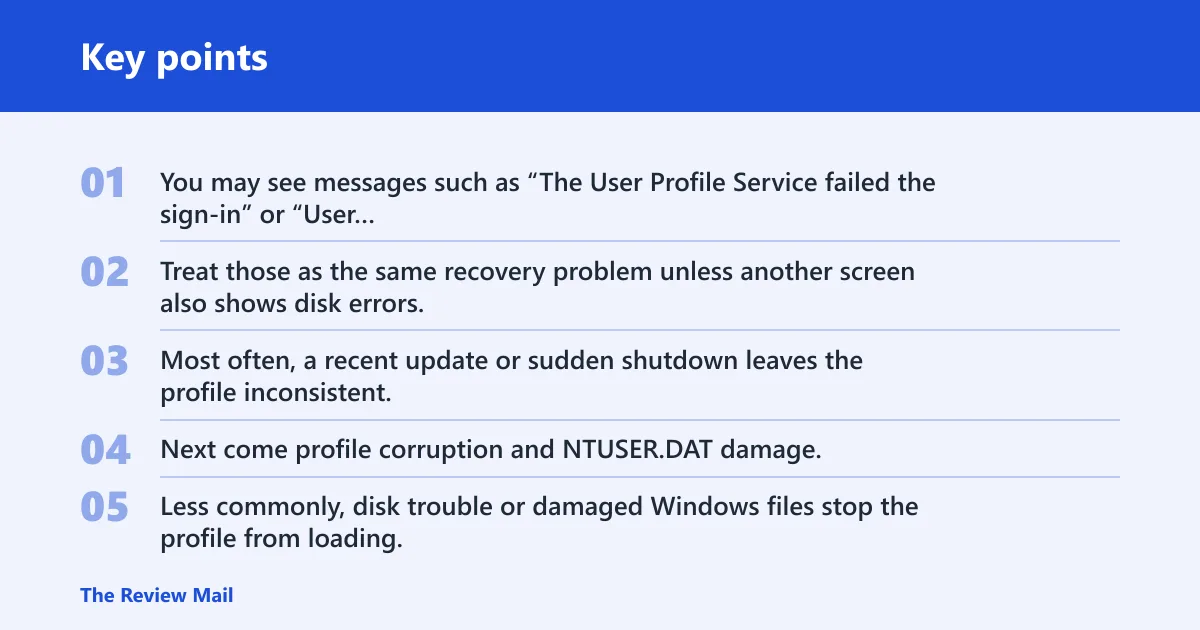
You may see messages such as “The User Profile Service failed the sign-in” or “User profile cannot be loaded,” or signs that Windows opened a temporary profile instead of your normal account. Treat those as the same recovery problem unless another screen also shows disk errors, repeated blue screens, or other accounts failing too.
Likely causes, ranked
Most often, a recent update or sudden shutdown leaves the profile inconsistent. Next come profile corruption and NTUSER.DAT damage, which can break the account hive that stores per-user settings. Less commonly, disk trouble or damaged Windows files stop the profile from loading. A nearly full drive can also tip a borderline profile into failure, especially after an upgrade from Windows 10 to Windows 11.
Recovery decision table
| Symptom | Exact trigger signs | Likely cause | Safest first action | Success check | Rollback point | Data-risk level |
|---|---|---|---|---|---|---|
| One account opens as a temporary profile | Desktop resets, taskbar defaults, and changes disappear after sign-out; Windows may mention a temporary profile | Profile corruption, often after shutdown or update | Copy files from the old profile folder, then try Safe Mode | The original account opens with the same desktop and settings after restart | Stop before registry edits if files are not copied yet | Low at first, medium if you edit the profile |
| One account fails, other accounts load normally | Only one user profile fails; other local accounts sign in normally | Single-profile corruption or NTUSER.DAT damage | Back up the profile folder and check Registry Editor | The affected account loads without creating a temp profile | Stop if the SID entries do not match what you expect | Medium |
| All accounts fail or the PC behaves erratically | Multiple users fail, apps crash, or the machine slows sharply after disk activity | Disk trouble, full-disk condition, or Windows file damage | Run SFC / DISM, then chkdsk if the disk is suspect | At least one account signs in and Windows stops reporting file errors | Stop if repairs report read errors or repeated failures | Medium to high |
| Failure starts right after an update | Issue begins after Patch Tuesday, feature update, or reboot during installation | Failed update or interrupted servicing | Use System Restore first, then in-place repair if needed | Sign-in works and the update-related error does not return | Stop before reset if System Restore succeeds or files are still unbacked | Medium |
| No account loads, including Safe Mode | Black screen, boot loops, or disk warnings appear before the sign-in screen | Wider Windows instability or storage failure | Use installation media or repair the disk before profile work | Windows reaches the desktop and user profiles load normally | Stop before reset if files are not backed up | High |
Can you recover files first?
Yes. Copy personal files before any registry edit, reset, or reinstall attempt, because profile repair can fail and reset options can remove settings. If the desktop is unavailable, focus on Documents, Desktop, Pictures, Downloads, browser exports, and any app data you need. If the account opens only as a temporary profile, copy files from the temporary profile folder first, because the temporary profile can vanish after the next restart.
What to copy first
- Open File Explorer and browse to C:\Users\yourname or the temporary profile folder.
- Copy Documents, Desktop, Pictures, Downloads, and any app folders that matter to you.
- Save the copies to an external drive or another internal partition that is not part of the problem.
- Leave the original profile folder unchanged until the backup is complete.
Suppose the account opens only as Temp and the Desktop is empty. Copy files from the old profile folder first, because the temporary profile can vanish after the next restart. Do not rename registry keys or delete profile folders before you have a second copy elsewhere.
Use Safe Mode to regain access
Safe Mode is a troubleshooting boot path, not a cure. It loads minimal drivers and services, which can give you enough access to create a new local admin account, copy files, or test whether the failure is limited to one profile. Microsoft’s recovery flow for Windows sign-in troubleshooting uses Advanced startup and Startup Settings to reach Safe Mode on Windows 11. (Microsoft Support)
When to use Safe Mode: use it when normal sign-in fails but the PC still reaches the recovery environment. Skip it if the machine cannot boot far enough to reach Startup Settings, if disk errors appear immediately, or if every restart returns to the same hardware-level failure.
Enter Safe Mode with Shift + Restart
- On the sign-in screen, hold Shift and select Restart.
- Choose Troubleshoot > Advanced options > Startup Settings.
- Select Restart, then press the Safe Mode option you need.
- If you reach the desktop, create or use another local admin account and back up files.
Check whether the issue is account-only
- Sign in with a second account, if one exists.
- If the second account works, focus on the broken profile only.
- If every account fails, move to system-file and disk checks.
Repair the profile in Registry Editor
Use Registry Editor only after backup. This step often targets the profile SID and its backup key, then corrects the profile state values so Windows points to the right folder again. A common repair pattern is to restore the correct SID entry and clear the broken duplicate, but that is a practical troubleshooting method rather than an official Microsoft-endorsed fix. An incorrect edit can block sign-in further, so stop if you cannot match the right SID.
Find the SID and backup key
- Open Registry Editor from Safe Mode.
- Go to
HKEY_LOCAL_MACHINE\SOFTWARE\Microsoft\WindowsNT\CurrentVersion\ProfileList. - Find the SID folder for the broken account.
- Confirm that the SID maps to the affected C:\Users\name folder by checking the ProfileImagePath value, and stop if it points to a different user folder.
- Look for a matching SID with .bak, a duplicate SID without .bak, or both. In many temporary-profile cases, the live SID and the backup SID are swapped; if the pattern is unclear, do not edit yet.
Fix the profile state values
- If the correct SID has a .bak key, follow the standard profile-repair pattern: rename the current SID entry, then remove .bak from the backup key.
- Check RefCount and State. If both are present, set them to 0.
- If RefCount or State is absent, do not invent the value; leave the key intact and move back to backup or file-system checks.
- Close Registry Editor and restart.
A common first-timer mistake is editing the wrong SID because several profile folders look similar. If the profile name belongs to a large account and the SID path does not match the broken folder, stop and verify the mapping before changing anything.
Run SFC and DISM if Windows files may be damaged
If the profile repair does not hold, or every account fails, check Windows system files next. SFC /scannow verifies protected system files, and DISM /Online /Cleanup-Image /RestoreHealth repairs the Windows component store that SFC depends on. Microsoft documents both tools as part of Windows repair, and this step is especially useful after a bad shutdown or update. (Microsoft Support)
Run SFC first
- Open Command Prompt as administrator, or use an elevated terminal in Safe Mode.
- Run
sfc /scannow. - Restart and test sign-in again.
Use DISM to repair Windows components
- Open an elevated command prompt.
- Run
DISM /Online /Cleanup-Image /RestoreHealth. - After DISM finishes, run
sfc /scannowagain. - Test the profile after the repair cycle completes.
Still not working?
If the problem started right after an update or other change, System Restore is the next least invasive rollback and often keeps personal files in place. In-place repair, System Restore, Reset this PC, and a clean install are not the same: System Restore rolls Windows back to a restore point; an in-place repair reinstalls Windows over the existing installation to refresh system files while aiming to keep apps and data; Reset this PC reinstalls Windows with options that can remove apps and settings; and a clean install starts from scratch after booting from installation media. Microsoft says installation media can be created on a USB flash drive and requires a blank USB flash drive with at least 8 GB of space. Microsoft also recommends backing up files before installing or reinstalling Windows. (Microsoft Support)
Use System Restore after a recent change
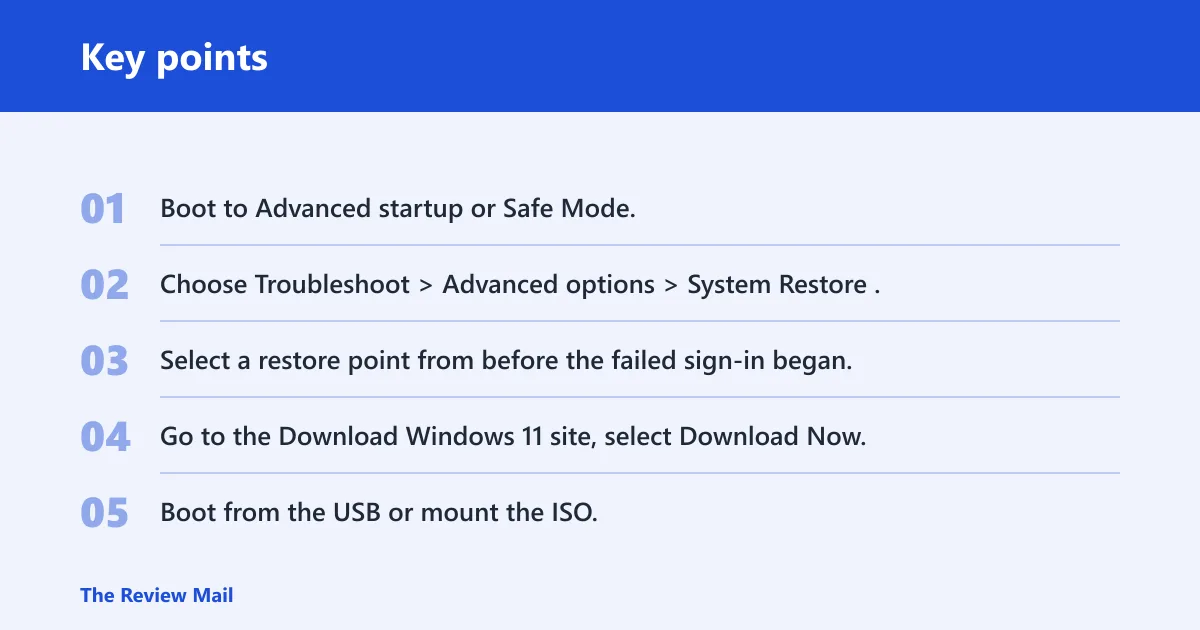
- Boot to Advanced startup or Safe Mode.
- Choose Troubleshoot > Advanced options > System Restore.
- Select a restore point from before the failed sign-in began.
Use Windows installation media for repair or reset
- Go to the Download Windows 11 site, select Download Now, and run MediaCreationTool.exe to create installation media, per Microsoft support.
- Boot from the USB or mount the ISO.
- Choose repair options first if available; use Reset This PC only after files are backed up.
If you cannot reach Safe Mode, cannot mount the disk, or see repeated storage errors, stop and get hardware help. A failing drive can corrupt the profile again even after a clean repair. For a machine that refuses every recovery path, the problem is no longer just the account.
Frequently asked questions
How do I fix Windows 11 failed to load user profile?
Back up files first, then boot to Safe Mode with Shift + Restart and check whether another account works. If only one account fails, try the Registry Editor SID repair and then run sfc /scannow. If every account fails, move to DISM, System Restore, or installation media.
What causes the user profile service to fail to load in Windows 11?
The most common triggers are a bad update, sudden shutdown, profile corruption, NTUSER.DAT damage, disk trouble, or damaged Windows files. If the error appears after an upgrade or power loss, start with backup and recovery rather than a reset.
Can I recover files if Windows 11 says user profile failed to load?
Usually, yes. Copy files from C:\Users\yourname or the temporary profile folder to an external drive before any repair. Save Documents, Desktop, Pictures, Downloads, and app exports first, because those are the easiest to lose during a failed repair.
Why does Windows 11 create a temporary profile instead of my account?
Windows uses a temporary profile when it cannot load the real one. That usually means the account data or NTUSER.DAT did not open correctly. Treat it as a warning sign: copy files out, then repair the profile or profile list entries before the next restart wipes temporary changes. (Microsoft Learn)
How do I repair a corrupted Windows user profile without reinstalling?
Start in Safe Mode, back up the user folder, and check HKEY_LOCAL_MACHINE\SOFTWARE\Microsoft\Windows NT\CurrentVersion\ProfileList for the right SID and any .bak entry. If Windows files may also be damaged, run sfc /scannow and then DISM /Online /Cleanup-Image /RestoreHealth. If the SID mapping does not clearly point to the affected C:\Users folder, do not edit the registry key.
Will reinstalling Windows erase my files if the profile won’t load?
A reinstall can remove apps and settings, and a reset can remove more unless you choose the keep-files option. Microsoft recommends backing up files before installing or reinstalling Windows. Use installation media only after you have copied personal data to another drive or cloud location.
How to fix 0xc000006d error
That sign-in error is usually tied to authentication or account data rather than the profile alone. First test another local admin account, then run Safe Mode recovery, sfc /scannow, and DISM /Online /Cleanup-Image /RestoreHealth. If the account still fails, rebuild the profile after a backup.