Folder Cannot Be Shared Windows 11
A folder cannot be shared in Windows 11 when NTFS permissions, share permissions, security software, or a required service blocks the share. Fix the first layer that fails. If you chase the wrong setting, the same error can return, access can break, or one user may connect while another cannot. This guide shows how to spot the block by failure point and correct permissions, security settings, services, or antivirus interference.
Differentiating share creation errors from access failures
Common error patterns
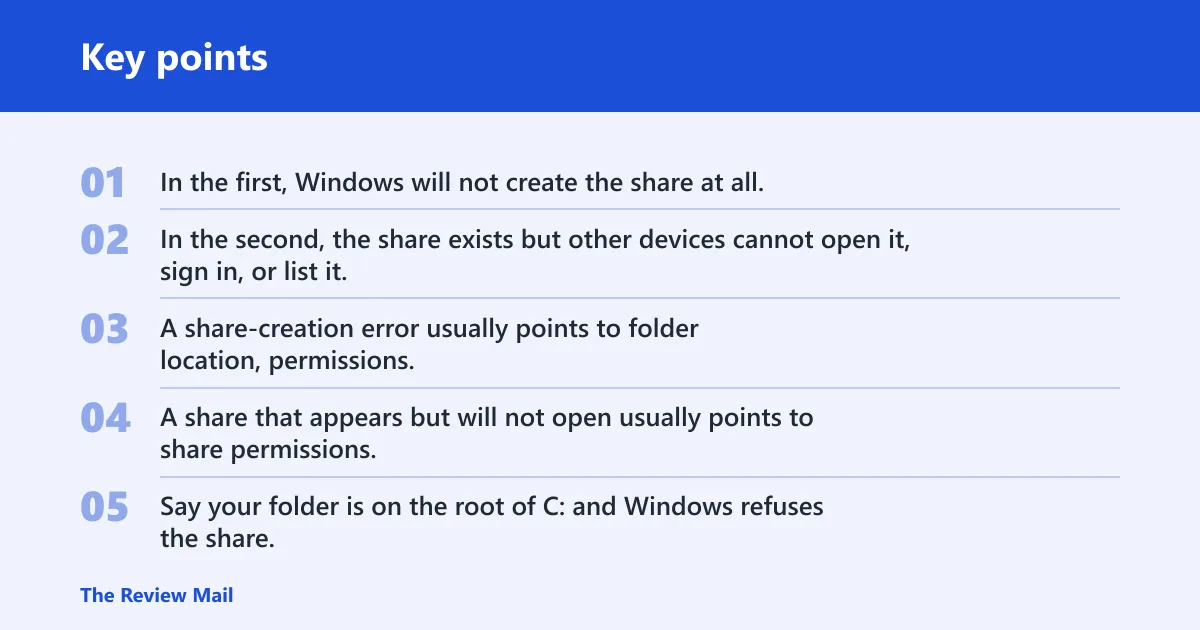
There are two different failures here. In the first, Windows will not create the share at all. In the second, the share exists but other devices cannot open it, sign in, or list it.
That split matters because the fix changes. A share-creation error usually points to folder location, permissions, or a blocked service. A share that appears but will not open usually points to share permissions, NTFS permissions, credentials, discovery, or password settings.
Say your folder is on the root of C: and Windows refuses the share, while a folder inside Documents shares normally. That points to the path, not the network. Suppose the share appears on another PC, but access fails until stored credentials are removed. That points to a stale credential, not a broken share.
Cannot be shared vs shared but inaccessible
Cannot be shared means Windows stops the action during setup. Shared but inaccessible means the share exists, but another device cannot reach it or open it. Treat those as different problems and test them separately.
When the share cannot be created, start with the folder path, permissions, and the sharing dialog. When the share already exists, start with discovery, password settings, services, and credentials.
Which layer usually blocks sharing first?
Start with the layer closest to the failure. If File Explorer will not finish the share setup, check the folder path and permissions first. If the share exists but a second PC cannot connect, check network discovery, file and printer sharing, and saved credentials before changing the folder again.
📊 Windows 11 File Explorer lets you pin a folder to Quick access. Source: Microsoft.
Sharing error matrix
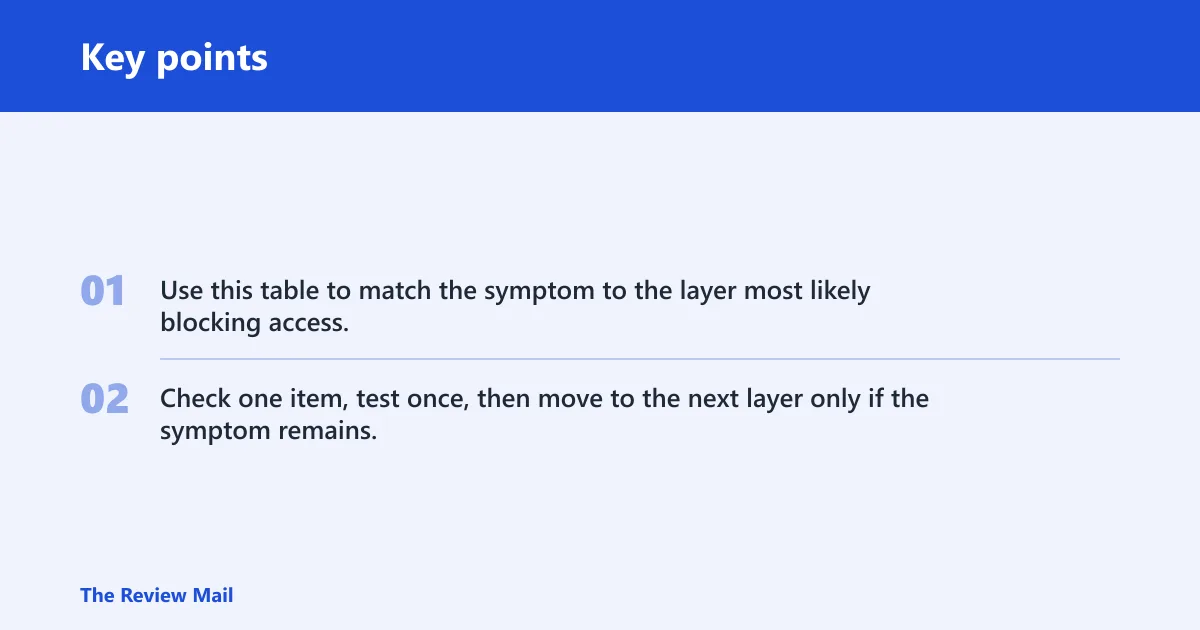
Use this table to match the symptom to the layer most likely blocking access. Check one item, test once, then move to the next layer only if the symptom remains.
| Symptom | Likely cause | Where to check | What to change | How to verify | Risk level |
|---|---|---|---|---|---|
| Windows says the folder cannot be shared | Protected path, share permission conflict, or blocked service | File Explorer, Sharing tab, folder location | Move the folder to a normal data folder and confirm permissions | Sharing finishes and the folder appears in the share list | Low |
| The share exists, but another PC cannot open it | NTFS permissions, share permissions, or stale credentials | Security tab, Advanced Sharing, Credential Manager | Match NTFS access to the share and remove old saved credentials | The other PC opens the share with the intended account | Low |
| The share is visible, but browsing fails | Network Discovery or Function Discovery services are off | Advanced sharing settings, Services | Turn on Network Discovery and set discovery services to Automatic | The share appears in the network list or opens by path | Low |
| Access works for one device but not another | Saved credentials, password policy, or share permissions mismatch | Credential Manager, All Networks, Sharing tab | Remove stale credentials and confirm the right account has access | The failing device connects without repeated prompts or denials | Low |
| Access fails after security software changes | Firewall rule or antivirus scanning interference | Windows Security, security software settings | Temporarily test with protection unchanged except for the share path if needed | Access returns while the share remains normal after the test | Medium |
| Older guides mention SMB1 | Outdated sharing advice | Windows features and network setup | Use current sharing settings instead of enabling SMB1 unless a legacy device truly requires it | Sharing works with current Windows devices without SMB1 | Medium |
How do you check Advanced Sharing settings?
Open the folder in File Explorer, go to the Sharing tab, and open Advanced Sharing to confirm Share this folder and its Permissions. In Windows 11, File Explorer opens with the Windows logo key + E, and you can also select it from the taskbar or Start menu.
Open the folder in File Explorer
Use File Explorer to reach the folder directly. Windows 11 File Explorer uses a shorter context menu, and you can still reach the older Windows 10 menu through Show more options if a guide points there.
Windows 11 Home and Quick access include six known folders by default: Desktop, Documents, Downloads, Pictures, Music, and Videos. Use those locations when possible before moving files to a protected path. (Microsoft Support)
Use the sharing tab and Advanced sharing
- Open File Explorer.
- Right-click the folder.
- Select Show more options if needed.
- Open Properties.
- Select the Sharing tab.
- Open Advanced Sharing.
- Check Share this folder.
- Open Permissions and confirm the account or group has the right access.
If the folder is inside a system folder, on a drive root, or in a location managed by OneDrive, Windows may treat it differently from a normal data folder. Move it to a standard folder location if sharing keeps failing for no clear reason.
Confirm Share this folder and Permissions
The share must exist and the share permissions must allow access. If the share permissions allow access but the Security tab does not, the share can still fail for another user. Check both layers together.
Are permissions blocking the share?
Yes, and this is one of the most common causes. Windows uses sharing permissions and NTFS Security tab permissions together, so the user needs access in both places. A folder can look shared and still be blocked by the file system.
Review Sharing permissions
In Advanced Sharing, open Permissions and confirm the intended user or group has the needed access. If everyone on the local network should read files, read access may be enough. If the user must add or change files, the share needs broader rights.
Review NTFS Security tab permissions
Open the folder Properties, then the Security tab. NTFS permissions are separate from share permissions, and they can require Read or Full Control depending on the task. If Security is too restrictive, the share still fails even when the Sharing tab looks correct.
Check for protected locations and OneDrive-managed folders
Folders in protected locations can behave differently from ordinary folders. Drive roots, system folders, and OneDrive-managed paths often create extra permission or sync issues. If the folder sits in one of those places, move it to a regular local folder and test again.
Do network settings block access?
Yes. If the share exists but another device cannot find or open it, check the network profile and the discovery settings first. Network Discovery works with private network profiles, and File and Printer Sharing must be enabled for shared folders to be reachable on the local network.
Turn on network Discovery
Open Settings, then Network & internet, and confirm the network is set to Private when appropriate. Then open Advanced sharing settings and turn on Network Discovery. If the PC is on a public profile, local browsing is often restricted.
Enable File and printer sharing
In Advanced sharing settings, turn on File and printer sharing. This setting controls whether other devices on the network can access shared folders. If it is off, the share may exist but remain unreachable.
Check Password Protected Sharing on trusted networks
Password Protected Sharing sits in the All Networks section. On a trusted home network, turning it off can make access easier for simple local sharing. On mixed or less trusted networks, keep it on and use a named account instead.
Set the network profile to Private
A private profile is the right choice for a home or trusted office network. It allows discovery features that are commonly blocked on public networks. If Windows set the network to Public, switch it to Private before changing anything else.
Services and credentials that break sharing
Some shares fail because the background services that publish or locate them are not running. Others fail because Windows is using old saved credentials for the target computer. Check both before assuming the share itself is broken.
Set Function discovery Provider Host to Automatic
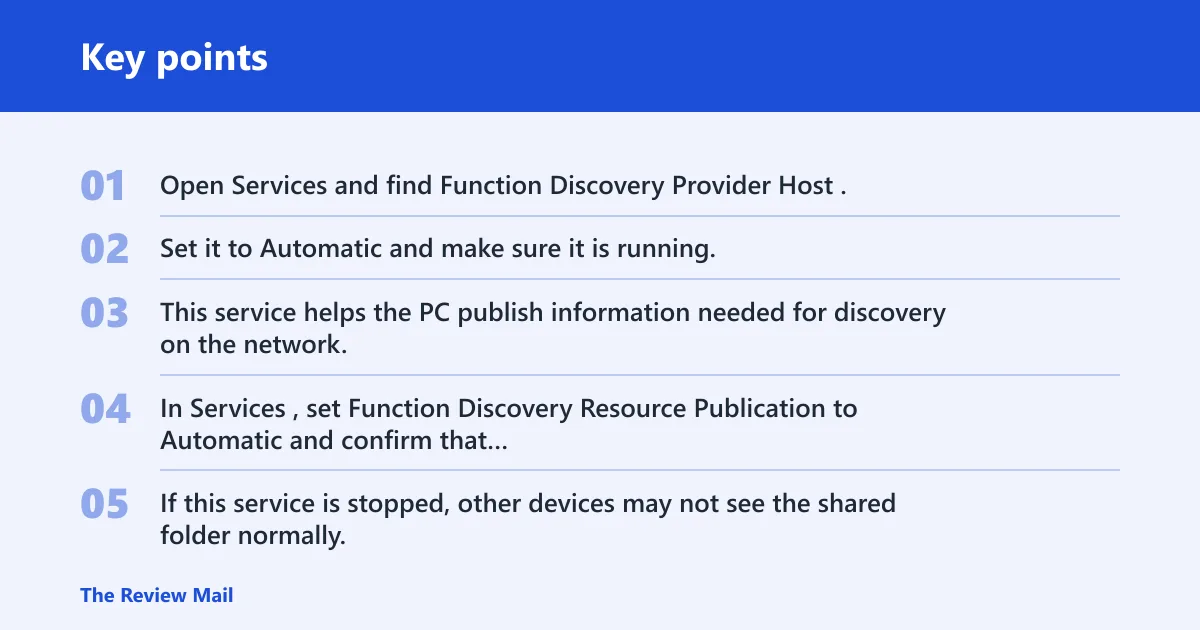
Open Services and find Function Discovery Provider Host. Set it to Automatic and make sure it is running. This service helps the PC publish information needed for discovery on the network.
Set Function Discovery Resource Publication to Automatic
In Services, set Function Discovery Resource Publication to Automatic and confirm that it is running. If this service is stopped, other devices may not see the shared folder normally.
Confirm Server and Workstation services are running
Server and Workstation are required Windows services for shared folder access. Confirm both are running. On a work-managed PC, service startup changes may be limited by policy, so the setting may not stick without administrator control.
Clear stale entries in Credential Manager
Open Credential Manager and remove saved entries for the target PC if the share is asking for the wrong account, rejecting a known-good password, or opening for one user but not another. Stale credentials often cause access errors after the share itself was fixed.
Picture a laptop that can see the share name, but access fails until the stored credentials for that computer are removed. The share was never the problem. The old login was.
Test security software interference carefully
Firewall rules or antivirus behavior can interfere with local sharing. Windows Security exclusions can exclude a shared folder from scanning, but that should not be the first fix. Use it only after the share, permissions, services, and discovery settings are correct and the folder still fails.
If you test security software, change one thing at a time and verify access immediately after the test. Do not leave a weaker security setting in place unless the folder truly needs it and the risk is understood.
Frequently asked questions
Why can’t I share a folder in Windows 11?
Windows 11 usually blocks sharing because the folder location, share permissions, NTFS permissions, a required service, or security software is interfering. Start with the exact failure point. If Windows will not create the share, check the folder path and permissions first. If the share exists but cannot be opened, check discovery and credentials.
How do I fix “folder cannot be shared” in Windows 11?
Open the folder in File Explorer, go to Sharing, then Advanced Sharing, and confirm Share this folder and Permissions. Then check the Security tab, Network Discovery, File and Printer Sharing, and saved credentials. Test after each change so you know which layer fixed the problem.
What settings block shared folders on Windows 11?
The usual blockers are NTFS Security tab permissions, share permissions, Network Discovery, File and Printer Sharing, Password Protected Sharing, and the Function Discovery or Server services. A private network profile matters too. If the folder is in a protected path or OneDrive-managed location, move it before changing more settings.
Does antivirus cause folder sharing problems in Windows?
It can, but that is not the first place to look. Security software may block access, scan the folder too aggressively, or interfere with local sharing traffic. Check permissions and services first. If those are correct, test security software carefully before adding any Windows Security exclusion.
Should I disable password protected sharing to fix folder sharing?
Only on a trusted network where you understand the access tradeoff. Password Protected Sharing is in the All Networks section. Turning it off can make local sharing easier, but a safer approach is to keep it on and use the correct credentials unless the network is clearly trusted.
How do I fix Windows 11 shared folder access without SMB1?
Use current Windows 11 sharing settings instead of enabling SMB1. Confirm share permissions, NTFS permissions, Network Discovery, File and Printer Sharing, and the discovery services. If a legacy device still needs SMB1, treat that as a compatibility exception, not the normal fix for current Windows 11 devices.