
Limited Connection Wifi Problem
For a Windows limited-connection Wi‑Fi problem, match the symptom to the failing layer: no IP usually means DHCP, internet fails on some sites means DNS, one device only points to the adapter, and multiple devices suggest the router. Fixing the wrong layer wastes time and can leave you stuck on captive portals, stale DNS, or a router that keeps dropping every device. This guide gives you a Windows-first decision tree and the exact order for DHCP, DNS, adapter, and router checks.
What limited connection means
Limited connection means the device has a Wi‑Fi link to the router or modem but cannot reach the internet. That is different from slow Wi‑Fi, which still loads pages and apps, just more slowly. It is also different from a captive portal, where the network expects a sign-in before internet access starts.
On Windows, the symptom often shows up as connected Wi‑Fi with a warning, a “limited” label, or pages that fail while the wireless icon still looks normal. Some apps may still work briefly if they already have cached data, but that does not mean the connection is healthy.
Limited connection wifi problem matrix
| Symptom | Most likely failure layer | First test | Next Windows command or setting |
|---|---|---|---|
| Connected but no internet | DNS or router upstream | Open a site by IP, then try a normal domain name | ipconfig /flushdns, then set DNS to 8.8.8.8 and 8.8.4.4 |
| Limited access | DHCP lease failure | Check whether Windows has a valid IP address | ipconfig /release, then renew the lease and, if needed, netsh int ip reset |
| One device only | Adapter, saved profile, or power setting | Compare the same SSID on another device | Disable and re-enable the adapter, then forget the Wi‑Fi profile |
| 2.4 GHz only | Band-specific Wi‑Fi or router radio issue | Switch between 2.4 GHz and 5 GHz SSIDs | Reconnect to the other SSID, then check adapter power management |
Say your laptop joins the home network, but every browser stops at “server not found” while a streaming app still opens its home screen. That pattern leans toward DNS, not Wi‑Fi radio failure. Now change only one thing: test a known-good domain after flushing DNS, before touching the router.
Is it only one device?
If one Windows device shows a limited connection while other devices on the same Wi‑Fi work, start with the adapter, saved profile, or Windows networking stack. If every device on that SSID fails, the router, modem, or upstream connection moves higher on the list. That split saves time.
Check the SSID, band, and device scope
- Connect a second device to the same SSID.
- Test both 2.4 GHz and 5 GHz separately if the router exposes both names.
- Note whether the failure follows the device or stays with the network.
- If only one PC fails, move to adapter and Windows checks before router work.
A common first-timer mistake is treating “the Wi‑Fi is bad” as one single problem. A Windows laptop can fail on one SSID while a phone works, or it can fail only on the 2.4 GHz name while the 5 GHz name stays healthy. Those are different layers.
Check the router and modem
If several devices lose access at the same time, the router or modem may be the source. Limited connection can mean the router is not passing traffic upstream even though it still advertises Wi‑Fi. TechCult describes this as a communication problem between the system and the router.
Power cycle in the right order
- Turn off the modem and router.
- Wait a short moment for them to fully stop.
- Turn on the modem first.
- Wait until the modem shows a normal upstream state.
- Turn on the router after that.
- Reconnect the Windows PC and retest.
Check the modem lights or the router admin page for an upstream fault if all devices fail. If the modem has no internet from the provider side, Windows fixes will not restore service. In that case, the real failure is outside the PC.
Is Windows failing to get a valid IP?
When Windows cannot get a valid IP address from the router, the device often lands in a limited state. DHCP handles dynamic IP assignment, so a failed lease request or unanswered request can stop full access even though Wi‑Fi stays connected. EPB describes limited connection this way.
An IP address is the address the router or server assigns so the device can communicate on the network. If that assignment fails, Windows may fall back to an automatic private address, which is a sign that the normal lease process did not complete.
When to use renew and reset commands
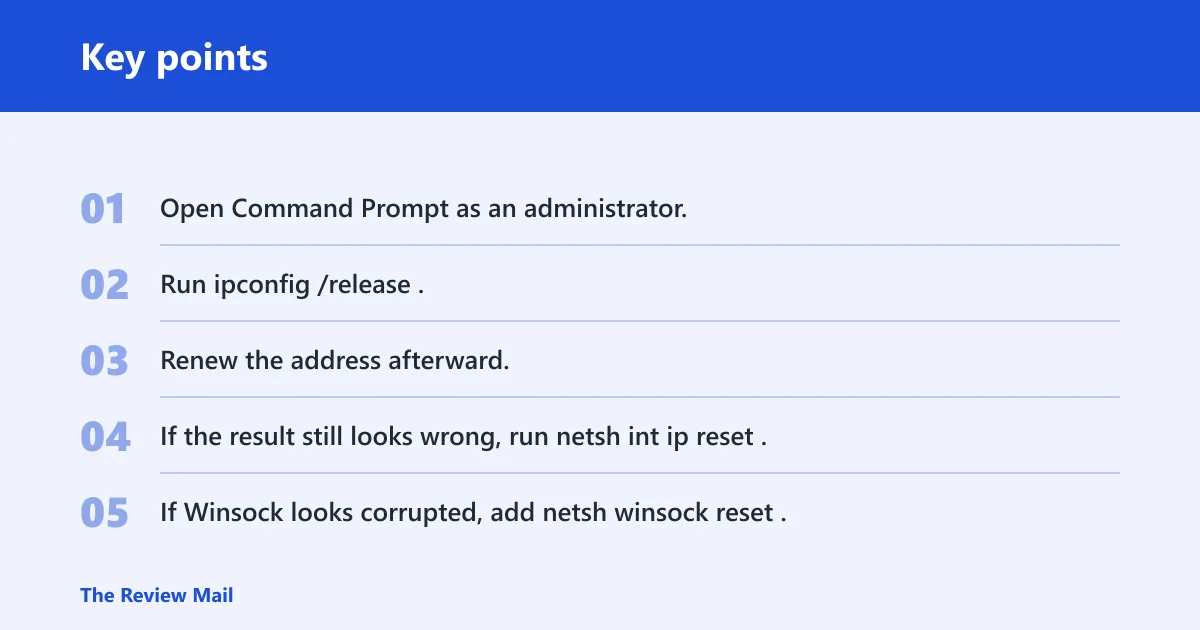
- Open Command Prompt as an administrator.
- Run
ipconfig /release. - Renew the address afterward.
- If the result still looks wrong, run
netsh int ip reset. - If Winsock looks corrupted, add
netsh winsock reset.
Use this branch when Windows says limited access, when the adapter has no proper gateway, or when the address looks self-assigned instead of router-assigned. A dynamic lease problem is different from a DNS problem, so do not jump straight to DNS changes if the PC has no valid IP at all.
Fix DNS and the TCP/IP stack
Use this branch when Wi‑Fi is connected but web pages fail by name, while some direct connections or cached services still work. DNS resolves domain names into addresses, so a broken DNS path can leave the wireless link intact and still make the internet feel absent. That is why pages fail even though the icon looks normal.

Windows commands for DNS and stack repair
- Open an elevated Command Prompt.
- Run
ipconfig /flushdns. - If the problem remains, set the adapter’s DNS servers to 8.8.8.8 and 8.8.4.4 for a test.
- If the issue still persists, run
netsh int ip reset. - Follow with
netsh winsock resetif Windows networking still misbehaves.
TechCult includes ipconfig /flushdns, netsh int ip reset, and netsh winsock reset in its limited-connectivity repair sequence. Use them for the symptom they fit: DNS for name resolution failures, and TCP/IP or Winsock reset for deeper Windows stack faults.
Repair the Wi‑Fi adapter and SSID
If only one Windows device fails, the adapter or saved profile is a strong suspect. Disable and re-enable the wireless adapter first. Then check power management, because Windows can save power by putting the adapter into a lighter state that causes unstable connectivity.
Adapter and profile checks
- Open Device Manager and disable the wireless adapter.
- Enable it again and reconnect.
- Check the adapter’s power management tab.
- Set the adapter to Maximum Performance on battery and plugged in, as TechCult recommends.
- Forget the Wi‑Fi network in Windows, then reconnect to the SSID.
That last step matters when a saved profile has stale authentication or stale band preferences. The same source suggests forgetting the network before reconnecting. Use it when the laptop joins the SSID but keeps failing while other devices on the same Wi‑Fi continue to work.
Run Windows network Troubleshooter
The Windows Network Troubleshooter is a good middle step after the obvious checks and before deeper command-line repair. It can inspect the adapter, basic routing, and some network settings. It will not fix every failure, but it often points you to the right layer.
Where it fits in the sequence
Run it after confirming whether the issue is one device or the whole network. If it suggests DHCP, adapter, or gateway problems, follow that branch instead of repeating generic restarts. If it finishes without finding anything useful, move on to the IP, DNS, or router checks already mapped above.
Picture a desktop PC that connects to a dual-band router only on 2.4 GHz, while a phone on 5 GHz works fine. The troubleshooter may not identify the band split on its own, but the symptom tells you to compare SSIDs before changing DNS or resetting the whole stack.
Frequently asked questions
Why does my Wi‑Fi say limited connection?
It usually means Windows is connected to the router or modem but not reaching the internet. The usual causes are a failed DHCP lease, a DNS problem, an adapter fault, or a router-side issue. The right fix depends on which layer is failing, not on the warning text alone.
Why is my Wi‑Fi showing limited connection?
Windows shows this when the device has a wireless link but cannot complete normal network access. If one device is affected, check the adapter and saved Wi‑Fi profile first. If several devices fail, inspect the router, modem, and upstream service before changing Windows settings.
How do I fix the limited Wi‑Fi connection problem?
Start by deciding whether the failure is device-only or network-wide. Then match the symptom to the layer: DHCP for missing IP access, DNS for sites that fail by name, adapter problems for one PC only, and router issues when every device is affected.
How do I solve a Wi‑Fi limited connection problem?
Use a fixed order: test another device, check the router, renew the IP address, flush DNS, reset the TCP/IP stack, repair the adapter, and reconnect the SSID. That sequence avoids random changes and keeps you from using a DNS fix on a DHCP problem.
Why my Wi‑Fi says limited connection but other devices work?
That pattern usually points to the Windows device, not the router. Check the wireless adapter, power management settings, saved profile, and the local IP address first. If the same SSID works on another device, the router is less likely to be the source.
How do I fix limited Wi‑Fi connection problem in Windows?
In Windows, begin with the built-in troubleshooter, then check whether the device has a valid IP address. If not, renew the lease and reset the stack. If pages fail only by name, flush DNS and test Google DNS with 8.8.8.8 and 8.8.4.4.