Can’t Turn on Hotspot Windows 11: Fixes That Work
If Windows 11 hotspot won’t turn on, check Airplane mode, Wi‑Fi, and the Windows Mobile Hotspot Service first. If it turns on but devices can’t connect, check the sharing source and band settings in the hotspot stack. If the adapter is missing, reinstall the wireless driver. Using the wrong failure mode wastes time and can leave every nearby device offline.
Won’t turn
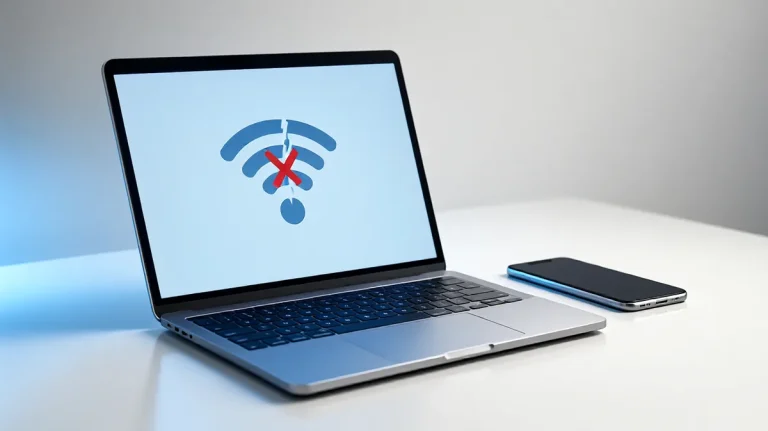
A grayed-out toggle or a “We can’t set up Mobile Hotspot” message usually means Windows can’t bring up the hotspot yet. Start with the smallest fixes first: confirm Wi‑Fi is on, turn off Airplane mode, and make sure Windows Mobile Hotspot Service is running. If that fails, check the shared adapter and driver state next.
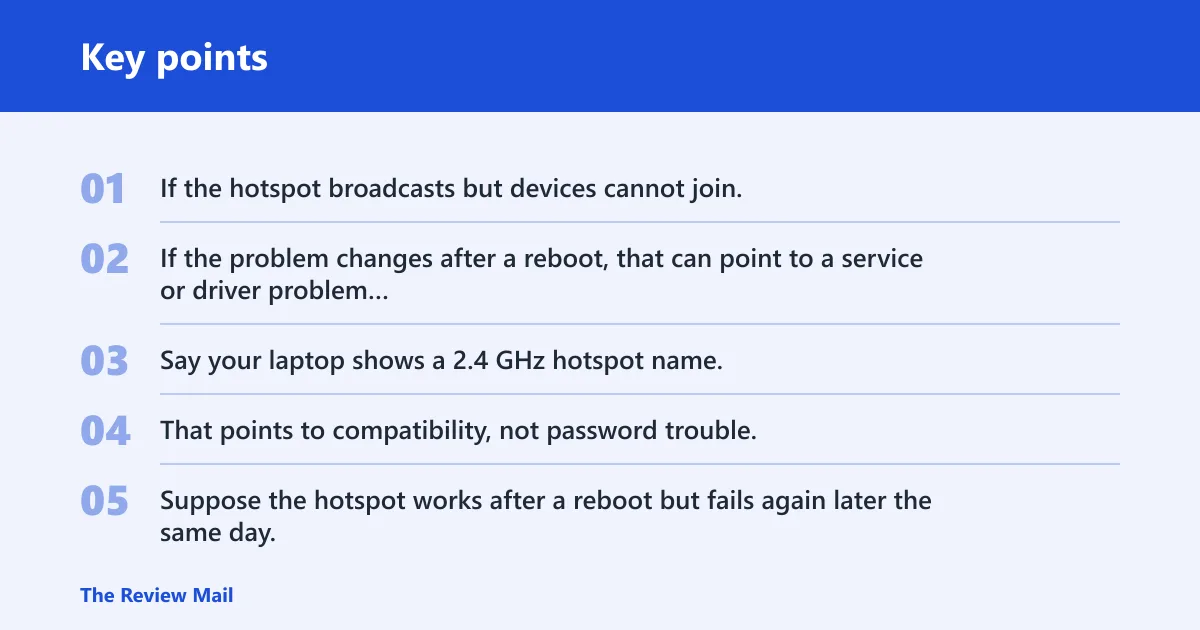
If the hotspot broadcasts but devices cannot join, the issue is usually band compatibility, sharing settings, or a bad adapter state. If the problem changes after a reboot, that can point to a service or driver problem that returns later.
Say your laptop shows a 2.4 GHz hotspot name, but a 2019 phone never sees it until you switch bands. That points to compatibility, not password trouble. Suppose the hotspot works after a reboot but fails again later the same day. That pattern often means a service or driver state is being disturbed after Windows loads.
Turns on but devices can’t connect
If the hotspot is broadcasting but phones, tablets, or consoles cannot join, treat it as a connectivity problem rather than a startup problem. Start with the band, then verify Internet Connection Sharing and the source adapter in the Sharing tab. If clients connect but never get an IP address, reapply sharing and confirm the adapter properties are correct.
Adapter missing
If the wireless adapter is missing or disabled, work from Device Manager first. Show hidden devices, re-enable any disabled adapter, and reinstall the Wi‑Fi driver from the device maker if needed. An absent adapter often explains setup failures and recurring dropouts.
Likely causes
Most often, the problem starts with the Windows Mobile Hotspot Service, Internet Connection Sharing, or the Wi‑Fi driver. Less commonly, the wireless adapter is hidden, disabled, or missing. Band choice and a recent Windows update are the next things to rule out.
| Symptom | Most likely cause | First fix |
|---|---|---|
| Mobile hotspot toggle is grayed out | Windows Mobile Hotspot Service is stopped | Open services.msc and start or restart Windows Mobile Hotspot Service |
| “We can’t set up Mobile Hotspot” appears | Internet Connection Sharing is disabled or mis-set | Check the Sharing tab and re-enable sharing |
| Hotspot turns on, but no device connects | Band mismatch or sharing source issue | Switch to 2.4 GHz and confirm the shared adapter |
| Wireless adapter is missing | Driver or adapter problem | Show hidden devices in Device Manager and reinstall the Wi‑Fi driver |
| Hotspot works only after reboot | Service or driver state issue | Restart the PC, then recheck the service and adapter settings |
| Failure started right after Windows Update | Recent update changed networking behavior | Open Windows Update history and uninstall the latest update |
| Hotspot says it is on, but the phone never gets an IP | Adapter sharing did not apply | Uncheck and recheck sharing in the adapter properties |
| One device connects, another cannot | Older client does not like the band in use | Set the band to 2.4 GHz |
Can you turn on hotspot without internet?
Only in a limited sense. Windows Mobile Hotspot can turn on when the PC has a shared network path available, but it is not a substitute for an internet source. If the PC has no active connection to share, the hotspot may broadcast its SSID without giving clients usable internet, so check whether there is anything valid to share before troubleshooting deeper.
- Open Settings > Network & internet > Mobile hotspot. Windows lets you share your internet connection by turning your device into a mobile hotspot there.
- Under Share my internet connection from, choose the internet connection you want to share.
- Under Share over, choose how you want to share your connection—over Wi‑Fi or Bluetooth.
- If the toggle still fails, move to the service and sharing checks below.
Start the hotspot service
The Windows Mobile Hotspot Service should be running before the toggle behaves normally. If it is stopped, the hotspot may not start at all, or it may fail with a setup message. Start or restart it from services.msc before trying deeper changes.
- Press Windows + R, type
services.msc, and press Enter. - Find Windows Mobile Hotspot Service.
- Right-click it and choose Start or Restart.
Check internet connection Sharing
Internet Connection Sharing can block setup if it is off, pointed at the wrong adapter, or left in a bad state. The Sharing tab lets you allow other network users to connect through this computer’s internet connection. If needed, uncheck it and check it again so Windows applies the setting cleanly.
- Open Settings > Network & internet > Advanced network settings.
- Select More network adapter options.
- Right-click the adapter that has internet access and open Properties.
- Open the Sharing tab.
- Check Allow other network users to connect through this computer’s Internet connection.
- If it is already checked, clear it, select OK, then return and check it again.
Fix the adapter and driver
If the wireless driver is stale or damaged, the hotspot may fail even when the settings look correct. Start with the OEM driver page for the laptop or motherboard, then reinstall from there if needed.
- Open Device Manager.
- Expand Network adapters.
- Look for the wireless adapter. If it is hidden, use View > Show hidden devices.
- If the adapter appears disabled, right-click it and choose Enable device.
- If it is missing or has a warning icon, right-click the Wi‑Fi adapter and choose Update driver or Uninstall device, then reinstall from the OEM support page.
- After reinstalling, return to Settings > Network & internet > Mobile hotspot and test again.
Still not working?
If the hotspot still fails after services, sharing, and drivers, move to a network reset only then. A network reset reinstalls network adapters and returns networking components to default settings, and it can remove saved Wi‑Fi networks, passwords, and VPN connections. Because it is disruptive, use it after the smaller fixes fail.
- Try 2.4 GHz if you are connecting older phones, consoles, or cheaper adapters.
- Open Settings > Network & internet > Advanced network settings > Network reset.
- Use the reset only after the earlier checks fail.
- If the problem began right after patching, open Settings > Windows Update > Update history > Uninstall updates and remove the most recent update.
Prevention: After the hotspot starts working again, keep the Wi‑Fi driver on the OEM support page’s version and recheck the Sharing tab after major Windows updates. That lowers the chance of the same setup failure returning.
Frequently asked questions
Can’t turn on hotspot windows 11
Open services.msc, start Windows Mobile Hotspot Service, then go to Settings > Network & internet > Mobile hotspot and turn it on. If it still will not start, check the Wi‑Fi adapter driver in Device Manager and confirm that sharing is enabled on the active adapter.
How to turn on hotspot in windows 11 without internet
Choose an available adapter under Share my internet connection from even if the PC has no internet of its own. Then confirm the hotspot service is running and the Sharing tab is enabled on the source adapter. If there is no active adapter to share, the hotspot will not have anything usable to broadcast.
Why is my mobile hotspot grayed out on Windows 11?
A grayed-out toggle usually means Windows Mobile Hotspot Service is stopped, disabled, or blocked by a bad adapter state. Start or restart the service in services.msc, then recheck the Wi‑Fi driver and the Sharing tab. If the adapter is missing, address that next in Device Manager.
Why does Windows 11 say we can’t set up mobile hotspot?
That message usually points to a sharing or driver problem before it points to the hotspot toggle itself. Check the Sharing tab on the active adapter, restart Windows Mobile Hotspot Service, and update the Wi‑Fi driver from the OEM support page if needed. A hidden or disabled adapter can cause the same message.
Should I use 2.4 GHz or 5 GHz for Windows 11 hotspot?
Use 2.4 GHz when older phones, game consoles, or cheap adapters refuse to connect. Choose a faster band only when the client device supports it well and the link stays stable. If the hotspot broadcasts but the client never joins, band mismatch is one of the first settings to change.
Does a network reset fix Windows 11 hotspot problems?
It can, but only after the earlier checks fail. A network reset reinstalls network adapters and returns networking components to defaults, while also removing saved Wi‑Fi passwords and VPN configurations. Use it after the service, sharing, driver, and band checks so you do not erase working settings too early.