Windows Vpn Error 807 Fix
VPN error 807 means the network connection between your computer and the VPN server was interrupted. The fastest first check is the VPN protocol, then another server or location, before you touch Windows settings. If the server is up but overloaded, local fixes waste time. This guide separates server-side issues from Windows 10 and 11, firewall, and router causes, then gives the shortest fix path first.
What VPN error 807 means on Windows
On Windows, this code points to a broken VPN session during setup or shortly after it starts. That break can come from the server, the protocol in use, or something on the PC or router blocking the tunnel. The quickest path is to check protocol match first, then local filtering, then router settings, and only then repair Windows components.
A common first-timer mistake is to reboot the laptop repeatedly instead of checking whether the VPN server address is typed correctly. Suppose a built-in Windows VPN connection is set to SSTP, but the VPN service only accepts PPTP. The connection can fail before Windows finishes authentication. In that case, changing the protocol is faster than touching DISM or resetting the network stack.
Most likely causes, in order
- Wrong VPN protocol, especially a PPTP mismatch.
- Windows Firewall blocking the tunnel.
- Third-party antivirus or firewall interference.
- Router VPN passthrough disabled or ports blocked.
- Corrupted Windows networking components or client files.
- VPN server capacity or location issues.
807 triage matrix
| symptom | likely cause | fastest test | next action |
|---|---|---|---|
| Error appears on a free plan, and one server fails while another works | Server capacity or location overload | Switch to a different server or region in the VPN app | If another location connects, stay on that server and stop here |
| Error appears right after selecting a PPTP profile | PPTP port blocking or protocol mismatch | Change the VPN type to another supported protocol or Automatic | If the app supports a different protocol, use it; stop here if that works |
| Built-in Windows VPN fails on one network but works on mobile hotspot | Router passthrough or local router filtering | Connect through a different network path, then compare results | If the alternate network works, check the router next and stop here |
| The VPN works only after security software is closed | Third-party antivirus or firewall interference | Temporarily disable real-time protection or the firewall module for a short test only | If the VPN connects, add an allow rule or remove the blocker and stop here |
| Windows VPN fails on private networks and public Wi-Fi alike | Windows Firewall interference | Test with the VPN allowed through Windows Firewall on both profiles | If the test succeeds, keep the allow rule and stop here |
| Connection fails after a Windows upgrade or sudden system corruption | Broken Windows networking components | Run DISM, then a network reset if needed | If repairs fix the tunnel, stop here and avoid deeper cleanup |
| The VPN app used to work, then stopped after a client update or crash | Corrupted client files | Remove and reinstall the VPN client | If a clean reinstall fails, stop here and contact the provider |
| Only PPTP profiles fail; other VPN types do not | PPTP blocked at the router or server side | Check router VPN passthrough and the PPTP port requirements | If router changes do not help, stop here and ask the provider for supported protocols |
If this fails, stop here: after each row, do not stack every fix at once. Move to the next row only if that test does not change the result.
Wrong protocol or PPTP mismatch
PPTP is the protocol most often tied to this error, and it is obsolete and insecure compared with newer options. It may need port 1723 plus GRE protocol 47, so a mismatch between the selected protocol and the server’s settings can stop the tunnel before it forms. For built-in Windows VPN, check the profile properties. For a third-party app, check the protocol list inside the app.
- Open Settings > Network & internet > VPN, select the connection, then choose Advanced options or Edit.
- In the VPN properties, confirm the connection type. If PPTP is selected and the provider supports another protocol, change it to Automatic or a supported non-PPTP option.
- Save the change, disconnect, and try the connection again.
- If the VPN app has its own protocol menu, switch protocols there instead of changing Windows settings.
If this fails, stop here: do not keep toggling protocol choices on a server that only supports one tunnel type.
Windows Firewall or antivirus?
Windows Firewall can block VPN traffic, and third-party security suites can do the same. Keep the test narrow. If the VPN fails under normal conditions, check whether it is allowed through Windows Firewall on both private and public networks. If that does not change anything, check whether the third-party suite is affecting things separately.
- Open Windows Security > Firewall & network protection.
- Select the active network profile, then verify that Windows Defender Firewall is on for normal use.
- Go to Allow an app through firewall and confirm the VPN app is allowed on Private and Public networks.
- If needed for a short test, turn off only the active profile long enough to retry the VPN, then turn it back on immediately.
- If the VPN connects with Windows Firewall off, restore the firewall and add the allow rule instead of leaving protection disabled.
- If you use third-party antivirus or firewall software, pause its real-time protection for a short test only, then retry the VPN.
If this fails, stop here: do not leave the firewall off; move on only after restoring protection.
Router passthrough and ports
Router-side VPN passthrough can block PPTP traffic even when Windows is set correctly. For PPTP, the router may need port 1723 open and protocol 47 GRE enabled. That usually requires router admin access. If you do not have that access, stop and ask the person who manages the router.
- Sign in to the router admin page using the router’s management address.
- Look for VPN passthrough, then enable it if it is off.
- Check the firewall or advanced rules for PPTP support, including port 1723 and GRE protocol 47.
- Save the changes and restart the router.
- Reconnect the VPN from Windows after the router is back online.
If this fails, stop here: if the router has no passthrough option or the admin page is locked down, move to software repair instead of guessing at ports.
When Windows components need repair
Repair tools make sense when the problem follows a failed upgrade, a broken network stack, or other signs of Windows component damage. Appuals lists DISM as a fix for corruption affecting VPN functionality on Windows 7, 8, or 10, and the same logic can apply on Windows 11 when networking components look broken. Use this after the simpler network and protocol checks above.
- Open an elevated Command Prompt or Windows Terminal.
- Run the repair sequence below, then restart the PC.
- If the VPN still fails, use Settings > Network & internet > Advanced network settings > Network reset.
- After the reset, reconnect the VPN and retest the same server or profile.
DISM /Online /Cleanup-Image /RestoreHealth
ipconfig /release
ipconfig /flushdns
ipconfig /renew
netsh winsock reset
netsh int ip reset
If this fails, stop here: if DISM reports no fixable component damage and the reset changes nothing, the issue is less likely to be Windows corruption.
VPN 807
This checklist keeps the order fairly tight. Start at the top, stop when the test points to a cause, and do not skip ahead unless the step has no effect.
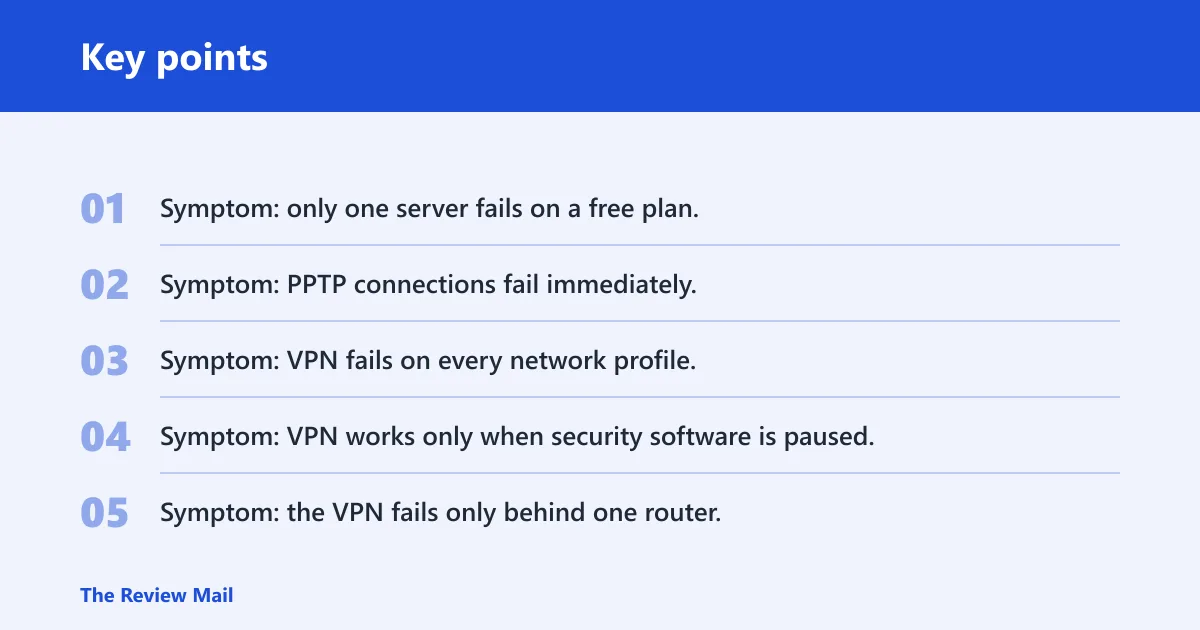
- Symptom: only one server fails on a free plan. Likely cause: server capacity. Fastest test: switch to another server or location. Next action: stay on the working location. If this fails, stop here: the issue is probably not capacity.
- Symptom: PPTP connections fail immediately. Likely cause: PPTP port blocking. Fastest test: change to a supported non-PPTP protocol or Automatic. Next action: keep the working protocol. If this fails, stop here: move to firewall checks.
- Symptom: VPN fails on every network profile. Likely cause: Windows Firewall interference. Fastest test: allow the VPN through private and public networks. Next action: save the allow rule. If this fails, stop here: the block is elsewhere.
- Symptom: VPN works only when security software is paused. Likely cause: third-party AV interference. Fastest test: pause real-time protection briefly. Next action: add an exception or remove the filter. If this fails, stop here: the cause is likely not the AV suite.
- Symptom: the VPN fails only behind one router. Likely cause: router passthrough disabled. Fastest test: enable VPN passthrough and restart the router. Next action: keep that router setting on. If this fails, stop here: the router is probably not the only problem.
- Symptom: the error started after a failed upgrade or corruption event. Likely cause: broken Windows networking components. Fastest test: run DISM. Next action: follow with network reset if needed. If this fails, stop here: look at the client itself.
- Symptom: the app crashes or reconnects poorly after an update. Likely cause: broken client files. Fastest test: reinstall the VPN client. Next action: sign in again and retest. If this fails, stop here: contact the VPN provider.
- Symptom: built-in Windows VPN settings look correct, but the tunnel still drops. Likely cause: wrong protocol selection or a server-side limit. Fastest test: change protocol first, then switch servers. Next action: keep the path that works. If this fails, stop here: report the exact profile and timing.
Still not working?
If the problem survives protocol changes, firewall checks, router passthrough, DISM, and a clean reinstall, the next step is vendor support or your network admin. Reinstalling the VPN client is the last local fix because it removes broken local components without guessing at settings that already failed.
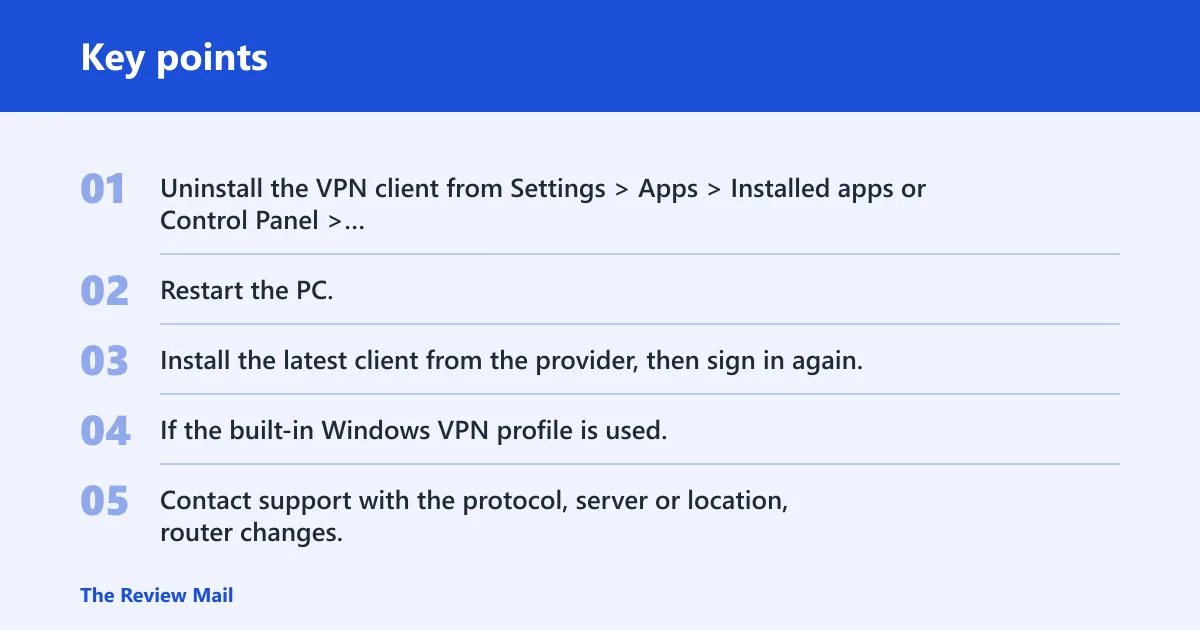
- Uninstall the VPN client from Settings > Apps > Installed apps or Control Panel > Programs and Features.
- Restart the PC.
- Install the latest client from the provider, then sign in again.
- If the built-in Windows VPN profile is used, remove and recreate the connection with the correct protocol.
- Contact support with the protocol, server or location, router changes, firewall test result, and the exact time the failure happens.
Prevention: keep the VPN profile set to the protocol your provider supports, and document any router or firewall rule changes so you can undo them quickly if the connection breaks again.
Frequently asked questions
What does VPN error 807 mean on Windows?
It usually means the VPN tunnel could not stay connected long enough to complete the session. Start with the protocol, then the server, then local filters. If you are using a built-in Windows connection, check the VPN properties first. If you are using an app, check the app’s protocol setting instead.
How do I fix VPN error 807 on Windows 10 or Windows 11?
Begin with a different VPN server or location, then confirm the protocol is correct. After that, test Windows Firewall on the active profile, then check any third-party security suite, then router passthrough. If none of those change anything, run DISM and a network reset before reinstalling the client.
Why does my VPN say the network connection was interrupted?
That message points to the tunnel dropping before it finishes. The cause can be the VPN server, protocol mismatch, firewall filtering, router passthrough, or broken Windows networking files. The fastest way to narrow it down is to change one variable at a time and stop when the connection succeeds.
Can a firewall cause VPN error 807?
Yes. Windows Firewall can block VPN traffic, and a third-party firewall or antivirus suite can block the same ports. Test the VPN only after allowing it on private and public networks in Windows, then pause the third-party suite briefly if needed. Restore protection right after the test.
Does VPN error 807 happen when a server is full?
It can. Server capacity is one possible branch, especially with free plans or a busy region. Test that by switching to another server or location first. If another server works, the fix is to stay on that one or try a quieter region instead of changing Windows settings.
Will reinstalling the VPN client fix error 807?
It can, but it should be the last local step. Reinstalling helps when the app’s files or settings are broken. If the same error happens after a clean reinstall, the issue is more likely to be protocol selection, firewall rules, router passthrough, or a server-side problem.